DayZ Badlands PC Settings: Keep Nasdara Readable
Try a modest graphics shortlist for DayZ Badlands on Windows, keep visibility choices deliberate, and choose a useful next step for persistent trouble.
In this article
Keep a view you’re happy to play with, then make a smaller graphics compromise. For DayZ Badlands, our starting recommendation is native output resolution and a short effects trial, leaving your acceptable visibility and detail choices alone initially. An all-low preset makes several decisions for you before you’ve judged any of them.
Badlands arrived on October 15, 2026 with Update 1.30. Nasdara brings desert plains, mountains and settlements: a useful picture matters across more than one kind of view. This guide favors readable surroundings and understandable changes over a promised frame-rate number.
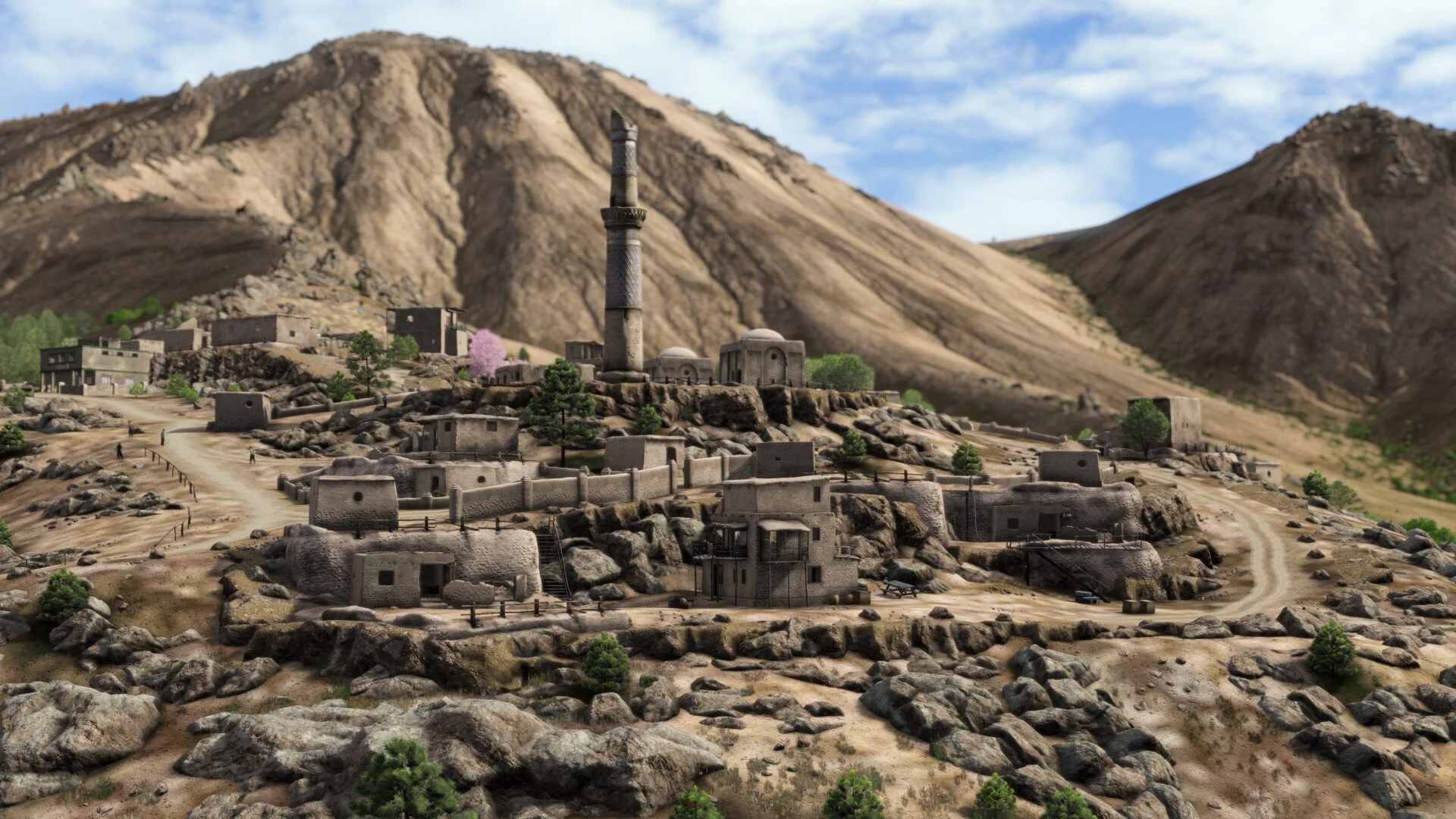
Start with a small effects trial
Where available · trial individually
- Shadow Detail
- Medium
- Hardware Antialiasing
- Low
- Ambient Occlusion
- Low
- Postprocess Quality
- Low
The names and values draw on a June 2025 menu screenshot and Bohemia’s 1.30 Experimental implementation, not a retail launch capture. Hone hasn’t benchmarked an optimized Badlands preset.
Use your display’s native resolution initially. Keep the rest of the picture familiar while you decide whether a change is worthwhile. These are modest trial values, not a ranking of which effect costs the most frames. If your current choice is already lower, raising it is a visual experiment rather than an FPS fix.
If you dislike the compromise and can’t establish a useful improvement, restore it. You don’t owe a setting a permanent place merely because a guide suggested trying it.
The inspected Windows V-Sync choices are Disabled and Enabled. Choose by tearing preference; we haven’t measured their latency.
Keep visibility and detail as separate decisions
Terrain Visibility, Object Visibility and Object Detail are separate controls in the inspected menu evidence. Avoid reducing all three together.
Keep your current acceptable choices first. If you investigate this part of the picture, move one control at a time: you can accept one compromise without committing to the others. This guide supplies no verified distances or guaranteed player-visibility advantage.
Hands on · availability schematic
One switch closes another branch
Available · unchecked.
Hardware Antialiasing and Postprocess Antialiasing are separate. Disabling hardware AA makes Foliage Smoothing unavailable in the inspected implementation.
1.30 Experimental illustration; retail behavior unverified. These aren't game defaults. This doesn't change DayZ or preview its image.
For a survival game, I’d rather make a deliberate compromise than inherit somebody else’s most stripped-down view. If the view you like remains too slow, a further reduction can be reasonable; preserving detail isn’t free just because it’s our preference.
Judge an open view and a settlement
Choose a short route you can return to, with an open view and a settlement as visual checkpoints. They give you two places to judge the picture; neither is a proven worst-case performance test. Use the same camera direction when deciding whether a change still looks acceptable.
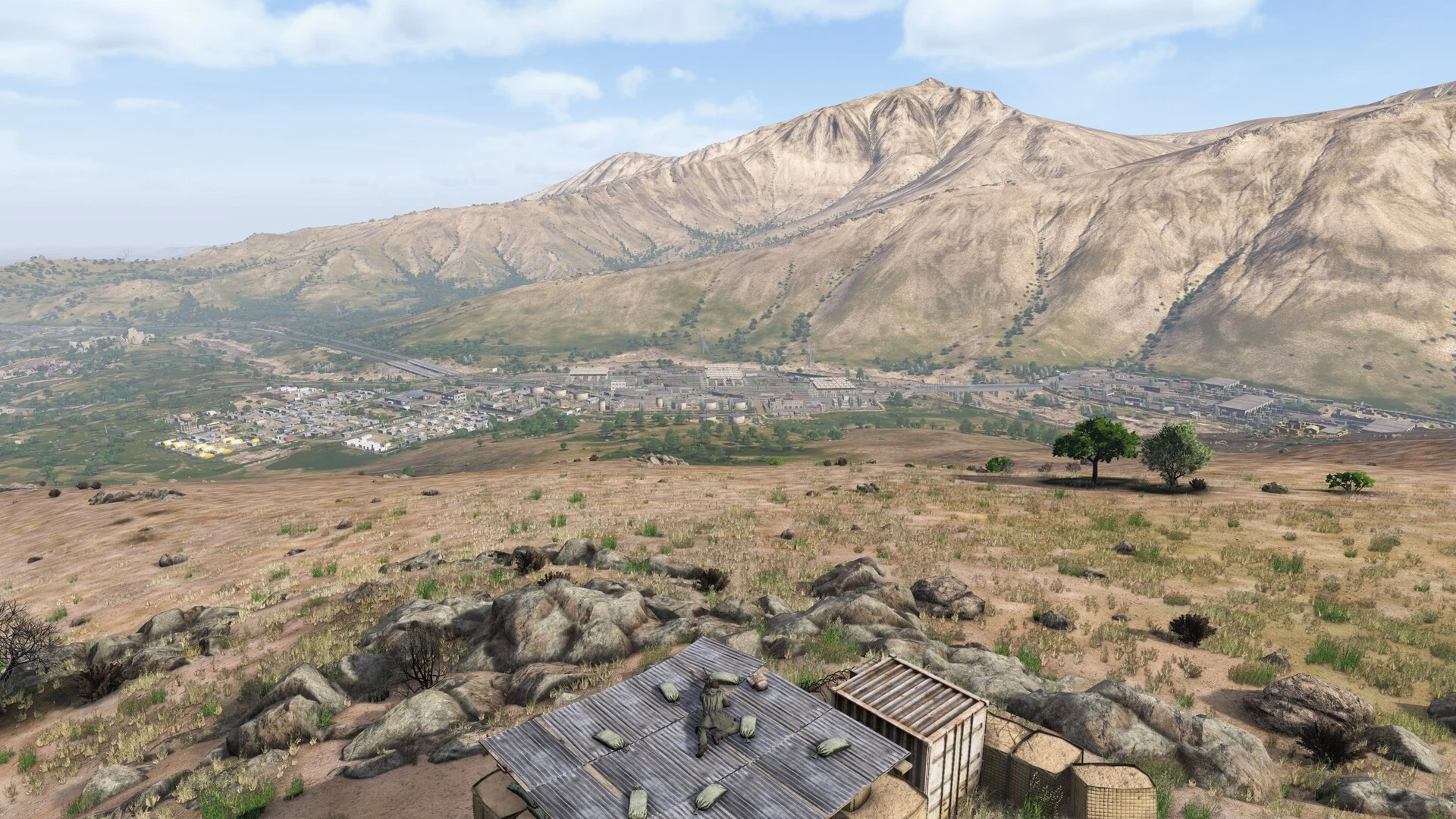
Open view
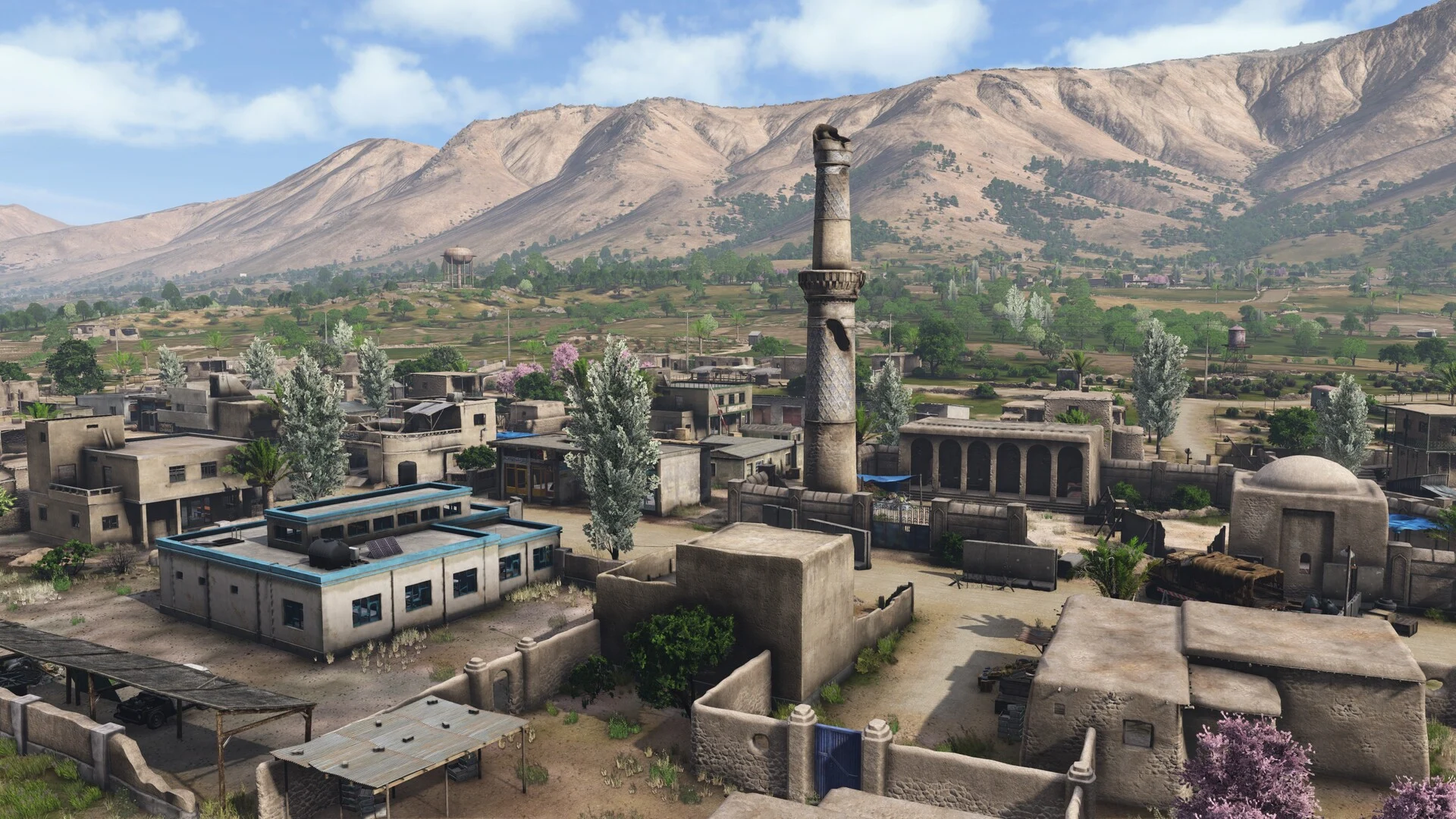
Settlement
Keep the server, game build, resolution and mod list the same for a comparison. Try to stay close in weather and time as well. Live activity still varies, so a noticeably different session deserves a cautious conclusion. A single better-looking FPS counter doesn’t settle what caused the difference.
An unwanted visual compromise is already a reason to restore a change. If the picture is acceptable but the performance result is inconclusive, leave the outcome inconclusive. There is no need to invent a winner to finish tuning.
For a recorded comparison, our guide to comparing two FPS benchmark results (opens in a new tab) explains how matching the workload and capture conditions changes what you can conclude. Keep that deeper exercise optional; you can still decide whether a graphics change makes the game more pleasant to play.
Investigate the symptom you actually have
A lower client frame rate, an action completing late and a client that crashes are different observations. Describe which happened before choosing the next investigation. The word “lag” is too broad to tell you which graphics compromise is worth making.
The picture becomes less fluid
Note where it happens and whether the graphics trial changes it. This doesn't identify a CPU or GPU fault.
An action completes late
Describe the action and what the picture was doing then. Another visual reduction doesn't identify a server or network problem.
The client freezes or exits
Retain the build, location and preceding steps. A crash report needs that sequence, not just the last graphics value touched.
If trouble appears confined to one community server, note its name and mod list. An official-server comparison can supply useful context, but changing servers may also change your character or location. It is a different session, not a matched benchmark or proof that mods caused the original problem.
For suspected installation damage, use Steam’s Properties → Installed Files → Verify integrity of game files on DayZ. File verification checks the installation; it isn’t a guaranteed performance repair.
Send reproducible bugs to the DayZ Feedback Tracker (opens in a new tab). Choose the Stable or Experimental project that matches your build, and include the server context, location, action and reproduction steps. Describe what happened and what you expected. That gives the next investigation something concrete to work with.
Read the requirements without an FPS promise
The publisher’s Windows listing is a useful reference:
Hardware reference
| Component | Minimum | Recommended |
|---|---|---|
| OS | Windows 10, 64-bit | Windows 10 / 11, 64-bit |
| CPU | Core i5-4430 or Ryzen 5 2600 Six-Core | Core i5-6600K or R5 1600X |
| RAM | 8 GB | 12 GB |
| GPU | GeForce GTX 760 or R9 270X | GeForce GTX 1060 or RX 580 |
| DirectX | 11 | 11 |
| Available storage | 25 GB | 30 GB |
Those are the listing’s entries, including its unusual AMD CPU ordering. They aren’t our ranking of the processors. The page gives no resolution, preset or frame-rate target, so “recommended” can’t establish that your chosen setup will hold 60 FPS.
I’d use that table to understand the publisher’s hardware reference, rather than buy a particular frame rate from it. The missing target matters more than the word “recommended.”
Frequently asked questions
Can the recommended Badlands requirements guarantee 60 FPS?
No. The publisher lists hardware without a frame-rate, resolution or graphics-preset target. Hone has no controlled retail Badlands result that establishes a 60-FPS profile.
Why is Foliage Smoothing unavailable?
The inspected 1.30 Experimental implementation disables Foliage Smoothing when Hardware Antialiasing is Disabled. This relationship has not been verified in a retail Badlands session.
Should I lower everything if actions feel delayed?
First distinguish a lower client frame rate from an action completing late or the client crashing. Note the build, server, mods and action involved. Those observations guide investigation; they do not identify a cause by themselves.

Written by
Digital Marketing Manager
Keep reading