Dragon's Dogma 2 Best PC Settings: Dark Arisen Update
A clear-image settings baseline for the 2026 update, with FSR 3, DLSS frame generation, city slowdowns and the revised PC requirements explained.
In this article
Start with Ray Tracing Off, then use the selective baseline below before adding frame generation. The aim is to keep a picture worth playing while making room for a comfortable frame rate. Turning the entire menu to Low is a poor first choice when the setting causing trouble may be elsewhere.
Dark Arisen is expansion DLC for Dragon’s Dogma 2. Title Update 4.0 also updates the base game, so you don’t need to buy the expansion to receive its graphics additions. Capcom’s October 9, 2026 release adds FSR 3 Frame Generation and expands DLSS support. Returning players have a different menu to work with than the one in launch-week guides.
We haven’t benchmarked the October update on a Hone PC; this is a source-backed starting profile, not a measured optimum.
A useful starting profile
This baseline follows Zykopath’s September 2026 profile, made on an RTX 3060 and Ryzen 5 3600X before Dark Arisen. Frame generation is a separate decision below.
| Setting | Starting choice |
|---|---|
| CPU Saving Mode | Off |
| DLSS SUPER RESOLUTION | Quality on supported hardware |
| Ray Tracing | Off |
| Ambient Occlusion | SDFAO; try SSAO for foliage shimmer |
| Screen Space Reflections | On |
| Mesh Quality | Mid |
| Texture Quality | High 3 GB if VRAM allows |
| Resource-Intense Effects Quality | High |
| Shadow Quality | High |
| Subsurface Scattering | On |
| Volumetric Fog Resolution; Cloudscape Resolution | Mid |
| Foliage Density | Low |
| Terrain Quality | High |
| Effect Reflections | On |
| NPC Culling | On |
| Swaying Grass Quality | On |
Keep High shadows, terrain and effects for the first pass, alongside the selected cuts to mesh, fog and clouds. If the frame rate is comfortable, there’s no need to keep reducing the picture.
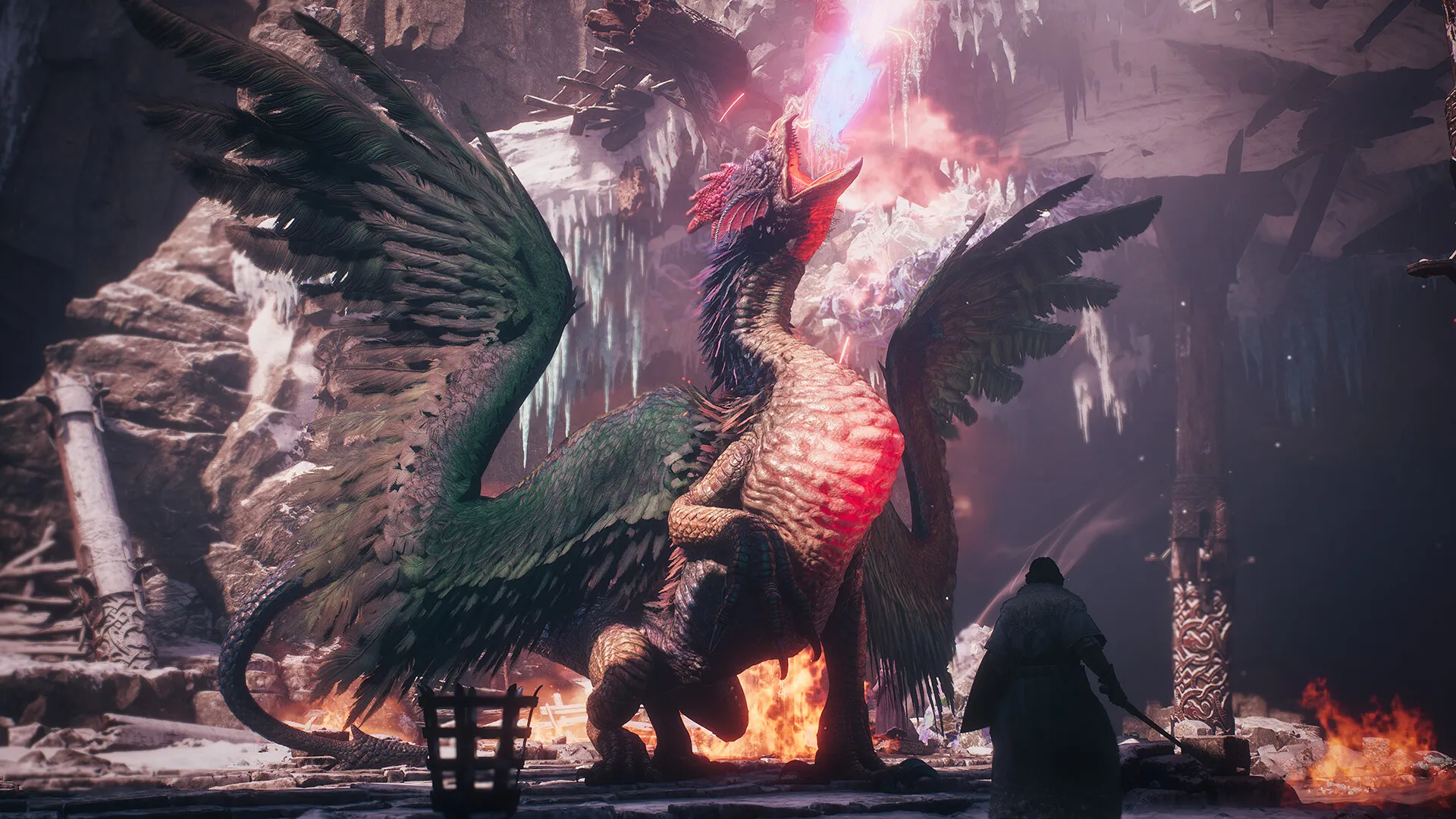
Texture Quality needs a memory decision. Use the menu’s approximate VRAM budget to choose a level your card can accommodate. High 3 GB is a starting value, not a statement that the whole game uses only 3 GB. If stutter accompanies memory pressure, textures deserve attention before you strip detail from everything else.
Keep anisotropic Texture Filtering high for clearer surfaces viewed at an angle. Shadow Cache On is also reasonable with enough VRAM: it retains shadow work in memory. Both recommendations come from launch-era analysis; there isn’t a fresh isolated performance result here. Texture memory pressure can change the cache tradeoff.
Motion Blur, Depth of Field and Lens Distortion can start Off if you prefer a clearer image. Choose Bloom and Lens Flare by taste. Those choices don’t carry a promised FPS gain.
What changed with Title Update 4.0
The update makes four relevant changes to the Steam version:
- Adds FSR 3 Frame Generation.
- Updates DLSS SUPER RESOLUTION to version 4.5.
- Adds multi-frame generation support to DLSS FRAME GENERATION.
- Allows DLSS FRAME GENERATION while DLSS SUPER RESOLUTION is Off.
That last change is useful if you want generated frames without choosing DLSS upscaling. Older advice that treats the two as inseparable needs revisiting. Ordinary DLSS Frame Generation already existed in Dragon’s Dogma 2; multi-frame support is the new addition.
Keep the distinction between the two jobs clear. Super resolution reconstructs a higher-resolution image from a smaller rendered input. Frame generation inserts additional images between traditionally rendered frames. They can be used together, but selecting one doesn’t tell you the performance or image quality of the other.
For the current release information, see Capcom’s Dark Arisen launch announcement (opens in a new tab).
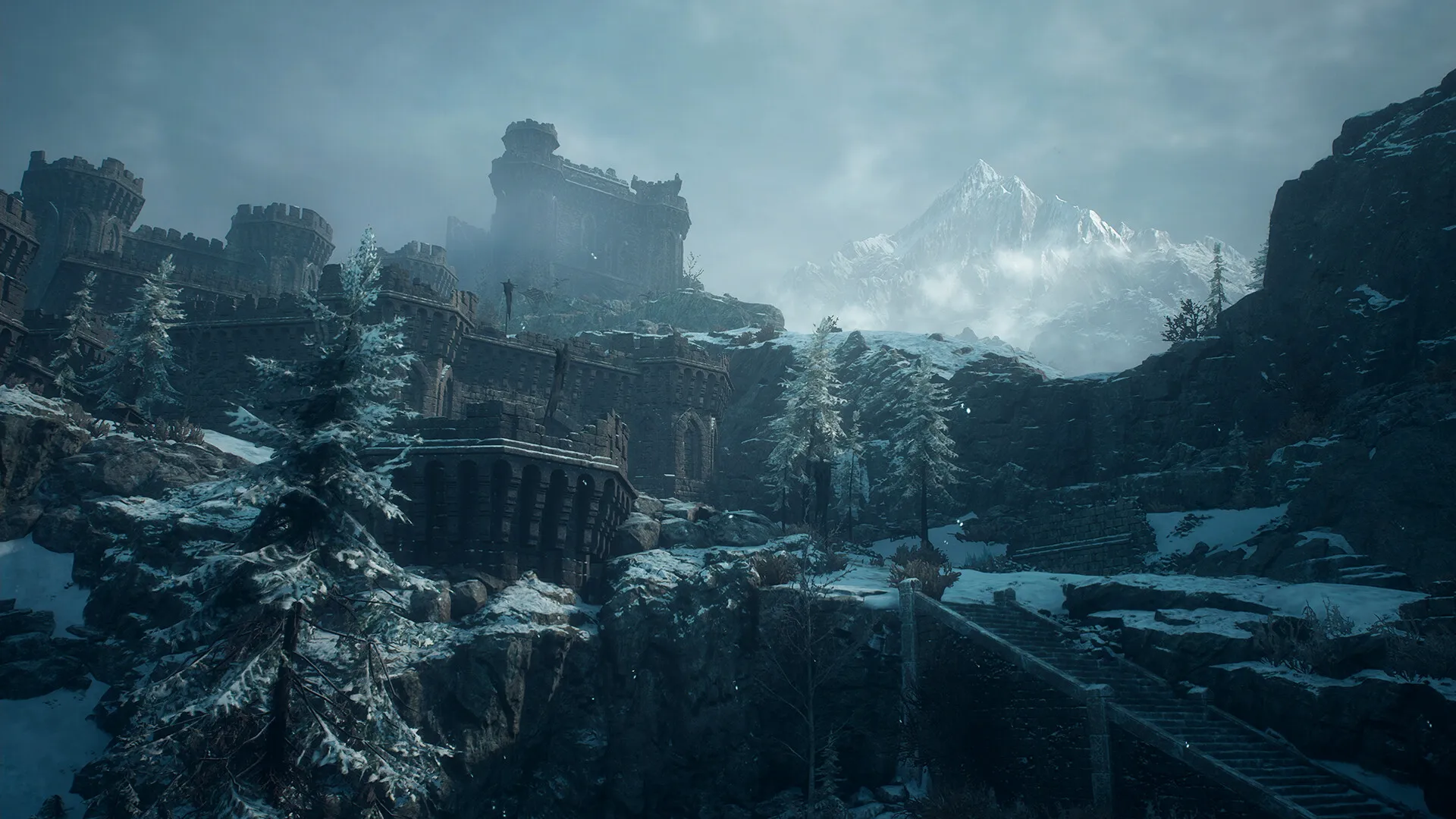
Choose frame generation after the game feels comfortable
Leave frame generation Off while settling the baseline. Otherwise, a larger displayed FPS number can disguise how slowly the underlying game is rendering. Once ordinary performance is comfortable, enable a supported option and judge the resulting motion.
The hardware split matters:
Frame generation by GPU
RTX 50 seriesDLSS Multi Frame Generation
Ordinary, Multi Frame Generation and Dynamic Multi Frame Generation are supported. Tune rendered performance first.
RTX 40 seriesDLSS Frame Generation
Ordinary generation is supported; multi-frame generation requires RTX 50-series hardware.
RTX 20/30 seriesNo DLSS Frame Generation
DLSS Super Resolution remains separate. Check supported alternatives for frame generation.
Other GPUsFSR 3 when supported
Title Update 4.0 adds FSR 3 Frame Generation. Check hardware support before enabling it.
NVIDIA's hardware boundaries don't guarantee that every driver and game configuration exposes each control.
More generated frames don’t mean an equal increase in input responsiveness. An inserted image doesn’t replace the game’s next traditionally rendered frame. A high output counter can describe smoother-looking motion while the underlying frame rate remains low. Don’t use that number alone to decide whether combat feels responsive enough.
For FSR 3, AMD recommends at least 60 FPS before interpolation, including any benefit from upscaling. That is a tuning guideline, not a hard requirement that the switch cannot activate below 60. AMD warns that interpolation artifacts become more prominent at lower input rates. If the game is struggling before generation, return to the rendering settings first.
This also gives upscaling a sensible place in the process. Begin with Quality when using a supported upscaler. At 1080p, try native rendering too before jumping to Performance or Ultra Performance. A lower-resolution input makes fine detail a more difficult reconstruction job, and DLSS 4.5’s update doesn’t make that tradeoff disappear. Pick the clearest option that supplies the performance you need, rather than choosing the most aggressive name by habit.
Treat city slowdowns as their own problem
Dragon’s Dogma 2’s launch performance problems included character-related CPU work. Capcom acknowledged that reducing GPU load could have limited effect in those situations, then shipped further CPU improvements for areas with many NPCs. Title Update 3.2 also brought optimization changes ahead of Dark Arisen. A 2024 city result therefore shouldn’t be treated as a measurement of today’s game.
With frame generation Off and no binding FPS cap, lower the rendering resolution for the same city route. A substantial improvement makes rendering work a useful target for further cuts. Almost no improvement is a reason to keep the picture intact and investigate limits beyond resolution. That result alone doesn’t prove the city is CPU-bound.
CPU Saving Mode stays Off initially. Zykopath found no clear benefit in his scene; the name alone isn’t a reason to enable it.
Keep NPC Culling On, but don’t expect an established gain: that creator’s small difference was inconclusive.
This is where a copied “everything Low” preset can be frustrating. It changes the picture immediately, yet a resolution-insensitive slowdown may survive. Keep the selective profile while finding which change actually affects that route. There’s no value in keeping a visual compromise that hasn’t helped the problem you’re trying to solve.
The revised PC requirements
Capcom’s current requirements are different from the lists published around the original release. The current Steam store lists:
| Component | Minimum | Recommended |
|---|---|---|
| Processor | Intel Core i5-8500 or AMD Ryzen 5 3500 | Intel Core i7-10700 or AMD Ryzen 5 3600X |
| RAM | 16 GB | 16 GB |
| Graphics | NVIDIA GeForce GTX 1660 or AMD Radeon RX 5500 XT with 8 GB VRAM | NVIDIA GeForce RTX 2070 Super or AMD Radeon RX 6600 XT |
| Operating system | Windows 11, 64-bit | Windows 11, 64-bit |
| Graphics API | DirectX 12 | DirectX 12 |
An SSD is recommended. The 8 GB note applies to the RX 5500 XT.
Capcom’s advertised targets use 1080p with an upscaler and Prioritize Performance under Graphics Quality: 45–60 FPS at minimum and 60 FPS at recommended. They are publisher targets, not native-1080p benchmark results, and Capcom allows frame-rate drops when processing load is high. A heavier custom profile asks more of your PC than the configuration described here.
Make the next change easy to judge
Use one repeatable outdoor section and one city route. Keep the same camera, resolution, cap and sync settings for each comparison, and change one option at a time. Separate frame-generation output from the ordinary rendered result. Our FPS comparison guide (opens in a new tab) covers a fuller method when a small difference is hard to interpret.
Once the graphics choices are settled, you can explore Hone’s Windows background-work controls (opens in a new tab). Keep the in-game profile fixed for that comparison. Background management is a separate choice; it doesn’t establish a fix for Dragon’s Dogma 2’s engine limits.
Frequently asked questions
Do I need Dark Arisen to get the new PC graphics options?
No. Dark Arisen is paid expansion DLC, while the graphics additions are part of Title Update 4.0 for the base game.
Which graphics cards support DLSS Multi Frame Generation?
DLSS Multi Frame Generation and Dynamic Multi Frame Generation require GeForce RTX 50-series hardware. Ordinary DLSS Frame Generation supports RTX 40- and 50-series cards.
Should I turn on FSR 3 Frame Generation immediately?
Tune with it off first. AMD recommends at least 60 FPS before interpolation for the best FSR 3 experience; lower input frame rates can make interpolation artifacts more prominent.
Will lowering resolution fix city FPS drops?
It can help when GPU rendering is the limit. If the same uncapped city scene barely improves at a lower resolution, reducing every graphics option is unlikely to address the whole problem.

Written by
Digital Marketing Manager
Keep reading