Enshrouded 1.0 PC Settings: Keep the Scenery
Start with Quality, make deliberate lighting compromises, and keep Embervale worth exploring. Practical Enshrouded 1.0 PC settings and stutter checks.
In this article
Start at Quality, set indirect lighting and SSAO to Balanced, and leave small foliage intact. If you’re short of frames on an RTX card, try DLSS Quality before reducing the display resolution. That gives you a sensible Enshrouded 1.0 starting point while keeping the landscape worth exploring.
Enshrouded left Early Access on October 15, 2026, with changes to distant detail, lighting and performance. Returning players should revisit their old setup: Keen also updated the automatic GPU-detection presets. An Early Access configuration deserves another look, especially if you lowered everything months ago and never touched it again.
A scenery-first starting setup
- Quality
- Overall preset · Point-light shadows · Small foliage
- Balanced
- Indirect lighting · SSAO
Apply Quality first, then make these adjustments. This is a recommendation for balancing the picture and performance, rather than the fastest possible configuration.
| Setting | Starting choice |
|---|---|
| Output resolution | Your display’s native resolution |
| 3D render scale | 100% initially |
| Overall preset | Quality |
| Anti-aliasing / reconstruction | Keep native AA if performance is sufficient; otherwise DLSS Quality on RTX, or FSR Quality |
| Indirect lighting | Balanced |
| SSAO | Balanced |
| Point-light shadows | Quality initially |
| Small foliage | Quality initially |
| VSync | Keep your working sync setup; compare Off only when troubleshooting choppy motion |
The starting values draw on Hiro’s October 16 version 1.0 comparison at Hajimete Game PC, alongside Keen’s launch notes. Hone hasn’t benchmarked this profile. Option names here describe the settings in English; the inspected source material uses Japanese menu labels, so wording may differ in your menu.
The table deliberately leaves most choices at Quality. A long list of tiny changes is harder to reverse, and it can strip out details you cared about before you’ve established which compromise helps. If this setup already meets your target, stop there.
Keep output resolution; choose reconstruction deliberately
- Output resolution
- Your display’s native resolution
- 3D render scale
- 100% initially
- AA / reconstruction
- Native AA, DLSS or FSR
100% alone does not establish native internal rendering.
DLAA and DLSS make different choices about the image. DLAA retains native rendering for anti-aliasing; DLSS reconstructs the output from a lower internal resolution. On RTX, moving from DLAA to DLSS Quality is a useful first compromise when you need more performance. On other supported GPUs, try FSR Quality before reducing the output resolution.
There is no reason to switch away from native AA just to complete a checklist. Keep it if the game already runs as you want. When trying an upscaler, judge the moving picture as well as a still view: the choice has to look acceptable during exploration.
Leave the separate 3D render-scale control at 100% initially. That does not mean you’re rendering internally at native resolution with DLSS or FSR active. Keeping output resolution, render scale and reconstruction distinct saves you from changing several image-quality variables at once. Lowering render scale remains an option if the initial setup still falls short.
HDR is another visual choice. Version 1.0 supports compatible monitors and TVs and adds a calibration screen; use that calibration if you enable HDR. It isn’t an FPS recommendation.
Give the landscape a chance
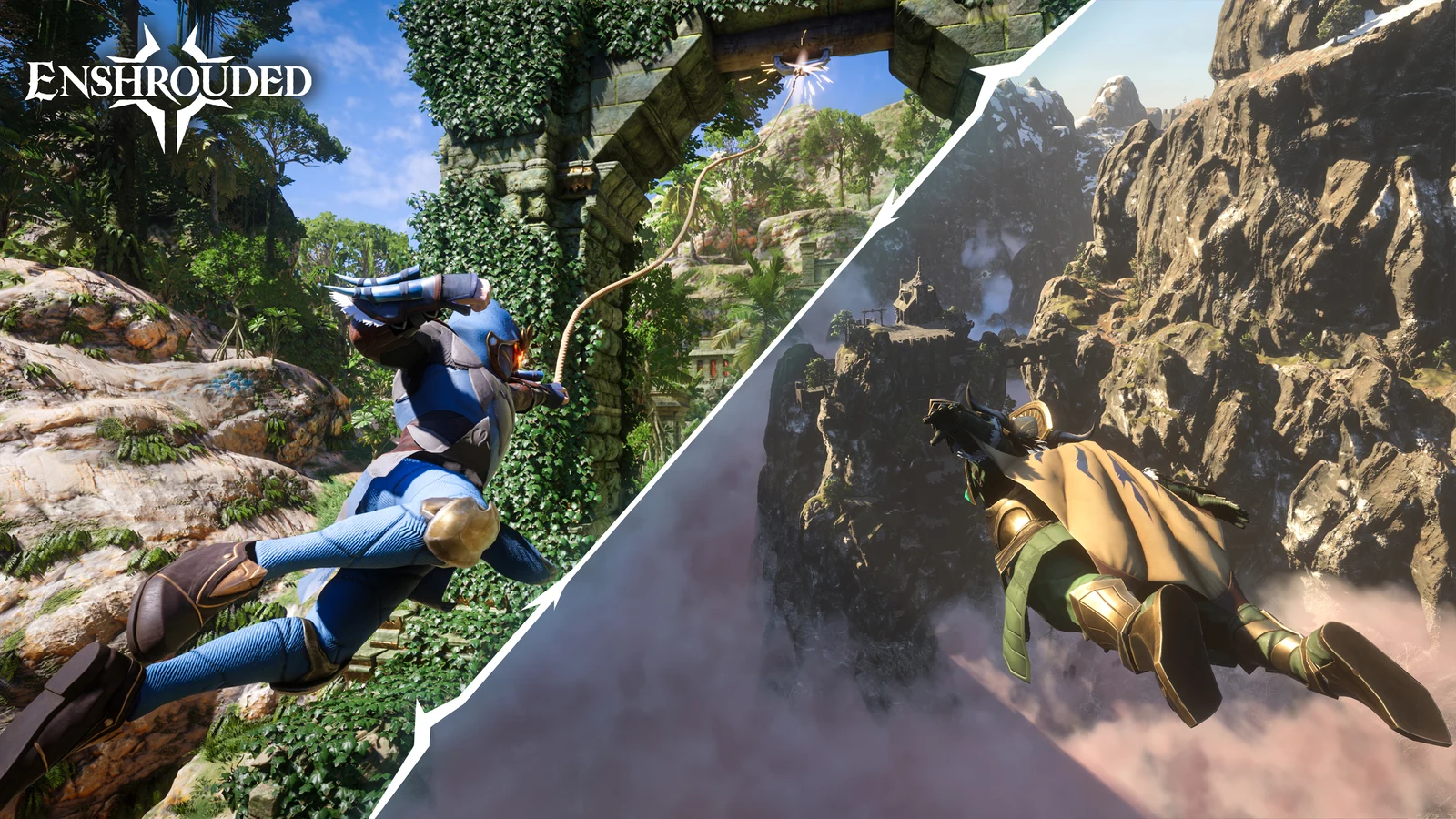
Enshrouded’s forests and long views are a good reason to resist an immediate all-low preset. Keen says the new brick renderer improves distant terrain and voxel-building detail, while revised lighting changes the appearance of forests, interiors and the Shroud. Those are parts of the picture worth looking at before discarding them.
Keep small foliage at Quality initially. Hiro reports that lowering it removes much of the grass and flowers, exposing more ground and rock. For an exploration game, that’s a substantial aesthetic price. It can still be a price you’re willing to pay on a struggling PC; the recommendation is to make that choice deliberately.
Fog deserves the same care. Its prominence doesn’t establish that it’s your largest performance cost. Consider it when you’re willing to change the atmosphere of the scene, rather than assuming anything that fills the screen must be the main problem.
- Atmospheric fog
- A visual choice
- Nvidia grey-fog defect
- Update first: 1.0.0.2 or later Revision 1269579
There is also a specific launch defect to rule out: hotfix 1.0.0.2 fixed dense grey fog on Nvidia cards, particularly in Hollow Halls. Update to that hotfix or later before chasing this through graphics settings. That abnormal grey rendering is separate from the game’s intended atmospheric fog.
Take the lighting decision back to your base
Point-light shadows: Quality versus one step lower.Keep the other settings unchanged while judging each location.
Compare Quality and one step lower at two checkpoints: an outdoor view and your lit base. Note which you prefer at each location on paper.
These are your observations, not Hone measurements. Notes stay on this page and disappear when you leave.
An open vista can’t settle whether your setup works in a busy, lamp-filled build. Use both kinds of scene before accepting the result. A preset that suits exploration still has to suit the home you return to.
Balanced indirect lighting and Balanced SSAO are our initial compromises; keep point-light shadows at Quality. If your base is the troublesome scene, compare point-light shadows one step lower there. You’ll be judging the change where it matters instead of sacrificing lighting everywhere on the strength of a distant hilltop view.
Keen reworked point-light shadows specifically to support large constructions with many lights. That makes old advice declaring them the obvious biggest cost especially worth reconsidering. The rework gives us a reason to revisit the setting, not a new universal ranking of what to lower first.
When motion still feels wrong
- Startup waitShader work can remain after game / driver updates.
- World movementVSync Off is a trial; it can introduce tearing.
- Lit baseJudge the same lighting change here.
Separate a consistently low frame rate from uneven motion. If you need a readout, our guide to showing FPS in Steam games (opens in a new tab) covers that step. A higher counter alone doesn’t establish smoother frame delivery or lower input latency.
For choppy motion after 1.0, a reversible VSync comparison is worth trying before another large quality cut. Some players report improvement with in-game VSync Off; others report poor performance either way. Keep the scene the same, try Off, and restore your preferred tear-free setup if the result is worse or tearing bothers you. This is a troubleshooting lead, not a blanket recommendation for every display.
Let startup shader work finish after a game or GPU-driver update. Keen reduced that compilation time in 1.0 but says some remains unavoidable. That explains the startup wait; it doesn’t identify the cause of every later hitch. For persistent in-game interruptions, our PC stuttering guide (opens in a new tab) is the more useful next step than repeatedly reducing foliage.
Use one short comparison route: an outdoor view, a stretch of movement, then your lit base. Keep conditions as similar as practical and change one setting at a time. If you choose Performance settings, also watch distant shadows: Keen’s 1.0 notes acknowledge that some flicker can remain there. A larger FPS number is a poor trade if the resulting picture annoys you every time you look across the valley.
Before your next trip into Embervale
Keep the settings that meet your target and preserve the details you enjoy. Hone is an optional step alongside in-game tuning; it does not promise an Enshrouded frame-rate gain or a fix for a game rendering bug.
Frequently asked questions
What settings should I start with in Enshrouded 1.0?
Try Quality, Balanced indirect lighting and SSAO, and Quality point-light shadows and small foliage. Use DLSS Quality on RTX or FSR Quality if native anti-aliasing is too demanding. These are starting recommendations, not a benchmarked FPS guarantee.
Does 100% render scale mean native resolution?
Not necessarily. Output resolution, render scale and upscaling are separate choices. With DLSS or FSR active, 100% on the render-scale control does not establish native internal rendering.
Why does Enshrouded look covered in grey fog on Nvidia?
Hotfix 1.0.0.2, revision 1269579, fixed an Nvidia rendering defect that appeared especially often in Hollow Halls. Update before treating that defect as a graphics-setting problem; ordinary atmospheric fog is separate.

Written by
Digital Marketing Manager
Keep reading