Best FC 27 PC Settings for FPS and Smoother Matches
Start with practical FC 27 graphics settings, choose an FPS target your PC can sustain, and compare changes without confusing frame drops with connection lag.
In this article
For an FPS-focused FC 27 setup, start with Performance and leave Enhanced Ultra Visuals disabled. If matches still struggle, compare a manual low-quality configuration, then lower resolution or your FPS target as separate trials. Once you have a setup that plays consistently, restore the visual detail you miss one option at a time.
The settings below are practical starting choices based on EA’s PC documentation, checked September 24, 2026. We have not benchmarked FC 27, so they carry no promised FPS gain. The useful result is a configuration that works during your matches, with visual compromises you are willing to keep.
Start with a preset, then try these graphics settings
Performance gives you a straightforward first comparison. FC 27 also offers Balanced and individual graphics customization, as described in EA’s PC Deep Dive (opens in a new tab). Keep your resolution and frame-rate target unchanged while you assess that starting point.
If you need a simpler graphics baseline, use the manual trial below. For quality controls, select Low where offered; otherwise choose the lowest available quality. Keep Enhanced Ultra Visuals disabled throughout this comparison.
| Graphics control | Manual trial |
|---|---|
| Rendering Quality | Low, or lowest available quality |
| Grass Quality | Low, or lowest available quality |
| Crowd Quality | Low, or lowest available quality |
| Cloth Quality | Low, or lowest available quality |
| Lighting Quality | Low, or lowest available quality |
| Ambient Occlusion Quality | Low, or lowest available quality |
| Effects Quality | Low, or lowest available quality |
| Strand Based Hair | Off |
These control names appear in EA’s official graphics-menu example. The combination is our suggested manual trial, not an EA-certified optimal preset. It also does not rank the settings by their performance cost: the evidence here cannot tell you that one specific control will deliver the largest improvement on your PC.
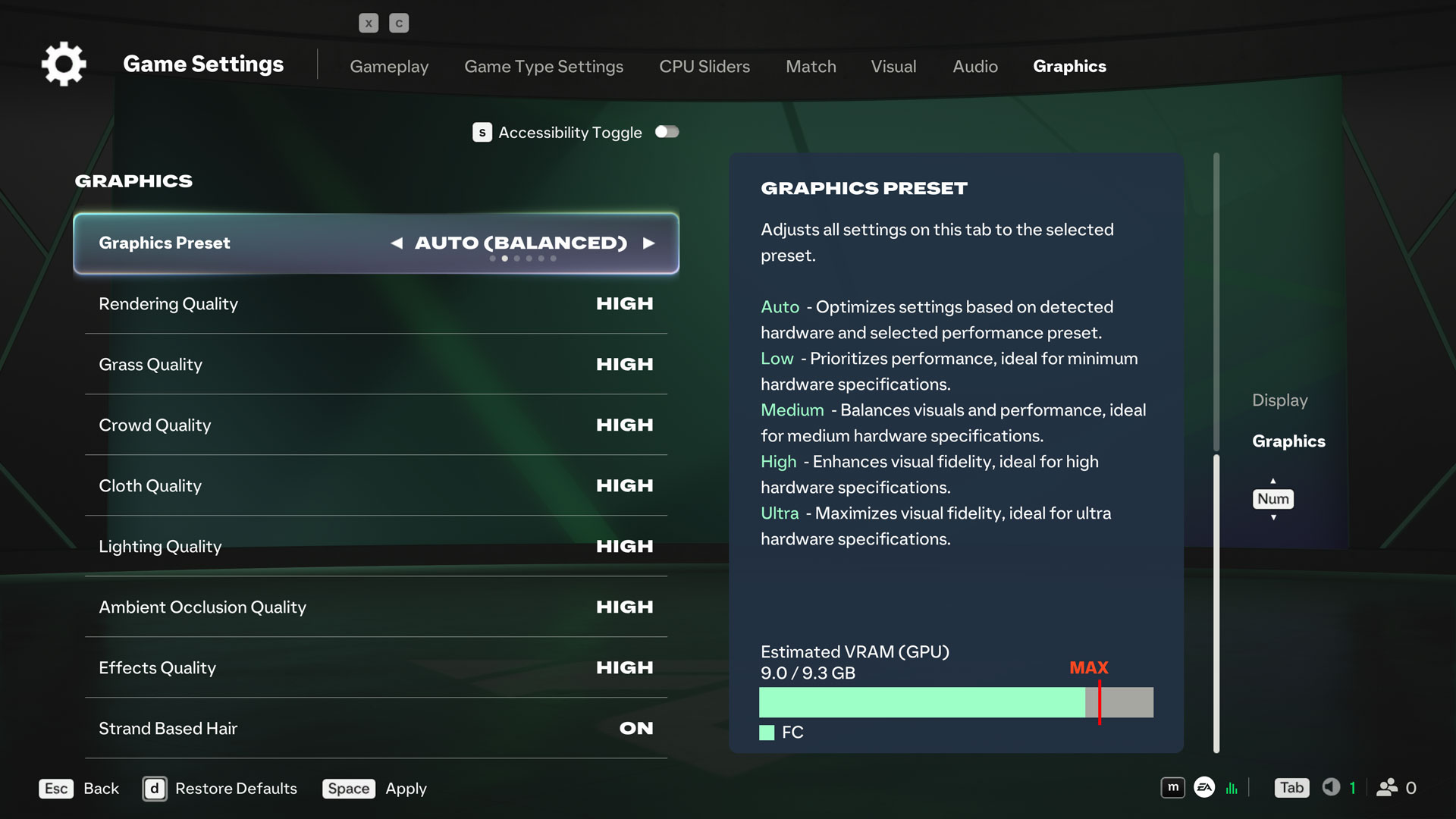
Compare the complete manual configuration with Performance first. If it gives you a useful result, raise the option whose appearance you most want to recover and play again. Keep that increase if the added detail is worth the result. This is more useful than leaving everything low after you have found room for settings you enjoy.
The menu’s Low graphics preset is another possible baseline; its description prioritizes performance, while Medium balances detail and performance. Keep clear notes about which configuration you actually tested. “Performance,” “Low preset” and “my manual settings” should be separate entries in your comparison.
Lower resolution only as a separate comparison
If the quality trial is still unsatisfactory, compare a lower resolution while holding the other settings steady. EA’s performance troubleshooting (opens in a new tab) recommends reducing graphics quality and resolution, then checking gameplay after each change.
Judge both the match and the picture. Can you follow play comfortably? Is the changed image acceptable in motion? Keep the lower resolution only if its overall result is useful to you. If the same hitch remains, record that outcome instead of continuing to reduce the picture without a clear benefit.
Watch Estimated VRAM (GPU) as you adjust graphics. EA describes it as an estimate of expected maximum in-game video-memory use. It helps you consider the memory side of your configuration, but it is not an FPS counter. A reassuring estimate is not a substitute for playing through the situation that was giving you trouble.
Choose an FPS target your PC can sustain
Check that your display is using the intended high refresh rate before judging your setup. Display refresh rate and achieved game FPS are different: a monitor’s specification does not establish how fast this match will run.
Then assess your current FPS target during representative play. If gameplay stutters or slows, compare a lower target with the same graphics configuration. EA explicitly recommends this trial in its performance guidance. Keep the result that plays better across the situations you care about, rather than choosing a cap from the highest number you briefly see.
Interactive illustration
Same target. Different motion.
Change the target and spacing. The balls follow the same path on one clock; only the moments when their positions update change.
Motion shown at ⅛ speed to make the steps visible. Synthetic schedules, not FC 27 gameplay, a benchmark or a test of your PC. Your browser and display affect what you see. These targets are examples, not recommended caps or a list of game-menu options.
See the timing math and all examples
Ideal interval = 1000 ÷ FPS, in milliseconds. Uneven spacing alternates half and one-and-a-half times that interval. Each pair has the same duration and frame count as two even intervals, despite different waits. An average does not describe every individual interval.
| Target | Even interval | Uneven pair |
|---|---|---|
| 30 FPS | 33.33 ms | 16.67 + 50.00 ms |
| 60 FPS | 16.67 ms | 8.33 + 25.00 ms |
| 120 FPS | 8.33 ms | 4.17 + 12.50 ms |
Use a simple decision sequence:
- Current target holds and play feels satisfactory: try restoring one visual setting you miss.
- Current target is inconsistent: compare the manual graphics trial or a lower target, separately.
- Lower target leaves the same problem: retain that observation and move to the checks below.
There is no universal cap established by this guide. A copied number cannot account for your hardware, resolution, display configuration and match conditions. Avoid changing the cap, resolution and several graphics controls together when you are trying to identify which change helped.
Decide whether you accept tearing
If minimizing latency matters more to you than avoiding tearing, compare VSync Off. That is the tradeoff described in NVIDIA’s system-latency guidance (opens in a new tab), not a measured FC 27 stutter fix.
If you already use a working variable-refresh-rate configuration for tear-free play, keep it as your baseline while testing graphics. VSync and frame-cap choices need to fit that display setup. Do not replace it with a blanket “everything off” recommendation simply because another player prefers tearing-tolerant play.
Compare changes during matches
Use this short process to make the settings table useful on your own PC:
- Save your baseline. Screenshot the graphics menu and note resolution, FPS target and sync choices.
- Choose a repeatable comparison. Keep the match context as similar as practical and include the part of play where you notice the problem.
- Change one thing you can name. Comparing Performance with the complete manual configuration is a preset comparison. Once you choose a baseline, adjust individual controls separately.
- Repeat both configurations. Check whether the apparent benefit survives another comparison before keeping it.
- Keep the useful tradeoff. Restore a setting if its visual loss buys you no clear benefit. Save the configuration you finish with.
If you record FPS, use the same capture method and comparable gameplay for each configuration. Our guide to comparing FPS benchmarks (opens in a new tab) explains what to check before treating two results as a useful comparison.
When graphics changes are not enough
EA’s troubleshooting also covers background resource use, drivers, performance settings and memory configuration. Save your work, then check whether unnecessary apps are consuming CPU, GPU or memory. Close only what you do not need for the comparison; keep required services and apps running.
Check GPU driver updates and your PC’s performance settings, including the laptop performance mode if applicable. For memory, consult the PC or motherboard instructions to verify a supported dual-channel configuration. EA says this can help some systems; two installed sticks alone do not confirm that the configuration is correct.
Finally, separate a graphics problem from the broader complaint of “lag.” EA lists slow-motion gameplay and frametime spikes among symptoms that can occur even when average FPS looks normal. High ping, packet loss and jitter need connection investigation. If actions still arrive late, continue with our FC 27 input-delay guide (opens in a new tab).
For a separate look at Hone’s options, read how Hone Game Mode works (opens in a new tab). Keep your saved FC 27 baseline so that any further changes remain easy to compare.
This website is not endorsed by or affiliated with EA or its licensors.Frequently asked questions
What are the best FC 27 settings to start with for FPS?
Start with Performance and leave Enhanced Ultra Visuals disabled. If play still struggles, compare a manual configuration with quality controls at Low where offered, otherwise their lowest available quality, and Strand Based Hair Off. Treat this as a trial on your PC rather than a tested universal preset.
Should I lower resolution or graphics quality first?
Try the graphics-quality changes first while keeping resolution fixed, then compare a lower resolution if needed. This order lets you judge each visual compromise separately. EA recommends testing both graphics quality and resolution when troubleshooting performance.
What FPS cap should I use in FC 27?
Choose a target your PC can sustain in representative gameplay. If play stutters or slows at your current target, compare a lower one. Neither your highest observed FPS nor your monitor refresh rate establishes the right cap by itself.
Does the FC 27 VRAM indicator show performance?
It estimates expected maximum in-game video-memory use. It does not measure FPS or certify smooth gameplay, so check the estimate when changing settings and then compare actual play.

Written by
Digital Marketing Manager
Keep reading