FC 27 Input Delay on PC: What to Check First
Record a late pass, connection warning or visible hitch, then choose one useful comparison. Learn what EA's input and connection displays can tell you.
In this article
When a pass comes out late in FC 27, turn on connection monitoring and record what happens during the incident before changing settings. Note the action, any hitch in the picture, and any warning icon. Then choose one comparison that follows from those observations.
That short record matters more than a long list of tweaks. A late pass with a packet-loss warning gives you a different starting point from a visible hitch that also happens offline. Both can happen in the same match. Keeping them separate helps you see whether a change improves one problem while leaving another untouched.
Keep a comparison note as you work through the checks below.
Watch the incident, not just the ping number
EA’s Connection Monitoring guide (opens in a new tab) places the feature under Settings → Game Settings → Visual → Connection Monitoring. Select Ping and connection indicators where offered. These are EA’s documented FC labels; follow the corresponding options in your installed build.
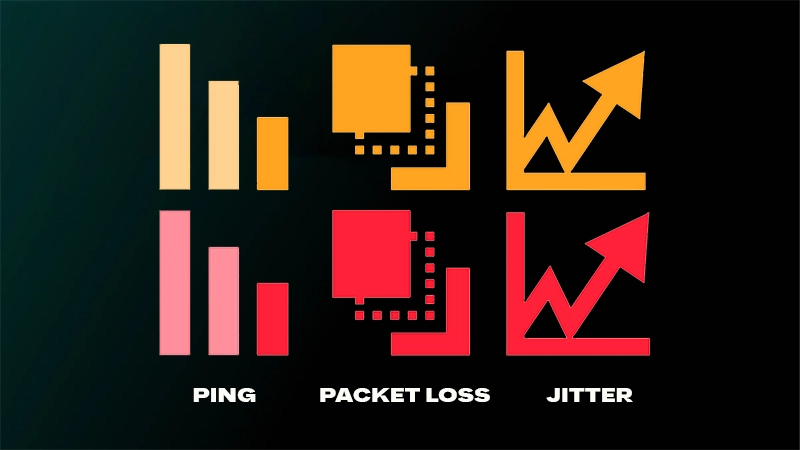
| Warning | What to record |
|---|---|
| Ping | High round-trip time between your PC and the FC game data center. |
| Packet loss | Game-data packets failing to complete that trip. |
| Jitter | Ping changing significantly over a short period. |
These meanings follow EA’s connection-quality definitions (opens in a new tab).
EA says orange icons indicate a possible loss of experience quality; red indicates a potentially greater impact. Write down which icon appeared and whether it coincided with the late action. A warning points toward connection trouble without identifying where along the connection it began.
The displayed ping updates every second. Looking up after the incident and seeing a low number does not give you a record of everything that happened. Likewise, “no warning noticed” is a useful observation, but it is weaker than “the connection was perfect.”
What the two controller displays actually show
If available, use Settings → Game Settings → Visual → Input Overlay → Local Input + Online Response. EA’s Input Overlay documentation (opens in a new tab) still illustrates FC 25, so check the feature in your FC 27 build before relying on it. That older screenshot does not verify the current menu.
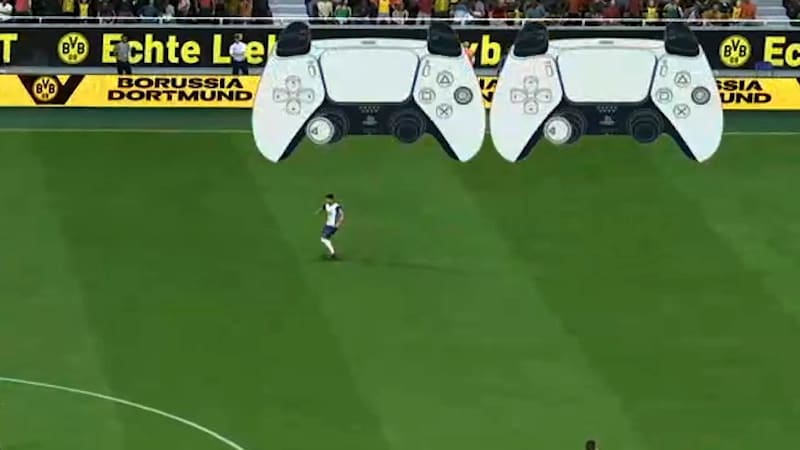
In supported matches using EA game data centers, Local Input mirrors your physical controller actions. Online Response shows those inputs after network and data-center processing. Watch whether the displays differ when the action feels late, and include that observation in your record.
The two-controller comparison has a specific scope. Offline play automatically uses Input Only, while peer-to-peer matches behave differently. A missing second controller does not by itself mean something is broken.
These graphics help describe an incident; they do not measure the full time from pressing a button to seeing the resulting action. NVIDIA’s system-latency explanation (opens in a new tab) separates peripheral, PC and display latency. Ping describes a network round trip, so it cannot stand in for all of those stages. Nor does a difference between controller graphics explain every delay in a player’s animation.
Choose one comparison you can learn from
Use the strongest observation you have to choose a starting point. You can return to the other branch if the first comparison leaves the problem unresolved.
Warnings accompany the delay
Start with EA’s connection troubleshooting guide (opens in a new tab), including the Connection Quality Report and current server status. A bad match alone does not establish an EA outage.
For a practical comparison, pause your own large download or stream, then watch whether the same warnings recur. If you play over Wi-Fi and can temporarily use Ethernet, try that separately; EA describes Ethernet as generally more stable. Keep other conditions as similar as practical and leave other people’s devices and needed services alone.
Record the warning and the feel of play separately. Fewer warnings with Ethernet would be useful evidence about that comparison. It would not establish that every remaining late pass has the same cause, or that the cable changed EA’s servers or your ISP’s routing.
Delay or hitches also appear offline
Try a similar action in an offline situation and note what remains. Online and offline modes are different conditions, so this is a way to narrow the investigation, not a controlled latency benchmark.
EA’s FC 27 PC performance guide (opens in a new tab) lists delayed inputs offline or at low network latency, slow-motion gameplay despite normal average FPS, and frame-time spikes. A healthy-looking average therefore does not rule out local performance trouble.
Choose one reversible change: reduce a demanding graphics setting or resolution, or save your work and close an unnecessary resource-heavy app. Keep security software, anti-cheat and needed apps running. Recheck gameplay after each change, as EA recommends. Our FC 27 PC settings guide (opens in a new tab) covers configuration choices when you are ready to adjust them.
The evidence is mixed
Keep both observations. “Packet-loss warnings online; picture also hitches offline” gives you two things to investigate. It does not force you to choose a single explanation prematurely. If the issue does not recur during a short comparison, record that outcome without calling it fixed.
Keep a record worth sending to support
Keep one incident and one change together. The note below formats what you enter; it does not decide what caused the problem.
Keep a comparison note
All four fields are optional. Record what you observed, including what remains uncertain. This tool does not send or save your entries.
Without JavaScript, use these prompts to write your own note. Select and copy the blank template below manually; editing these fields will not update it.
Include the online or offline mode and when this happened. Leave out account identifiers.
Note the late action, visible hitch, warning icon and color, or input-display observation if available. “No warning noticed” is more precise than “perfect connection.”
Write the single thing you changed. Leave blank if you have not compared yet.
Include unchanged, mixed, or could not reproduce when accurate. “Could not reproduce” does not mean “fixed.”
Read-only text. You can select it and copy it manually.
Observations only; this note does not identify the cause.
Hypothetical example
Mode and time: Online, next match after the incident. What happened: A pass felt late with a jitter warning. One change: Paused my download. What happened afterward: Late passes continued; I noticed no warning. Haven't compared offline yet. Observations only; this note does not identify the cause.
If background apps are your next test, Hone Game Mode (opens in a new tab) lets you choose how individual apps behave through Custom, including leaving needed apps alone. Use our before-and-after comparison guide (opens in a new tab) to keep conditions consistent. We have no measured FC 27 latency improvement to promise from Hone; its role here is managing a local change you can evaluate.
Make the next session answer one question: did the same symptom recur after this change? Keep that answer alongside the original incident so your next adjustment starts from evidence you still have.
Frequently asked questions
Why does FC 27 feel delayed when my ping is low?
Ping covers the network round trip, while your controller, PC and display also contribute to responsiveness. EA's displayed ping updates every second. Watch connection warnings during the incident and check whether similar delay occurs offline; one low reading cannot identify the cause.
Can FC 27 have input delay at high FPS?
Yes. EA lists delayed inputs and slow-motion gameplay despite normal average FPS among possible PC performance symptoms. Average FPS does not describe every frame or measure controller-to-screen latency. Record the symptom and test one reversible change.
Why can't I see two controllers in Input Overlay?
EA documents Local Input + Online Response for supported matches using its game data centers. Offline play automatically uses Input Only, and peer-to-peer behavior differs. Check your installed build because the generic help page still illustrates FC 25.
Can Hone fix FC 27 connection lag?
Hone Game Mode can manage selected local background apps. It cannot repair EA servers or ISP routing, and this guide contains no measured FC 27 latency improvement from Hone. Use it for a local comparison while keeping needed apps running.

Written by
Digital Marketing Manager
Keep reading