Final Fantasy Resonance Best PC Settings for FPS & Clarity
A clarity-first Final Fantasy Resonance PC setup: native output, selective post-processing and shadow trials, and a frame cap your PC can sustain.
In this article
Start with native output when offered, High quality settings and a sustainable 60 FPS cap. If the picture feels too soft, try Post-Processing at Middle. If performance falls short, try Shadows at Middle before lowering everything else. Those are separate decisions: one concerns the presentation you prefer, the other the quality you can afford at your chosen frame rate.
Final Fantasy Resonance’s HD-2D picture puts detailed sprites inside scenes with softer foregrounds and backgrounds. I’d keep that sense of depth wherever it works for you. Making every part of the scene equally sharp is a different goal from making the characters easier to read.
The menu evidence here combines inspected September demo footage with RPG Site’s October 20 full-game reporting. These are starting recommendations, not a Hone retail-PC benchmark.
A clarity-first PC setup
The recorded Graphics menu has four quality categories—Textures, Post-Processing, Anti-Aliasing and Shadows—with Low, Middle, High and Max available. Start with a consistent High baseline so that later changes answer a specific question.
| Setting | Starting point | When to change it |
|---|---|---|
| Resolution | Your display’s native resolution, when offered | Confirm this before judging overall softness. The output setting alone does not establish internal rendering resolution. |
| Textures | High | Leave it here while investigating post-processing or shadows. |
| Anti-Aliasing | High | Keep it fixed for the first comparison; no verified algorithm or clarity ranking is established here. |
| Post-Processing | High | Try Middle if the presentation feels too soft; keep the version you prefer. |
| Shadows | High | Try Middle if the chosen FPS target is not sustained. |
| FPS | 60, if sustainable | Consider 120 with headroom and display support, or 30 if steady 60 requires too much visual compromise. |
High is an editorial baseline, not a finding that it beats Max for sharpness or performance. It gives you somewhere sensible to begin without treating every visual effect as something to remove.
Judge where the picture is soft
Look at the characters and the scene around them separately. In Square Enix’s outdoor promotional image, the central sprites and dialogue are readable while distant scenery is softened. An interior image does something similar in the other direction: foreground figures are soft, while the group on the stairs is clearer. That selective focus is present in the advertised picture.
Look closer
One scene. Different kinds of detail.
Select an area to inspect its real crop. No blur effect or graphics setting is being changed.
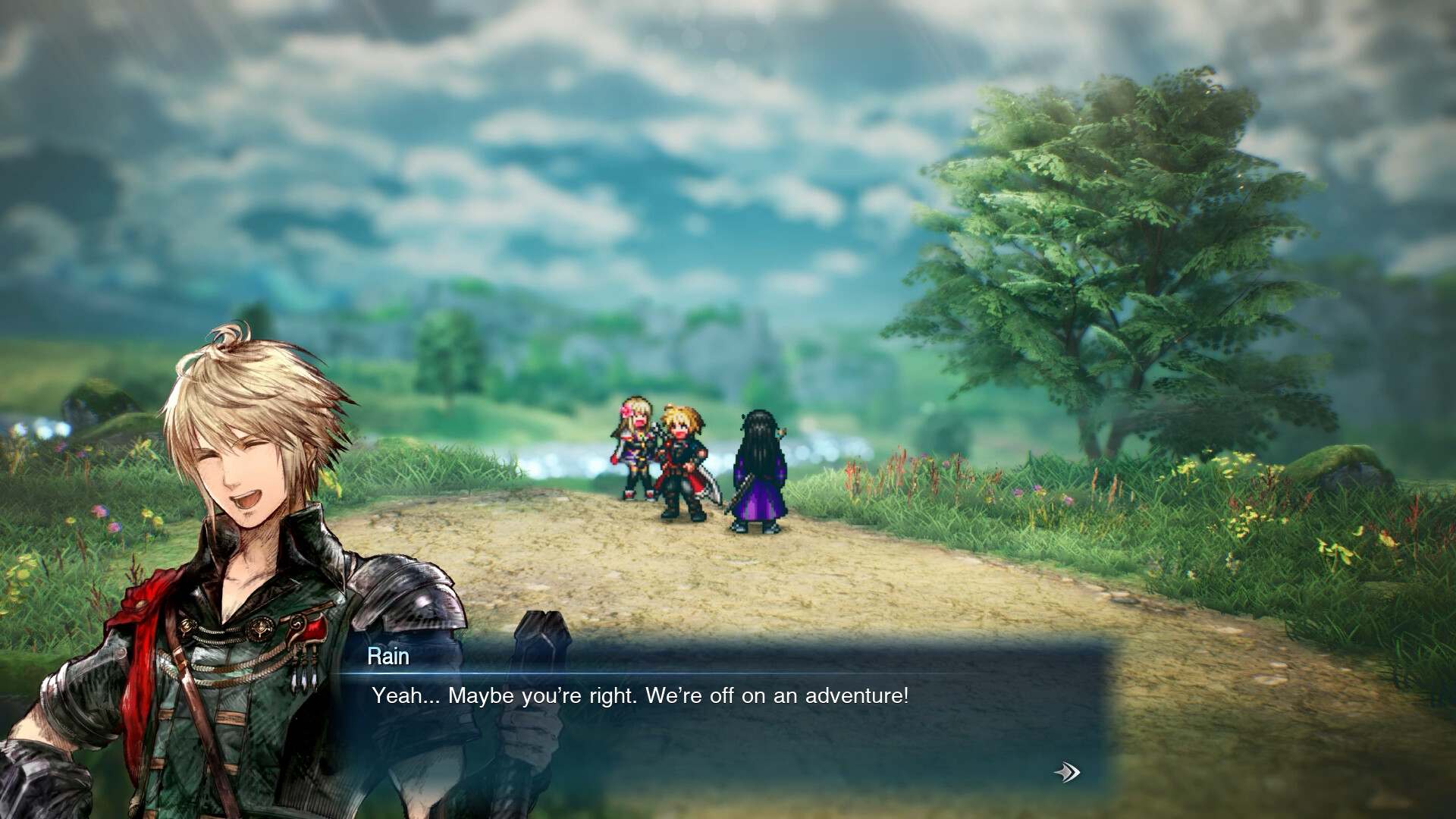
All three crops are shown below.

The central sprites have defined edges against the softer scenery behind them.

The dialogue remains readable over the scene. Its clarity differs from the softened distant scenery.

The hills beyond the party are visibly soft in this publisher image. This is part of its selective-focus presentation.
Square Enix publisher image via Steam (opens in a new tab). Crops from the same still; build and settings unknown. This is not a High/Middle comparison.
These publisher stills illustrate the presentation; they are not captures of our recommended settings. They also explain why a blanket instruction to “fix the blur” misses an important choice. You might like the separation around the party and still find a particular scene too soft.
Decide which part bothers you—the whole picture, the foreground, or the scenery beyond the characters—before changing Post-Processing.
Try Post-Processing at Middle before chasing a blur fix
Try Post-Processing from High to Middle, leaving the other settings alone, then return to the same view. Keep Middle if you prefer the scene; otherwise put it back to High.
The recorded Graphics page groups this choice under Post-Processing and shows no separate depth-of-field or motion-blur toggle. We haven’t established which effects change between tiers, so Middle isn’t a verified DoF-off switch and may leave the softness you dislike unchanged. There’s little value in keeping a lower setting solely because a guide told you to lower it.
Interactive illustration
Where does your eye go?
Move the focus through this little scene. See how a softer surrounding layer changes what stands out.
Near scenery: The close stonework is clear. The party and distant arch soften, pulling attention towards the foreground.
Party: The travellers are clear while the near stonework and distant arch soften. The centre of attention stays with the party.
Far scenery: The distant arch is clear. The party and close stonework soften, drawing attention beyond the travellers.
All layers clear: Stonework, travellers and distant arch all keep their edges. Change the focus again with softening enabled to compare.
Conceptual artwork with exaggerated softening. This does not reproduce Resonance’s renderer or show what High and Middle change.
The demo-era configuration bundle circulating online is a poor shortcut for this choice. It changes several effects together and isn’t validated here for the retail Windows build. It cannot tell you what a depth-of-field-only change would look like, so it isn’t included as a launch fix.
Lower shadows selectively when the target slips
Keep Shadows at High while the game is meeting your frame-rate target. If it isn’t, try Middle while leaving Textures and the other quality categories unchanged.
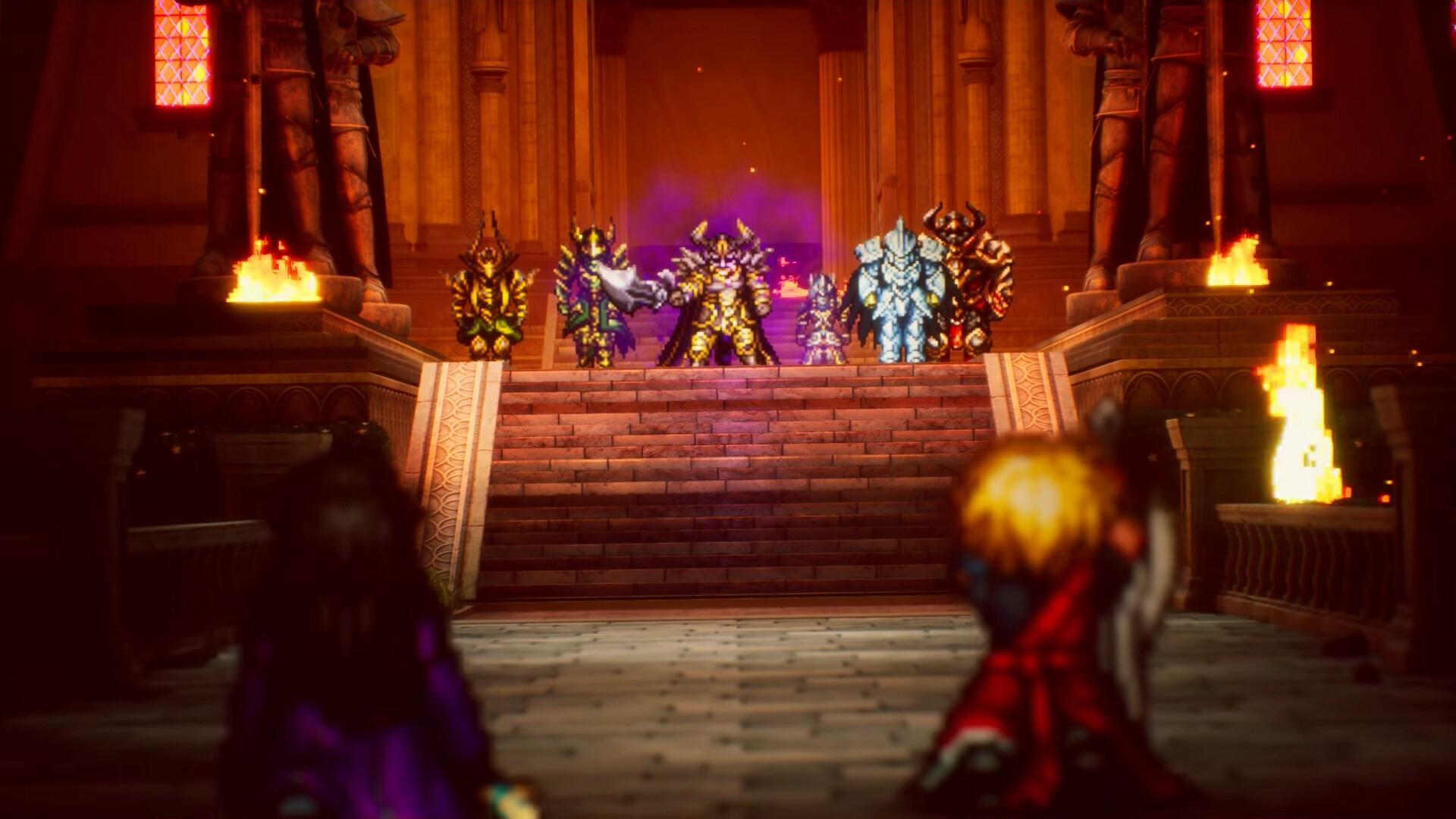
RPG Site recommended High to Middle in its full-game Steam Deck testing. That makes Shadows worth investigating when the target is slipping, although it doesn’t establish a Windows FPS gain or prove that shadows are the most expensive setting.
Use the same demanding section for both versions, with your chosen cap unchanged. If Middle doesn’t help enough to matter and you prefer High’s appearance, put it back. If the compromise suits you, keep it and move on; there’s no need to lower Textures as part of the same decision. Our guide to comparing FPS benchmarks (opens in a new tab) explains how to make a more careful comparison when the result is close.
Choose a cap for the game you can sustain
The observed FPS choices are 30, 60, 120, 144 and Unlimited. I’d begin at 60 when the PC can hold it at acceptable quality. Square Enix’s recommended requirements name a 1080p60 target at “Highest”; that is the publisher’s target wording, not a guarantee for your PC or the same label as the observed High menu tier.
Try 120 when you have sufficient performance and a display setup that can make use of it. Don’t sacrifice the picture just to select a larger number. If steady 60 remains out of reach at the quality you want, 30 is a reasonable fallback. The choice is easier once you decide which compromise you would actually notice during play.
Higher targets leave less time between frames. Try the same short walk at different targets, then switch the spacing to see why the average alone doesn’t describe the motion:
Interactive illustration
One journey. Different frame intervals.
Watch the party cross the ruins. Change how often its position updates, then try uneven spacing at the same selected target.
Motion shown at ¼ speed to make the steps visible.
Original miniature, not Resonance gameplay or a reproduction of its limiter. Synthetic schedules share one path and clock; browser and display timing affect what you see. This does not test your PC, measure latency or show a fix for a stall.
Timing math and every target
Ideal interval = 1,000 ÷ FPS. Uneven spacing alternates ½ and 1½ times that interval, preserving the selected target’s average over each complete pair. Try 30 FPS with Uneven to compare both lanes at the same average.
| Target | Steady | Uneven pair |
|---|---|---|
| 30 FPS | 33.33 ms | 16.67 + 50.00 ms |
| 60 FPS | 16.67 ms | 8.33 + 25.00 ms |
| 120 FPS | 8.33 ms | 4.17 + 12.50 ms |
| 144 FPS | 6.94 ms | 3.47 + 10.42 ms |
The animation runs four times slower than these intervals. Both parties follow identical motion, held at the latest position due under each schedule. Unlimited has no single target interval.
A cap cannot repair a stall, and selecting 60 doesn’t establish that frames reach the display evenly. Use an FPS readout (opens in a new tab) if you need to see whether the game is reaching the target. If sync behavior is the confusing part, our VSync guide (opens in a new tab) covers that separate choice. There is no universal Vsync On or Off recommendation for every display here.
If 60 is sustainable with Shadows at Middle and you prefer Post-Processing at High, keep that mix. There’s no reason those separate choices need matching quality labels.
Frequently asked questions
What PC settings should I start with in Final Fantasy Resonance?
Use your display’s native resolution when offered, start Textures, Anti-Aliasing, Post-Processing and Shadows at High, and choose the 60 FPS cap if your PC can sustain it. This is a clarity-first starting recommendation, based on inspected demo menus and recent full-game reporting, rather than a Hone retail benchmark.
Can I turn off depth of field in Final Fantasy Resonance?
The recorded PC Graphics page has a broad Post-Processing setting and shows no separate depth-of-field toggle. Try High to Middle if you dislike the softness, but that change is not a verified DoF-off switch. The demo-era configuration bundle is not established here as a retail fix.
Should I lower shadows for more FPS?
Try Shadows from High to Middle if your chosen frame-rate target is being missed. A full-game reporter recommended this change on Steam Deck; it gives desktop players a setting to investigate, but does not establish a Windows FPS gain. Keep High if performance is sufficient and you prefer the picture.
Which frame caps does Final Fantasy Resonance have on PC?
The observed menu offers 30, 60, 120, 144 and Unlimited. Start at 60 when sustainable; consider 120 with sufficient performance and display support, or 30 when steady 60 is out of reach at acceptable quality. A cap alone does not guarantee smooth frame delivery.

Written by
Digital Marketing Manager
Keep reading