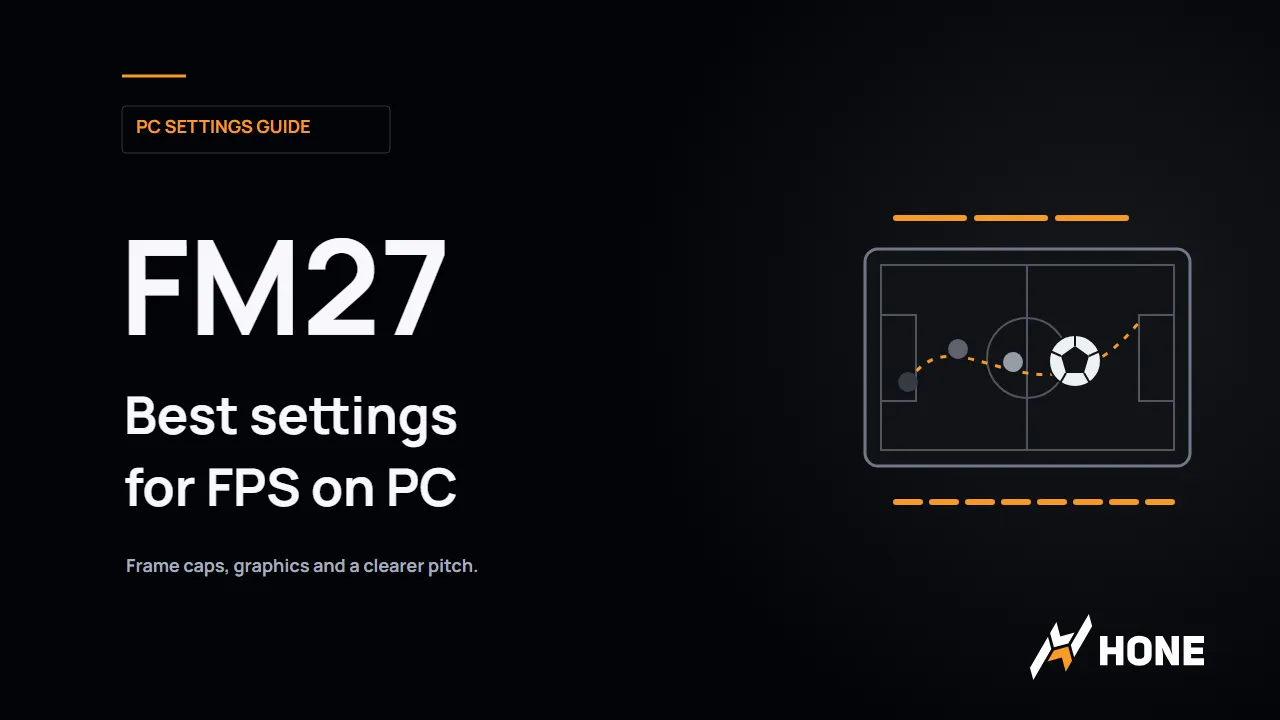
FM27 Best Settings for FPS on PC
FM27 best settings for FPS on PC: change the 60 FPS limit, reduce graphics load and keep the pitch clear with Custom graphics and Automatic frame rate.
In this article
FM27 best settings for FPS start with Custom graphics and Automatic frame rate on a high-refresh monitor. If Football Manager 27 is sitting at 60 FPS, check that limit before stripping detail out of the stadium. Sports Interactive confirms that Automatic lets the game follow your monitor’s refresh rate, including above 60.
For the picture itself, keep native resolution and 100% Render Scale initially. Reduce optional crowd, lighting and scene detail first. A clearer pitch is worth preserving when you’re following runs and reading the match, especially if a frame cap was the reason your FPS would not rise.
FM27 best settings for FPS: start here
Open Preferences > Match Day and set Graphics Quality to Custom. This gives you the individual controls needed for an FPS-first setup.
| Setting | Start here | What to do next |
|---|---|---|
| Graphics Quality | Custom | Adjust the individual options below. |
| Frame Rate | Automatic on a high-refresh screen | Check your Windows refresh rate if the target remains 60. |
| Output resolution | Your monitor’s native resolution | Keep text and the final image sharp. |
| Render Scale | 100% | Lower it after the detail cuts if match FPS is still too low. |
| Crowd Quality | Low | Restore more crowd detail if the match has enough FPS. |
| Enhanced Lighting | Off | Restore it if you prefer the extra lighting detail. |
| Shadow Quality | Reduce one available tier | Continue lower if you’re happy with the visual tradeoff. |
| Mesh Detail | Reduce one available tier | Keep enough detail for the picture you want. |
| Anti-Aliasing | Low | Try Disabled if FPS matters more than smooth edges. |
| Texture Quality | Keep your current value initially | Reduce it if memory is limited. |
These are our starting recommendations using SI’s documented controls and Launch Preview reports, not a benchmarked preset. SEGA names Render Scale, Mesh Detail, Shadow Quality, Texture Quality and Anti-Aliasing in its FM27 graphics guidance (opens in a new tab). Crowd and lighting values also appear in preview players’ menus; updates can change the available options.
How to get FM27 above 60 FPS
Use this order:
- In Windows, open Settings > System > Display > Advanced display.
- Select the monitor you play on and choose its intended refresh rate. A 144 Hz monitor configured at 60 Hz is still running at 60 Hz.
- In FM27, open Preferences > Match Day.
- Set Graphics Quality to Custom, then Frame Rate to Automatic.
That last step is SI’s developer-confirmed route (opens in a new tab) for running FM27 above 60 FPS. Microsoft’s refresh-rate instructions (opens in a new tab) explain the Windows side, including selecting the correct display when you have more than one.
Automatic sets the target. It does not make a PC producing 50 FPS suddenly render 144 FPS. If the counter stays pinned at exactly 60, the cap and display setup deserve attention. If it moves around below your chosen target, reducing graphics demand is the next useful step.
There is also a good reason to keep a deliberate 60 FPS target: you may prefer lower fan noise, heat or power use over a higher match frame rate.
At a steady 60 FPS, a new frame arrives every 16.67 ms. At 120 FPS, that interval is 8.33 ms; at 144 FPS, 6.94 ms. Those are mathematical examples of frame spacing, not FM27 benchmark results or measurements of input delay.
Check the cap before cutting the picture
Try Automatic on an example high-refresh screen. Both balls travel at the same speed; the spacing between their updates changes.
Set Graphics Quality to Custom, then Frame Rate to Automatic to let FM27 follow the selected monitor refresh rate.
Eight-times-slower illustration of ideal frame spacing, not game footage or measured FPS. Your PC still has to produce the frames.
Frame interval reference
| Target | Ideal interval |
|---|---|
| 60 FPS | 16.67 ms |
| 120 FPS | 8.33 ms |
| 144 FPS | 6.94 ms |
Lower stadium detail before shrinking the picture
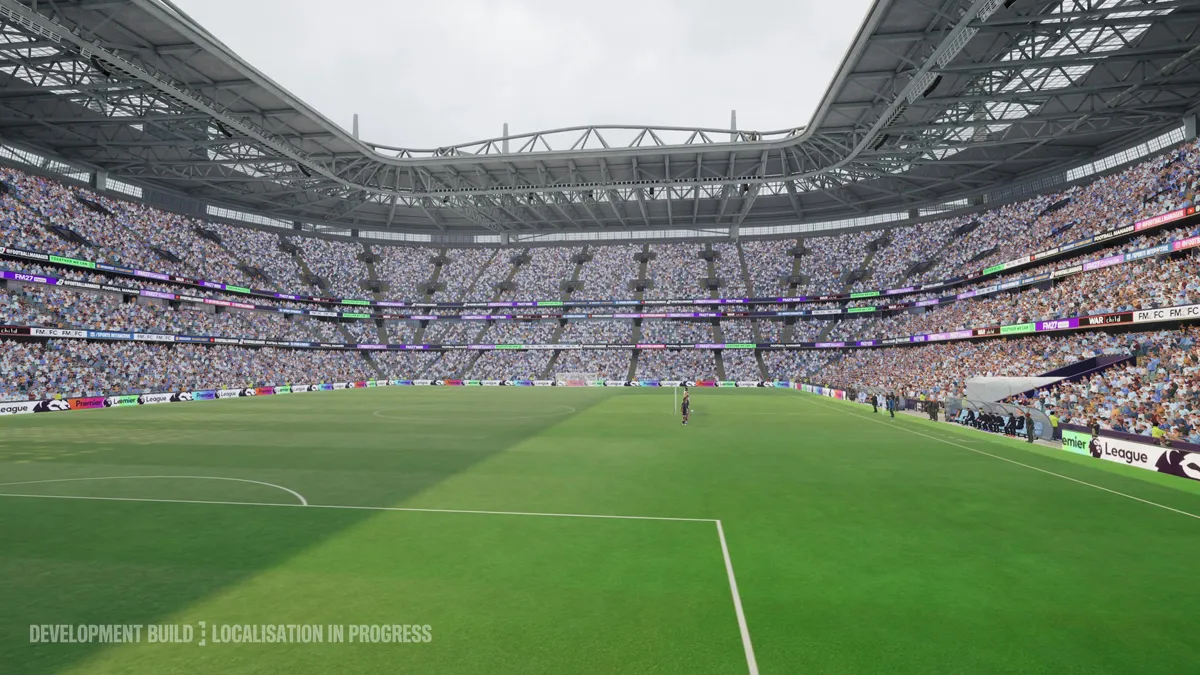
Start with Crowd Quality Low and Enhanced Lighting Off when FPS is the priority. Then reduce Shadow Quality and Mesh Detail through the tiers your menu offers. This order preserves the output resolution while you decide which stadium detail you actually miss.
Treat the pitch as the thing you need to read. The crowd and lighting add atmosphere, but you’re watching player movement, spaces and the ball. Keeping that view clear is a more useful starting priority than making every setting as low as possible.
Anti-Aliasing Low is a reasonable compromise for edges. Disabled is the next option to try if the match still struggles, although jagged lines and outlines may become more noticeable. If that makes the match harder to look at, put Low back and make the next cut elsewhere.
Leave Texture Quality alone for the first pass unless memory is already a problem. Once the match runs comfortably, restore the detail you value most rather than keeping every compromise forever.
For NVIDIA’s driver-level Vertical Sync setting, SEGA recommends Use the 3D application setting when investigating excessive workload or heat. Keep that as the starting point instead of adding a blanket global V-Sync override while changing FM27’s own frame-rate target.
When to lower Render Scale
Keep your monitor’s native output resolution, then lower Render Scale by one available step if the previous changes leave match FPS too low. This reduces the resolution used to render the scene while retaining the chosen output size.
The tradeoff is clarity. Lower internal resolution gives the renderer less image detail to work with, so the pitch, distant players and fine edges can look softer. Pause on a wide match view after changing it; you should still be able to follow the action comfortably. If the picture becomes distracting, bring the scale back up and accept a lower frame-rate target or another detail compromise.
Render Scale changes the resolution used to draw the scene.
The picture is presented at your chosen output resolution.
Start at native output and 100% Render Scale. Lowering Render Scale can reduce scene detail even while the output resolution stays native.
Schematic, not an FM27 image-quality comparison. The boxes do not represent a measured resolution or performance gain.
Keep the FM27 interface readable
Match rendering and interface readability need separate attention. Start with native output resolution, then use the available information and text scaling controls to make attributes, menus and contract details comfortable to read.
SI introduced more control over screen composition in its FM27 interface update (opens in a new tab). Labels shown in development screenshots differ from later Launch Preview reports, so follow the scaling choices in your installed version.
If the interface remains blurry at native resolution, do not keep lowering Render Scale in the hope of sharpening the text. Preview reports include players who still saw blur after checking resolution and scaling. There is no verified universal fix in that evidence; persistent blur is worth reporting to FM27 support with a screenshot and your display configuration.
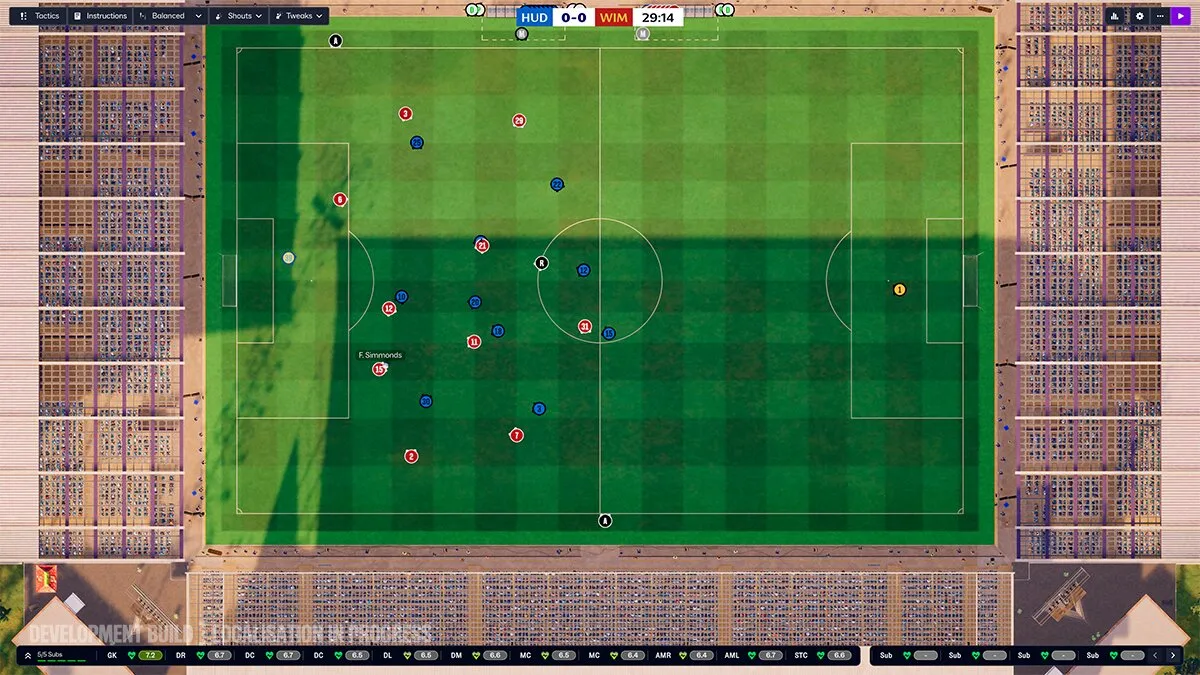
The 2D match view is another choice if you prefer a tactical overview to the 3D presentation. SI confirms that the classic view remains in FM27 (opens in a new tab). Pick it if the overhead pitch makes player positioning easier for you to read.
If FM27 feels slow between matches
If the match itself runs well but advancing dates takes too long, stop working through the graphics table. Look at the leagues and database loaded for your career. SEGA’s series-wide guidance (opens in a new tab) identifies those as factors in processing demand.
For a new save on a modest system, load the leagues your career needs. Cutting shadows is a poor answer to a wait caused by a large simulation workload.
Also look at Continue Flow. Choose Streamlined if you want fewer stops while moving toward match day. Balanced and Comprehensive show more information as it happens; Custom lets you choose the interruptions. SI explains these choices in its Continue Flow feature overview (opens in a new tab).
That changes how often you need to interact. It is not a measured faster-processing switch or a match FPS boost. Use it if you want fewer breaks, while treating the underlying time needed to simulate your save as a separate issue.
If FM27 closes to desktop, freezes before the menu or refuses to start, move to our FM27 crashing and launch fixes (opens in a new tab).
Frequently asked questions
What are the best FM27 settings for FPS?
Start with Custom graphics and Automatic frame rate on a high-refresh display. Keep native output resolution and 100% Render Scale initially, try Crowd Quality Low and Enhanced Lighting Off, and lower shadows and mesh detail before sacrificing pitch clarity. These are starting recommendations, not a benchmarked preset.
How do I get FM27 above 60 FPS?
Open Preferences > Match Day, set Graphics Quality to Custom, then set Frame Rate to Automatic. Sports Interactive says Automatic follows monitor refresh, including above 60 FPS. Select the intended display refresh rate in Windows too. Your PC still needs enough performance to reach that target.
Does lowering FM27 graphics speed up calendar processing?
Graphics settings address match rendering. For slow date processing, consider the leagues and database loaded in your career. Continue Flow Streamlined reduces how often the game stops for information; it is not a measured CPU or FPS improvement.
Should I use the 2D match view for better performance?
Use 2D if you prefer its tactical overview. FM27 retains the classic view, but the evidence here does not establish an FPS gain from switching to it.
Why is FM27 still blurry at native resolution?
Check output resolution, Render Scale and the available information/text scaling controls separately. Launch Preview players reported different results, including blur at native resolution, so those checks do not establish a universal fix. Persistent interface blur belongs in an FM27 support report.

Written by
Digital Marketing Manager
Find Hone again in Google Search
Prefer our PC performance guides and research? Add Hone to your preferred sources in Google Search.
Keep reading