How Hone Game Mode works
Choose what runs while you play. A practical guide to Game Mode presets, performance options, and our VALORANT benchmark results.
In this article
Start with Balanced, or use Custom to keep apps such as Discord running. Hone applies your profile when it detects your game. Test supported performance options one at a time and keep the changes that improve your results.
In our Valorant tests, average frames per second (FPS) improved by 27.7% in the shooting range and 23.9% on Haven. In the Haven test, we also recorded lower CPU usage, power draw and temperature.
Choose what keeps running while you play
Your game shares your PC with everything else that’s running. A launcher might start downloading an update, a browser can use processing time, and a live wallpaper keeps animating behind your game.
Game Mode applies your profile each session, giving selected apps less CPU priority, pausing them, or closing them. It can also stop selected Windows services, the background programs that handle jobs such as file indexing. Lowering priority may make little difference to FPS if those apps aren’t competing with the game for CPU time.
You have 3 options:
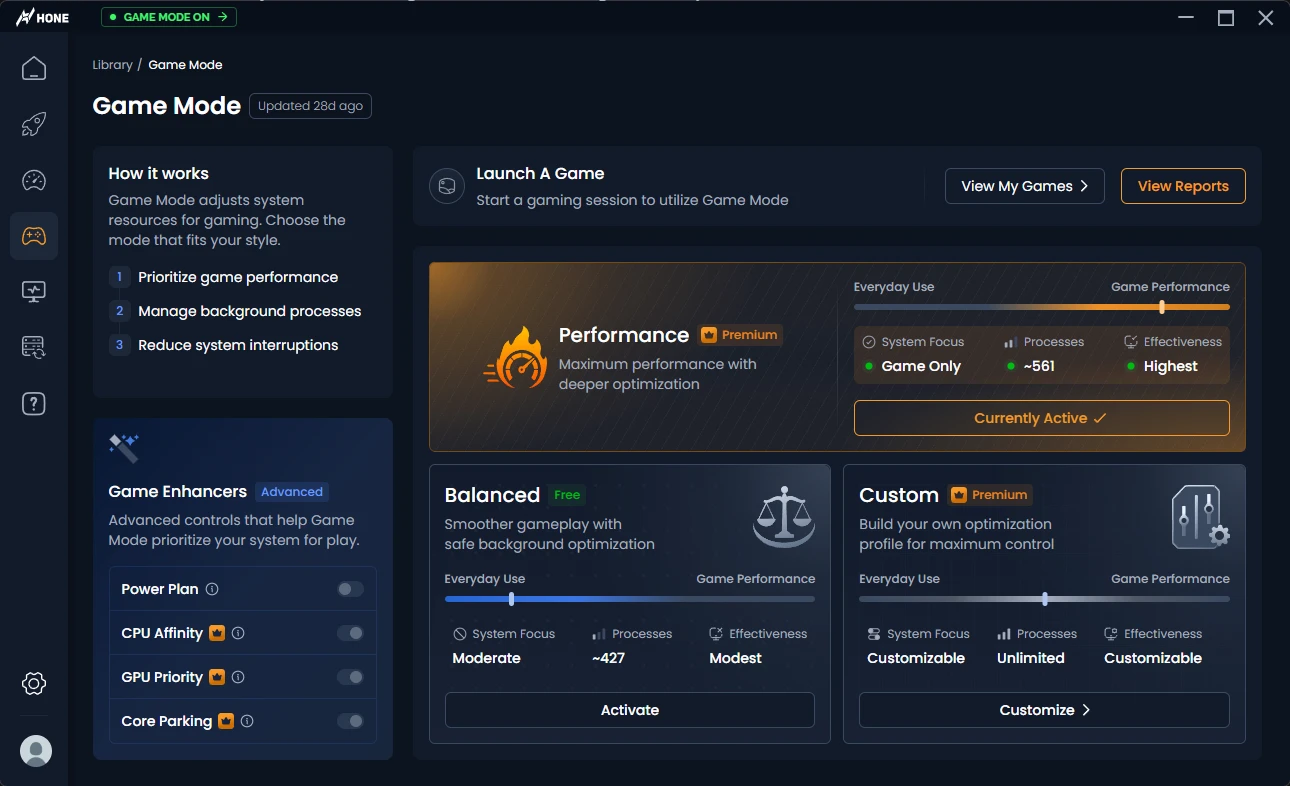
- Balanced keeps more background functionality available. It lowers the priority of many apps while pausing selected processes and stopping selected services.
- Performance applies stronger restrictions to a broader list of apps. It also closes selected sync, download, and utility processes.
- Custom lets you choose what happens to individual apps and services. Leave something alone, give it less priority, or stop its work during play.
For example, you might pause an animated wallpaper but keep Discord working. Custom also lets you leave a download running when you want it to finish during play.
Hone skips profile actions for entries on its exclusion list, including OBS Studio processes and specified Windows, anti-cheat and security components.
Add the enhancers that suit your PC
These settings give you more control over how Windows uses your hardware. Your CPU handles processing work through units called cores. Your GPU draws the graphics.
There are 7 performance options across 2 places. On the Game Mode page, you’ll find 4 Game Enhancers:
- Power Plan: Uses a Hone power plan during play to adjust how Windows balances performance and power use. Game Mode restores your previous plan after the session.
- CPU Affinity: Steers selected background apps toward a smaller group of CPU cores, leaving less competing work on the other cores.
- GPU Priority: Favors the game over selected background apps when they compete for GPU time. Your game can spend less time waiting to render frames.
- Core Parking: Keeps CPU cores available for work so they can respond to changes in the game’s demands without waiting for Windows to unpark them.
For 3 more options, open an installed game’s page and choose Game-Specific Tweaks:
- Disable CPU 0: Keeps the game off the 1st physical core. This can help if system or driver activity on that core is interrupting the game.
- Disable Second CCD: Keeps the game on 1 group of cores on supported AMD CPUs with 2 core chiplets, called CCDs. This can reduce delays from work crossing between the groups.
- Disable SMT/Hyperthreading: SMT lets 2 streams of work share a core. This setting limits the game to 1 processing slot per available core, which can reduce competition between its own tasks.
These game-specific tweaks limit where that game runs. Windows and other apps can still use those CPU resources.
Planned update: We plan to bring these enhancers into 1 menu in an upcoming update. We’ll combine some controls to improve automation based on your hardware and make the settings easier to use.
The best combination depends on your system specs and the game. A compatible setting can still reduce FPS if it takes away CPU capacity the game needs. Try the supported options and keep the ones that improve your results.
What we measured in VALORANT
We compared the baseline with the Performance preset and all supported Game Enhancers and Game-Specific Tweaks enabled in 2 Valorant scenes. This includes Disable CPU 0 and Disable SMT/Hyperthreading. The comparisons measure the combined setup, so they don’t show how much each setting contributed.
The PC had a Ryzen 7 9800X3D, GeForce RTX 5070 Ti, and 32 GB of RAM, running Windows 11 with most unwanted software removed or disabled. The 9800X3D has 1 CCD, so Disable Second CCD does not apply to this PC. We recorded both configurations in CapFrameX.
More FPS with lower system usage and temperature
In our controlled Haven test, Game Mode delivered 23.9% higher average FPS while the CPU drew 6.0% less power. We also measured 17.7% lower average CPU usage and a CPU temperature 3.6°C lower on average.
| Average measurement | Baseline | Game Mode |
|---|---|---|
| FPS | 653.5 | 810.0 |
| Total CPU usage | 41.1% | 33.8% |
| CPU power | 108.7 W | 102.2 W |
| CPU temperature | 69.7°C | 66.1°C |
Reducing unnecessary work and competition can help your game run more efficiently, producing more frames while the CPU uses less power and runs cooler. Results depend on your game, hardware, background activity, available processing capacity and system temperature.
Shooting range: 5 strafing bots
We ran this test at 1440p with Low graphics settings, in the shooting range with 5 bots visible and strafing.
View the numbers
| Measurement | Baseline | Game Mode |
|---|---|---|
| Average FPS | 869.1 | 1109.6 |
| 1% FPS percentile | 648 | 880.9 |
| 0.1% FPS percentile | 580.8 | 783.5 |
Average FPS rose from 869.1 to 1,109.6, a 27.7% increase. The 1% FPS percentile improved by 35.9%, and the 0.1% FPS percentile improved by 34.9%.
Real map: Haven Cypher and Killjoy abilities
We also tested a controlled scene on Haven, with the same Cypher and Killjoy abilities on screen in both configurations.
View the numbers
| Measurement | Baseline | Game Mode |
|---|---|---|
| Average FPS | 653.5 | 810 |
| 1% FPS percentile | 471.9 | 616.5 |
| 0.1% FPS percentile | 251.6 | 351.5 |
Average FPS rose from 653.5 to 810.0, a 23.9% increase. The 1% FPS percentile improved by 30.6%, and the 0.1% FPS percentile improved by 39.7%.
Average FPS tells you how many frames the game produced per second across the recording. The 1% and 0.1% FPS percentiles (opens in a new tab) describe the slower end: the thresholds around the slowest 1% and 0.1% of frames. Higher numbers mean shorter waits around those slower frames.
That matters when you turn to follow an opponent. Long gaps between frames can make movement look or feel uneven, even with a high average FPS. Improving those slower frames can make a game feel smoother (opens in a new tab), even if the average stays the same. In both tests, average FPS and the slower-frame results improved.
The same average. Different motion.
Watch the markers move. Both example schedules contain 60 frames per second, but one includes longer pauses between frames.
Other games, including Marvel Rivals, Overwatch and Fortnite, saw smaller average FPS gains of 2-5%, with 5-15% increases in the 1% and 0.1% lows. Your results may vary with the game, your hardware configuration, background activity, available processing capacity and system temperature. Test what works best for you.
During and after your game
Game Mode keeps checking for matching background activity while you play. If a launcher starts a new helper or an app restarts, it can apply your rules to that new activity too.
After your games close, Game Mode uses saved settings to restore its temporary changes and resume paused apps. Apps it closed stay closed until you reopen them. The session report shows what changed at launch and during play, so you can check how your setup behaved.
Start with a preset that fits the apps you want to keep. Compare Game Mode off and on in the same scene with the same graphics settings, starting each run with the same background apps.
Repeat the comparison and look at slower frames alongside average FPS. Once you’ve chosen a setup, Game Mode handles those adjustments around your gaming sessions.
Frequently asked questions
Will I get the same FPS gains?
The 27.7% and 23.9% gains came from two controlled VALORANT scenes on one PC. Other games in our tests had smaller gains. Your hardware, settings, background apps, and the scene you test can change the result.
Do I need to enable all seven performance options?
No. Start with a preset and test the options supported by your PC. Limiting a game to fewer CPU resources can reduce performance when it needs that capacity. Keep the settings that improve your own comparisons.
What happens to my apps after I close the game?
Game Mode uses saved settings to restore its temporary changes and resume paused apps. Apps that it closed stay closed until you reopen them.
Can I keep Discord or a download running?
Yes. Use a Custom profile to choose how individual apps and services are treated. You can leave an app alone when you need it during play.
Where do I find the game-specific CPU tweaks?
Open an installed game's page and choose Game-Specific Tweaks. Disable CPU 0, Disable Second CCD, and Disable SMT/Hyperthreading are separate from the four Game Enhancers on the Game Mode page.

Written by
Product Strategist at Hone
Keep reading