Modern Warfare 4 Best PC Settings for FPS and Visibility
Choose Modern Warfare 4 PC graphics settings for clearer fights, then tune upscaling, frame generation and stutter checks for the mode you play.
In this article
Start with native output resolution, Quality upscaling if you need it, Frame Generation and Ray Tracing Off, and NVIDIA Reflex On where available. Turn world and weapon blur and depth of field Off, with Film Grain at 0. That is a practical starting point for Call of Duty: Modern Warfare 4 (MW4) when clear fights and response matter most.
The recommendations below use current campaign-era PC menus reviewed October 20, 2026. Campaign early access began October 16; DMZ early access is scheduled for October 20, ahead of the October 23 full release. Exact live DMZ access has not been verified here, and campaign settings observations are not DMZ or multiplayer benchmark results.
The MW4 PC settings to start with
Choose your Graphic Preset before making individual changes. It replaces most quality settings, and the game says a restart is needed to apply all changes. Adjusting twenty rows and then choosing a preset is an excellent way to spend another ten minutes in the same menu.
This profile draws on Webzy’s October 17 PC menu walkthrough, shown on an RTX 4090 at 3840 × 2160, with our clarity-first reconstruction and response priorities. Hone has not benchmarked it. Treat it as a starting configuration; the creator’s hardware does not establish a low-end-PC result.
| Setting | Starting choice |
|---|---|
| Display Resolution | Your display’s native resolution |
| Resolution Scaling Technique | Keep your preferred native option if performance is sufficient; otherwise use a supported upscaler at Quality initially |
| Frame Generation | Off for the response-first baseline |
| Ray Tracing | Off initially; optional for a richer campaign picture |
| NVIDIA Reflex Low Latency | On, where available |
| Texture Resolution | High if memory headroom allows; lower it when investigating memory pressure |
| Texture Filter Anisotropic | High initially, with memory headroom |
| Detail Quality | Low |
| Particle Resolution | Low |
| Shader Quality | Medium; separate from Shading Quality |
| Shading Quality | High; separate from Shader Quality |
| Shadow Quality | Normal |
| Shadow Filtering Quality | Normal |
| Screen Space Shadows | Off |
| Occlusion and Screen Space Lighting | Off |
| Screen Space Reflections | Off |
| Terrain Quality | Very Low as a starting compromise |
| World Motion Blur | Off |
| Weapon Motion Blur | Off |
| World Depth of Field | Off; Cutscenes Only is a campaign alternative |
| Weapon Depth of Field | Off |
| Film Grain | 0 |
| On-Demand Texture Streaming | Minimal to reduce downloads; Optimized if additional texture quality matters more |
| Background Shader Preloading | On; allow preparation to finish |
| V-Sync (Gameplay) | Preserve a working sync setup; Off is the response-first trial if you accept tearing |
| Custom Frame Rate Limit | An attainable gameplay cap; set menu and out-of-focus limits separately |
No matching settings. Try a shorter name or clear the filters.
High textures alongside Low detail is deliberate. A clear surface texture and a reduced detail setting are different choices. There is little value in flattening the entire menu just because a few options need to come down. Once the game meets your target and looks acceptable, you can stop tuning.
Keep the HUD sharp; tune the rendered picture separately
Leave Display Resolution at native. MW4’s menu recommends it for HUD clarity. In Borderless, that control can be locked; Fullscreen Exclusive exposes manual resolution and refresh-rate controls. Choose the mode that suits how you use the PC. We have no measured reason to declare one universally faster.
The performance compromise belongs in Resolution Scaling Technique first. The current menu lists NVIDIA DLSS, AMD FSR, Intel XeSS and Filmic SMAA T2X. Choose a supported option the game exposes on your hardware rather than assuming every part of every feature suite works on every GPU.
If the native picture already runs well, keep it. Otherwise, Quality is a sensible clarity-first upscaling starting point. Move to Balanced or Performance if you still need room, paying attention to distant detail during movement. Sharpening can change the appearance of edges; it cannot restore source detail that the lower-resolution input never contained.
DLSS adds a naming trap: Preset and Model are separate controls. Quality, Balanced and Performance describe reconstruction presets; CNN and Transformer identify model choices. Changing the model is a different comparison from changing the preset. The current creator profiles disagree, and the available evidence does not establish a universal CNN or Transformer winner.
Also leave a locked control alone. In the inspected DLSS-active menu, Variable Rate Shading is disabled because DLSS is active. A copied list telling you to toggle it is less useful than the explanation already on the screen.
Spend detail where you will notice it
Texture Resolution controls surface textures. Texture Filter Anisotropic controls their quality when viewed at an angle. Lowering one does not make the other redundant. Start with High where memory allows, then reconsider Texture Resolution if you are investigating memory pressure. The estimated VRAM bar is a planning aid, not proof of the cause of a hitch.
The table’s Low detail and particles, Normal shadows, and Very Low terrain make a more selective compromise than an all-Low preset. They are reversible starting values from the inspected profile, without a measured ranking of which delivers the biggest saving. Terrain Quality specifically changes surrounding terrain detail; lowering it is a visual tradeoff, not an established way to reveal opponents.
Shader Quality and Shading Quality deserve a second look before you copy them. They are distinct rows, with Shading Quality controlling surface-shading features. Medium Shader and High Shading come from the cited profile. If those choices do not suit your PC or picture, change them separately. Neither row is the same operation as preparing shaders after an update.
Persistent Effects is another preference worth leaving out of a universal prescription. It controls lasting visual damage on certain surfaces after nearby explosions. Keep that detail if you like it, or turn it off if you prefer the cleaner result. Follow its game-restart requirement when changing it.
For Campaign, there is room to restore lighting and detail once the baseline is comfortable. Ray tracing is announced for Campaign, Multiplayer and DMZ, but availability is different from evidence that every combination works correctly in the current build. Treat RT as its own visual choice, with enough performance room to enjoy it.
A bigger FPS counter is only part of response
Leave Frame Generation Off while establishing the baseline. Reconstruction and frame generation solve different problems: reconstruction builds a higher-resolution picture from lower-resolution input, while frame generation adds images between rendered frames. A larger generated-output number does not establish an equivalent increase in newly rendered, game-updated frames.
For a competitive priority, that distinction matters more than making the counter impressive. Get the underlying game performance where you want it first. For a campaign priority, supported frame generation can be a separate trial for smoother-looking output. Judge it alongside the controls and image you actually play with; there is no fixed latency penalty or universal base-FPS threshold established for this guide.
Set NVIDIA Reflex Low Latency to On where available. On + Boost additionally keeps GPU clocks higher in CPU-bound cases and uses more power. It is an optional tradeoff, not an automatic upgrade every player needs. NVIDIA also says enabled Reflex overrides driver Ultra Low Latency functionality, so the two switches do not provide two independent reductions.
Sync needs the same attention to the intended result. V-Sync Off is a response-first choice if you can tolerate tearing. If you already have a working tear-free VRR setup, preserve it rather than replacing it with a generic competitive checklist. NVIDIA’s G-SYNC, V-Sync and Reflex guidance is specific to that arrangement; it is not a universal rule for every FreeSync display or laptop.
Use the separate gameplay, menu and out-of-focus frame-rate limits for their different jobs. Choose a gameplay cap your PC can sustain in the scenes you care about. A creator’s 240 FPS cap is not a target your hardware has agreed to meet, and there is no universal 150 FPS or refresh-minus-three prescription here.
Remove visual effects without changing your aim by accident
World and Weapon Motion Blur are separate switches; turn both Off for the clear-view baseline. Do the same with World and Weapon Depth of Field, then set Film Grain to 0. These are picture preferences, without a measured claim that disabling them improves accuracy or delivers a large FPS gain.
World Depth of Field also has Cutscenes Only. That is a useful campaign compromise if you want the story scenes to retain the effect while gameplay stays clear. It is a more precise choice than treating every cinematic effect as something that must disappear.
FOV deserves a preference decision rather than a magic number. Start from a view you can read comfortably. PC-only Enhanced FOV widens the view near the edges without changing center FOV; it is not the same adjustment as simply raising the ordinary FOV value.
For ADS Field of View, Affected zooms to a value closer to your chosen FOV, while Independent uses its usual zoom value. The inspected tooltip limits Affected’s behavior to 4× scopes and lower magnification, including iron sights. Pick the zoom behavior you want; this setting is not a recoil reduction.
Affected zooms closer to your chosen FOV for iron sights and scopes of 4× or lower. Independent uses its usual zoom value. The inspected Affected tooltip does not establish behavior above 4×.
A rule reference, not an exact zoom preview or a recoil adjustment.
If camera shake bothers you, Minimal (25%) is an available Camera Movement choice in the current footage. Its tooltip also says it does not apply to every camera movement. Use it for comfort, without expecting a change to recoil or frame rate.
Choose what texture data downloads
On-Demand Texture Streaming is particularly easy to misread. Minimal still downloads essential texture data; Optimized downloads additional high-quality data. Choose Minimal if reducing that traffic matters, and use the available daily download limit when appropriate. It is not a complete streaming-Off switch or a guaranteed fix for ping and stutter.
Texture download map
Minimal still has a download path.
Minimal downloads essential texture data. Optimized also downloads additional high-quality texture data.
Category schematic only. Pulsing markers indicate activity, not download speed, data size, progress or a measured FPS/ping result. The available daily download limit is a separate control.
When MW4 has low FPS, hitches or connection warnings
A continuously low frame rate and an occasional hitch need different attention. For sustained low FPS, revisit reconstruction and the visual compromises above. For uneven motion, first let shader preparation finish and make sure the comparison is not happening during a fresh preparation step. Keep Background Shader Preloading enabled; changing Shader Quality is not a replacement for that preparation.
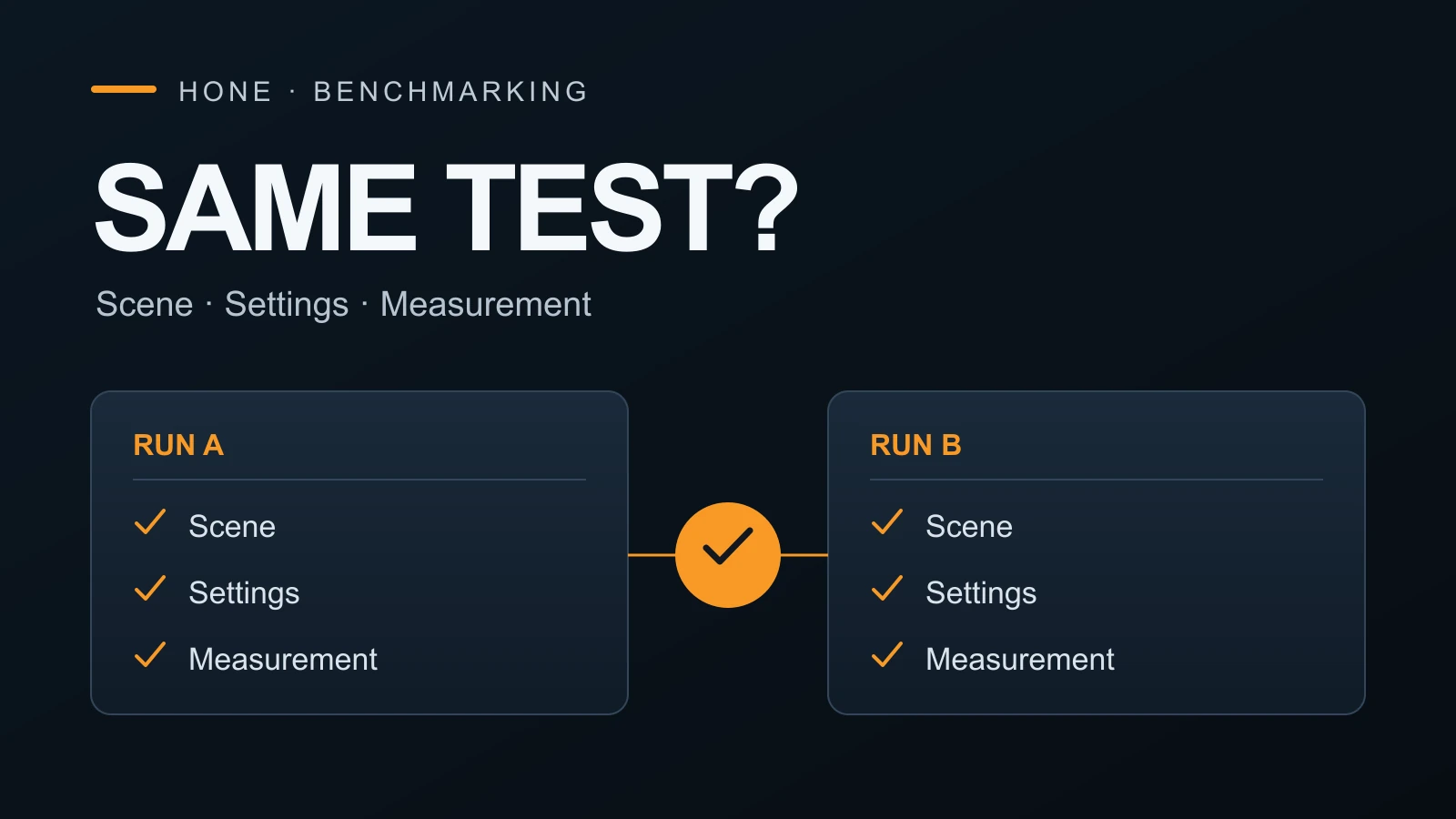
An average also leaves out the spacing between frames. In a synthetic 60 FPS schedule, even updates are 16.67 ms apart. Alternating 8.33 ms and 25 ms gives the same average over each complete pair, while making one wait three times as long as the other. Slowing two identical target paths makes those waits easier to spot. This is a timing illustration, not a measurement of MW4 or your controls.
Motion lab · synthetic illustration
Same average. Different waits.
Two target plates follow one path. Change when their positions update, then watch the gaps in motion.
Shown at ¼ speed. Synthetic update schedules, not MW4 gameplay, a benchmark, a frame-generation model or a latency test. Browser and display timing affect the motion you see. These examples are not recommended game caps.
Inspect the timing math
Even interval = 1000 ÷ FPS, in milliseconds. The uneven schedule alternates half and one-and-a-half times that interval. A complete pair has the same duration and update count as two even intervals. Both targets use the same clock and the same path, showing the latest position due under each schedule.
| Target | Even interval | Uneven pair |
|---|---|---|
| 30 FPS | 33.33 ms | 16.67 + 50.00 ms |
| 60 FPS | 16.67 ms | 8.33 + 25.00 ms |
| 120 FPS | 8.33 ms | 4.17 + 12.50 ms |
Use Interface → Global → Telemetry, including Show More, to find the available monitoring controls. Keep hardware and network alert icons visible while investigating. A connection warning does not establish that Texture Resolution is wrong, just as a high average FPS does not rule out uneven frame delivery.
For drivers, use Activision’s current PC support recommendations (opens in a new tab) rather than a beta guide’s version number. Advanced Shader Delivery is optional supported-platform functionality; Activision’s Xbox PC app requirement applies to players choosing ASD, including those who bought elsewhere. It does not make that app mandatory for every Steam or Battle.net player. As checked October 20, the additional NVIDIA ASD-compatible driver was still scheduled for October 21.
The built-in Benchmark Tool is Multiplayer-only in the captured menu. If it is locked in Campaign, use the same playable mission section for a comparison. Once accessible, the tool runs a simulated multiplayer sequence with zone reporting. Its results still need their mode and settings attached; they do not become a measurement of every campaign scene or DMZ encounter. Our guide to comparing two FPS benchmark results (opens in a new tab) explains the comparison in more detail.
Keep the rest of the PC setup manageable
Finish the in-game choices before adding more variables. Hone Game Mode lets you choose which background apps run. That is a separate Windows-side decision; it does not replace MW4’s graphics settings or repair server conditions.
Save the configuration once you have a picture you like and performance you can sustain. Revisit it when a mode, patch or changed menu gives you a reason, rather than starting over whenever another all-Low list appears.
Frequently asked questions
What are the best MW4 PC settings for FPS and visibility?
Start with native output resolution, a supported Quality upscaling preset if needed, Frame Generation and Ray Tracing Off, and NVIDIA Reflex On where available. Turn world and weapon motion blur and depth of field Off, with Film Grain at 0. Keep High textures conditional on memory headroom. These are starting recommendations, not a benchmarked optimum.
Should I use frame generation in Modern Warfare 4?
Leave it Off while establishing a response-first baseline. If supported, try it separately for a smoother-looking campaign picture once the underlying performance is acceptable. Additional generated images do not establish the same response as an equivalent number of newly rendered frames.
Does Minimal texture streaming turn streaming off?
No. Minimal downloads essential texture data, while Optimized downloads additional high-quality texture data. Choose Minimal to reduce texture-download traffic; it is not a guaranteed fix for low FPS or high ping.
Where is the Modern Warfare 4 benchmark?
The captured PC menu restricts Benchmark Tool to Multiplayer Mode. If it is locked while you play Campaign, compare the same playable mission section instead. DMZ early access does not by itself establish that Multiplayer and its benchmark are unlocked.
Should I copy beta settings for Campaign or DMZ?
Recheck the current PC menus before copying a beta profile. This guide uses campaign-era PC menu evidence reviewed October 20, 2026; it contains no current DMZ or full-multiplayer benchmark results. Keep useful preferences, but revisit changed options and performance in the mode you actually play.

Written by
Digital Marketing Manager
Keep reading