Moon Sweepers Best PC Settings for FPS and Performance
Choose Moon Sweepers PC settings with a Low, Medium and High preset reference, practical graphics advice, VSync controls and big-base performance context.
In this article
Start with Detect for this PC, then lower individual costs while keeping your capsules and machinery readable. For Moon Sweepers, I’d try lower Bloom quality and review the Texture quality memory guidance before dropping the whole game to Low. Object detail deserves more care: it affects how far small parts and capsules are drawn, which matters when you’re trying to follow the work around a base.
The preset reference below comes from Wyzcorn’s v1.0.4 footage. Additional Display and tooltip footage was also published before 1.0.5; it doesn’t prove every menu is unchanged in that patch. These are observed controls and editorial starting recommendations, not a Hone benchmark profile.
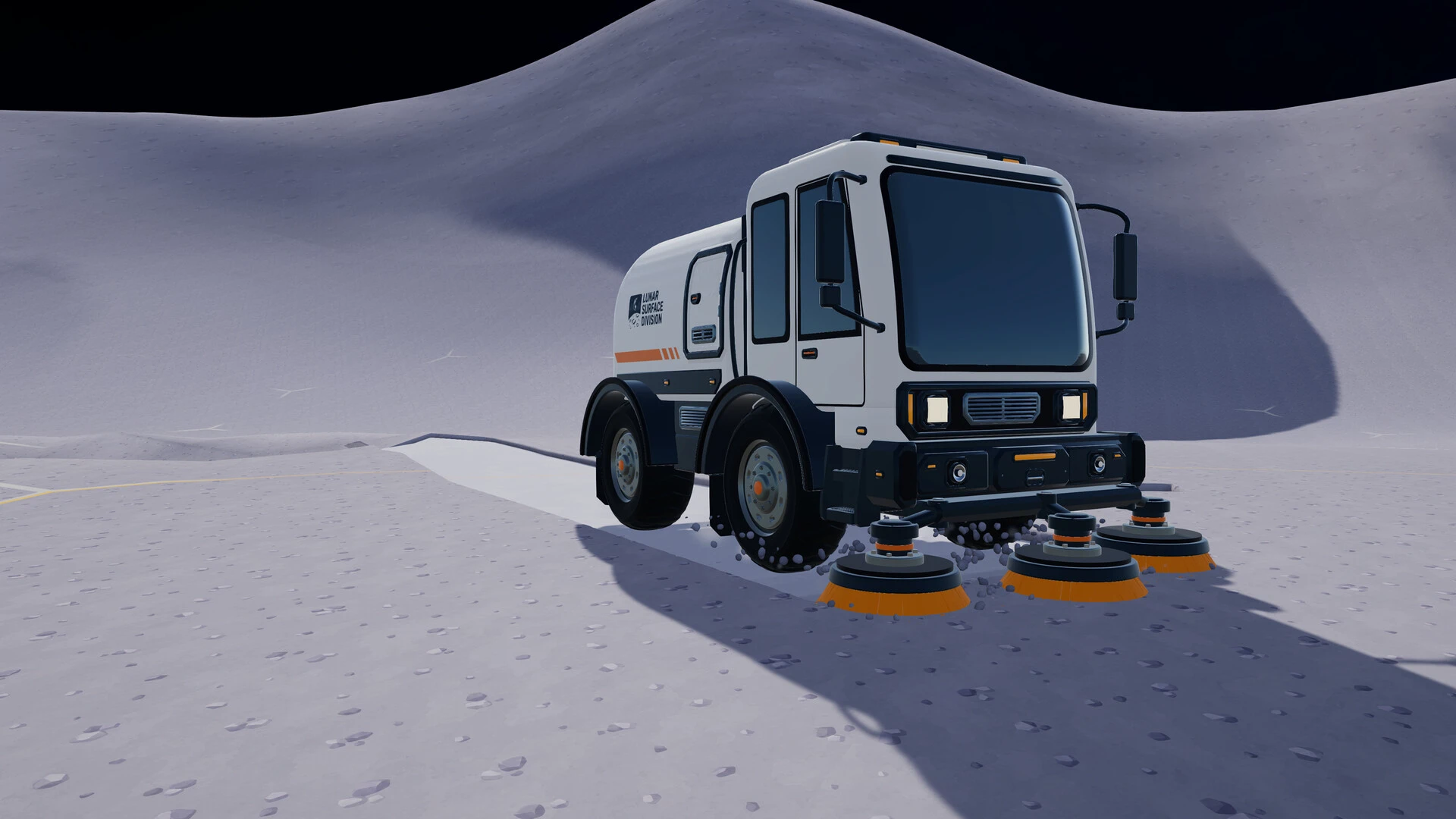
Official Moon Sweepers screenshot: DragDrop Games. Capture build and settings unspecified.
A practical starting point for Moon Sweepers
Open Settings > Graphics and use Detect for this PC as your first reference. The observed interface also has Restore defaults, and changing individual graphics values makes the preset label read Custom. That gives you a straightforward way to keep most of the detected configuration while making a specific compromise.
Detection chose Medium on the creator’s unidentified PC. It isn’t a reason to prescribe Medium to everyone, or evidence that the game has tested how your busiest factory runs.
| Setting | Where I’d start | Reason |
|---|---|---|
| Graphics quality | Detect for this PC, then individual changes | A useful reference without assuming one preset suits every PC |
| Bloom quality | Try Low | The game says lower glow quality costs the graphics card less |
| Texture quality | Try Half on cards with 4 GB or less, following the tooltip | Lower texture quality uses less video memory; no fixed saving is established |
| Object detail | Keep enough detail to see the capsules and parts you use | The setting changes simpler shapes and drawing distance |
| Shadows and Terrain detail | Keep the detected values initially | Avoid changing several unrelated choices before judging the first adjustment |
| Render resolution and Anti-aliasing | Review them separately from the preset name | The preset bundles change these alongside effects and textures |
This order gives the visible work a say in the decision. Less glow is one compromise; losing the distant capsules you’re watching is another. The evidence doesn’t rank every setting by FPS cost, so there’s no defensible percentage ladder to attach to this table.
What Low, Medium and High actually change
The presets move several controls together. In the inspected v1.0.4 menu, switching from High to Low also changes Render resolution from 100% to 67%, Anti-aliasing from SMAA to FXAA, and Texture quality from Full to Half. It isn’t simply the same picture with less lamp glow.
Preset reference · observed v1.0.4
See what a preset drop replaces
Render resolution falls from 100% to 85%, and four detail/glow rows move to Medium. SMAA, Full textures and FSR 1.0 stay the same.
| Graphics option | High | Medium | Change |
|---|---|---|---|
| Render resolution | 100% | 85% | Changed |
| Upscaling | FSR 1.0 | FSR 1.0 | Same |
| Anti-aliasing | SMAA | SMAA | Same |
| Shadows | High | Medium | Changed |
| Terrain detail | High | Medium | Changed |
| Object detail | High | Medium | Changed |
| Texture quality | Full | Full | Same |
| Bloom quality | High | Medium | Changed |
All three observed presets
| Graphics option | Low | Medium | High |
|---|---|---|---|
| Render resolution | 67% | 85% | 100% |
| Upscaling | FSR 1.0 | FSR 1.0 | FSR 1.0 |
| Anti-aliasing | FXAA | SMAA | SMAA |
| Shadows | Low | Medium | High |
| Terrain detail | Low | Medium | High |
| Object detail | Low | Medium | High |
| Texture quality | Half | Full | Full |
| Bloom quality | Low | Medium | High |
A preset bundles several changes. Individual adjustments make the label read Custom. These observed v1.0.4 values do not establish the latest menu or an FPS gain; this reference does not change your game. Render resolution percentages are the game’s values, not display output resolutions.
Use this as a reference for what the preset changed, rather than a ranking of measured performance. If Low leaves you unhappy with the picture, look at the individual values it bundled together. You may prefer a Custom configuration that keeps a particular detail choice while reducing something else. The percentages above are the game’s Render resolution values, not instructions to change your display’s output resolution.
Keep the useful parts of your base visible
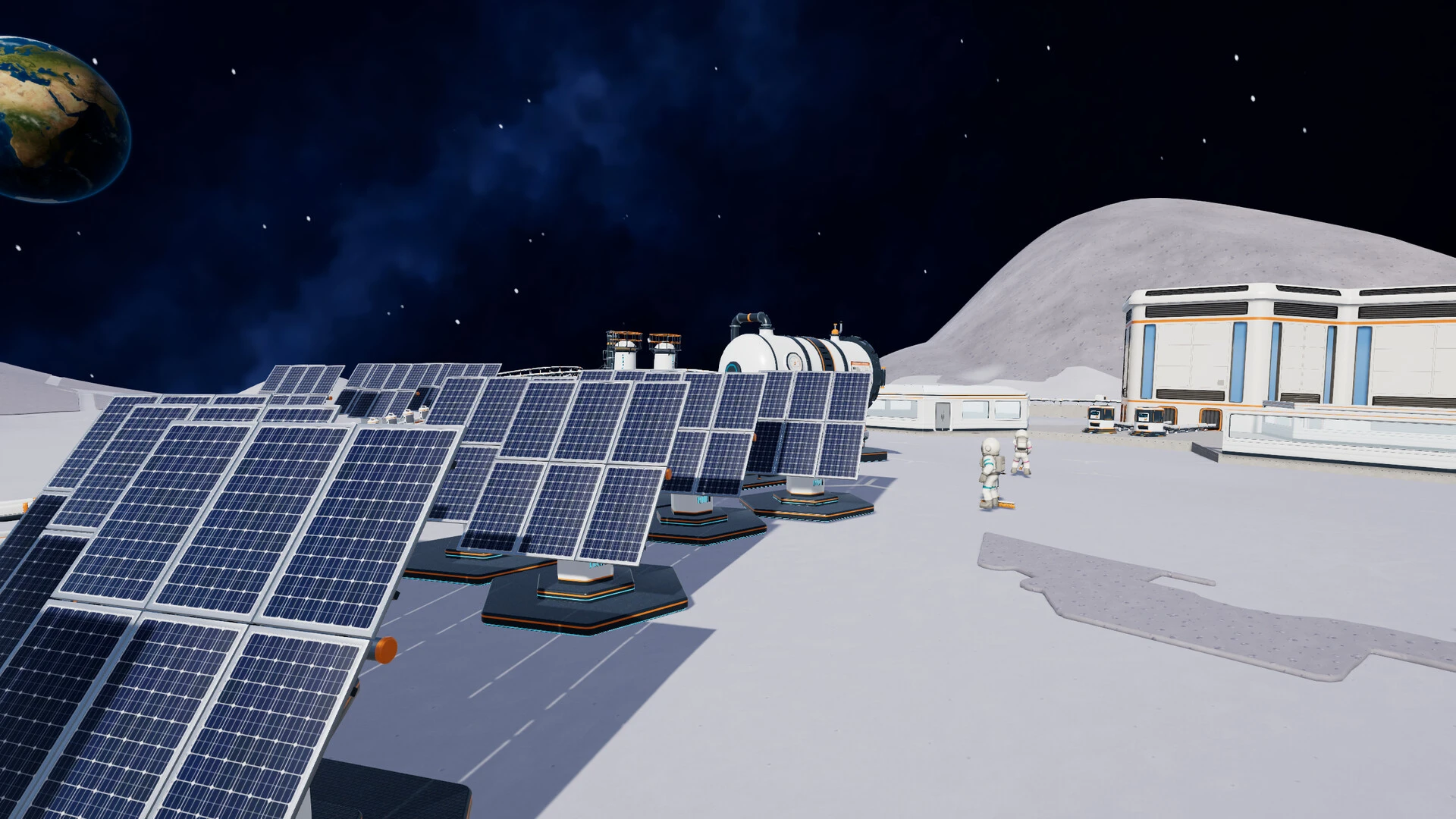
Official Moon Sweepers screenshot: DragDrop Games. Capture build and settings unspecified.
Object detail is unusually relevant to this game. Its tooltip describes when machines, vehicles and robots switch to simpler shapes, plus how far their small parts and capsules are drawn. I’d be reluctant to cut it blindly in a game where those are the things you’re watching.
Choose the compromise from a position where you normally look across your base. If the parts or capsules you rely on become harder to follow, that is a real cost of the change, even without an FPS comparison. Lower detail also doesn’t establish that the underlying machines stop simulating; the tooltip is about what gets drawn.
Bloom quality is a cleaner first experiment when you can accept less glow around lamps and bright light. The tooltip explicitly says lowering it costs the graphics card less. That supports trying it, but doesn’t make Bloom the game’s largest performance lever.
For Texture quality, the useful condition is video memory. The game points cards with 4 GB or less toward a lower setting, and Half is the lower value shown in the footage. Follow that guidance if it applies to your card. Capacity alone doesn’t diagnose a memory problem, and lowering textures isn’t a guaranteed FPS improvement on a card that already has enough room.
FSR 1.0, STP and Bilinear
The inspected Upscaling tooltip names three choices. It describes FSR 1.0 as keeping the picture sharp, STP as smoother with edge smoothing for faster cards, and Bilinear as the simplest option. Those are the game’s descriptions, not an independently measured quality or speed ranking.
All three observed presets use FSR 1.0. Start by understanding the preset’s other changes before treating upscaling as the answer to every performance problem. In particular, a 100% Render resolution value with FSR 1.0 still selected isn’t enough to establish a native internal-rendering path.
Frame limits and VSync: inspect the combination
The separate Display tab contains Window mode, Resolution, VSync, Frame rate limit, Limit FPS in the background, Field of view and Motion blur, with an Apply display button. The footage shows VSync On dimming the Frame rate limit row; turning VSync Off makes that row active. Unlimited is visible, but the numerical cap choices weren’t inspected.
That explains where to look if the limit control appears unavailable. It doesn’t make Off and Unlimited a universal recommendation. Choose among the options your installed build actually offers; neither a menu screenshot nor a higher counter proves a better response time.
To understand the timing scale, an evenly spaced mathematical example gives 33.33 ms at 30 FPS, 16.67 ms at 60 FPS and 8.33 ms at 120 FPS: the interval is 1000 divided by FPS. These are illustrative intervals, not verified Moon Sweepers cap values, recommended targets or measurements of your PC.
Motion lesson · synthetic examples
One sweep. Different update intervals.
The brush follows the same path at the same speed. Change how often its position updates.
Update positions over the first 200 ms of the synthetic sweep:
¼ speed: one 1-second synthetic pass takes 4 seconds here, at every choice. These are evenly spaced mathematical examples, not Moon Sweepers menu caps, recommended targets, gameplay, a benchmark, an input-latency test or a prediction for your PC. Browser and display timing affect the motion you see.
Read the interval math
Interval in milliseconds = 1000 ÷ FPS. More evenly spaced updates show more positions during the same sweep; they do not make the brush finish sooner.
| Illustrative FPS | Interval |
|---|---|
| 30 FPS | 33.33 ms |
| 60 FPS | 16.67 ms |
| 120 FPS | 8.33 ms |
A big-base hitch needs a different question
Keep the current patch context in mind before blaming every pause on the graphics preset. DragDrop Games’ 1.0.5 notes report fewer garbage-collection stutters in big bases and fixes for memory leaks after leaving a world or removing structures. They also name a separate recurring freeze about half a minute after loading some worlds, on both DirectX 11 and DirectX 12.
A lower preset isn’t the documented fix for that load freeze. If you’re dealing with a stopped session rather than a game that stays running slowly, use our Moon Sweepers crashing and freezing guide (opens in a new tab). The Windows/AMD note in 1.0.4 makes DX11 the default to prevent AMD GPU crashes; forcing DX12 isn’t a supported general FPS trick.
For a graphics comparison, return to a similar view of the same base and change one option. Keep enough context to know whether you’re comparing the effect or simply a busier scene. Our FPS benchmark comparison guide (opens in a new tab) explains how to read conflicting results without letting one counter decide the whole picture.
Moon Sweepers PC requirements
Both published tiers require a 64-bit processor and operating system, plus a broadband connection.
| Component | Minimum | Recommended |
|---|---|---|
| OS | Windows 10 | Windows 11 |
| CPU | Intel Core i5-8400 / AMD Ryzen 5 2600 | Intel Core i5-10400 / AMD Ryzen 5 3600 |
| RAM | 8 GB | 16 GB |
| GPU | NVIDIA GeForce GTX 1650 / AMD Radeon RX 570 | NVIDIA GeForce GTX 1660 Super / AMD Radeon RX 5600 XT |
| DirectX | Version 11 | Version 12 |
| Available storage | 2 GB | 4 GB |
There is no resolution, graphics preset or FPS target attached to either tier, and no SSD requirement is specified. The recommended DirectX 12 line also doesn’t override the later Windows/AMD crash guidance. Use these figures to check the publisher’s requirements; choose your graphics compromises from the game you can actually see.
Frequently asked questions
What are the best Moon Sweepers settings for FPS?
Start with Detect for this PC, then review individual settings. Try lower Bloom quality, use the Texture quality memory guidance for cards with 4 GB or less, and preserve enough Object detail to see the capsules and machine parts you need. This is a starting recommendation, not a measured universal FPS profile.
What upscaling options does Moon Sweepers show?
The inspected pre-1.0.5 menu tooltip names FSR 1.0, STP and Bilinear. Those names do not establish DLSS, newer FSR versions or Frame Generation support. The preset reference comes from v1.0.4 footage.
Why is Frame rate limit greyed out in Moon Sweepers?
In the inspected pre-1.0.5 Display footage, the row is dimmed with VSync On and becomes active with VSync Off. Unlimited is visible, but numerical cap choices were not verified. This menu behavior does not establish that VSync Off is best for every setup.
Do the recommended Moon Sweepers requirements guarantee 60 FPS?
No FPS target, resolution or graphics preset accompanies the published requirements. The recommended tier lists 16 GB RAM, a GTX 1660 Super or RX 5600 XT, and 4 GB available storage, but those figures cannot establish a 60 FPS result.

Written by
Digital Marketing Manager
Keep reading