MW4 Packet Burst and Stuttering on PC: What to Check
Troubleshoot MW4 packet burst and stuttering on PC with current patch fixes, connection checks, texture-streaming tradeoffs and frame-time comparisons.
In this article
Start with the current game update and the moment the hitch happens. MW4 already has documented fixes for particular freezes. For recurring trouble during a match, check service status, pause competing transfers and compare Ethernet if you play on Wi-Fi. Then use connection readings alongside frame timing to decide where to spend your effort.
A Packet Burst warning is a poor shopping list for PC tweaks. Changing your graphics preset, network configuration and half a dozen Windows settings together leaves you with more uncertainty than you started with. The useful question is which small change has a reason to help the problem you can actually observe.
Check these MW4 patch fixes first
Two launch updates deserve attention before you start changing your PC:
A freeze tied to opening your first Loadout has a more specific lead than a warning that keeps appearing throughout a match. The official launch patch notes (opens in a new tab) let you check later changes against the exact problem you have.
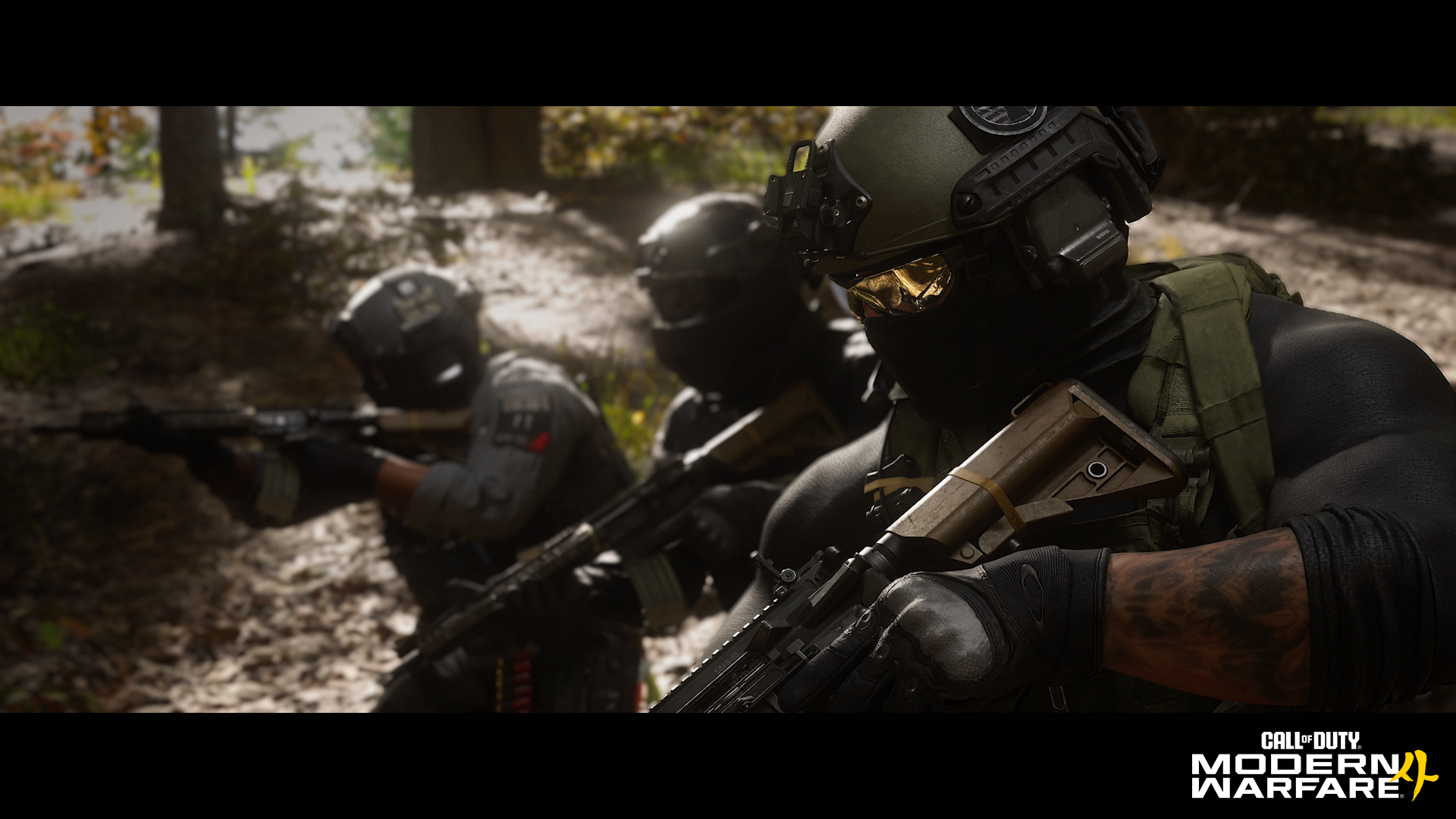
Official MW4 image from Activision’s PC announcement; platform and capture settings unspecified. Image: Call of Duty / Activision.
Low ping does not explain every hitch
Ping is the time data takes to travel between locations, measured in milliseconds. Packet loss is data that goes missing. Local frame timing describes the spacing of work or images on your PC, depending on the metric being collected. These measurements answer different questions.
An average FPS counter compresses a period of play into one number. As a simple illustration, repeating frame intervals of 10 and 30 milliseconds gives the same 20-millisecond mean interval as evenly spaced 20-millisecond frames: both work out to 50 FPS over time. The spacing differs. Those are made-up schedules to explain the arithmetic, not MW4 results or a recommended cap.
During a recurring hitch, look at the available ping or packet-loss readings alongside FPS and, where available, a frame-time graph. Use the same collector and metric for a comparison. A game’s frame submission interval and the time an image stays on screen are different measurement boundaries; a generic “latency” label does not make either one network ping.
Illustrative incident replay
One hitch. Two observations.
Illustrative observations. No MW4 capture or PC/network test.
Compare local performance in a similar scene or the built-in benchmark. A frame spike alone does not identify its cause.
Invented displayed-reading patterns, not packet arrivals, measured ping/loss or the rule behind MW4’s warning. A trace that appears steady does not rule out a problem.
All four examples and next checks
| Observation | Useful next check |
|---|---|
| Frame changeFrame timing changes; the connection reading appears steady. | Compare local performance in a similar scene or the built-in benchmark. A frame spike alone does not identify its cause. |
| Connection changeThe connection reading changes; local frame timing appears steady. | Check service status, competing transfers and Ethernet if you use Wi-Fi. These comparisons do not locate a fault by themselves. |
| Both changeBoth observations change in the same window. | Keep both possibilities open. Change one reversible factor before comparing again; coincidence does not establish a cause. |
| No visible changeNeither displayed observation changes in this example. | Sampled readings can miss brief events. Use the recurring action, map and mode to choose the next comparison. |
The precise trigger for MW4’s warning is not established by the available official documentation. Use the replay’s examples to choose a comparison, rather than naming a culprit from the icon.
Give the connection a fair comparison
Open Activision Online Services (opens in a new tab) and select the relevant game and platform. An alert can save you an evening of local changes. Green status still leaves room for connection-quality problems; it is not a certificate for the route between your PC and that match.
Next, pause downloads, cloud transfers or streams you control on the home connection. Include other devices where practical. Activision identifies competing bandwidth-heavy applications as a possible contributor to connection trouble. This is an easy comparison because you can restore the transfer afterward without rebuilding your configuration.
If you use Wi-Fi, try Ethernet where a safe cable connection is available. Activision specifically recommends wired play. The comparison removes the wireless hop from that attempt; it does not remove the ISP or game service from the path. If the same problem persists on a cable, keep that result instead of repeating Wi-Fi advice indefinitely.
For each change, return to similar map, mode and gameplay conditions where possible. Keep the others unchanged. A better match after pausing a download gives that change a reason for another comparison, but one good match cannot locate the fault inside your home network, ISP or game server. A fast broadband speed-test result also answers a different question from the connection to a particular match.
Texture streaming is a bandwidth choice with a visual cost
Texture streaming is worth considering when you are trying to reduce competing download traffic. Activision’s shared Call of Duty content guide describes this tradeoff:
If your installed build offers Minimal, try it as a separate comparison. There is little value in permanently accepting poorer textures if reducing streaming traffic does nothing for your problem.
When to investigate PC performance
If frame delivery is the part that changes, use the built-in benchmark for a more consistent PC-performance comparison. The publisher describes it as a simulated multiplayer sequence. It gives you a repeatable scenario to compare, rather than asking two different live matches to behave identically. A good benchmark result still cannot certify a live connection.
Our MW4 PC settings guide (opens in a new tab) covers the graphics choices and their tradeoffs. Use it when you need to address local performance; keep the particular change separate from your connection comparisons. Higher rendered FPS and a better game-server connection are different outcomes.
A Private Match can help you revisit a familiar situation, but it is still online: MW4 requires a continuous internet connection for Multiplayer, including Private Matches. Treating it as an offline control would give its result more weight than it deserves.
Stop changing settings when the next step is a bug report
If an updated game still hitches at the same action, or the basic comparisons leave the problem unchanged, send a focused report through MW4’s feedback and bug-reporting page (opens in a new tab). Activision asks for what happened, where and when, and steps to reproduce it.
Add the map and mode, the action immediately before the hitch, and which comparisons you already tried. A short clip showing the available readings and your PC details can help explain the incident. Keep account secrets and personal network addresses out of the report.
For crashes, startup failures or security errors, use our MW4 common issues guide (opens in a new tab). For a recurring in-match interruption, a clear reproduction is a better next step than another unexplained configuration edit.
Frequently asked questions
How do I fix packet burst in MW4 on PC?
Install current game updates, check whether the hitch matches a documented issue, then check service status. For recurring match problems, pause competing downloads and compare Ethernet if you use Wi-Fi. Watch available connection and frame-time readings together to choose the next check. No single setting is an established universal fix.
Why does MW4 show packet burst with low ping and zero packet loss?
Ping measures travel time, while packet loss describes missing data. Those displayed readings do not establish what triggered MW4’s Packet Burst warning, and sampled readings can miss brief events. Look at when the hitch happens and whether local frame delivery changes at the same time.
Does Minimal texture streaming fix MW4 packet burst?
Activision’s shared Call of Duty guide describes Minimal as using less bandwidth with reduced visual quality. If your installed MW4 build offers that option, it is a reasonable bandwidth comparison. It does not turn streaming off or establish a universal packet-burst repair.
Can the MW4 benchmark prove my connection is fine?
No. The publisher describes a simulated multiplayer benchmark useful for comparing PC performance. A good result does not certify a live match connection. Private Matches also require a continuous internet connection, so they are not an offline network test.
Has Infinity Ward fixed MW4 stuttering?
The October 25 patch notes say the brief freeze on the first in-match Loadout edit was fixed. The October 24 notes describe temporarily disabling the regional lobby map animation as a prospective response to hitching. These are specific changes, not a claim that every stutter or Packet Burst warning is resolved.

Written by
Digital Marketing Manager
Keep reading