Over the Hill Best PC Settings: Keep the Scenery
Choose a steady frame-rate target, keep the hillsides worth exploring, and handle specific Over the Hill launch rendering problems on Windows PC.
In this article
Keep the landscape, then decide which details you can spare. Our Over the Hill recommendation favors selective graphics reductions and a frame rate your PC can hold through a drive. Turning everything down at once gives you a poorer view before you know which compromise was worthwhile.
This is a scenery-first tuning guide for the Windows release, checked October 15, 2026. Hone hasn’t benchmarked a best preset or measured FPS gains. The recommendations below combine observed launch-era menus with the developer’s support guidance; June demo performance reports don’t establish how the released game runs.
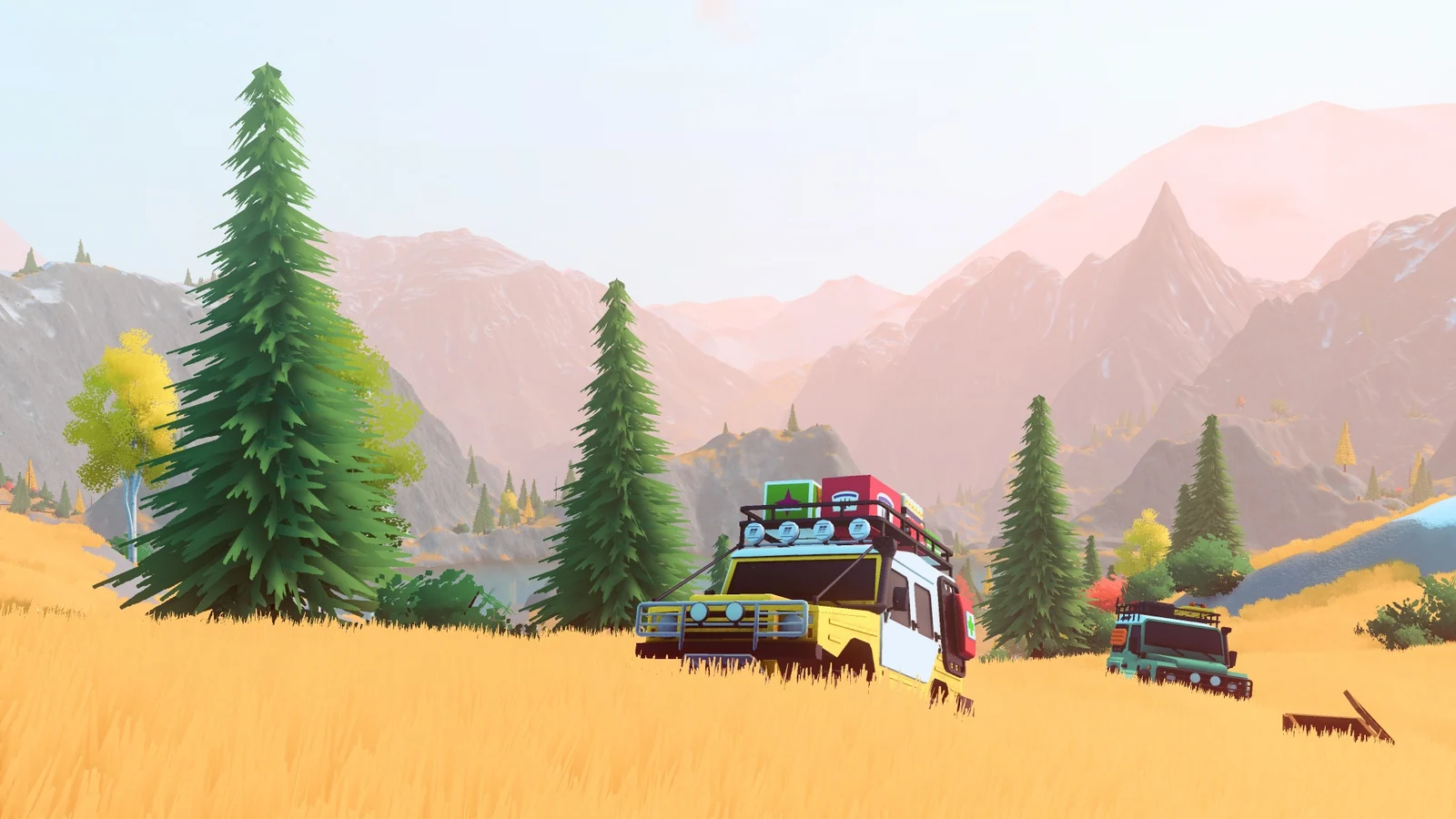
Choose a frame rate you can keep
Try 60 FPS as a starting goal, then lower the goal if your PC cannot sustain it in the places you want to drive. A cap won’t raise a slower frame rate. Copying a higher number from someone else’s setup doesn’t make the difficult stretch of your route any easier.
Open Settings → Graphics → Basic and use your display’s native output resolution. If performance is insufficient, compare an available quality-oriented upscaling choice. Judge moving foliage and vehicle trails at the same output resolution.
For the in-game Framerate Cap path, leave VSync off and choose a maintainable limit. If you prefer VSync for your display and tearing tolerance, use that path instead: PCGamingWiki reports that enabling it disables the game’s limiter. Don’t expect an inactive cap to govern the result.
Two routes through sync
VSync offIn-game cap
VSyncGame limiter disabled
The official minimum is a useful reality check:
| Component | Windows minimum |
|---|---|
| Operating system | 64-bit Windows 10 |
| CPU | Core i5-7400 or Ryzen 5 2600 |
| RAM | 8 GB |
| GPU | GeForce GTX 1070 or Radeon RX 5600 |
| Graphics API | DirectX 11 |
| Storage | 4 GB |
| Connection | Broadband internet |
The listing says these specifications were tested at Full HD, but gives no FPS or preset target. Its recommended field supplies no useful hardware tier. Meeting the minimum therefore doesn’t establish a 60-FPS setup, and older demo numbers are a poor substitute for that missing target.
Keep the hillsides, trim selected effects first
Simple textures don’t make the landscape free to draw. Funselektor points to distant vegetation, shadows, effects and processing as real work for the game. That makes selective changes more useful than assuming the art style should run effortlessly.
Pick your next compromise
Keep the part you came to see
Graphics → Advanced. Editorial priorities, not a measured cost ranking. Original illustration, not a quality preview.
Keep the view
Try a one-step reduction in Shadow Distance, Volumetric Light or Ambient Occlusion. Choose one control, not all three.
Dense stretch
Compare Vegetation Distance and Vegetation Density separately. Keep a change only if its result justifies the compromise.
Clearer picture
Adjust Bloom, Film Grain, Lens Dirt and Motion Blur to taste; no measured FPS gain is established.
Terrain LOD Quality and Tire Tracks Quality are separate graphics controls, without an established physics or grip adjustment. Picture preferences aren’t measured FPS improvements. Observed build 26.10.12_BE848F1 supplies menu labels, not defaults or complete value ranges.
Give the change a fair test drive
Pick a short stretch you can repeat and use the same camera. Include the part that actually bothers you. A result beside a parked vehicle won’t settle a problem that appears farther into the drive.
Keep the conditions close: Over the Hill has changing weather and a day-night cycle, so a clear daytime pass and a rainy night pass are different comparisons. Keep the player count the same too. If trouble happens only with friends, compare solo and co-op separately before treating it as a graphics problem.
A page for each pass
Your test-drive notebook
Manual entries only. Nothing is read from the game, saved or sent.
Without JavaScript, use the prompts above and select this blank template manually. Entries will not update the template.
Compare one setting. Matching text does not establish identical conditions or a performance cause.
Change one setting, drive the stretch again, and ask two questions: did the difficult part improve, and do you like the picture enough to keep the change? If the answer to the second is no, restore it and try another compromise. A higher average isn’t much consolation if you dislike what you removed.
If only controller input feels wrong, compare keyboard input and, where possible, a wired controller connection. That comparison is more useful than immediately reducing graphics. It can narrow the circumstances without proving a particular connection fault or latency gain.
Keep any performance counter and its settings consistent between passes. Persistent hitches alone don’t identify a CPU, GPU or network cause. Our guide to comparing FPS benchmarks (opens in a new tab) explains how different counters and changing conditions can turn a plausible comparison into a misleading one.
When the picture is broken, use the matching workaround
A missing hillside needs a different response from an ordinary slow frame rate. The developer documents two specific Windows rendering problems:
The whole screen changes color
Funselektor tentatively links this to DLSS on Nvidia 30-series or older GPUs with certain Windows drivers. Try Windowed Fullscreen → Windowed → back. Save Player.log immediately for the report; the workaround is not guaranteed.
Symptom illustration, not a captured bug.
Terrain is invisible
The developer recommends -msTessOnce 0 in Steam launch options for this symptom, especially on older hardware. This is not a general FPS tweak. Remove it if rendering worsens.
Symptom illustration, not a captured bug.
Use the symptom to choose the instruction. Adding a launch flag to an otherwise intact scene gives you another change to untangle without an established performance benefit.
Send a report worth investigating
From the affected screen, use the pause-menu bug report or Ctrl+F. Funselektor says this sends an error log and screenshot automatically.
For a forum report, describe the problem and the steps that reproduce it; add images or video if possible. Include Player.log and Player-prev.log, found in Windows at:
%USERPROFILE%\AppData\LocalLow\Funselektor\over the hill
Add your hardware, current graphics choices and whether the issue happens alone or with friends. “The same bend slows down with this configuration” gives someone a starting point; “bad optimization” gives them little to investigate.
Frequently asked questions
What are the best Over the Hill settings for 60 FPS?
There is no verified universal 60-FPS preset in this guide. Try a frame-rate target your PC can maintain, and make selective graphics changes before reducing the whole picture. Hone has not benchmarked an optimized profile.
Why does the in-game frame-rate cap stop working with VSync?
PCGamingWiki reports that enabling VSync disables the in-game limiter. Treat VSync and the in-game cap as alternate paths, rather than relying on both together.
Does Over the Hill support steering-wheel force feedback?
The developer says gamepad and keyboard take priority, with wheel support unplanned for the initial release. Do not assume a graphics change or controller remapping will add force feedback.

Written by
Digital Marketing Manager
Keep reading