Phantom Blade Zero Best PC Settings for High FPS
Recommended Phantom Blade Zero PC settings for higher FPS, with graphics priorities, clearer upscaling, and practical frame-cap advice.
In this article
For more FPS in Phantom Blade Zero, start with Ray Tracing Quality Off, High-Quality Hair Off, and the Custom settings below. I’d cut those extras before reducing the game’s output resolution. Keep Anti-Aliasing High in the manual setup, then choose an upscaling mode whose picture you like.
Once combat runs comfortably, revisit Lighting Quality for foliage and Material Quality around water if their Low settings bother you.
Recommended Phantom Blade Zero PC settings
Set Quality Preset to Custom, then use this manual configuration as your FPS-first starting point. Hone’s Custom recommendation is separate from its named Optimal and Performance presets.
| Setting | Custom value |
|---|---|
| V-Sync | Off |
| HDR | Enable automatically |
| Motion Blur | Off |
| Sharpness | 100 |
| Camera Shake | 80 |
| Film Grain Intensity | 2 |
| Ray Tracing Quality | Off |
| Quality Preset | Custom |
| Shadow Quality | Low |
| Reflection Quality | Low |
| Post-Processing Quality | Low |
| Lighting Quality | Low |
| Effects Quality | Low |
| Material Quality | Low |
| Ambient Occlusion Quality | Low |
| Depth of Field Quality | Low |
| Motion Blur Quality | Low |
| Anti-Aliasing | High |
| View Distance | Low |
| Character Texture Quality | Low |
| Character Model Quality | Low |
| High-Quality Hair | Off |
| Environment Texture Quality | Low |
| Environment Model Quality | Low |
| Environment Detail Quality | Low |
Keep both Motion Blur and Motion Blur Quality when copying the table: they are separate menu entries. The slider values are bare numbers, without percentage units. HDR’s greyed “Enable automatically” entry reflects the supplied menu state; it doesn’t tell you to force HDR on your display.
Resolution, upscaling and frame generation are separate choices, covered below. The sheet doesn’t specify them, and turning off blur is a picture preference rather than a measured FPS gain.
Default vs Optimal vs Performance: the FPS results
Hone’s supplied comparison puts Optimal between Default and Performance in both reported metrics. I’d try Optimal for the middle option, or Performance when FPS takes priority and you like its picture. Default is the comparison baseline; Optimal and Performance are the two Hone presets.
Default vs Hone presets
Compare the two Hone presets with Default.
Average FPS
Complete configurations compared. Other PCs and scenes can differ.
All results and percentage changes
| Configuration | Average FPS | Change vs Default | 1% low average | Change vs Default |
|---|---|---|---|---|
| Default baseline | 86.2 | 0.0% | 71.7 | 0.0% |
| Hone Optimal | 98.0 | +13.7% | 79.9 | +11.4% |
| Hone Performance | 120.0 | +39.2% | 101.1 | +41.0% |
Change = 100 × (configuration ÷ Default − 1), rounded to one decimal place. “1% low average” is the reported summary metric, not minimum FPS; the source doesn’t specify its calculation. These figures do not establish a locked frame rate or input latency.
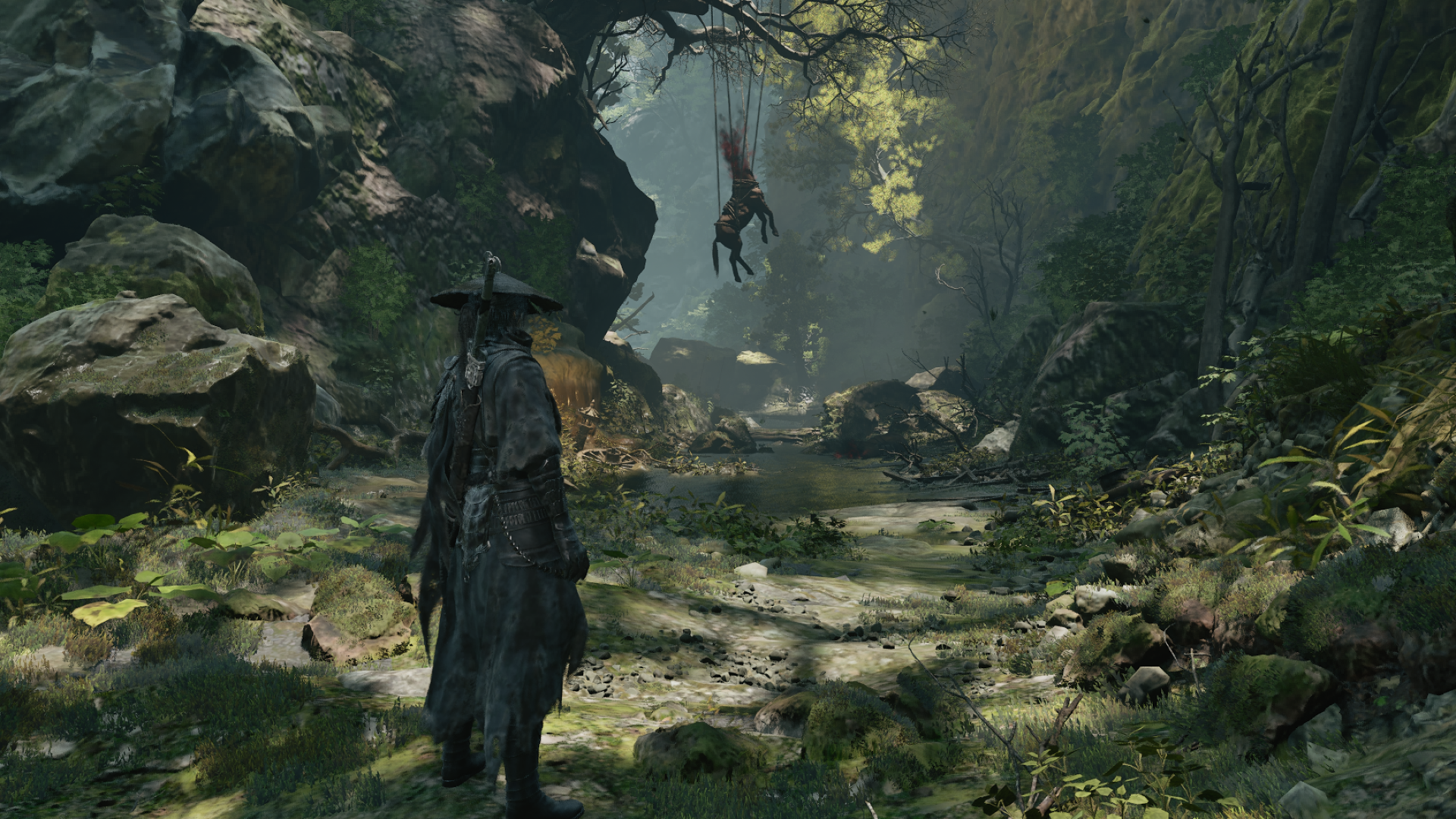
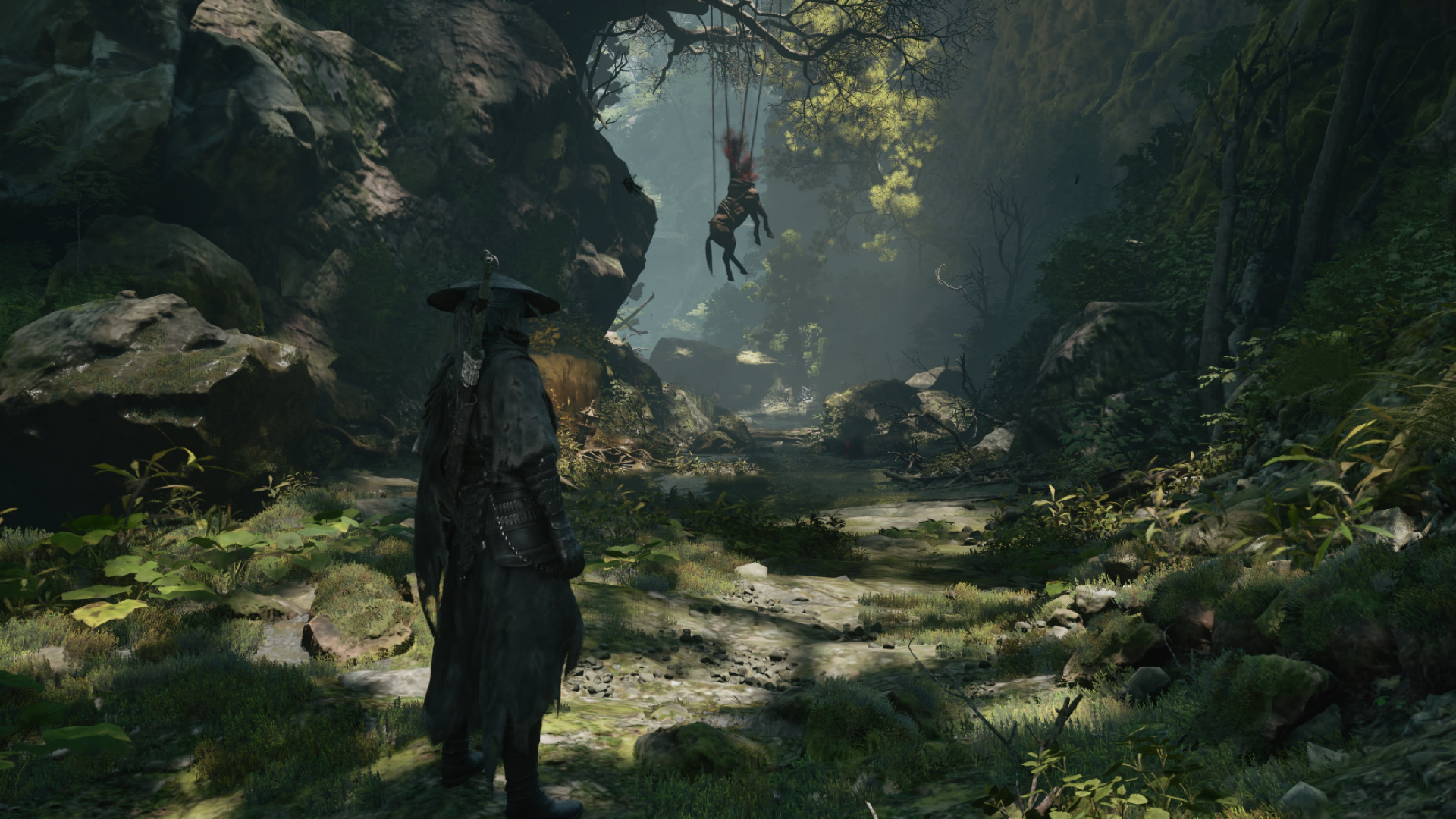
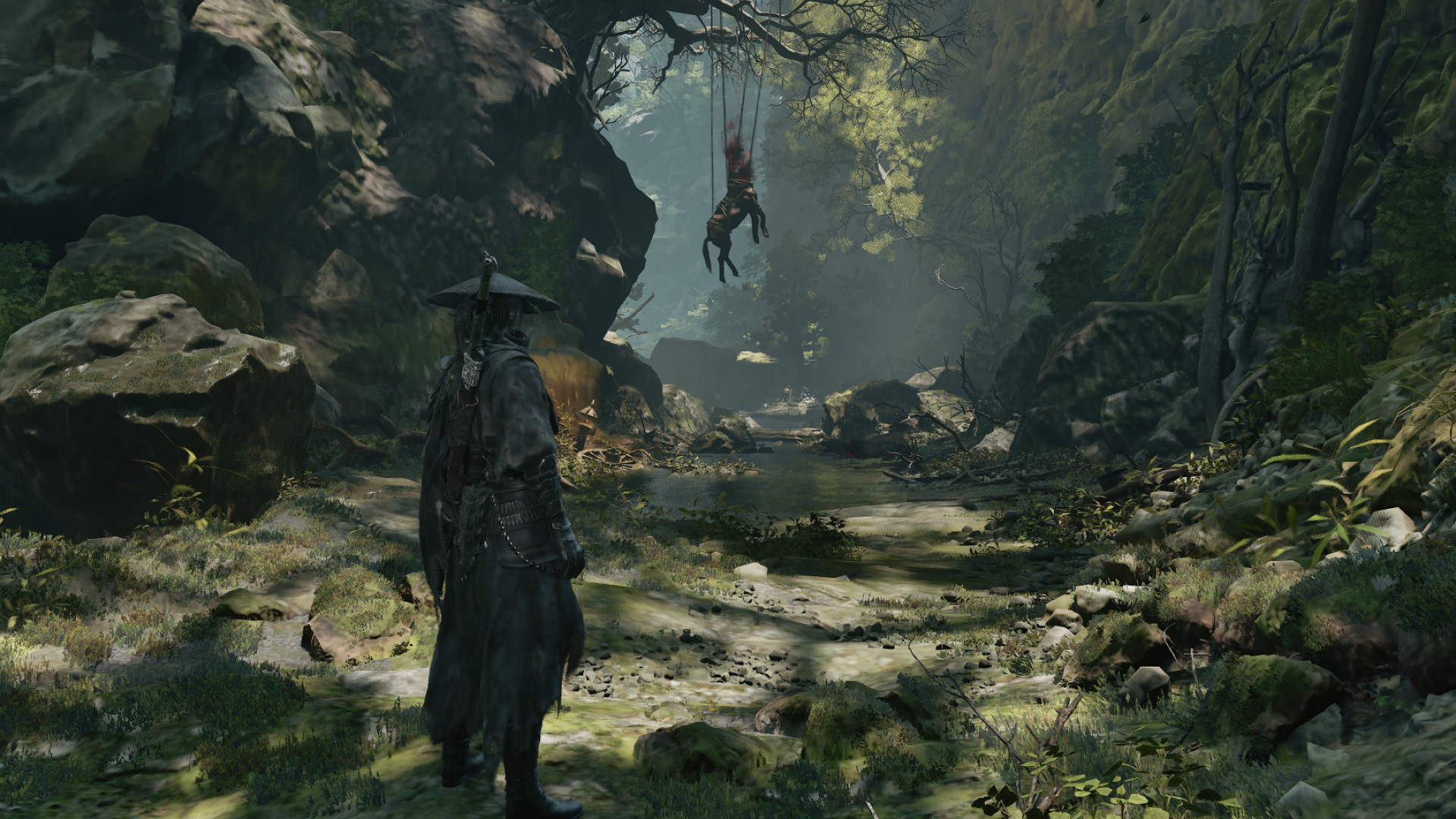
The supplied gameplay captures show the same rocky forest path for Default and the two Hone presets. Look at foliage, rocks and the distant path to choose the picture you prefer. They were captured at different moments and poses, so they show the configurations rather than isolate what one setting changed.
Choose the picture you prefer
Lower the extras, then fix the compromises you notice
Start with ray tracing and high-quality hair off
Leave Ray Tracing Quality and High-Quality Hair Off while getting the rest of the game where you want it. This agrees with the manual recommendation and the FPS-focused choices in BenchmarKing’s settings card. Revisit them when you’re satisfied with performance and specifically want their appearance.
I’d spend spare performance on distracting scenery first. Better hair in a close-up is a different priority from a forest that stays pleasant to look at while you move through it.
Revisit Lighting and Material before raising the whole preset
If Low lighting leaves foliage looking noisy or unstable, try Lighting Quality High. Around water, Material Quality High is another useful option to revisit. Wccftech’s individual-setting analysis reports foliage boiling at Low and Medium Lighting, and compromised water rendering at Low and Medium Material.
The Low values in our table remain the FPS-first reference. Choose High here when you prefer its appearance and have performance to spare.
After Lighting and Material, I’d revisit Reflection Quality or Character Model Quality if those details matter to you. Leave less noticeable changes until later.
Keep the output clear when using DLSS, FSR or XeSS
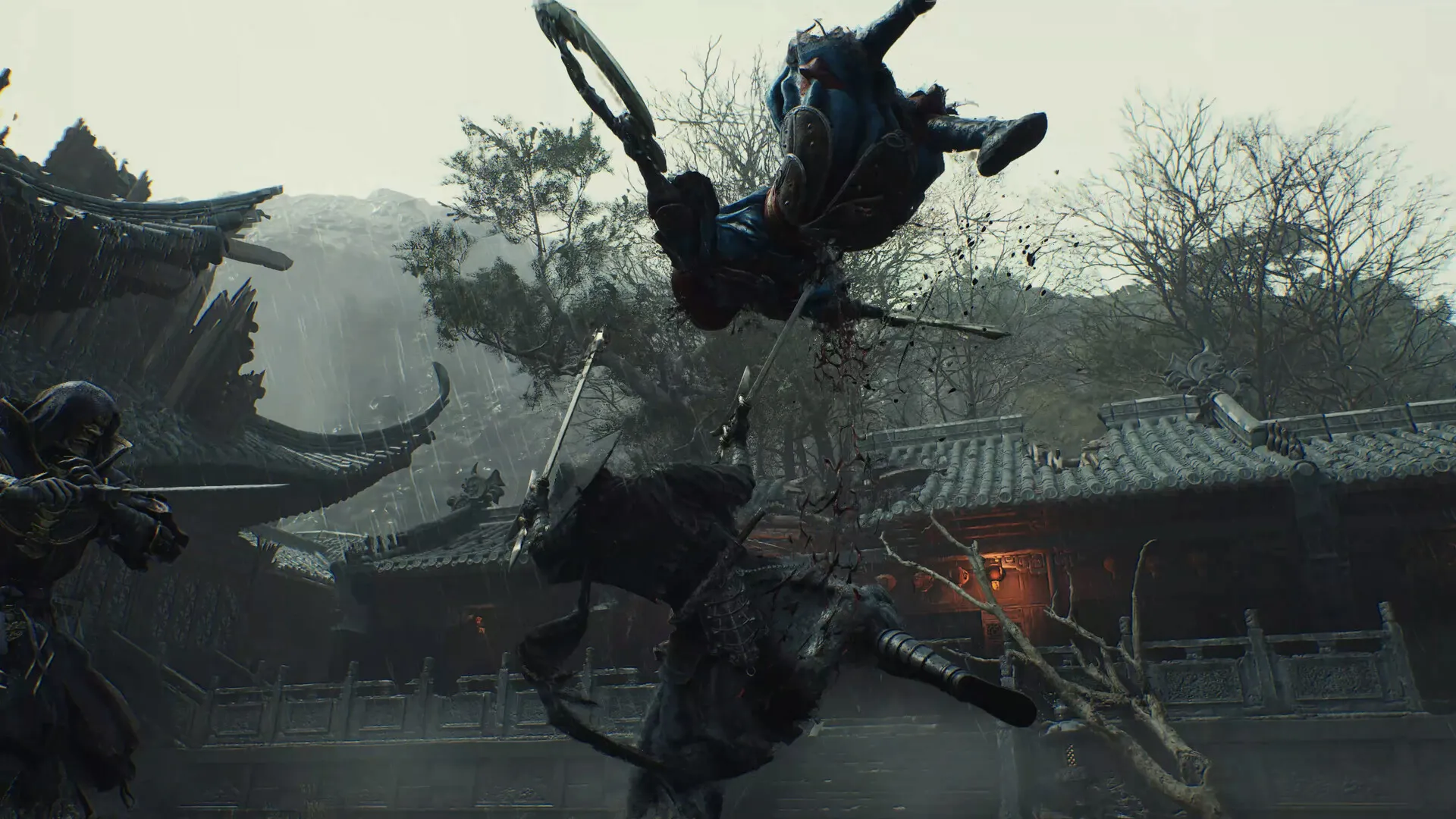
Set Super Resolution Output Scale to 100% when you want reconstruction to target the display resolution you’ve selected. Then adjust the upscaling mode separately if you need more FPS. That keeps an additional output reduction from being overlooked while you judge the upscaler’s picture.
There are two different reductions to understand. An upscaler can render internally at a lower resolution and reconstruct a larger image. Output Scale can then set that reconstructed image below the selected screen resolution before the final scaling step. 100% output does not mean native internal rendering while an upscaler is active, and it can cost performance compared with reduced output.
For a sensible starting method, try DLSS Super Resolution on GeForce RTX, FSR on Radeon, or XeSS Super Resolution on Intel Arc, with TSR as a fallback. Start with Quality on a capable GPU; try Balanced if you need more FPS and accept its appearance.
The manual reference keeps Anti-Aliasing High. Wccftech reports that this control affects TSR, not DLSS, FSR or XeSS. For those upscalers, use their mode and output scale to judge the picture.
Leave frame generation until you’ve chosen the graphics settings and are happy with the base performance. For NVIDIA hardware, DLSS Super Resolution and DLSS Frame Generation have different requirements: NVIDIA lists Frame Generation for RTX 40 and 50 Series, and Dynamic Multi Frame Generation for RTX 50 Series. A generated-output FPS count shouldn’t be treated as the same measurement as FPS with generation disabled.
Choose a frame cap you can hold in combat
Use the game’s Frame Rate Limit control to choose an available target your PC can sustain during a demanding fight. If performance regularly falls below it, reduce the graphics load or choose a lower limit. Setting a higher ceiling won’t supply the missing frames.
The timing difference is easier to understand in milliseconds. At an ideal, evenly spaced 60 FPS, a new frame arrives every 16.67 ms. At 120 FPS, that interval is 8.33 ms. The movement can follow the same path at the same speed while receiving more frequent position updates.
Same swing. More position updates.
Change the example cap. The sword keeps the same path and swing speed.
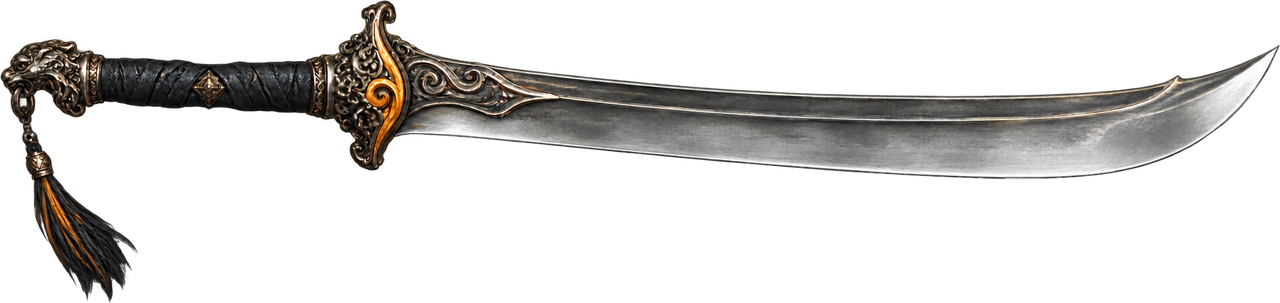
¼-speed playback: one 1-second swing cycle takes 4 seconds here. A higher example cap shows more positions during that same swing. These are synthetic, evenly spaced updates; browser and display timing affect what you see.
Read the interval reference
Ideal interval in milliseconds = 1000 ÷ FPS. These examples aren't a verified list of the game's Frame Rate Limit options. The lesson doesn't test your PC, reproduce game animation or measure input latency.
| Example rate | Ideal interval |
|---|---|
| 30 FPS | 33.33 ms |
| 60 FPS | 16.67 ms |
| 90 FPS | 11.11 ms |
| 120 FPS | 8.33 ms |
For more detail on reading those metrics, use our guide to comparing FPS benchmarks (opens in a new tab). Check the Phantom Blade Zero PC requirements guide (opens in a new tab) for hardware and installation space.
Frequently asked questions
Which Phantom Blade Zero settings should I lower first for more FPS?
Start with Ray Tracing Quality and High-Quality Hair Off, then use the manual Custom configuration. If you need more FPS, try a lower reconstruction mode while judging the image quality you accept.
How do I make Phantom Blade Zero look less blurry?
Set Super Resolution Output Scale to 100% to target your selected display resolution, then try an appropriate upscaler's Quality mode. With upscaling active, 100% output can still use a lower internal rendering resolution.
What frame cap should I use for Phantom Blade Zero?
Choose an available Frame Rate Limit target that your PC can sustain during demanding fights. Lower the target or graphics settings if performance regularly falls below it.
Does the Custom settings table reproduce Hone Performance?
The Custom table is a separate manual recommendation. Its exact mapping to Hone's Optimal or Performance preset hasn't been established, so the preset benchmark numbers should not be treated as the result of copying that table.

Written by
Digital Marketing Manager
Keep reading