Phantom Blade Zero Crashing or Stuttering on PC? Fixes to Try
Phantom Blade Zero not launching, crashing or stuttering on PC? Start with current patch and driver advice, then follow the checks for your symptom.
In this article
Finish Phantom Blade Zero’s release update before trying crash fixes. If you use an NVIDIA GPU and the game became unstable on a newer launch driver, check S-GAME’s 617.42 recommendation below. Those two checks deserve attention before you start changing unrelated Windows settings.
Then follow where the problem happens. A game that closes after the splash screen needs different attention from one that is compiling shaders, or one that plays smoothly until a fight suddenly hitches. I’d work through the relevant case first and leave the rest of the PC alone.
Where does play break down?
Check the installation first
Finish the update, restart the client and PC, then verify the game files. Repair a runtime only when the client or error message asks for it.
Open the launch checksKeep the game in the foreground
Let first-launch compilation finish. Backgrounding the game can extend the wait; a compilation screen and an exit to desktop need different checks.
Read the shader adviceTry without optional tools
Check the SSD requirement, restart, and close unneeded apps. Temporarily remove optional plugins or tools to check compatibility.
Open the crash checksWatch the interruptions
Finish the update and initial shader work, then check the dated driver advice. Judge recurring hitches separately from average FPS.
See the stutter explanationReduce the rendering load
Try the recommended graphics configuration and ray tracing off. The settings guide covers the next graphics choices once the game runs reliably.
Find the performance stepsCheck the update and NVIDIA driver advice first
Preloaded copies need the release update before play. S-GAME described an approximately 5 GB download with ray tracing and path tracing performance improvements and bug fixes. Fresh downloads include that update. Let the client finish updating and verifying before judging the game’s behavior.
A small download can still need more free space while the client replaces or rebuilds files. If the download bar appears stationary, check whether the client is unpacking or verifying rather than restarting the whole download. Follow its free-space prompt; the patch’s download size is not its complete workspace requirement.
NVIDIA advice checked October 30, 2026: S-GAME’s current support FAQ (opens in a new tab) recommends 617.42, using a clean installation, for players troubleshooting newer drivers. Its launch letter specifically identified instability with 621.01. Choose an official NVIDIA package that supports your GPU and Windows version. Check the current guidance before replacing a driver that is already working well for you.
The newer 621.12 hotfix does not name Phantom Blade Zero in its fixes. Its targeted video-playback and Unreal Engine fixes are not enough to conclude that this game’s driver problem is resolved. Treat 617.42 as dated, game-specific advice, not a permanent rule to keep every NVIDIA PC on an older driver.
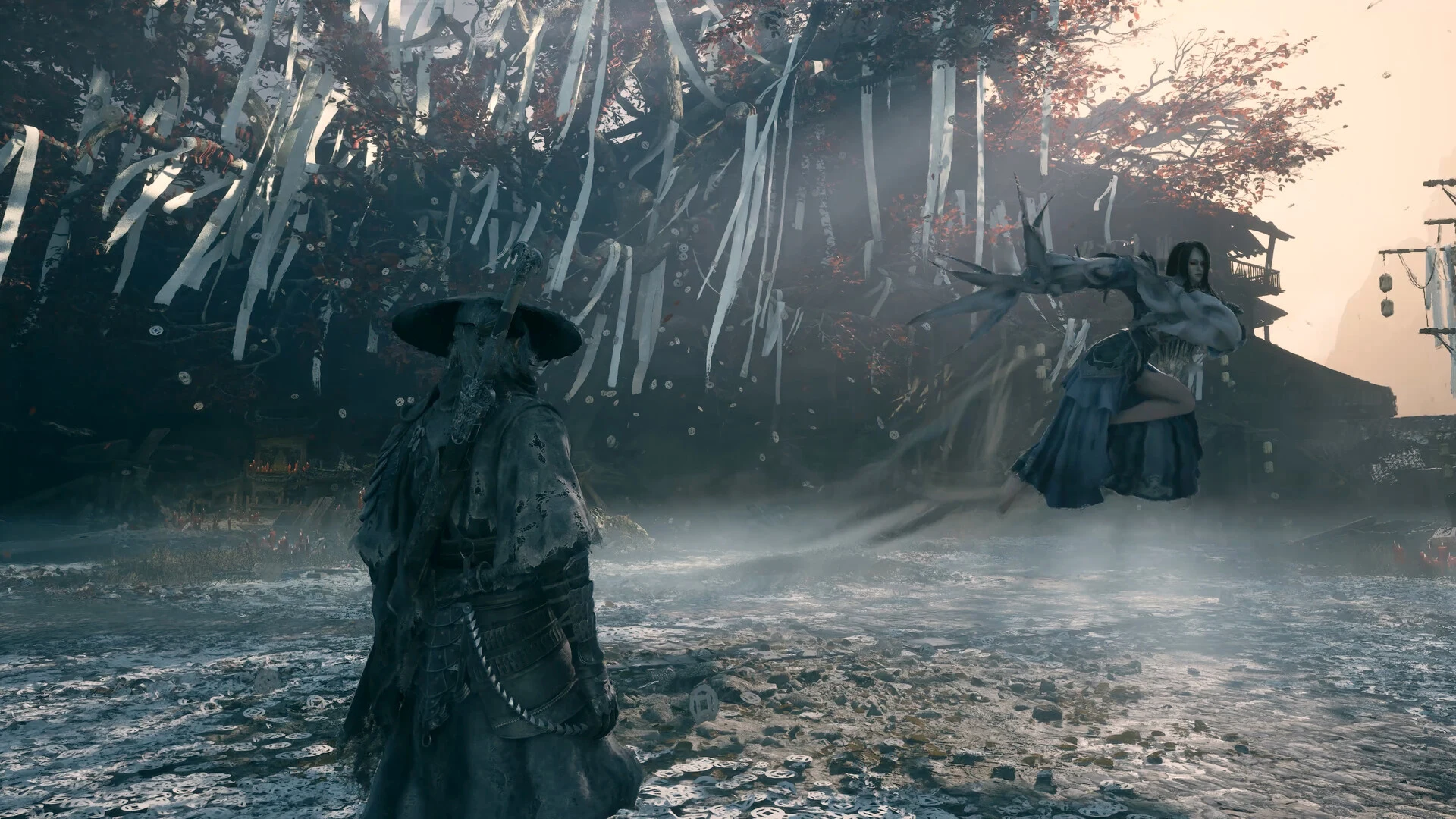
Phantom Blade Zero will not launch or closes after the splash
Start with the installation checks S-GAME recommends:
- Finish any pending game-client update, then restart the client and your PC.
- In Steam, right-click Phantom Blade Zero in your Library. Open Properties → Installed Files → Verify integrity of game files.
- Let verification complete, then launch the game again.
- If the client or an error message identifies a missing runtime component, follow that prompt to install or repair it through the client or its official installer.
Verification checks the installation; it cannot resolve every possible startup failure. Once it finishes successfully, repeatedly running it without a new reason is unlikely to tell you much more. If the same exit continues, move to the driver and optional-tool checks rather than downloading individual DLLs from a search result.
A shader-compilation screen needs time
The first launch includes shader compilation. Let that process finish before entering the game, and keep Phantom Blade Zero in the foreground. S-GAME says putting it in the background lowers CPU priority, which can make compilation take longer.
There is no useful universal deadline for this step. An active compilation screen is a different situation from the game process closing or returning you to the desktop. Follow the launch-failure steps if it exits; don’t treat every long first launch as a crash.
Crashes, black screens or freezes during play
First confirm that Phantom Blade Zero is installed on an SSD, as required. The minimum specification also calls for 16 GB RAM and DirectX 12. Meeting a minimum specification does not guarantee that every scene will run smoothly, but an installation on a hard drive already falls outside the stated requirement.
Restart the PC and client, close programs you don’t need for the session, and try without optional third-party plugins or tools. S-GAME recommends that last step to check compatibility. If you added something to the game and crashes began afterward, testing without it is a more focused next move than changing half the graphics menu.
Keep each change reversible. If removing an optional tool makes no difference, restore what you need and move on. These checks should narrow the problem, not leave you with a pile of disabled features and no idea which one mattered.
A black screen during a particular scene deserves the same attention to where it occurs. Restart and retry after the update and installation checks. If the same scene fails again, keep its location and any error message for support. A black picture alone does not identify a driver bug.
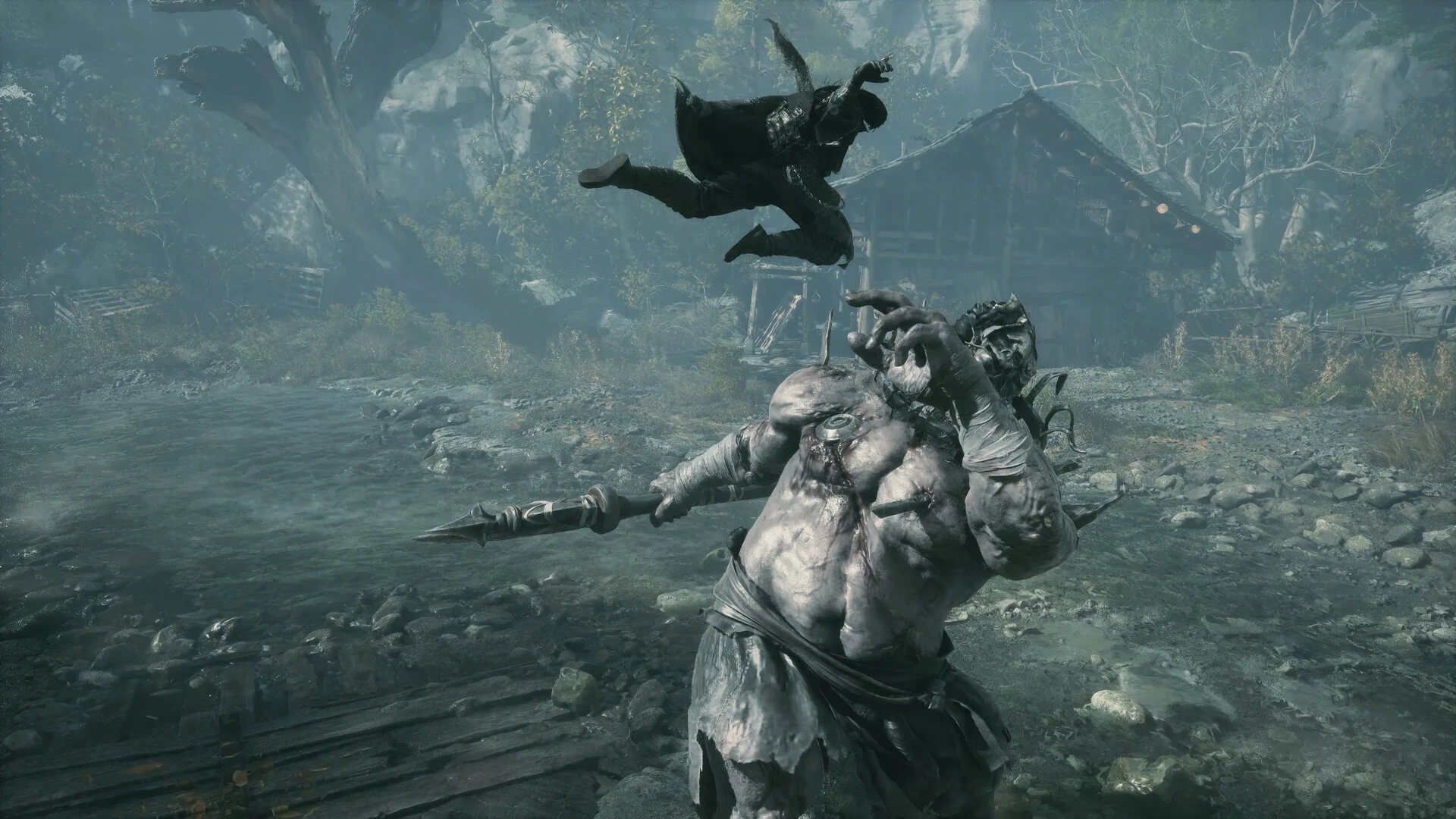
Once Phantom Blade Zero launches reliably, you can also address avoidable Windows background load.
Stuttering in combat or while moving through the world
A consistently low frame rate and a brief hitch can both feel bad, but they ask for different decisions. With low FPS, movement stays coarse throughout the scene. With a hitch, otherwise moving action pauses for a longer frame, then continues. A good-looking average can hide those interruptions.
See the hitch, not just the average
Watch the camera movement. Coarse steps and a sudden hold are different patterns.
Animated still-image illustration, not recorded gameplay. Image: S-GAME.
Even reference
Occasional hitch
An occasional longer frame holds the picture, then movement continues. The average alone can miss that interruption.
What this illustration shows
Steady low FPS advances in coarse, regular steps. A hitch interrupts otherwise finer movement with a longer hold. Neither pattern identifies the cause on its own.
Both views pan across one S-GAME still image. The update patterns are synthetic and exaggerated for visibility, not game footage, measured FPS or a test of your PC. Your browser and display affect the motion you see.
Launch players have reported both combat and traversal hitches, while others describe smooth play. Those reports establish that the experiences differ; they do not tell us which component caused a pause on your PC.
Complete the update and first-launch shader work, then check the driver advice above. For a scene that remains consistently slow, S-GAME suggests its recommended graphics configuration and trying ray tracing off. Lowering the overall quality, shadows or effects is another option if you need more headroom. Our Phantom Blade Zero PC settings guide (opens in a new tab) covers the detailed choices and their visual tradeoffs.
For intermittent pauses, compare the same playable section before and after one relevant change. Watch whether the hitch returns, rather than judging only the average FPS. Steam’s performance monitor can show frame-rate history; on supported hardware, it can also separate generated frames from the game’s frame rate.
A smoother second trip through an area does not prove that the setting you just changed fixed it; work may already have been prepared during the first pass. A spike alone cannot identify shader work, storage or CPU load as its cause. If the same hitch survives the relevant checks, more random settings changes are a poor use of your next hour.
HDR unavailable or DualSense haptics missing
These setup problems have specific instructions in S-GAME’s FAQ, so they’re worth checking before assuming the feature is broken.
HDR is unavailable in the menu
Confirm that your display supports HDR and that it is enabled for the correct monitor in Windows Settings → System → Display.
On an AMD GPU, if the game’s HDR option remains unavailable, S-GAME says to turn off 10-bit Pixel Format in AMD Software: Adrenalin Edition, then restart the game. That toggle is separate from your monitor’s 10-bit color depth setting. Keep the distinction: changing display color depth is not the instruction here.
DualSense vibration or haptics are missing
Try a USB cable that carries data. S-GAME notes that some advanced DualSense haptics can be limited over Bluetooth; that does not mean all Bluetooth controller input is unsupported.
If haptics or their options are still missing, check that the controller’s audio device is enabled in Windows sound settings. Some haptic features depend on it.
Keep the haptic route open
Headphones can stay your default output. The controller’s audio device can still be enabled.
USB data is S-GAME’s recommended connection. Keep the controller audio device enabled for the haptic features that depend on it.
Connection reference
- USB data + audio enabled
- Recommended connection, with the audio dependency available. This does not guarantee that every haptic feature will work.
- USB data + audio disabled
- Enable the controller’s Windows audio device if haptics or their options are missing. Your speakers or headphones can remain the default output.
- Bluetooth + audio enabled
- Some advanced haptics may be limited over Bluetooth. Try a USB cable that carries data.
- Bluetooth + audio disabled
- Try USB data and enable the controller audio device. Both the connection and audio dependency deserve a check.
Illustrates S-GAME’s setup advice. It does not detect or test your controller.
For sound coming through the wrong device, select the appropriate Playback Device under the game’s Settings/System → Audio menu.
If the same problem keeps returning
Use S-GAME’s support page (opens in a new tab) once the relevant checks are exhausted. Include where the failure happens, the exact error or a screenshot, your PC and driver details, and the game/client version. A repeatable failure at one scene gives support a concrete place to start.
Frequently asked questions
Why does Phantom Blade Zero close after the splash screen?
A splash-screen exit does not identify one cause. Finish client updates, restart the client and PC, verify the game files, and repair a runtime only if the client or error message requests it. NVIDIA users should also check S-GAME’s dated driver guidance.
Which NVIDIA driver does S-GAME recommend for Phantom Blade Zero?
As checked on October 30, 2026, S-GAME recommends 617.42 with a clean installation when troubleshooting newer launch drivers. Use an official package compatible with your GPU and Windows version, and check for newer game-specific guidance before changing a stable setup.
Is Phantom Blade Zero frozen during shader compilation?
The first launch includes shader compilation. Let it finish and keep the game in the foreground; S-GAME says backgrounding it lowers CPU priority and can extend the wait. There is no fixed completion time that applies to every PC.
Will lowering graphics settings fix every Phantom Blade Zero stutter?
Lower settings can help consistently low FPS, but an occasional long frame can have a different cause. Complete the update and initial shader compilation, check the driver guidance, and judge recurring hitches separately from the average FPS.

Written by
Digital Marketing Manager
Keep reading