Planet Zoo 2 PC Settings: FPS, Presets and Large Zoos
Start with Frontier’s Medium or High quality baseline, compare the full PC requirements, and investigate large-zoo slowdowns before sacrificing more detail.
In this article
Start Planet Zoo 2 at Medium if your PC meets the full minimum requirements, or High if it meets the recommended tier. Those are the quality levels Frontier ties to its published performance targets. Give them a chance in the zoo you actually want to build before reducing the picture further.
The important exception is a busy zoo. Frontier warns that more animals and guests increase processing demand, with a smaller impact on the graphics card. If lowering graphics barely changes your FPS, another graphics cut may cost you detail without addressing the slowdown. A zoo is worth looking at; keep a reason for every compromise.
This guide uses Frontier’s published requirements and troubleshooting advice, checked October 13, 2026. We haven’t benchmarked Planet Zoo 2 or verified its full custom graphics menu. The recommendation is a starting point for your PC, with no promised FPS gain.
Medium or High: choose your starting point
Match the whole specification, including CPU, GPU and memory. Owning one of the recommended graphics cards doesn’t put a PC in the recommended tier if its processor falls short.
| Your complete hardware tier | Starting quality | Frontier’s published target |
|---|---|---|
| Minimum | Medium | Above 30 FPS in a well built up zoo |
| Recommended | High | 30 FPS in a well built up zoo |
These figures come from Frontier, and they aren’t a 60 FPS promise. The publisher doesn’t attach a resolution, detailed zoo population, game build or driver configuration to them. Treat the table as a reason to begin at those quality levels, rather than a prediction of your frame rate.
If High struggles, try Medium with the rest of your setup held steady. Frontier’s support advice includes lowering graphics quality in the in-game menu. Keep that change if the performance difference is worthwhile and you’re happy with the picture. If it makes little difference, the large-zoo explanation below becomes more useful than another round of indiscriminate cuts.
A developed zoo asks more of your processor
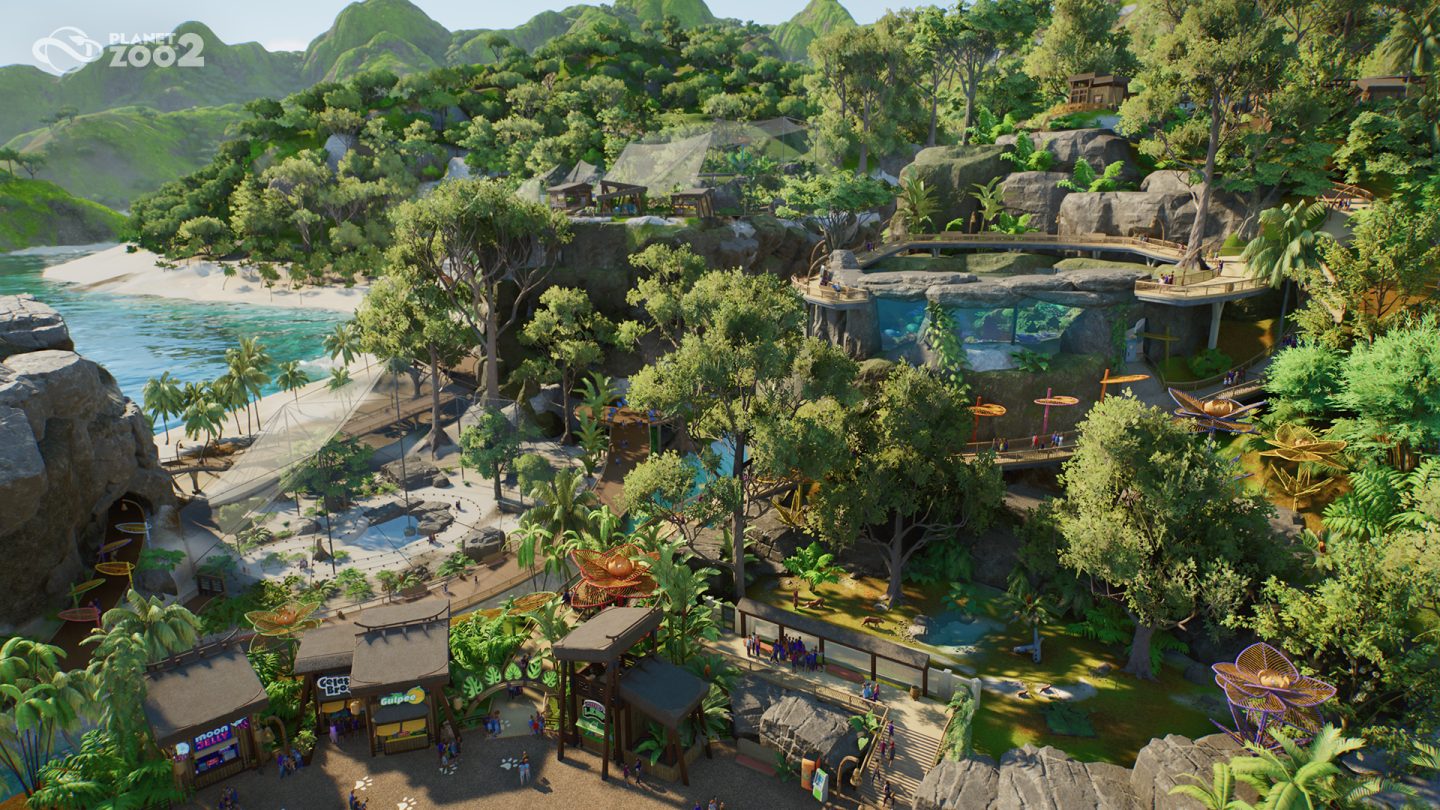
Planet Zoo 2 adds fully aquatic and flying species, aquariums, aviaries and customizable Wildlife Reserves. Building the place is only part of the game; the animals and guests also have to be processed as your zoo grows. Frontier specifically calls out that growing workload in its PC requirements.
Judge your settings in an established zoo, where those animals and guests are already part of the workload. Comfortable FPS in a fresh zoo can leave you with a poor guide to the larger one you spend your time managing.
Use the slow zoo for one focused comparison:
- Choose a view where the slowdown is easy to reproduce. Keep the same zoo, camera, simulation state and resolution for both comparisons.
- Note your starting quality and FPS, then lower graphics quality alone. Give both configurations comparable observation time.
- Check whether performance changes enough to justify keeping the lower quality. Note any active frame-rate cap or synchronization setting in your setup as well.
If lower quality helps enough to make the picture tradeoff worthwhile, keep it. Little change in FPS points you toward Frontier’s warning about animal and guest processing, though it does not prove a CPU bottleneck. An active cap or synchronization setting can also hide a difference between the two quality levels.
Restore the detail you lost when the comparison gives you no useful improvement, then investigate the conditions of that particular zoo. Don’t buy a processor solely because one quality change left the FPS counter unchanged.
Our FPS benchmark comparison guide (opens in a new tab) explains how to make a before-and-after result easier to trust. Keep the game configuration fixed when separately comparing Windows changes through Hone, too. Otherwise you won’t know which change accounts for the result.
Check the full Planet Zoo 2 PC requirements
Use the requirements below to compare your whole PC with Frontier’s tiers. Choose a tier and GPU vendor for one complete reference, or expand the table to see both tiers together. Match the named graphics card as well as its VRAM: memory capacity alone doesn’t establish equivalent performance.
Read one complete hardware tier
Choose a reference tier and GPU vendor. This does not detect your PC or predict its FPS.
Minimum · NVIDIA reference
- Operating system
- Windows 10 or Windows 11, 64-bit
- Processor
- Intel Core i7-8700K or AMD Ryzen 5 3600
- Memory
- 16 GB RAM
- Graphics card
- GeForce RTX 2060, 6 GB VRAM
- DirectX
- Version 12
- Available storage
- 40 GB; SSD recommended
- Starting quality
- Medium
- Frontier’s target
- Above 30 FPS in a well built up zoo
Match the whole specification. The GPU models are alternatives within a tier; matching VRAM alone does not establish equivalent performance. Frontier does not specify the resolution or detailed workload behind its targets. These are publisher targets, not Hone benchmarks or a 60 FPS guarantee.
Windows 10 is listed at minimum, but Frontier cannot guarantee ongoing compatibility.
Compare both complete tiers
| Component | Minimum | Recommended |
|---|---|---|
| Operating system | Windows 10 or Windows 11, 64-bit | Windows 11, 64-bit |
| Processor | Intel Core i7-8700K or AMD Ryzen 5 3600 | Intel Core i7-10700K or AMD Ryzen 7 5800X |
| Memory | 16 GB RAM | 16 GB RAM |
| NVIDIA graphics | GeForce RTX 2060, 6 GB VRAM | GeForce RTX 3070, 8 GB VRAM |
| AMD graphics | Radeon RX 5600 XT, 6 GB VRAM | Radeon RX 6700 XT, 12 GB VRAM |
| Intel graphics | Arc A750, 8 GB VRAM | Arc A770, 16 GB VRAM |
| DirectX | Version 12 | Version 12 |
| Available storage | 40 GB; SSD recommended | 40 GB; SSD required |
| Starting quality | Medium | High |
| Frontier’s target | Above 30 FPS in a well built up zoo | 30 FPS in a well built up zoo |
The NVIDIA, AMD and Intel rows are alternative graphics cards within each tier. The storage distinction also matters: an SSD is recommended at minimum and required at recommended.
Windows 10 is listed at minimum, but Frontier says it cannot guarantee ongoing compatibility. Windows 11 is the recommended operating system. Check Frontier’s requirements and help page (opens in a new tab) if you need to confirm the requirements before installing or buying the game.
Try small, reversible fixes for performance problems
Beyond graphics quality, Frontier suggests trying Full-screen. If your installed build offers that display mode, compare it with your current choice when you’re having trouble. Keep whichever works better for your setup.
Unused overlays and recording tools are another sensible thing to isolate. Temporarily stop optional capture or overlay programs, then repeat the troublesome situation. Frontier identifies these programs as possible sources of demand or conflicts. If nothing improves, restore the software you want to use; turning it off permanently hasn’t earned its place in your setup.
On a laptop, consider cooling when investigating a processor-related slowdown. Frontier suggests extra cooling so the CPU can run at higher speeds. Establish that heat is part of the problem before buying an accessory; Frontier gives no temperature threshold or measured gain for this suggestion.
Crashing needs a different troubleshooting path
If Planet Zoo 2 crashes or won’t launch, start by verifying its file integrity through Steam, as Frontier recommends. This checks for damaged game files. A developed zoo that simply runs slowly belongs on the performance path above; file verification won’t reduce its animal and guest processing work.
For GPU-related trouble, check your driver with the GPU vendor and note the version that last worked. Frontier recommends keeping drivers up to date, but also acknowledges that a new version can introduce a problem. If the trouble began after an update, that timing is useful information to keep when troubleshooting; a known working version gives you something concrete to compare against.
If those checks leave a crash unresolved, use Frontier’s PC troubleshooting and support page (opens in a new tab) for the next support step. For low FPS alone, return to the zoo and quality comparison first. Keep the changes that help that workload, and keep the detail you can afford.
Frequently asked questions
What Planet Zoo 2 PC settings should I start with?
Start with Medium if your PC meets the complete minimum specification, or High if it meets the complete recommended specification. These are starting points based on Frontier’s published quality targets, not a Hone-tested custom preset.
Do Planet Zoo 2 recommended specs guarantee 60 FPS?
No. Frontier describes 30 FPS at High for its recommended specification in a well built up zoo. Its minimum specification is described as above 30 FPS at Medium. The publisher does not specify the resolution or detailed test workload behind those figures.
Why can a large zoo stay slow after lowering graphics?
Frontier warns that additional animals and guests increase processing demand, with a smaller impact on the graphics card. Little change after lowering graphics is a clue to investigate simulation or CPU limits, but active frame-rate caps, synchronization and other limits can also conceal a difference.
Does Planet Zoo 2 require an SSD?
The current minimum requirements recommend an SSD; the recommended requirements require one. Both tiers list 40 GB of available storage and 16 GB of RAM.
Does Planet Zoo 2 support Windows 10?
Windows 10 appears in the minimum requirements, alongside Windows 11. Frontier says it cannot guarantee ongoing Windows 10 compatibility. The recommended tier lists Windows 11.

Written by
Digital Marketing Manager
Keep reading