Probably Stolen PC Settings: Fix Stuttering, FPS Caps and Fullscreen
Set up Probably Stolen's current frame-rate cap and fullscreen modes, understand the VSync update, and check old stutter and ultrawide fixes.
In this article
Update Probably Stolen, then start with the frame-rate cap enabled in Options. That’s the first setting I’d check for stuttering or tearing on a high-refresh monitor, especially in fullscreen. Hotfix 1.0.0.5 changed how the cap works and addressed several display problems that older guides still describe.
The practical goal is a smooth shop and a readable interface: drag an item, open a document, and switch back from another app without the view becoming awkwardly sized. Get those basics right before chasing a larger FPS number.
Start with these Probably Stolen PC settings
Use an updated retail copy for this setup. The relevant cap and fullscreen changes arrived in Hotfix 1.0.0.5 on October 30, 2026. The latest developer update checked for this guide is 1.0.0.6, published October 31.
| Setting or check | Recommended starting point | Why start here? |
|---|---|---|
| Frame-rate cap in Options | On | The current control uses VSync; the developer changed it to address stuttering and tearing, particularly at high refresh rates and in fullscreen. |
| Fullscreen resolution | Your native resolution shown by the game | The updated dropdown shows native resolution while a fullscreen mode is selected, including on non-16:9 monitors. |
| Fullscreen mode | Compare fullscreen and borderless for your setup | Borderless fullscreen now supports non-16:9 monitors. Check which mode keeps the shop and documents correctly sized through your usual Alt-Tab routine. |
| Mods | Check compatibility with the current retail update | The launch and later modding updates introduced compatibility boundaries. An old demo mod is a poor starting point for diagnosing the retail game. |
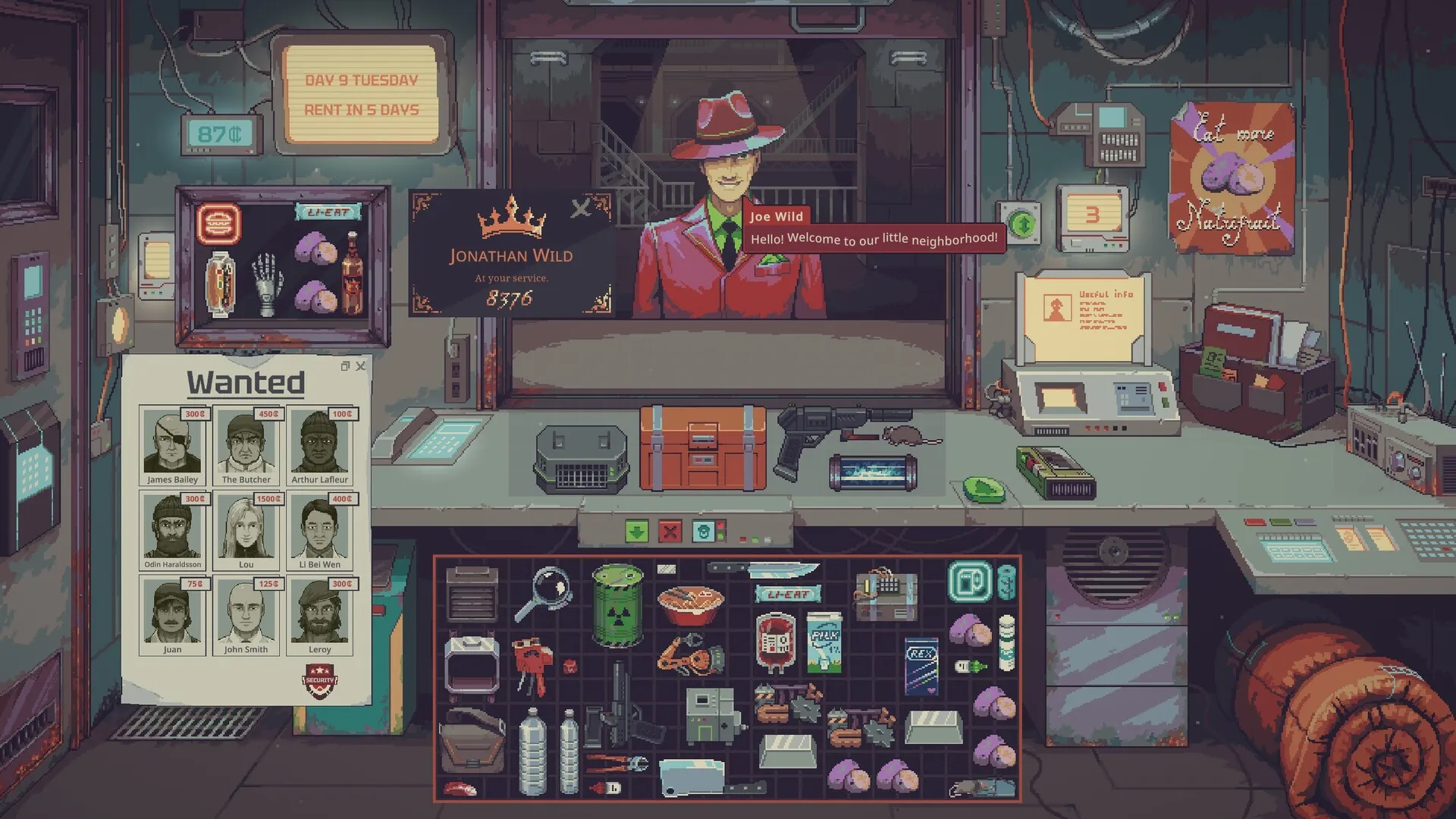
Why the old 60 FPS advice no longer fits
Probably Stolen previously used a fixed 60 FPS cap. Hotfix 1.0.0.5 replaced its software limiter with VSync, changed the cap to follow monitor refresh rate with a minimum limit of 60, and switched it on once for existing players. The developer also left the option to turn it off again.
That last detail matters if the game suddenly behaves differently after an update. A setting you previously disabled may have been enabled by the patch. Check Options before assuming that a driver or another app changed something.
The refresh-linked limit also changes what an FPS ceiling means. On a 144 Hz screen, the current cap is intended to follow that refresh rate rather than impose the old fixed 60 limit. These are limits, not the FPS your PC is guaranteed to deliver: the developer’s “at least 60 FPS” wording describes the cap configuration.
If the ceiling still looks like 60 on a high-refresh screen, check the active Windows mode. In Windows 11 Settings → System → Display → Advanced display, select your gaming monitor and read its current refresh rate. A 144 Hz specification does not mean Windows is using 144 Hz. If it is set to 60 Hz, a 60 FPS ceiling fits the current cap rule. Use Choose a refresh rate to select your intended supported mode; check the resolution before accepting a mode that changes it.
Same shop. A different ceiling.
Choose an example refresh rate. Watch the same item cross both counters at the same speed.
At 60 Hz, the two example limits match. The update changes the cap rule, not a promise of extra FPS.
At 120144240 Hz, the refreshed limit allows smaller steps than the old fixed 60. Your PC still has to produce those frames.
Slowed illustration: one second is stretched to eight. This shows frame limits, not game footage, actual FPS or VSync behavior.
Compare the example limits
| Example refresh | Older limit | Refresh-linked limit |
|---|---|---|
| 60 Hz | 60 FPS | 60 FPS |
| 120 Hz | 60 FPS | 120 FPS |
| 144 Hz | 60 FPS | 144 FPS |
| 240 Hz | 60 FPS | 240 FPS |
The drawing uses one step per example frame. Both items travel the same distance in the same time; a higher limit does not make the game run faster or guarantee that your PC reaches it.
If you want to compare the cap’s On and Off states, keep the display mode unchanged and repeat the same item drag or document interaction. Look at presentation as well as the counter: visible tearing matters even if the number rises. Our FPS comparison guide (opens in a new tab) explains how to make a longer comparison fair.
Fix fullscreen, ultrawide and Alt-Tab sizing first
The updated game supports borderless fullscreen on non-16:9 monitors. Its fullscreen resolution dropdown also shows the monitor’s native resolution.
Choose the shown native resolution, then check the parts of the shop you actually use. Open a document, move it, and inspect an item tooltip. Alt-Tab out and return once. You want the interface to remain correctly positioned and readable, rather than settling for a mode that looks fine until the first app switch.
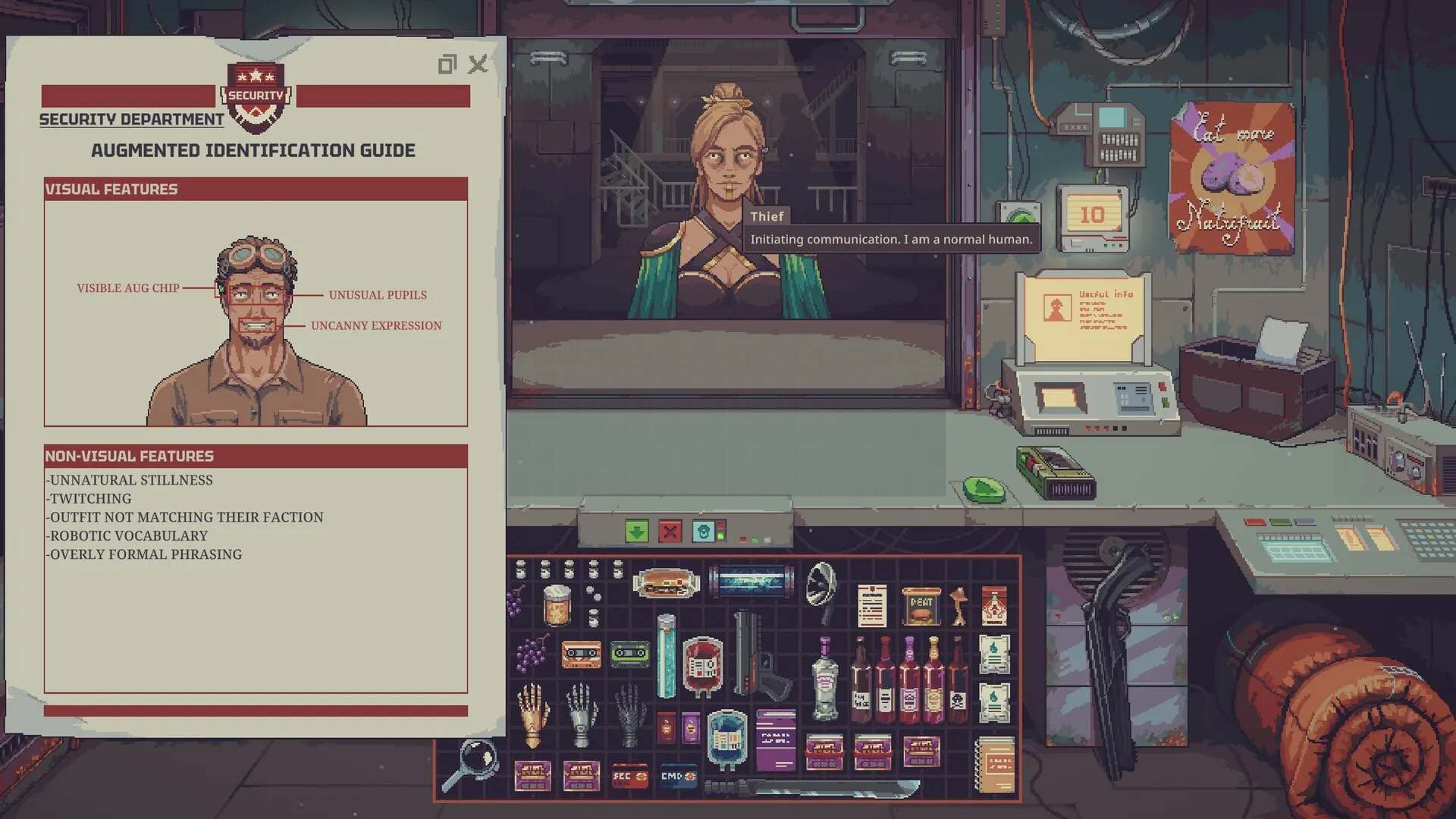
The same hotfix fixed fullscreen sometimes returning as a small window with a zoomed-out view and misaligned interface after Alt-Tab. Earlier retail fixes also addressed tooltips appearing behind windows and documents snapping back in size on non-16:9 fullscreen displays. Update before spending time compensating for those old problems.
Fullscreen support and a wider rendered playfield are separate questions. Earlier developer notes described black bars on non-16:9 displays and later allowed interface elements to dock onto that side space. The current borderless announcement doesn’t establish that every wide screen should show an edge-to-edge game image. Side bars alone are not enough to diagnose a broken resolution.
I wouldn’t force the picture to fill the screen at the expense of readable documents. Settle on the mode that keeps them correctly sized through the app switch.
If it still stutters on the current build
If the updated cap and display setup leave the same hitch in place, check what else differs from the retail game the patch addresses.
If you’re using mods, check that their authors support your current retail version. The developer warned at launch that demo mods might not work with the full game, and 1.0.0.6 introduced a modding security update that could require authors to update their work. A mod’s age matters here; a guide recommending a demo-era FPS unlock is not proof that it is useful now.
For a PC that struggles throughout play, check the game’s requirements as well. Steam lists Windows 10 x64, a Core i3 or equivalent, 8 GB RAM, a GTX 650 Ti equivalent or better, DirectX 10, and 1 GB of storage. Those minimums don’t specify an FPS target. They are a compatibility starting point, not evidence for a particular frame rate.
Keep changes reversible. Don’t delete a working shop save to troubleshoot an FPS ceiling. The documented cap and fullscreen fixes don’t call for that.
For the Windows side, Hone lets you review supported PC optimization changes. Our Game Mode explanation (opens in a new tab) covers its role. Finish the game’s cap and display setup first so you can judge a later PC change against a clear starting point.
Frequently asked questions
What are the best Probably Stolen PC settings to start with?
Update the retail game, leave the frame-rate cap enabled in Options for the first pass, and use the native resolution shown for fullscreen. Borderless fullscreen is also supported on non-16:9 monitors after Hotfix 1.0.0.5. Choose the mode that keeps your interface correctly sized.
Is Probably Stolen locked to 60 FPS?
The older fixed-60 cap was changed in Hotfix 1.0.0.5. The developer says the cap now follows monitor refresh rate, with a minimum limit of 60 FPS, and uses VSync. That describes the limit, not guaranteed performance.
Should I turn the frame-rate cap off?
Start with it on if you are checking fullscreen or high-refresh stutter and tearing. Hotfix 1.0.0.5 replaced the software limiter with VSync to address those symptoms. You can turn it off in Options, but changing it is a comparison to judge on your PC, not a guaranteed fix.
Does Probably Stolen support ultrawide borderless fullscreen?
Hotfix 1.0.0.5 added borderless fullscreen support for monitors that are not 16:9. It also made the resolution dropdown show native resolution when a fullscreen mode is selected. Support for that mode does not establish that the game fills every aspect ratio without bars.
Why does Probably Stolen become small or misaligned after Alt-Tab?
The developer fixed that fullscreen symptom in Hotfix 1.0.0.5. Update before applying workarounds. If it remains on a current build, compare the available fullscreen modes and check mod compatibility rather than assuming the old bug is still the cause.
Written by
Digital Marketing Manager
Keep reading