Remothered: Red Nun’s Legacy PC Settings and Requirements
Set up Remothered: Red Nun’s Legacy on PC with native DLSS and FSR guidance, shader advice, HDR limitations and minimum and recommended requirements.
In this article
Let the startup shader pass finish, use the game’s native upscaling options, and treat Frame Generation and ray tracing as separate choices. Those are the useful starting points for Remothered: Red Nun’s Legacy on PC. HDR is absent at launch, and there’s no verified all-purpose preset or frame-cap value to recommend yet.
I’d start with the native options because they give a launch problem fewer moving parts. Driver overrides and replacement DLLs fall outside Stormind’s support, while its own feature recommendations have specific hardware conditions. The advice below follows that launch guidance; it isn’t a Hone benchmark profile.
Finish shader compilation before entering the villa
When Red Nun’s Legacy offers a shader compilation pass during startup, give it time to complete. Stormind warns that interrupting it can leave temporary stuttering during gameplay. That makes finishing the pass a better first move than immediately lowering graphics settings in response to a rough opening.
Startup rehearsal
Give the preparation its turn
Illustrative sequence. No game timing or performance measurement.
Preparation completes in this example. That does not promise stutter-free play or identify the cause of a later hitch.
Stormind Games recommends finishing the offered pass before gameplay; interrupting it may cause temporary stuttering.
Both paths at a glance
- Allow completion: finish the shader pass when offered before judging gameplay. Other hitch causes remain possible.
- Interrupt: temporary gameplay stuttering may follow. The warning does not establish that every hitch is shader-related.
NVIDIA settings: choose the feature before its companion
On NVIDIA, start with DLSS Super Resolution when available: that is Stormind’s recommendation for its native DLSS 4.5 implementation. Choose among the modes your installed build offers; there is no measured mode comparison here to rank them.
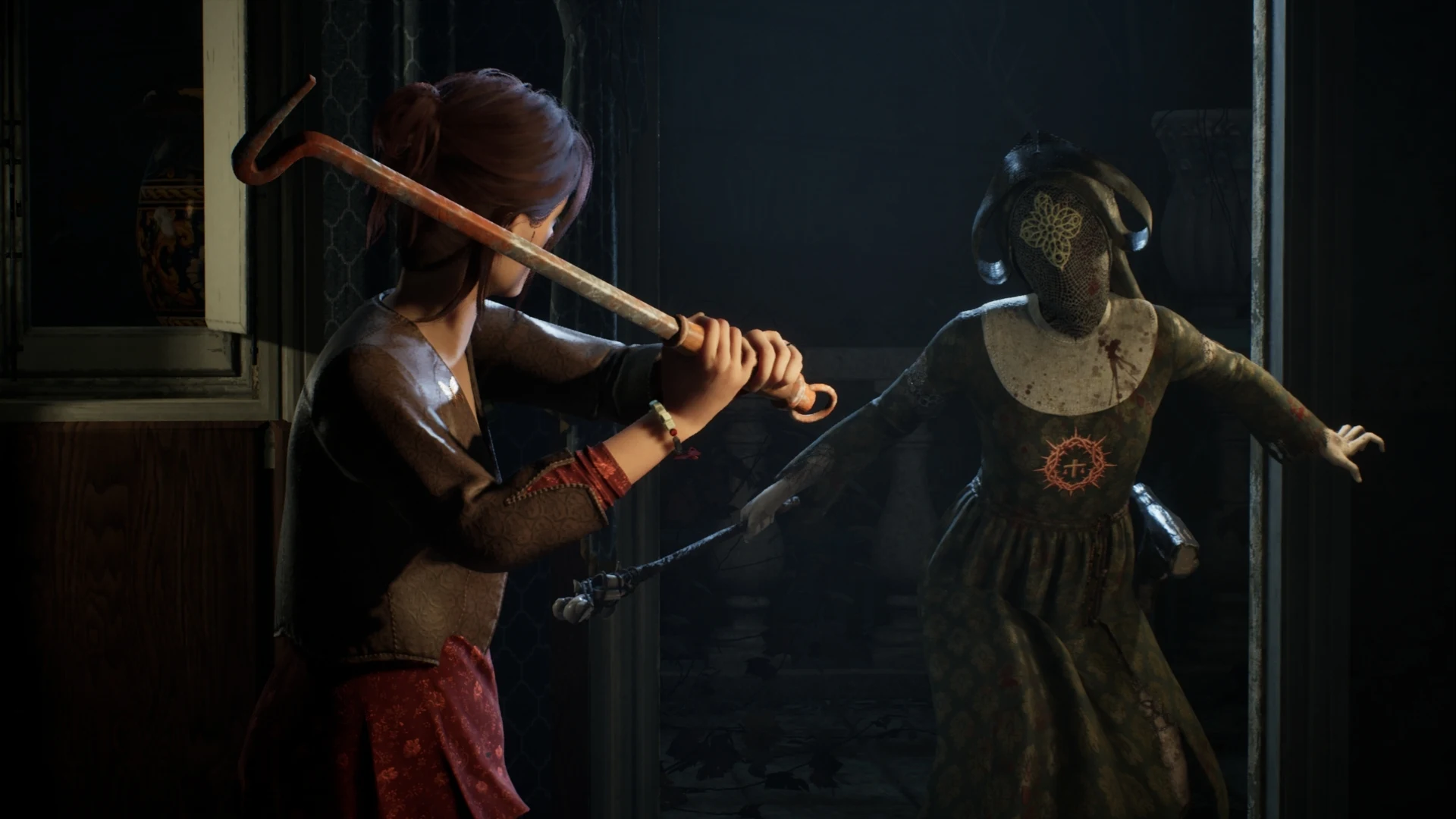
Official press image: Stormind Games / Remothered: Red Nun’s Legacy. Capture platform, build and settings unspecified.
Two other recommendations depend on what you choose to enable and what your hardware supports:
| If you use this available feature | Companion recommendation | What the pairing means |
|---|---|---|
| Frame Generation on a compatible NVIDIA setup | NVIDIA Reflex Low Latency | Stormind recommends the pairing for responsiveness. A generated FPS count alone does not establish the underlying response rate. |
| Hardware Ray Tracing, with compatible features available | Ray Reconstruction | Stormind recommends it for visual quality and stability. This does not make ray tracing compulsory or establish its performance cost. |
The distinction matters when deciding what to try next. You can follow the Super Resolution advice without committing to either of those additional features. If you do try one, keep its companion recommendation attached rather than treating every available option as a single preset.
FSR compatibility depends on the GPU and driver
The native feature list names AMD FSR 4.1.1. Inside its compatibility guidance, Stormind calls the machine-learning implementation FSR 4.1 (ML). Keep those scopes separate: the broad feature name doesn’t promise the same implementation on every card.
| GPU or configuration | Stormind’s native FSR guidance |
|---|---|
| Radeon RX 9000 or RX 7000 | FSR 4.1 ML with Adrenalin 26.6.2 or later |
| Radeon RX 6000 | FSR 4.1 availability from 26.10.1, untested and not officially supported |
| Other supported AMD cards, or older drivers | Analytical FSR 3.1.5 |
| Supported NVIDIA cards using FSR | Analytical FSR 3.1.5 |
For an RX 6000 owner, that unsupported label should carry more weight than the temptation of a newer version number. Availability and a supported configuration are different promises. I’d establish how the supported native path behaves before considering an untested alternative.
These recommendations also stop at the game’s own implementation. Driver overrides, OptiScaler and replacement DLL configurations are outside official testing and support. They introduce a compatibility question precisely when you’re trying to establish a dependable starting point. Intel Arc has a separate limitation: it is not officially supported, with performance, stability and XeSS functionality not fully validated. That is a validation gap, rather than proof the game cannot launch on Arc.
Keep the atmosphere; make the text readable
Red Nun’s Legacy has no HDR support at launch. Treat that as a game limitation when planning your display setup. It doesn’t call for disabling Windows HDR across your PC, and it doesn’t confirm an Auto HDR path.
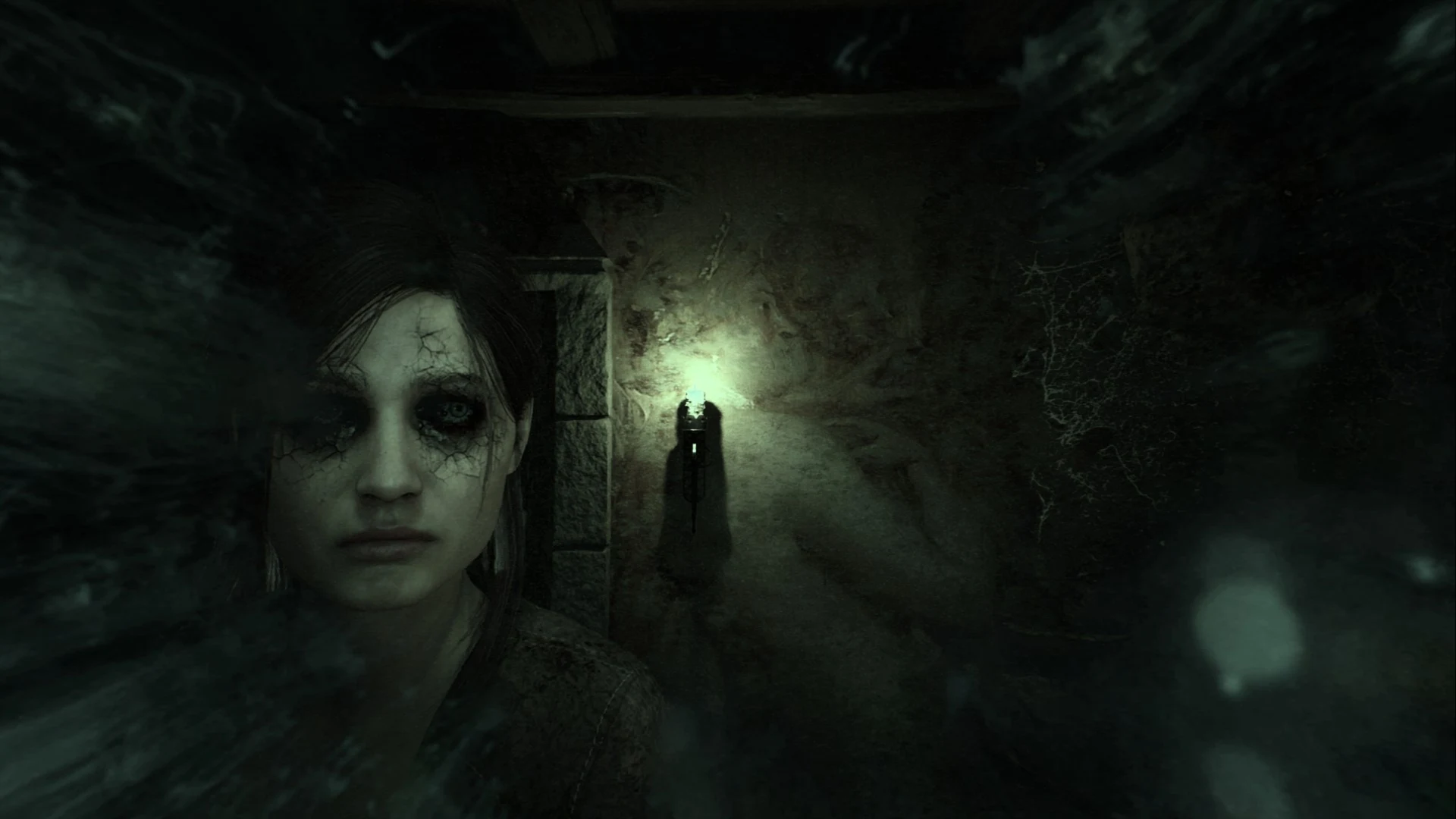
Official press image: Stormind Games / Remothered: Red Nun’s Legacy. Capture platform, build and settings unspecified.
For readability, begin with the controls that are documented. Subtitle settings can be adjusted in the options menu, and Protanopia, Deuteranopia and Tritanopia modes are available. Exact subtitle size, colour and background controls haven’t been established, so choose from the options your installed build actually presents.
I’d handle dialogue readability there before trying to brighten the entire game around it. Preserving a horror game’s picture is a valid priority. We don’t have a verified brightness, shadow or motion-blur recipe that improves this one, and a dark publisher screenshot cannot supply those values.
Minimum and recommended PC requirements
Both listed configurations require a 64-bit processor and operating system. The Steam listing and official FAQ agree on these specifications:
| Component | Minimum | Recommended |
|---|---|---|
| OS | Windows 11 x64 | Windows 11 x64 |
| CPU | Ryzen 5 3600X / Core i5 11600K | Ryzen 7 5800X / Core i5-12600K |
| Memory | 16 GB RAM | 24 GB RAM |
| Graphics | Nvidia 2070 Super / AMD 5700 XT | Nvidia 3080ti / AMD RX 6900 XT |
| Available storage | 50 GB | 50 GB |
The awkward omission is the target behind each tier. Neither comes with a resolution, preset or FPS figure, and the listing doesn’t specify an SSD requirement. Use the table to check the published requirements; it isn’t enough to justify buying a particular upgrade for a promised result. The recommended memory figure is 24 GB, so don’t silently substitute the more familiar 16 GB when checking your system.
Check remapping restrictions before settling on a layout
Control customization has some consequential exceptions.
Input restrictions
Check the layout you depend on
Illustrated input reference, not a game menu. Shapes show affected input types; they do not assign bindings.
Camera
Camera controls cannot be reassigned on either controller or mouse and keyboard.
Controller movement
Movement controls cannot be reassigned on controller. This restriction does not establish what keyboard movement remapping is available.
Camera / movement swap
Camera and movement controls cannot be swapped.
Analog sticks
The analog sticks cannot be inverted or exchanged.
These are Stormind Games’ documented exceptions to control customization. Selecting a reference item here does not change your game.
If your usual layout depends on one of those changes, check that limitation before spending time arranging the rest of your bindings. It matters more than a general “controller supported” answer.
Compare one change without losing your starting point
Once startup compilation is complete, revisit a similar scene with the same resolution and other settings, changing one supported option at a time. Look at the picture as well as any performance reading. Keep Frame Generation in the comparison notes if you change it; a higher generated count doesn’t answer the responsiveness question by itself.
VRR support includes Adaptive Sync, HDMI VRR, FreeSync, G-Sync and G-Sync Compatible, but its behaviour depends on the display, configuration and GPU. That support list supplies no universal cap recommendation.
For persistent problems, send the details through Remothered’s official support form (opens in a new tab). Include the configuration and change involved so the report describes the problem you’re actually having.
Frequently asked questions
Does Remothered Red Nun’s Legacy support HDR on PC?
HDR is not supported at launch, according to Stormind Games. That does not establish a need to disable Windows HDR globally or confirm Auto HDR support.
Can Radeon RX 6000 use FSR 4.1 in Red Nun’s Legacy?
Stormind lists availability from Adrenalin 26.10.1, but explicitly says this RX 6000 configuration is untested and not officially supported. Its supported ML reference lists RX 9000 and RX 7000 with Adrenalin 26.6.2 or later.
What are the recommended PC requirements for Red Nun’s Legacy?
The listed recommended configuration is Windows 11 x64, Ryzen 7 5800X or Core i5-12600K, 24 GB RAM, Nvidia 3080ti or AMD RX 6900 XT, and 50 GB available space. The listing gives no associated resolution, graphics preset or FPS target.
Why does Red Nun’s Legacy stutter after shader compilation is interrupted?
Stormind warns that interrupting the startup shader pass may cause temporary gameplay stuttering. Allow the pass to finish when offered. This warning does not establish that every hitch is shader-related or justify deleting shader caches.

Written by
Digital Marketing Manager
Keep reading