ROB RUN PC Settings: Fix FPS Drops and Mouse Stutter
Fix ROB RUN FPS drops when moving your mouse, choose a polling rate to try, and adjust graphics settings for smoother play without losing useful detail.
In this article
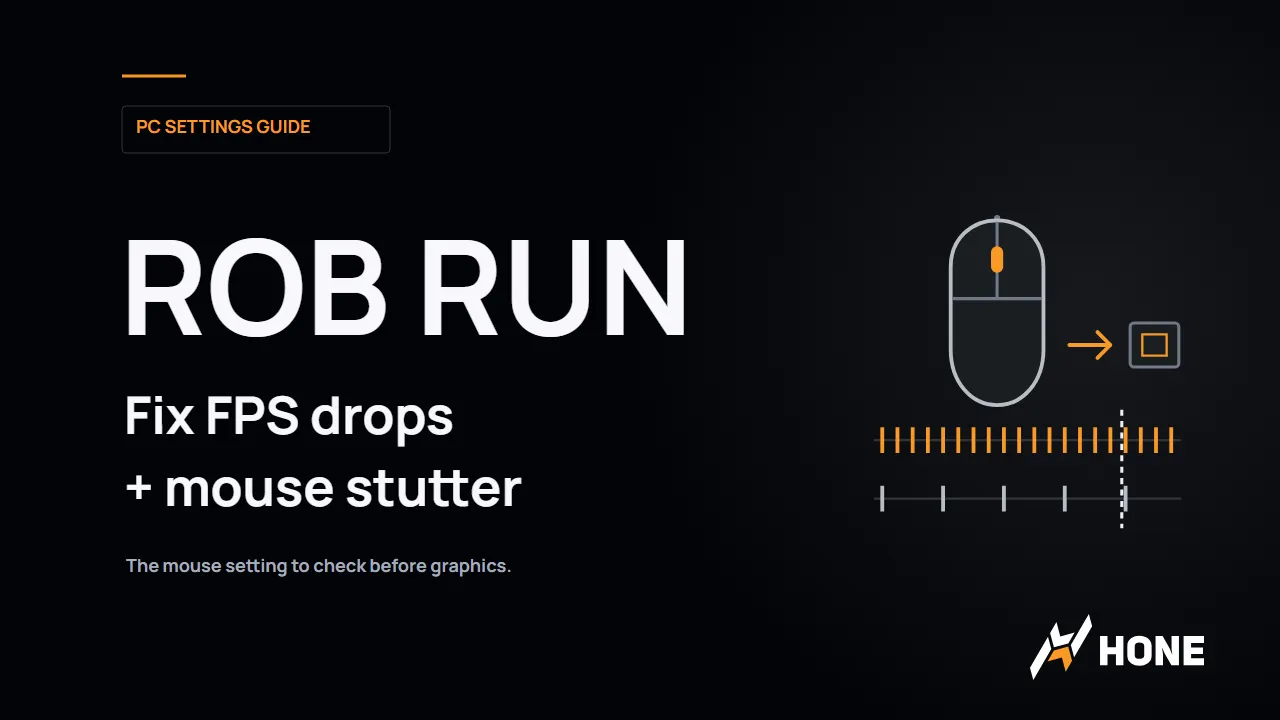
If ROB RUN’s FPS collapses when you move your mouse, lower Polling Rate in your mouse software before cutting graphics quality. Kefir documents this exact symptom (opens in a new tab): the game can fall into single digits during mouse movement while running smoothly when the mouse stays still.
Fix FPS drops when moving the mouse
Open your mouse manufacturer’s app and find Polling Rate, sometimes called Report Rate. Change it on the profile used for ROB RUN.
- If your mouse is above 1000 Hz, try 1000 Hz first.
- Keep your DPI, in-game sensitivity and graphics settings unchanged. Move the mouse in the same place in the game and watch whether the drop returns.
- If movement still causes a sharp drop, try 500 Hz if your mouse offers it. If you already use 1000 Hz, this is the next comparison.
- If lowering it makes no difference, restore your preferred rate and continue with the other checks below.
The 1000 Hz and 500 Hz steps are our troubleshooting starting points; Kefir recommends lowering the rate without prescribing one number. You’re looking for smoother movement, so there’s little value in lowering it further once the problem is gone. If your mouse app has game profiles, keeping the change specific to ROB RUN also avoids changing how it behaves elsewhere.
Why a faster mouse can make the game slower
Polling rate describes how frequently your mouse communicates with the PC. At 1000 Hz, the nominal interval is 1 ms. At 8000 Hz, it’s 0.125 ms. Higher rates provide more frequent opportunities for input updates, but the software receiving them still has work to do.
That work can compete with producing frames. Microsoft’s investigation of high-report-rate mouse stutter (opens in a new tab) found processing time being spent on input listeners in the background. Windows 11 improvements reduced that work. Keep Windows current, though a game’s own input handling still matters.
You also don’t need to see 100% total CPU usage for CPU-side work to hold up a frame. One critical thread can be busy while other threads wait. That is why a modest CPU percentage doesn’t rule out an input-processing problem. Kefir’s support advice doesn’t identify ROB RUN’s internal input path; the mouse-movement symptom is the practical clue to follow.
Lower polling trades some update frequency for less input-processing demand on affected systems. The 1 ms or 0.125 ms interval is only a reporting interval, not your total input delay. If your preferred rate already runs smoothly, keep it.
More mouse reports. The same time to make a frame.
Each tick is one nominal reporting opportunity. Both rows use the same 20 ms time scale, slowed down so you can see the spacing.
8.33 ms per frameThe shaded window ends at the dashed line.
66.7 vs 8.3Average reporting opportunities in that frame interval.
If mouse movement causes the drop, try 1,000 Hz from a higher rate. Still stuttering? Try 500 Hz in your mouse app.
Timing model, not an FPS benchmark. Reports can add processing work; the ticks do not measure its cost. Polling interval is not total input latency.
ROB RUN graphics settings to start with
Start with optional lighting and effects reduced, while keeping useful scene detail. This setup uses the controls in ROB RUN menu captures published on November 8 (opens in a new tab). We haven’t benchmarked the combination, and Early Access updates may change the menu.
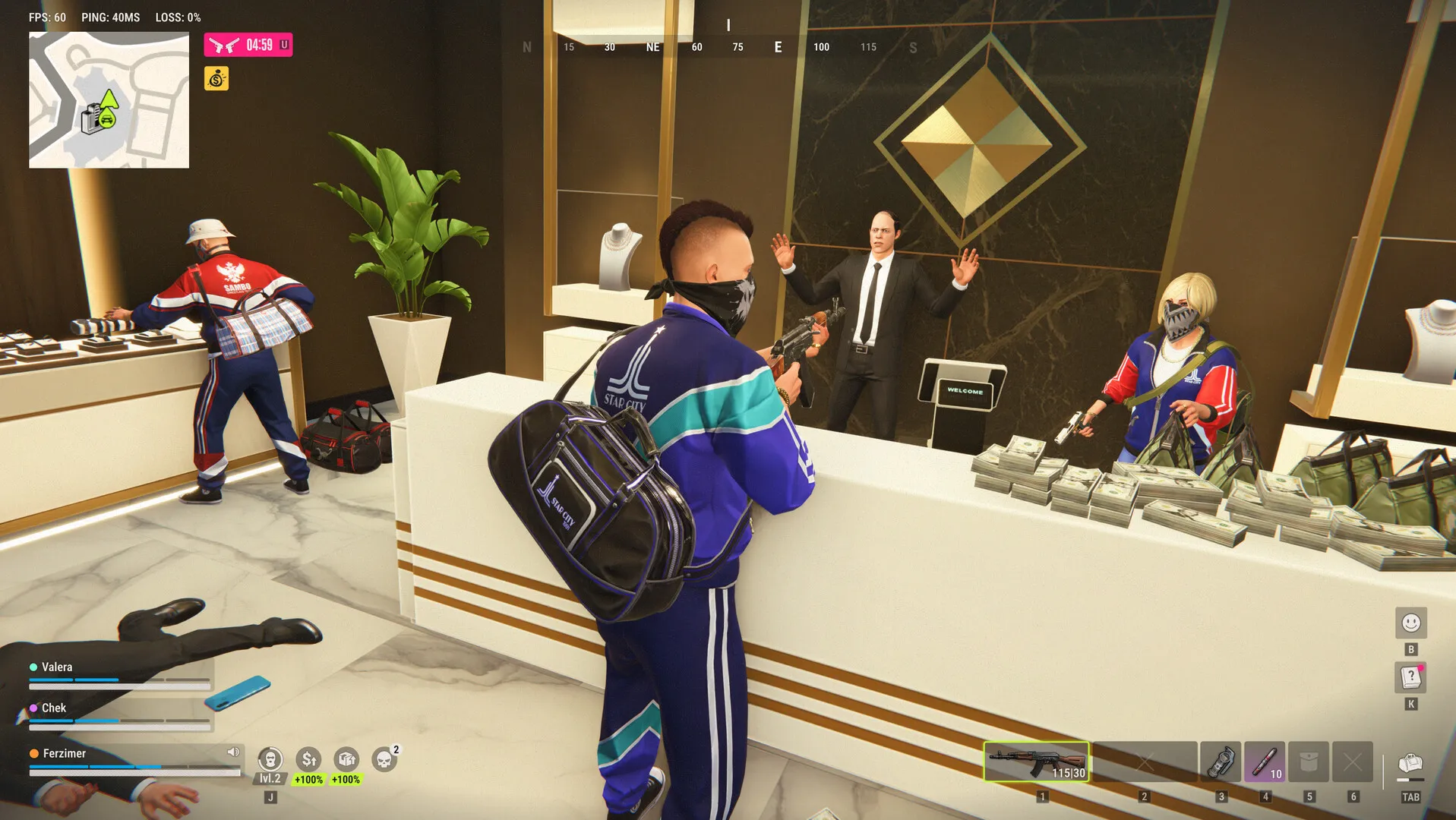
| Setting | Start here | What you’re choosing |
|---|---|---|
| Shadows | Disabled | Give up shadows first when FPS takes priority. |
| Additional Light | Off | Reduce optional scene lighting. |
| HBAO | Off | Give up extra ambient shading before lowering scene detail. |
| Environment Reflections | Off | Reduce reflective detail. |
| LOD Crossfade | Off | Try removing the transition effect between detail levels. |
| Water | Low Quality | Reduce water detail. |
| Grass | Minimum Quality | Reduce grass detail. |
| Texture Quality | Keep your current value initially | Preserve readable surfaces while changing effects first. |
| Object Visibility Distance | Keep your current value initially | Avoid sacrificing distant scene visibility with the first changes. |
Keep an eye on what disappears when you lower Object Visibility Distance. The menu capture shows Maximum; don’t assume it costs nothing to run. If busy scenes remain slow after the other changes, reduce it, then decide how much distant detail you’re willing to lose. That compromise makes more sense after addressing the mouse problem.
Keep Texture Quality high enough to recognize surfaces and objects comfortably. Revisit it if performance is still poor after reducing effects. The capture’s Low setting is an option to try, rather than a requirement for every PC.
When you have enough FPS, restore the effect you miss most.
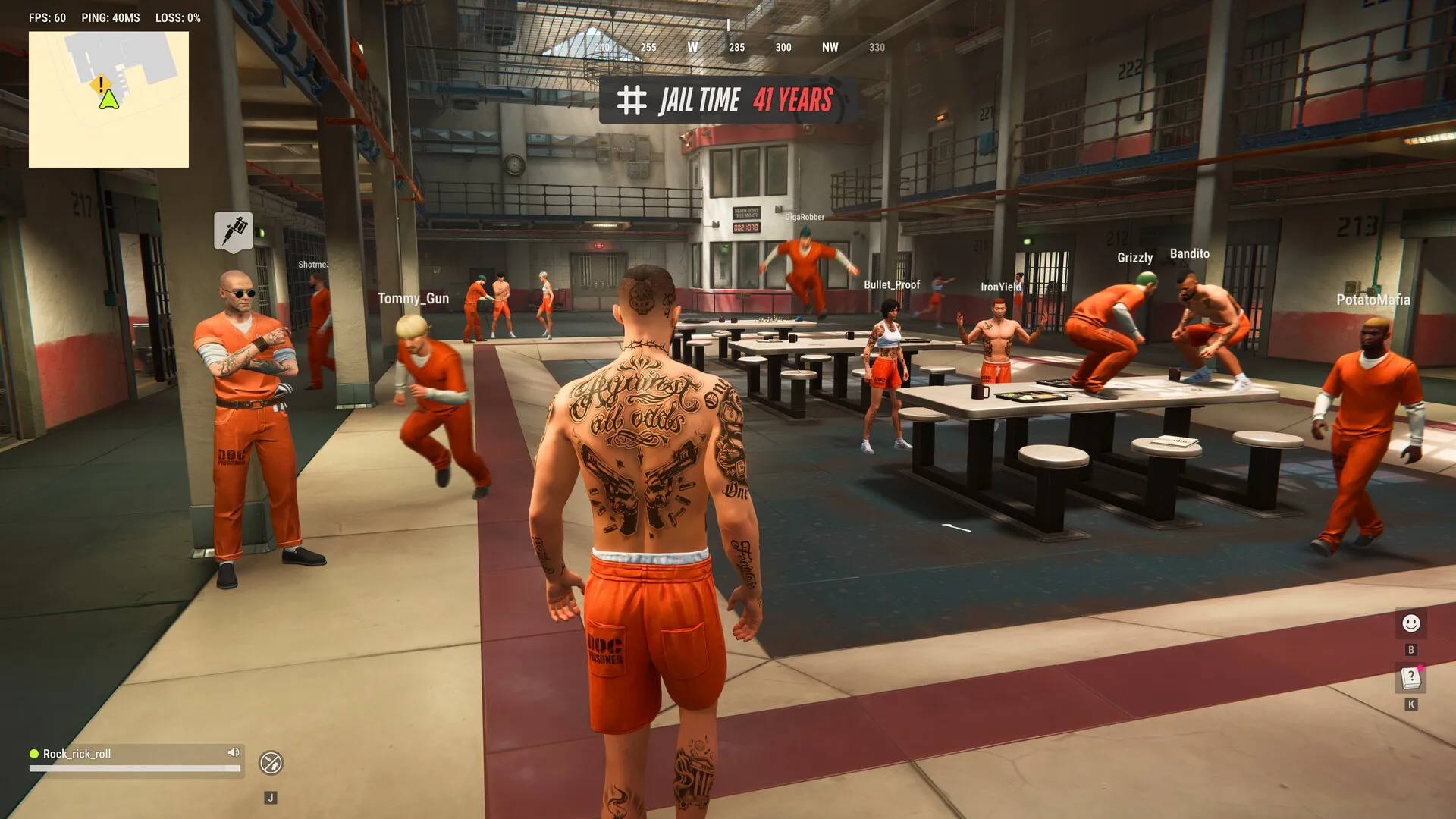
Check whether the problem is FPS or connection lag
Look in Settings > Other for Display performance metrics. It lists Frame Rate (FPS), Network Latency (PING) and Packet Loss (LOSS). Read them together:
- Falling FPS during a camera sweep points you back toward the polling-rate check or local frame performance.
- High ping, packet loss, disconnections or players jumping around while your own frame rate stays steady call for a connection or server check.
Low FPS and connection trouble can happen together, so watch all three indicators. If you get a connection error, follow Kefir’s error-code guide (opens in a new tab).
If ROB RUN still stutters or freezes
Kefir’s polling FAQ also recommends updating GPU drivers and disabling third-party overlays. Try closing an overlay you don’t need, along with unused background apps, then return to the game. Our Game Mode guide (opens in a new tab) explains the background-app side of PC optimization.
For loading freezes or repeated crashes, follow the developer’s loading and freezing advice (opens in a new tab): restart the game and Steam, then use Steam > ROB RUN > Properties > Installed Files > Verify integrity of game files. File verification belongs to repairing a broken install; it isn’t an FPS setting.
If a crash persists, contact Kefir support (opens in a new tab) with your PC specs, the error and what triggered it. For movement-only frame drops, include whether lowering Polling Rate changed the behavior.
Frequently asked questions
Why does ROB RUN FPS drop when I move my mouse?
Kefir documents severe FPS drops during mouse movement caused by excessive polling. Lower Polling Rate in your mouse manufacturer’s app. If your rate is above 1000 Hz, our first comparison is 1000 Hz, followed by 500 Hz if needed; Kefir does not prescribe an exact rate.
Should everyone use 500 Hz for ROB RUN?
No. Try a lower rate when moving the mouse triggers frame drops. Keep your preferred rate if camera movement already runs smoothly. Lower polling means less frequent input reports.
What ROB RUN graphics settings should I lower first?
After addressing mouse-triggered drops, try Shadows at Disabled, HBAO and Environment Reflections off, Additional Light off, Water at Low Quality and Grass at Minimum Quality. These are starting recommendations using observed menu controls, not a benchmarked preset.
How do I show FPS and ping in ROB RUN?
Look in Settings > Other for Display performance metrics, which lists Frame Rate (FPS), Network Latency (PING) and Packet Loss (LOSS). Use FPS to follow frame drops and ping or packet loss to investigate connection trouble.

Written by
Digital Marketing Manager
Find Hone again in Google Search
Prefer our PC performance guides and research? Add Hone to your preferred sources in Google Search.
Keep reading