Rust Player Checker: Who Are You Really Playing Against?
Rust player checker: see the history behind a potential teammate or raid opponent. Check their hours, old names and ban records using a Steam profile link.
In this article
A Rust player checker can show you the history behind the player who just wiped your squad or asked to join your team. Their recorded hours, old names and ban records can tell a different story from the one you get in voice chat.
Before handing over base codes, you might want to know whether a recruit’s claimed experience matches their playtime. A lookup can also help you recognize a neighbor’s old alias before you spend an evening raiding them.
You can start with their Steam profile link.
How to check a Rust player
- Open the player’s Steam profile. Start with the person you encountered, rather than picking the first matching name in a search.
- Copy their profile link. Use the full address, including the custom profile name or numbers at the end. You don’t need to convert it into a separate ID.
- Paste it into a player checker. One option is RustWho (opens in a new tab), which brings available playtime, previous names and public ban information together in one lookup.
Open the Steam profile linked in the result and confirm it’s the account you meant. Then check the source and date of the information: a previously recorded hours total answers a different question from a current public total. For a ban, look for the game or server involved.
If a search returns nothing, try the original Steam profile URL again. A malformed address, unavailable record or private information can leave a field empty. Don’t turn a blank hours field into “zero hours.”
Follow the player behind the name
- Display name
- Names can change between encounters.
- Behind the names
- Same Steam accountA new display name doesn't create a new account.
Two players called “123” aren’t necessarily the same person, and yesterday’s opponent can change their display name before you search. Open the player’s current Steam profile and copy its link, rather than relying on a remembered name.
The checker uses Steam’s account identifier behind the scenes. Valve says that identifier stays the same when a player changes their display name; Steam’s identity guide (opens in a new tab) explains the distinction. Copying the profile URL gives the checker what it needs.
Never paste your Steam login name, password or authentication code into a player search. The public profile address is the input you need.
What the results actually tell you
| Result | Useful for | What to watch for |
|---|---|---|
| Steam profile | Following the same account through name changes | A name match alone can point at the wrong account. |
| Rust hours | Understanding how much recorded playtime an account has | Hours aren’t a skill rating; check whether the total is current or historical. |
| Previous names | Recognizing an alias you’ve seen before | Alias coverage can be incomplete; an old name doesn’t identify the person behind the account. |
| Ban records | Seeing the type, date and available reason for a restriction | Read the affected game or server rather than treating every ban as a Rust cheating verdict. |
| Missing fields | Seeing which information the service couldn’t supply | Unavailable data and a recorded zero are different results. |
A teammate’s hours can help set expectations for a wipe. Old names may remind you of someone you met on a previous server. Use that history to ask better questions before teaming up; it won’t tell you whether they communicate well or keep losing the base codes.
Why private profiles can show old hours
Steam lets users make a game private, which hides its ownership, playtime, activity and in-game status from other users. Steam’s private-game explanation (opens in a new tab) describes what disappears from public view.
A lookup service may already hold a record from when those hours were public. In that case, the result is previously observed playtime, not a fresh reading of the private account. RustWho describes its private-hours results this way and notes that the player’s current total may be higher.
That distinction matters if you’re comparing teammates. An old total of 800 hours isn’t evidence that someone still has exactly 800 hours today. If there’s no dated record, treat the current total as unknown.
VAC bans, game bans and server bans are different
A VAC ban comes from Valve Anti-Cheat. A game ban comes through a game’s developer. A community server ban is issued by the people running that server; its rules and reasons can differ from another server’s. Steam explicitly says server administrators cannot issue VAC bans.
Read an aggregate “bans” count carefully. It doesn’t, by itself, establish that Rust was the affected game. Valve says a game ban applies to the specific game involved (opens in a new tab), and only permanent game bans appear on Steam profiles. Temporary restrictions may therefore be absent from a public profile.
For a server-ban entry, look for the server, reason and date. A rule violation on one community server isn’t automatically proof of cheating in your current fight. Equally, a clean lookup can’t certify that an account has never cheated.
Suspect cheating? Report from inside Rust
Press F7, then choose Report a Player. Pick the correct player and describe the behavior you encountered. Rust also offers reports from the death screen, a contact card, and a player name clicked in chat.
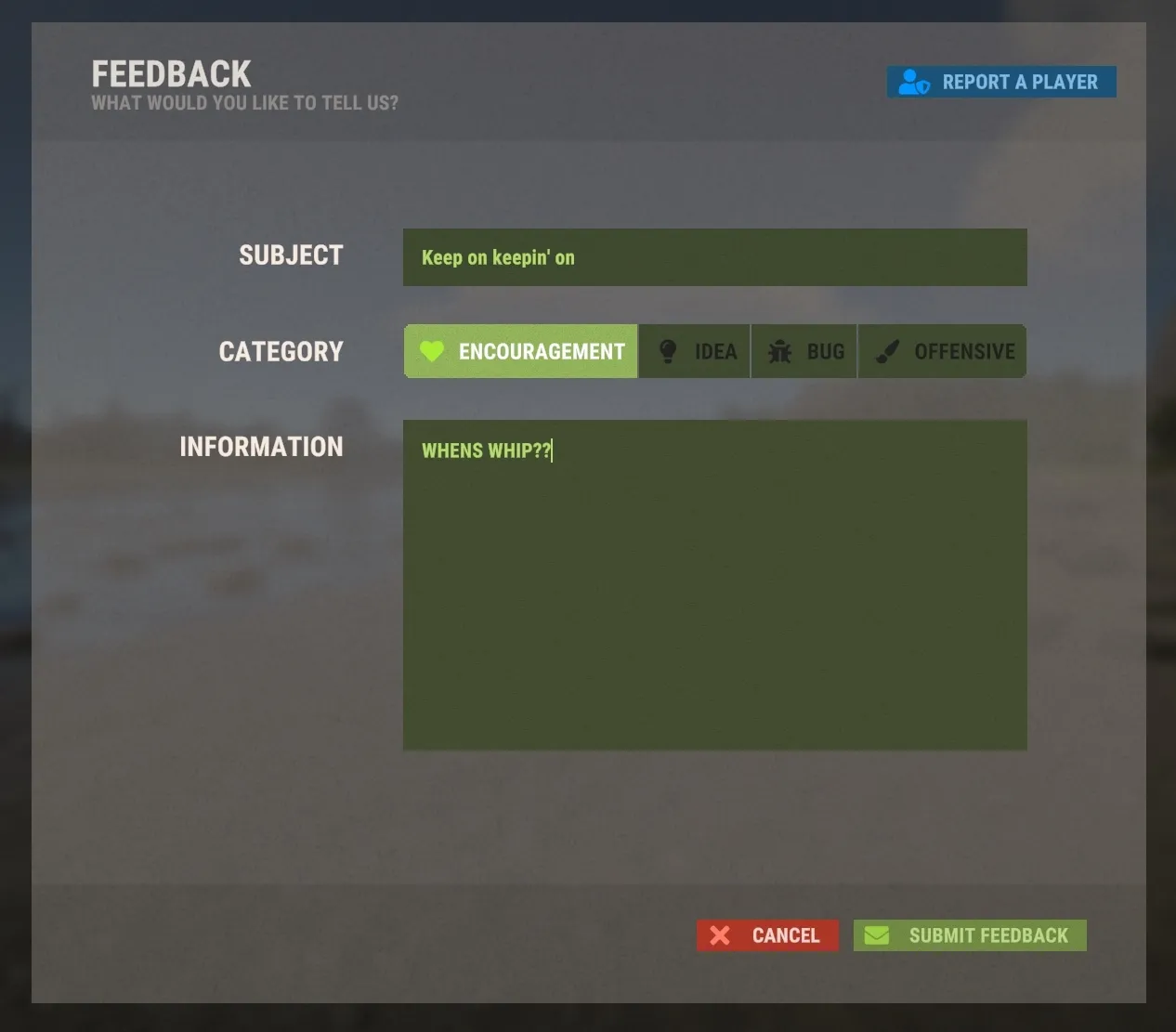
Choose Report a Player in the top right of the F7 screen. Official support image: Facepunch Studios.
Facepunch asks players to use these in-game reporting options (opens in a new tab) when they encounter suspected cheating or abuse, because they capture information for Facepunch and Easy Anti-Cheat. Your community server may also have its own report process.
Include the encounter and a useful clip if the server’s process accepts one. A profile link can identify the account; “low hours and a private profile” doesn’t explain what happened in the fight.
If the problem is your own frame rate rather than another player, our best Rust settings for PC (opens in a new tab) cover the graphics changes to make next.
Frequently asked questions
Can I find a Rust player by name?
A name can help you find candidates, but names can change. Open the correct Steam profile and paste its full URL into the checker. A matching name alone does not confirm the account.
Can a Rust player checker show private hours?
Some services retain hours they observed when a profile or game was public. That is a historical record, not access to the account's current private playtime. Missing hours do not mean zero hours.
Does a VAC or game ban mean someone cheated in Rust?
An aggregate ban count alone does not tell you which game was affected. Read the ban type and any game-specific details. A community server ban is separate from a VAC ban, and an empty result does not prove fair play.
How do I report a suspicious Rust player?
Use F7 and Report a Player while in game. Rust also has report controls on the death screen, contact cards and player names in chat. Include what happened, and follow your community server's reporting process if it has one.

Written by
Digital Marketing Manager
Find Hone again in Google Search
Prefer our PC performance guides and research? Add Hone to your preferred sources in Google Search.
Keep reading