Valor Mortis Best PC Settings: A Clearer Picture for Combat
Start with a Medium-based PC setup, choose upscaling for your picture, and understand frame generation and VRAM warnings in Valor Mortis.
In this article
Start Valor Mortis at Medium, leave frame generation off while tuning, and try Quality upscaling if your PC can maintain the performance you want. Turn Blur off if you dislike added motion blur. This gives you a useful place to begin without immediately trading away the picture for a larger FPS counter.
Our priority is a scene you can read during close combat, with ordinary performance your PC can sustain. The setup below is an editorial recommendation built from launch-menu captures and publisher information, checked October 14, 2026. Hone hasn’t played or benchmarked these settings, so there is no measured optimum or promised FPS gain attached to the profile.
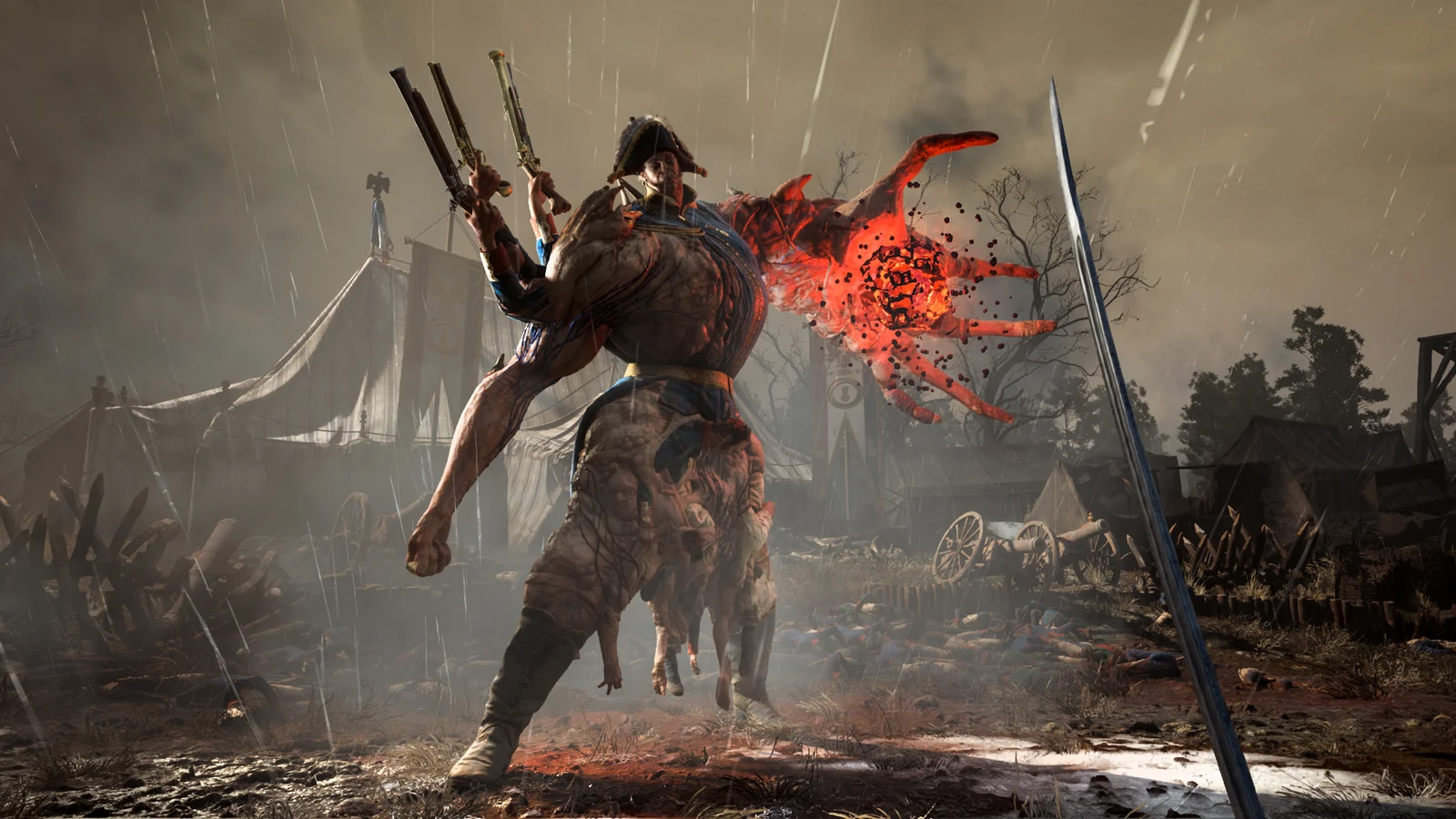
A Medium-based starting setup
Medium is a reasonable anchor because the publisher’s recommended target is 60 FPS at 1440p Medium with upscaling, using a Ryzen 7 5800X or Core i5-13400, an RX 6800 or RTX 3070, and 16 GB RAM. Upscaling is part of that target; it isn’t a native-1440p result.
If your PC is closer to the minimum, begin at Low. The publisher’s minimum target is 30 FPS at 1080p Low with upscaling, on a Ryzen 5 3600 or Core i5-10600K and an RX 5600 XT or GTX 1660 Ti. Both configurations call for an SSD and 60 GB of storage. The minimum specification gives lower-end PCs a realistic starting workload rather than a reason to copy a 144-FPS cap.
For a more selective setup, choose Medium first and make the following changes. Individual choices produce a Custom profile; this table favors a manageable lighting workload and fewer added effects.
| Setting | Starting choice |
|---|---|
| Global Illumination Quality | Medium |
| Shadow Quality | Medium |
| View Distance | Medium |
| Textures Quality | Medium |
| Effects Quality | Low |
| Reflections | Low |
| Post Process Quality | Low |
| Foliage Quality | Medium |
| Shading Quality | Medium |
| Landscape Quality | Medium |
| Ray Tracing | Off |
| Blur | Off for less added motion blur |
| Available upscaler | Quality when performance permits |
| Frame generation | Off while tuning |
| NVIDIA Reflex Low Latency | Enabled when available on GeForce |
Use a display resolution you intend to play at, then press F — Apply Settings after making changes. Fullscreen, Borderless Window and Windowed are available. Borderless can lock resolution to your desktop setting; if the resolution control is unavailable, that may explain why.
Keep lighting in proportion to its cost
Global Illumination Quality deserves attention before you reduce every detail setting. Its tooltip describes indirect lighting, sky shadows and ambient occlusion, and says High and above use more accurate ray tracing methods with a performance cost. Medium is a defensible place to stop while you establish a workable setup.
The separate Ray Tracing control starts Off in our profile. Keep these two choices distinct: turning that control off does not establish that every tracing method used by lighting or reflections has been disabled. A menu with more than one lighting control deserves more than a single “ray tracing off” instruction.
Effects Quality changes visual effects and lighting quality. Post Process Quality includes motion blur, depth of field and bloom, while Foliage Quality controls vegetation density, draw distance and detail. Starting Effects, Reflections and Post Process at Low is a conservative choice for the workload and picture we want; it doesn’t make them proven FPS winners. Medium foliage and distance leave room to decide what you care about before flattening the entire scene.
If you have performance to spare, restore the option whose appearance matters to you. Start with the tradeoff you care about most.
Spend fewer pixels only when you need to
Valor Mortis exposes NVIDIA DLSS, AMD FSR and Intel XeSS options in the launch capture. Choose a supported option that is available on your hardware. Some entries may be greyed out; the presence of a row isn’t proof that your GPU can use it.
Start at Quality if performance allows. Upscaling reconstructs the output picture from a smaller input image, so moving to more aggressive scaling gives it less source information. A mode name such as Performance describes a tradeoff worth considering, not an instruction to select it automatically.
The observed DLSS Quality readout is 67% scale per dimension. That is roughly two-thirds of the width and two-thirds of the height, rather than two-thirds of the total pixel count. The distinction matters when you’re deciding how much image information to give up.
For a separate, generic FSR 3 example, Quality’s nominal 1.5× factor takes a 1920 × 1080 output from an approximately 1280 × 720 input. Performance’s 2× factor takes it from 960 × 540. Those are input-pixel illustrations, not measured Valor Mortis buffers or a visual comparison of its upscalers. A smaller pixel budget also does not translate directly into the same percentage FPS gain.
See the source budget
Two smaller dimensions. A much smaller area.
Move through nominal FSR 3 examples. The inner orange window is the input; the outer outline is the chosen output.
Generic FSR 3 geometry, not measured Valor Mortis buffers or an image-quality comparison. The game’s FSR version is unknown. Fewer pixels do not imply the same percentage FPS gain.
All dimensions and the arithmetic
Input dimensions = output dimensions ÷ factor. Pixel share = 1 ÷ factor². Dimensions are rounded; the share uses the unrounded factor.
| Output | Nominal mode | Input | Pixel share |
|---|---|---|---|
| 1920 × 1080 | Quality · 1.5× | 1280 × 720 | 44.4% |
| 1920 × 1080 | Balanced · 1.7× | 1129 × 635 | 34.6% |
| 1920 × 1080 | Performance · 2× | 960 × 540 | 25.0% |
| 1920 × 1080 | Ultra Performance · 3× | 640 × 360 | 11.1% |
| 2560 × 1440 | Quality · 1.5× | 1707 × 960 | 44.4% |
| 2560 × 1440 | Balanced · 1.7× | 1506 × 847 | 34.6% |
| 2560 × 1440 | Performance · 2× | 1280 × 720 | 25.0% |
| 2560 × 1440 | Ultra Performance · 3× | 853 × 480 | 11.1% |
| 3840 × 2160 | Quality · 1.5× | 2560 × 1440 | 44.4% |
| 3840 × 2160 | Balanced · 1.7× | 2259 × 1271 | 34.6% |
| 3840 × 2160 | Performance · 2× | 1920 × 1080 | 25.0% |
| 3840 × 2160 | Ultra Performance · 3× | 1280 × 720 | 11.1% |
Use stronger scaling when the Quality setup falls short and you accept the picture it produces. There is no matched DLSS-versus-FSR-versus-XeSS ranking in our evidence, so the sensible recommendation is to choose among the options your PC actually offers and judge the resulting image.
Tune ordinary performance before frame generation
Frame generation can insert additional frames between conventional game renders. That makes its output counter a different observation from the rate at which the game renders fresh frames. It cannot establish an equivalent increase in responsiveness just by showing a bigger number.
Valor Mortis makes the caution unusually concrete: its tooltip advises against frame generation below 40 FPS, because low baseline performance can cause latency and artifacts. Establish your result with generation off first. If the game is below that warning threshold, reduce the workload before treating interpolation as the solution.
Passing 40 FPS is not a certificate of good response. AMD’s general FSR 3 guidance recommends at least 60 FPS before interpolation for better results. That vendor guidance and the game’s warning have different scopes, and the game’s exact FSR version is unknown. Neither gives us a measured latency result for your PC.
An idealized example helps explain the counter: a steady 60-FPS base produces a conventional frame about every 16.67 milliseconds. A hypothetical 2× interpolation stream could add output between those frames, producing 120 FPS with complete delivery. That doesn’t establish 120 new game renders, 120 input or simulation steps, or a change to a parry window. Real frame generation can also change the base rate through its own overhead.
Inspect the counter
More output. Which frames are new renders?
Change the assumed steady base rate, then add a hypothetical inserted stream. Solid markers remain conventional renders; dashed markers are inserted output.
60 FPS base · 16.67 ms conventional interval · interpolation off.
At 60 FPS, AMD’s generic FSR 3 baseline guidance is reached; neither it nor the game’s warning guarantees response or image quality.
Ideal fixed-base arithmetic with complete delivery. Real generation overhead can change the base rate. This is not input latency, simulation frequency, a parry window or a game-cap prediction.
Static 2× example and both guidance scopes
At a hypothetical steady 60 FPS, conventional frames are 16.67 ms apart. Inserted frames halfway between them give 120 FPS ideal output. They do not create 120 new game renders.
| Base FPS | Conventional interval | Hypothetical 2× output |
|---|---|---|
| 30 | 33.33 ms | 60 FPS |
| 40 | 25.00 ms | 80 FPS |
| 60 | 16.67 ms | 120 FPS |
| 120 | 8.33 ms | 240 FPS |
The game warns against generation below 40 FPS because of latency and artifacts. Crossing 40 is not a guarantee. AMD’s separate generic FSR 3 guidance recommends at least 60 FPS before interpolation; the game’s exact FSR version is unknown.
Try frame generation after you’re satisfied with the ordinary result and your hardware offers the feature. The observed DLSS and FSR generation tooltips are marked experimental. DLSS upscaling support is also separate from DLSS Frame Generation support; an RTX 2060’s ability to upscale does not give it the latter feature.
For GeForce users, NVIDIA Reflex Low Latency at Enabled is a reasonable initial choice when available. Boost doesn’t need to be the default.
Clear the camera to your taste
Blur Off is a picture preference. Choose it if you want less added motion blur, without expecting an established FPS improvement. Adjust Camera Shake for comfort, and set Field Of View to a view you can read comfortably. The launch capture shows 85 as a useful reference value; it is not a proven universal default or a setting that makes every player react faster.
These choices earn a place near the graphics advice because comfort and visibility are part of a useful setup. You don’t need to justify every preference with a benchmark. If added blur or shake bothers you, that is enough reason to change it.
Take the memory warning seriously
If your selections trigger a VRAM warning, back out and lower graphics. The warning names frame drops, stutter and instability as possible consequences. Confirmation doesn’t clear the configuration.
A small outside comparison shows why headline averages deserve context. AllThingsHow’s source-reported FPS, on an i7-9700K, RTX 2060 6 GB, 24 GB RAM and driver 617.42:
| Preset | Average FPS | Reported 1% low FPS |
|---|---|---|
| Low | 66.1 | 42.2 |
| High | 55.4 | 29.9 |
| Epic | 37.8 | 24.3 |
Conditions: 1920 × 1080 Windowed, DLSS Ultra Performance, Reflex and V-Sync off, limit 144, Blur on; a 30-second opening Battlefield forest-ravine traversal after one warm-up lap. Exact build, counter semantics, raw logs, repeat count and variability are unavailable. Hone hasn’t reproduced the results. They don’t describe the 12-GB RTX 2060 or the whole game.
The upscaling and route conditions make this a narrow preset comparison, rather than a target for our different starting profile.
Make one comparison you can use
Choose a short route you can repeat, warm it up, and change one setting with frame generation off. Keep resolution and the rest of the profile fixed. That gives you a clearer decision than changing half the menu and trying to remember which choice helped.
Set Framerate Limit to a rate your PC can maintain, rather than copying 144 or 240 from someone else’s screen. Choose V-Sync according to your display and tearing preference. We haven’t established the game limiter’s generated-output behavior, so don’t assume a particular cap rule once interpolation is enabled.
If hitches remain, that observation alone cannot identify shader compilation, streaming or a CPU bottleneck. Our guide to comparing FPS benchmarks (opens in a new tab) explains how to keep different counters and test conditions from becoming misleading comparisons.
Frequently asked questions
What PC settings should I start with in Valor Mortis?
Start with Medium, keep frame generation off while tuning, and try Quality upscaling when your PC can sustain the performance you want. Hardware near the publisher minimum may need Low. This is an editorial starting setup, not a Hone benchmark or a guaranteed FPS target.
Should I enable frame generation in Valor Mortis?
Tune with it off first. The game warns against using frame generation below 40 FPS because of latency and artifacts. That warning is not a guarantee above 40 FPS. Generated output adds frames between conventional renders, so a larger counter does not establish equivalent responsiveness.
What should I do if Valor Mortis shows a VRAM warning?
Back out and lower graphics settings. The warning says the selections exceed available VRAM and may cause frame drops, stutter or instability.
Does Ray Tracing Off disable all ray tracing in Valor Mortis?
That is not established by the observed menu. Global Illumination Quality has its own description of more accurate ray tracing methods at High and above. Start with that setting at Medium and the separate Ray Tracing control Off when reducing the initial workload.

Written by
Digital Marketing Manager
Keep reading