WoW Forever Best Graphics Settings for Higher FPS
Set up WoW Forever graphics for higher FPS: adjust Secondary Lighting, render scale and frame caps, preserve combat cues, and work through movement stutter.
In this article
Start with native resolution, 100% Render Scale and Projected Textures on. If WoW Forever runs poorly, try Secondary Lighting at Fair before dropping the whole picture to minimum. Then choose a frame cap you can sustain in the places you play.
That approach keeps a clear view of Azeroth and preserves combat information while you work through the settings that deserve attention. A high FPS counter with movement hitches needs a separate check, though: increasing the average does not guarantee smooth delivery.
Best WoW Forever graphics settings to start with
Open Game Menu → Options and use the following as a starting point. We haven’t benchmarked these choices as a complete preset; adjust them for the picture and frame rate your PC can deliver. Hardware-dependent options may differ.
| Setting | Starting choice | What to consider |
|---|---|---|
| Display mode | Windowed Fullscreen | A practical starting mode; Windowed is also available. |
| Output resolution | Your display’s native resolution | Establish a clear baseline before reducing scene resolution. |
| Render Scale | 100% | Try 90%, then 80%, if reducing rendering workload helps. |
| Secondary Lighting | Fair, if available, when investigating poor performance | Judge the change in the scene where movement or heavy visuals cause trouble. |
| Compute Effects | Lower one available level if needed | Change it separately from lighting so you can tell which adjustment helped. |
| Projected Textures | Enabled | Preserve combat cues. |
| Texture Filtering | Try 16x Anisotropic, where offered | Look at angled ground surfaces; lower it if the cost matters on your PC. |
| Image-based anti-aliasing | Compare CMAA2, where offered | Judge edges and the picture in motion; availability depends on support. |
| Max Foreground FPS | A rate you can sustain during normal play | Choose it from a demanding location, not your highest momentary counter. |
Classic or Enhanced: choose the experience first
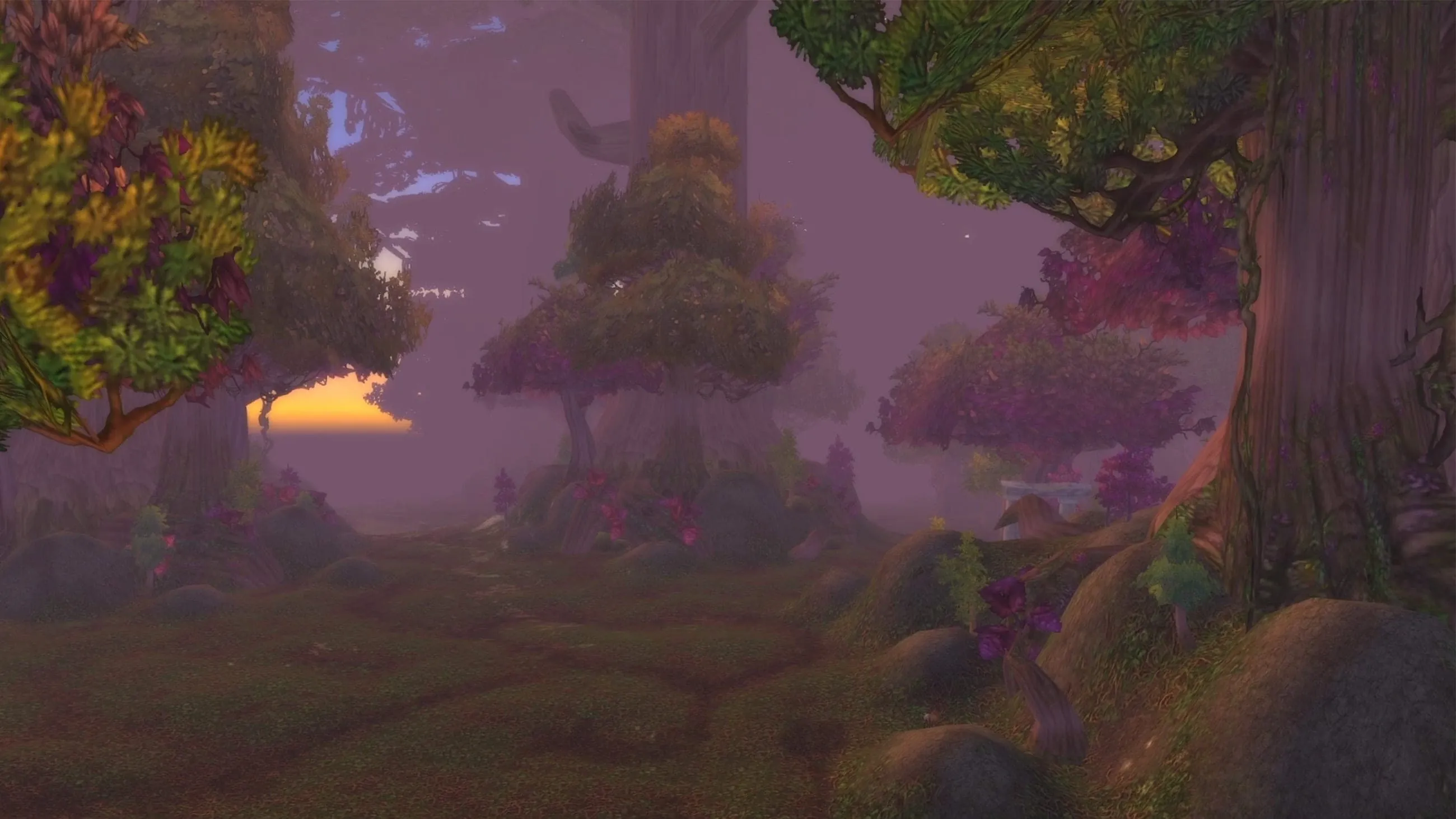
The initial Classic and Enhanced choices bundle more than graphics. Classic starts with standard-definition character models, a classic UI layout and fewer modern interface conveniences. Enhanced starts with high-definition models, a centralized layout and conveniences such as quest guidance and one-bag presentation.
Blizzard recommends Enhanced if you’re unsure. You can change the individual settings later in Options, so this first choice doesn’t lock your setup. Pick Classic if you want its presentation, then adjust graphics separately. Switching the whole bundle to solve one performance problem can also change interface behavior you wanted to keep.
HD and SD character presentation are appearance choices you can revisit later. Choose the look you prefer, then use the graphics controls below to work on performance.
Lower lighting selectively and keep combat cues
Secondary Lighting at Fair is the first quality change I’d try for movement stutter or a scene that runs badly, where the control is available. It is a focused change you can judge without flattening every other setting at once.
The advice has limits. Players discussed it during beta, with mixed results, and launch-day troubleshooting replies still suggest checking lighting and Compute Effects. That makes it a useful experiment, not proof of a launch fix. Walk through the troublesome location after changing it; a better number while standing still doesn’t answer whether movement feels better.
If lighting alone doesn’t help enough, lower Compute Effects by one available level next. Keep this adjustment separate so you know whether it improves the result.
Leave Projected Textures enabled. The graphics UI attaches a combat-cue warning to its disabled state. Losing information during a fight is a poor trade for a setting change whose benefit you haven’t established. Preserve that readability while reducing other visual work.
For glare rather than low FPS, look for Bloom Intensity in Advanced graphics. Adjust it to taste instead of changing your whole monitor setup to compensate for one game effect. This is a picture preference, not a measured performance fix.
Render scale: spend fewer pixels only when it helps
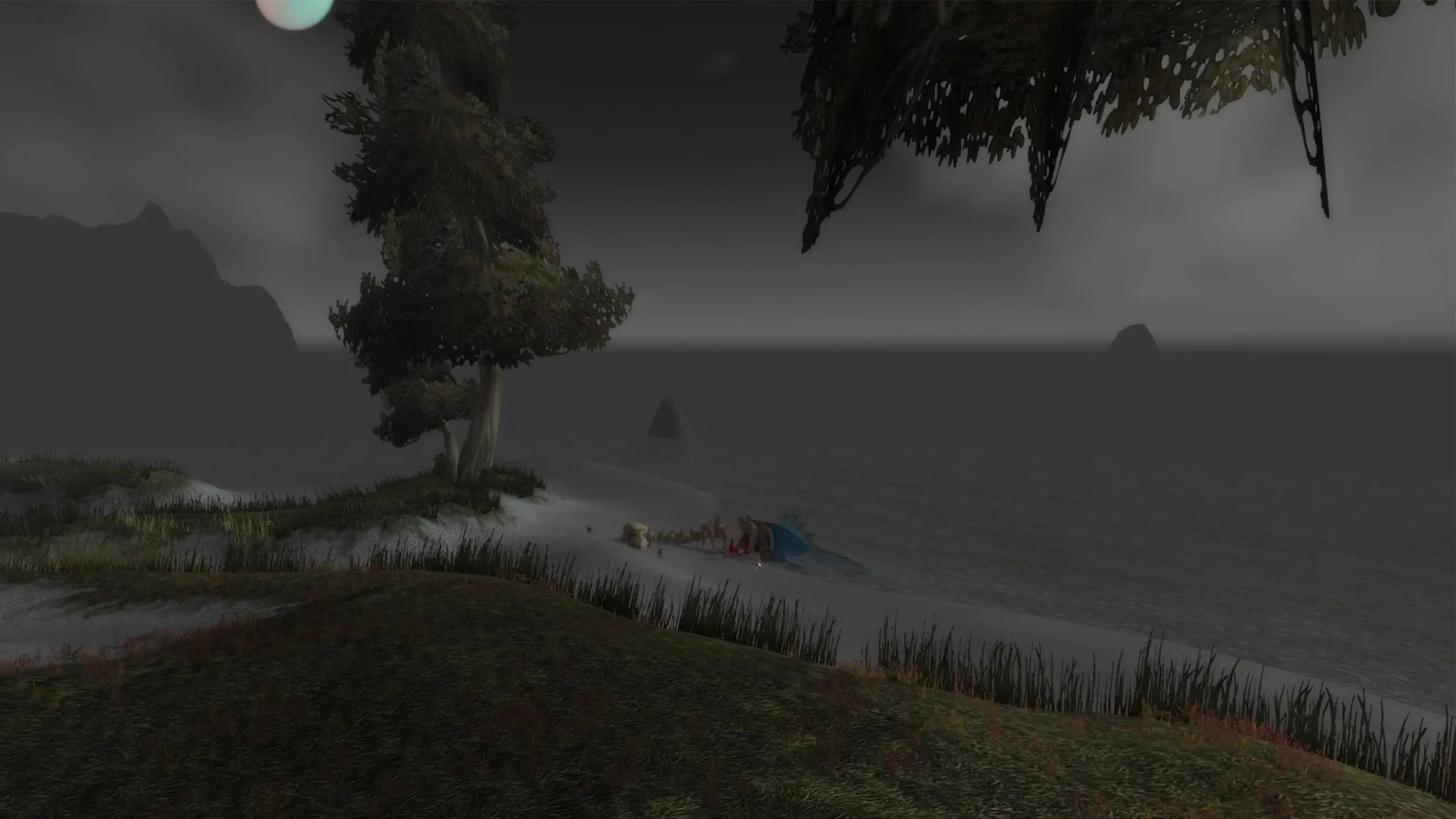
Keep output resolution at native and start with 100% Render Scale. Render Scale changes the dimensions used for the scene. Reducing it lowers both width and height, which makes a larger difference to pixel count than the percentage alone suggests.
For a 2560 × 1440 output, the geometry works like this:
What does 90% actually remove?
Choose your output resolution, then reduce the scene scale. Watch both dimensions change.
A 10% reduction along each side leaves 81% of the scene pixels.
Output stays the same size
Pixel geometry, not an FPS estimate or a game capture. Scene dimensions are rounded; the game may round differently. Pixel share = (scale ÷ 100)².
1440p reference values
| Render Scale | Scene dimensions | Scene pixels versus 100% |
|---|---|---|
| 100% | 2560 × 1440 | 100% |
| 90% | 2304 × 1296 | 81% |
| 80% | 2048 × 1152 | 64% |
Those are resolution calculations, not FPS results. An 80% scale gives the scene 36% fewer pixels; it does not promise 36% more FPS. Other work still has to happen, and a rendering reduction may do little for a problem elsewhere.
Try 90% before making a larger reduction. Look at foliage, distant edges and the details you need to recognize while moving. If the picture becomes softer without a worthwhile improvement, return to 100%. Keep Texture Filtering separate from this decision: anisotropic filtering is worth comparing for angled-surface clarity, while render scale changes the scene’s pixel dimensions.
Where the menu offers CMAA2, compare it with your current image-based anti-aliasing choice. Judge the edges in motion and keep the option that looks better at an acceptable cost.
Set a foreground cap you can actually hold
Use Max Foreground FPS for the active game’s cap. Choose a rate that fits a demanding part of your normal play, rather than setting it from the fastest view you can find. An empty location gives you little information about the moment that bothers you.
For example, a 60 FPS target allows about 16.7 milliseconds per frame; 120 FPS allows about 8.3 milliseconds. These are timing budgets, not predictions for your PC. A higher target gives each frame less time, and a cap cannot remove every hitch or force the game to meet that budget.
Same average. Different journey.
Follow the two travel markers. Change frame spacing to see why a high counter can still feel uneven.
Slowed to one-eighth speed so the waits are visible. This schematic explains frame delivery; it does not test your PC or recommend a cap. The browser and display affect visible motion.
Read the timing examples
Even interval = 1000 ÷ FPS. The uneven example alternates half and one-and-a-half times that interval. Each pair takes the same total time as two even intervals.
| Example | Even wait | Uneven waits |
|---|---|---|
| 30 FPS | 33.33 ms | 16.67 + 50.00 ms |
| 60 FPS | 16.67 ms | 8.33 + 25.00 ms |
| 120 FPS | 8.33 ms | 4.17 + 12.50 ms |
The other controls have separate roles:
- Max Background FPS applies when the game is unfocused. Keep it separate from your active-play target.
- Target FPS is a distinct control. Don’t treat it as another name for Max Foreground FPS.
The current foreground slider goes up to 200 FPS. Choose a supported value that suits your play; that slider maximum is not a recommended target.
High FPS but stuttering: use a different test
First distinguish a consistently low counter from a game that reports high FPS but hitches as you move. Beta players described the second symptom, including cases where lowering lighting did not resolve it. A larger FPS number alone doesn’t establish that those interruptions are gone.
If you haven’t tried it, make the single Secondary Lighting change above. Then judge movement in the same location. If it makes no useful difference, restore the picture you preferred rather than continuing to remove detail by habit.
There are also current problems that a settings table cannot diagnose. A November 5 player report describes severe FPS loss shortly after entering the world, even with graphics reduced to minimum. It is one unresolved report, not evidence that every PC shares the same cause. If your symptom persists regardless of rendering settings, further image-quality sacrifices may be poor value.
If your frame counter displays a CPU Bound or GPU Bound label, use it as another clue. A GPU-bound indication can give a render-scale comparison a reason; a CPU-bound indication gives you less reason to expect pixel reductions alone to solve the problem. The label doesn’t establish a complete diagnosis, and it may not be shown on every setup.
Keep patch history in mind when following old advice. Blizzard removed the Ray Traced Shadows option during beta pending a fix, so a blanket instruction to turn it off may send you looking for a control you don’t have. The developer also removed an unintended fog-disabling setting. Skip old fog-removal recipes whose current behavior hasn’t been established.
For persistent launch problems, read the current player report and replies (opens in a new tab) and Blizzard’s development notes (opens in a new tab) before adopting an old workaround. Keep the quality improvements that helped, restore changes that didn’t, and choose your cap from the game you actually play.
Updated November 5, 2026. Preset reference: Blizzard’s launch guidance (opens in a new tab). Setting reference: current UI source (opens in a new tab).
Frequently asked questions
What are the best WoW Forever graphics settings to start with?
Start at native output resolution and 100% Render Scale, keep Projected Textures enabled, and try Secondary Lighting at Fair if it is available and performance is poor. Choose a sustainable Max Foreground FPS cap. These are practical starting choices, not a benchmarked fastest preset.
Should I choose Classic or Enhanced for more FPS?
Choose the experience you prefer. Classic and Enhanced also change interface features and character presentation, so they are broader than graphics presets. Blizzard recommends Enhanced if you are unsure; individual settings remain adjustable later.
Does Secondary Lighting at Fair fix WoW Forever stuttering?
It is worth trying where the setting is available, but it is not a confirmed fix for every launch problem. Beta players reported mixed results, and a November 5 launch report describes severe FPS loss even with graphics reduced to minimum.
Should Projected Textures be on or off?
Keep it on for combat readability. The graphics UI warns about combat cues when Projected Textures is disabled. Lower other visual settings before giving up that information.
Are Max Foreground FPS and Target FPS the same setting?
No. They are separate controls. Use Max Foreground FPS when setting a cap for active play; Max Background FPS applies to the unfocused game. Do not assume changing Target FPS sets the same limit.

Written by
Digital Marketing Manager
Keep reading