The world streams at race speed
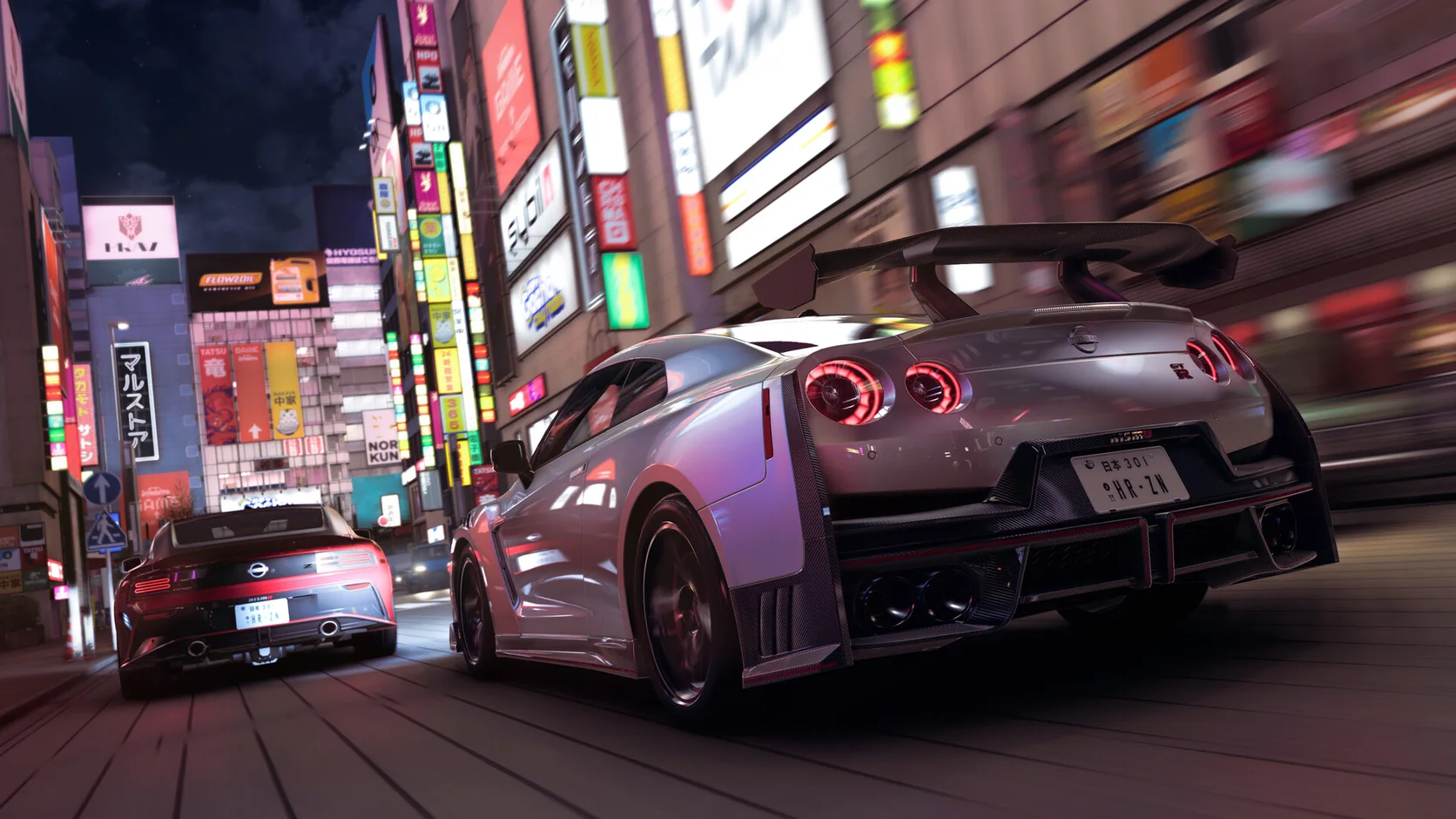
Roads, buildings, traffic, and scenery must load while your car keeps moving.
Forza Horizon 6 best settings and FPS boost
Forza Horizon 6 moves from tight city streets to wet mountain roads at high speed. Hone cuts avoidable Windows work so your PC has more room for the drive.
You've heard from the pros. Here's what other players think.
01
Fast travel, dense streets, weather, traffic, and detailed cars can raise CPU, GPU, memory, and storage load at the same time.
Roads, buildings, traffic, and scenery must load while your car keeps moving.
Reflections, shadows, crowds, and car detail can make frame times jump in a dense area.
Ray-traced reflections and lighting look sharp, but they need much more graphics power.
Browsers, launchers, overlays, clips, and downloads can use CPU time, memory, or disk access.
02
Hone handles supported PC-side tuning. The game then gives you live previews, memory gauges, and a built-in benchmark to test graphics changes.
Save your preset and benchmark result before changing Windows or game settings.
Keep video and system memory use within the room shown by the game.
Test ray tracing, reflections, shadows, and resolution before cutting every option.
Try the supported DLSS, FSR, or XeSS option for your graphics card, then check image quality and control feel.
03
Hone works through supported Windows settings. It stays outside Forza Horizon 6 and leaves live game code, memory, driving inputs, and network traffic alone.
Hone does not inject into Forza Horizon 6 or read and change live game memory.
Hone does not steer, brake, shift, tune cars, or run races for you.
Hone does not hide software or try to get around game security checks.
Hone cannot fix a distant server, weak Wi-Fi, packet loss, or a bad ISP route.
04
Forza Horizon 6 includes a repeatable PC benchmark. Use it to compare the same scene instead of guessing from one race.
No fixed FPS promise. Results depend on your hardware, game build, drivers, heat, settings, and background apps.
Close extra apps, keep one graphics preset, and record the benchmark result.
Review each change, apply the ones you want, and restart if Hone asks you to.
Keep the same game settings and open apps. Keep gains you can see and restore changes that do not help.
Start with ray tracing, reflections, shadows, and resolution. Use the live preview, watch the memory gauges, and run the built-in benchmark after each group of changes.
Close heavy apps, lower costly graphics options, try the right upscaler for your GPU, and choose a frame cap your PC can hold. Hone can also reduce avoidable Windows-side load.
The game may be loading new roads, traffic, or scenery. Check storage and memory use, close disk-heavy apps, and compare the built-in benchmark before and after each change.
Turn it off first if you need a large GPU gain. Add it back one step at a time if your benchmark stays near your target frame rate.
Test it both ways. It can raise the shown FPS, but it may add delay or visual errors when the base frame rate is low. Keep the option that feels better while driving.
Hone works outside the game. It does not inject into Forza Horizon 6, edit live memory, automate driving, change network traffic, or bypass security checks. Hone is not made or approved by Microsoft or Playground Games.
Yes. The free plan lets you try several PC optimizations before you upgrade.