Breaches redraw the room
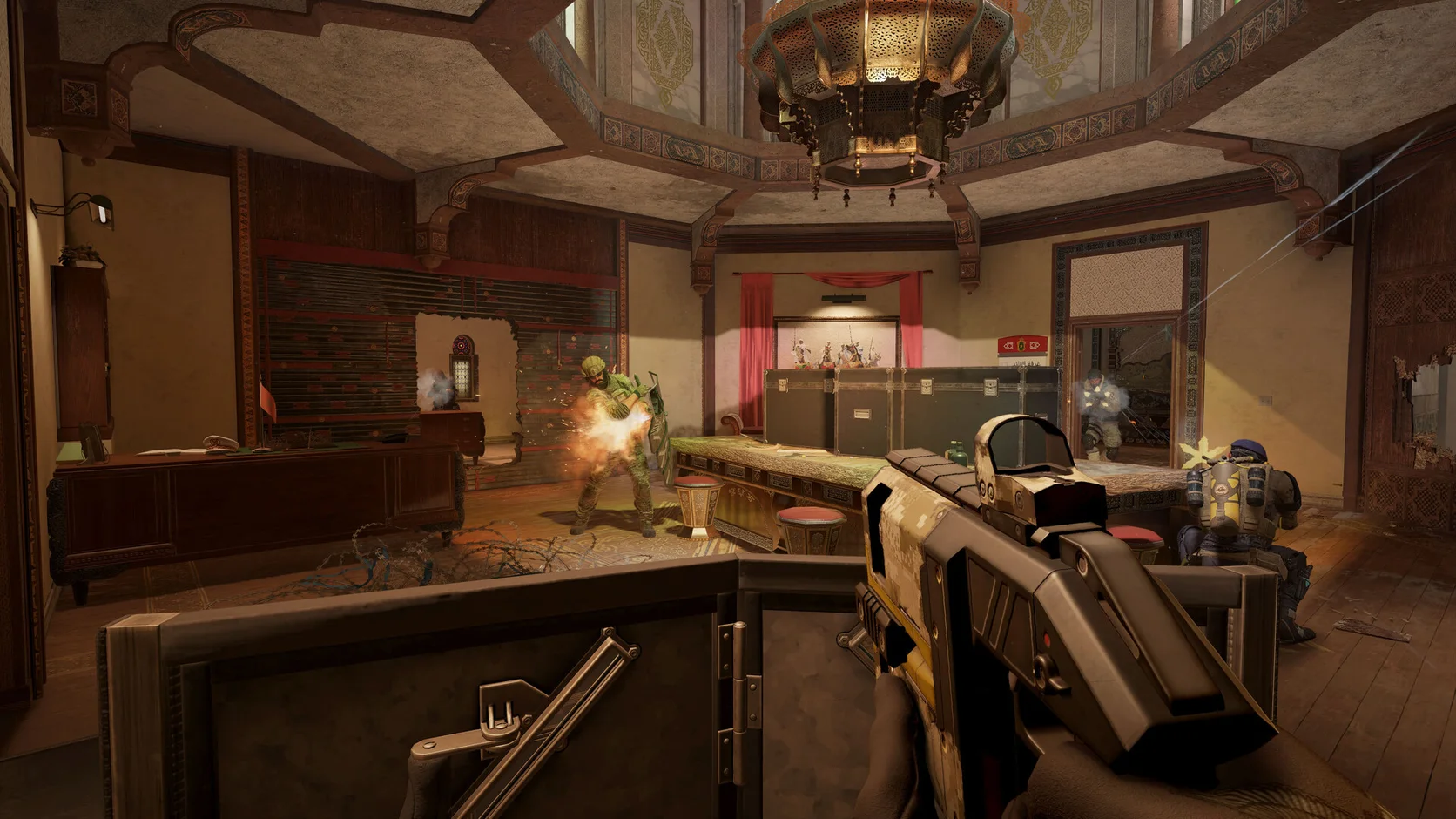
A wall opening can reveal more operators, props, lighting, smoke, and debris in one moment.
Rainbow Six Siege X FPS boost and PC optimization
A breach can add smoke, debris, gadgets, and new angles at once. Hone reduces extra Windows work so your PC has more room for each close tactical fight.
You've heard from the pros. Here's what other players think.
01
Siege X rewards small visual details and quick input. Smoke, breach debris, moving gadgets, and several operators can expose a weak frame-time baseline.
A wall opening can reveal more operators, props, lighting, smoke, and debris in one moment.
High effects or shadows may cost frames, while a very low render scale can make targets harder to read.
New maps, lighting changes, patches, and drivers may change shaders or graphics settings.
Clip capture, browser video, launchers, and overlays may use CPU time and memory during a round.
02
Make Windows changes first, then use the built-in benchmark for each graphics group. This gives you a repeatable result before you enter Ranked.
Reduce app work you do not need so Siege X can use more CPU time and memory.
Choose gaming, power, and system changes only after reading what each one does.
Test shadows, reflections, effects, and render scaling while keeping operators easy to see.
Pick a frame limit your PC can hold through the benchmark, not one based on its highest result.
03
Hone applies supported changes to Windows. It does not enter Siege X or alter live code, memory, controls, packets, or anti-cheat.
Hone does not inject into Rainbow Six Siege X or read and change live game memory.
Hone adds no aim tool, recoil script, macro, bot, or input that plays the round for you.
Hone does not hide programs or try to work around Siege X security tools.
Windows tuning cannot repair a far server, weak Wi-Fi, packet loss, or a poor ISP route.
04
Siege X can replay the same test scene. Use that tool before and after Hone instead of comparing two different online rounds.
No fixed FPS promise. Results depend on your hardware, game build, drivers, heat, settings, and background apps.
Close extra apps, keep one graphics preset, and save the average and low results.
Read each option, apply only what you want, and restart when Hone asks.
Keep the graphics and apps fixed. Keep repeatable gains and restore supported changes that add no value.
Start with shadows, reflections, effects, and render scaling. Run the benchmark after each group and keep target clarity in mind.
Close heavy apps, lower costly options, and use a cap based on the benchmark low. Hone can also reduce extra Windows work.
A breached room can add debris, smoke, players, and new views at once. Full graphics memory can also cause uneven frame times.
Compare the FPS and network graphs. Stable ping with falling FPS points to PC load, so test lower effects and fewer background apps.
A season patch may reset graphics or rebuild shaders. Confirm the preset, restart, and rerun the built-in benchmark before changing more.
Free Access includes Quick Match, Unranked, and Dual Front with a selection of operators. Ranked, Siege Cup, more operators, and some other content need a paid upgrade.
The official minimum lists Windows 10 or 11, 8 GB RAM, DirectX 12, a Ryzen 3 3100 or Core i3-8100, a GTX 1650, RX 5500 XT, or Arc A380, and 65 GB on an SSD.
For 1080p High, Ubisoft lists Windows 11, 16 GB RAM, a Ryzen 5 3600 or Core i5-10400, and an RTX 2060, RX 6600, or Arc A750.
Hone works outside the game. It does not inject, edit live memory, automate input, change packets, or bypass anti-cheat. Hone is not made or approved by Ubisoft.
Yes. The free plan lets you test a limited set of PC changes with Siege X before you choose Premium.