The Player Problem
You launch a game with Discord open, music playing, and browser tabs left over from earlier. You want some of those apps to keep working, but you might prefer to pause a live wallpaper or leave a launcher update until later.
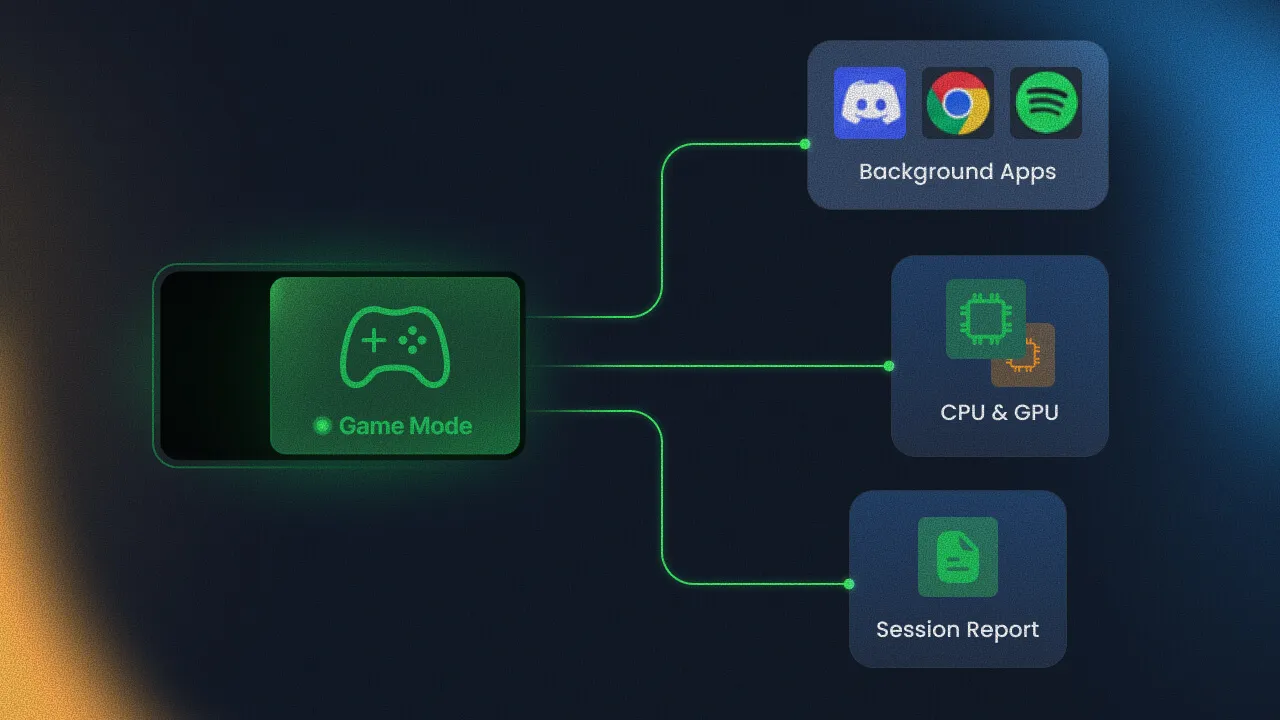
Hone’s Game Mode lets you make those choices once and enforce them throughout a gaming session. It manages background applications and services, adjusts how Windows assigns work to your hardware, applies the performance settings you’ve chosen, and much more.
The Short Answer
Game Mode applies your chosen background rules and performance settings when Hone detects a game. It checks for new activity while you play, then uses recorded settings to restore its changes after your games close.
Our two controlled VALORANT comparisons showed 27.7% and 23.9% higher average FPS with Performance Mode and all supported options enabled. Keep in mind that these results are only for one PC and configuration; your results may vary.
What This Means
Without a saved profile, you have to open Task Manager and decide what to close, pause, or adjust each time you play. Also, some of that software will secretly reopen during your gaming session.
Game Mode saves those choices as rules and applies them around supported games.
On smaller screens, focus the figure and use the arrow keys or swipe to pan horizontally.
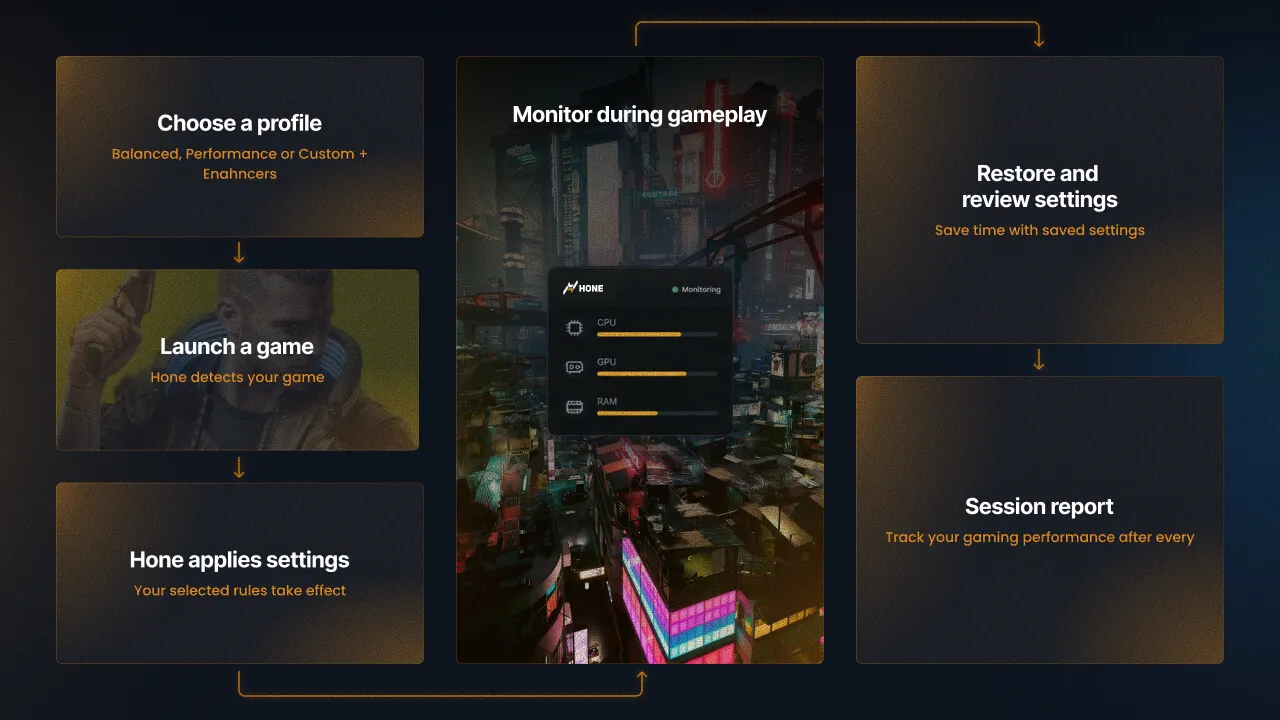
Game Mode follows your saved rules through the session. The report records changes made at launch and during gameplay.
How It Works
What Hone looks at
Game Mode checks for supported games, matching background processes, and selected services. A process is a running instance of a program; one app can have several.
Hone checks process names and folder paths for application rules and exclusions, and service names for service rules. Hardware controls also check the CPU layout and, when choosing a power plan, the laptop’s power source at session start.
Background rules make different changes
| Action | What changes | Tradeoff |
|---|---|---|
| Lower CPU priority | Windows gives competing higher-priority work preference | This does not cap its CPU usage or remove disk and memory activity. |
| Suspend a process | Hone pauses selected threads and records them for resumption. | The app retains memory. Functions that depend on those threads stop working while paused. |
| Terminate a process | Hone closes a selected process. | Downloads, syncs, or unsaved work may be interrupted. |
| Stop a service | Hone stops a selected service and records its previous state without changing its startup setting. | Downloads, syncs, or unsaved work may be interrupted. |
Windows schedules CPU work as threads, the individual work streams inside a process. Lowering an app’s priority does not prevent it from running. Microsoft Learn
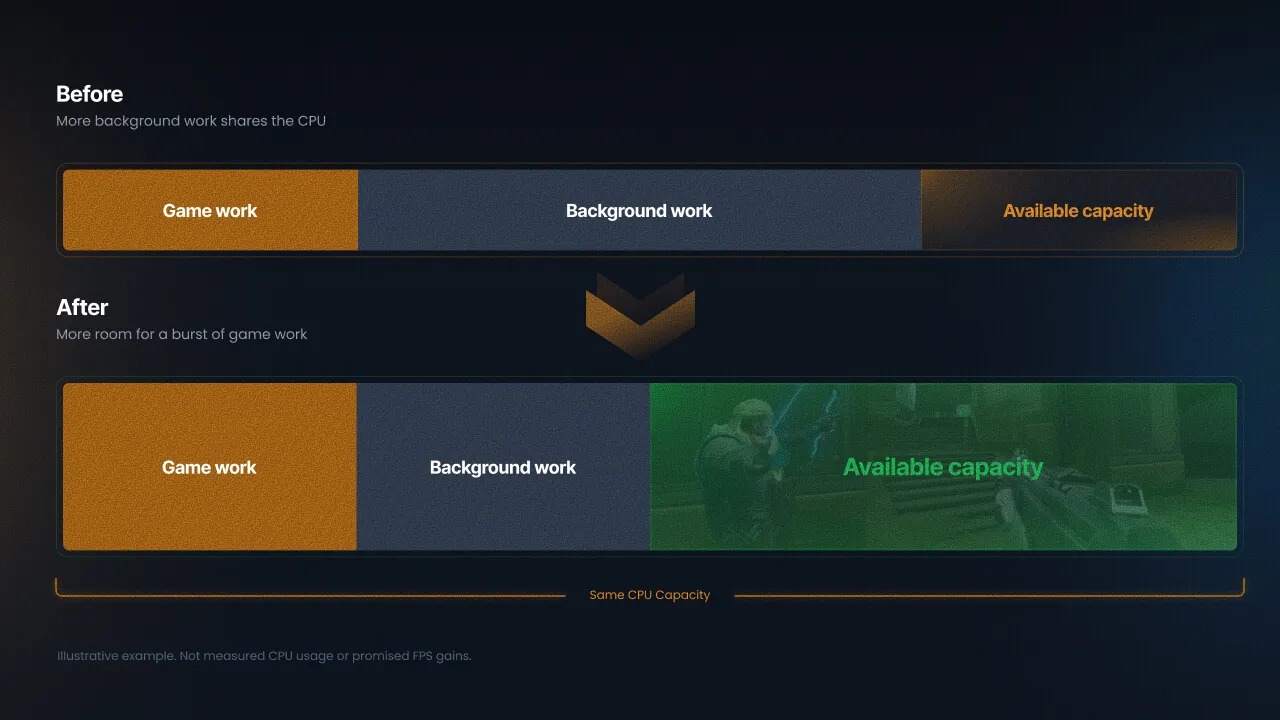
Pausing or closing selected work can leave more CPU capacity available for the game.
On smaller screens, focus the figure and use the arrow keys or swipe to pan horizontally.
Balanced, Performance, and Custom
Balanced is meant for people who have important documents, files, or applications that need to stay open while they’re gaming. By using less aggressive rules, it trades less performance for more background functionality.
Performance is meant for people who want the biggest performance gains. It applies stronger reductions across a broader set of apps and terminates selected processes. Custom lets you choose actions for individual applications, processes, and services.
For example, Balanced assigns Chrome Below Normal CPU priority, while Performance assigns it Idle priority. Both assign Discord Below Normal priority and suspend selected Wallpaper Engine processes.
Choose the profile around what you need running.
Seven Game Enhancers
CPU Affinity steers eligible background processes toward selected CPU resources. On supported hybrid CPUs with enough efficiency cores, it uses those E-cores; on qualifying non-hybrid CPUs, it selects a subset of logical processors, the processing slots Windows schedules work onto.
Hone uses Windows CPU Sets for these background selections. Microsoft describes CPU Sets as a softer form of processor assignment that works with Windows scheduling and power management. These selections do not reserve those cores for one app. Microsoft Learn
This enhancer does not impose a P-core-only restriction on the game. Performance cores, or P-cores, and E-cores can remain available to the game unless a separate game-specific restriction changes that.
On smaller screens, focus the figure and use the arrow keys or swipe to pan horizontally.
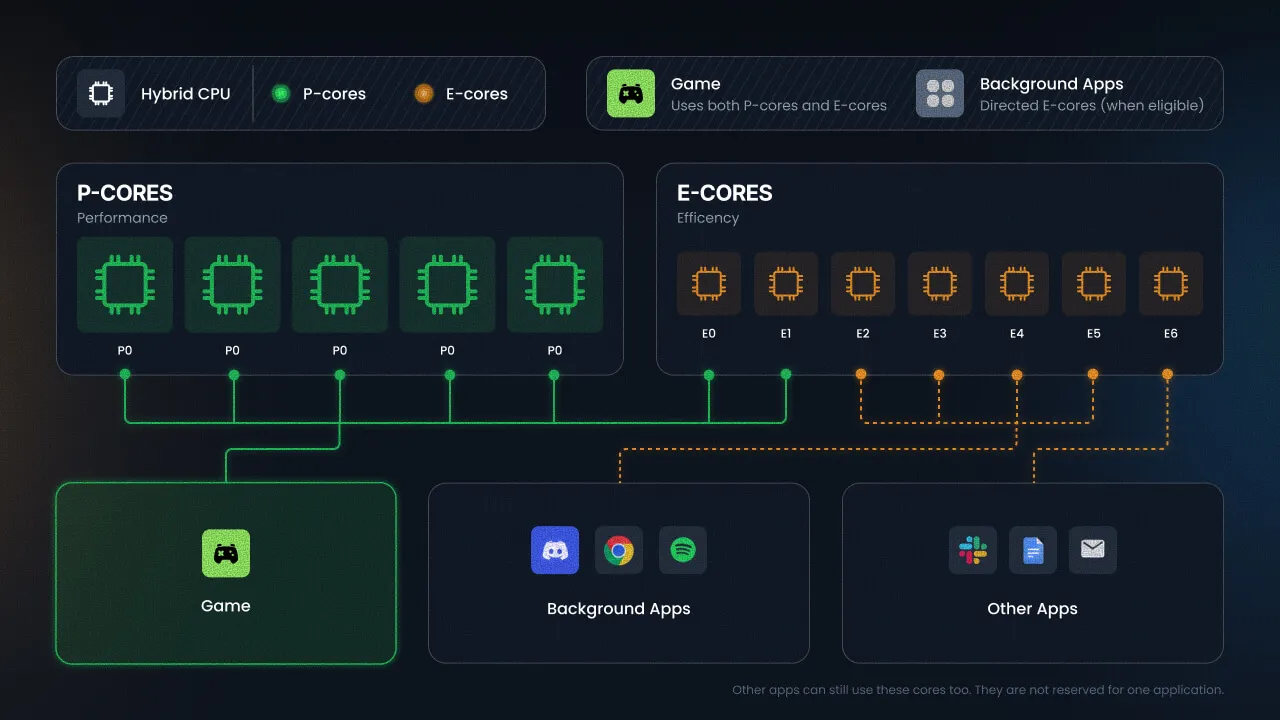
GPU Prioritization changes how Windows prioritizes graphics for selected games. The aim is to favor the game when graphics work competes; we do not increase GPU performance, add VRAM, or change the game’s graphics settings. Microsoft Learn
Core Parking sets the minimum unparked processor percentage to 100%. This disables parking through that setting, keeping those processors available for scheduling; it does not force maximum clock speeds or prove that parking was limiting your game. Microsoft Learn
Power Plan saves your current Windows plan and activates a plan that the Hone Team selected for the session. Hone chooses the high performance plan for desktops and plugged-in laptops, or the balanced plan for a laptop on battery.
Disable CPU 0 keeps the game off the first physical CPU core while Windows and other apps can still use it. This can reduce interference from system or driver activity on that core, but it also removes processing capacity the game could use.
Disable Second CCD keeps the game on the first core chiplet, CCD0, on supported AMD CPUs with two core chiplets. This can reduce delays from work crossing between chiplets, though games that need more cores may run better with both available.
Disable SMT/Hyperthreading limits the game to one logical processor per available physical core while other apps retain access to SMT. This can reduce competition between the game’s own threads for shared core resources, but some games benefit from the extra processing slots.
AMD’s guidance describes both benefits from SMT and cases where game threads compete for shared core resources. AMD GPUOpen
New activity during play
Every five seconds, Game Mode checks for rogue processes that try to reopen themselves after the game launches. When Hone finds a new matching process, it applies the saved rule and records the change. The checks also cover selected services that restart and new activity eligible for supported CPU and GPU controls.
Exclusions, restoration, and the report
Hone’s exclusion list prevents matching background rules from modifying listed anticheat components, Windows services, recording tools, security software, and other protected entries.
On smaller screens, focus the figure and use the arrow keys or swipe to pan horizontally.
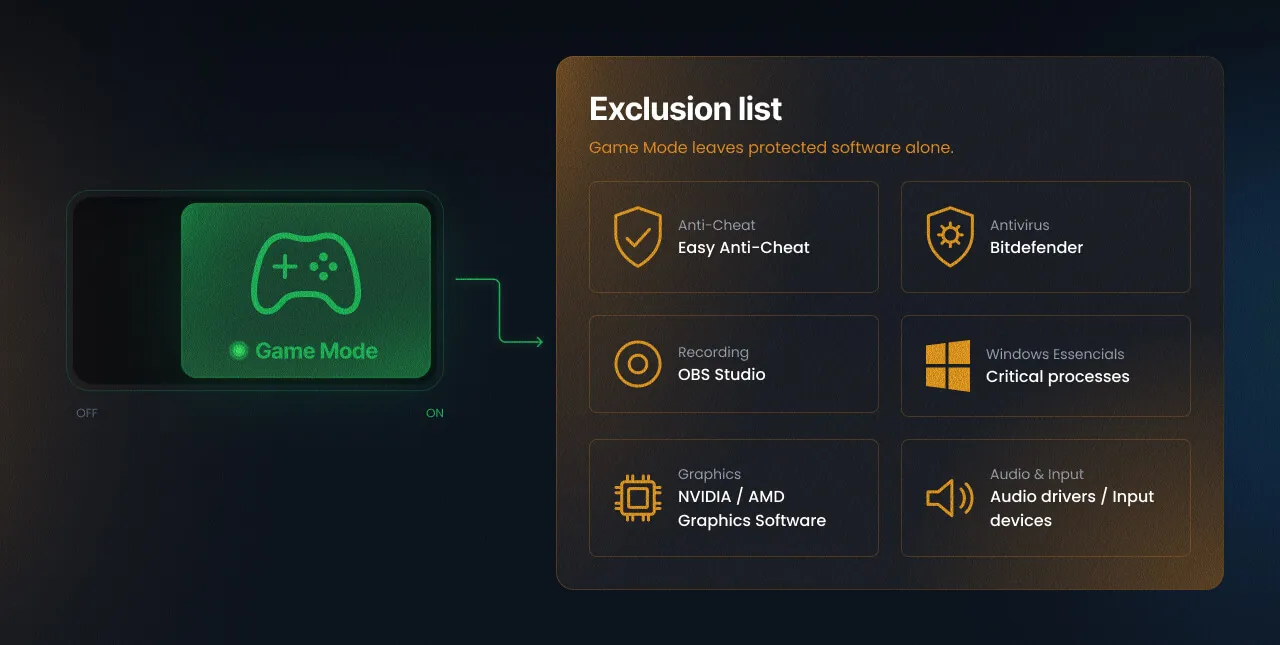
After the tracked game closes, Hone uses its back-up to restore the changes it modified: process priorities, suspended threads, changed service states, background CPU selections, GPU priorities, and session power settings. Keep in mind that terminated apps will remain closed.
The session report separates changes made at launch from changes made during play. It also shows the game, duration, profile, and enhancers, so you can check how Hone affected an app.
Why We Chose This Approach
You may want Discord and recording software to keep working while a live wallpaper stops. Selected rules let you make that distinction.
A blanket shutdown would interrupt useful apps. Permanent service changes would affect work outside gaming, while one fixed CPU layout would limit games with different needs.
You can make many of these changes yourself. Game Mode’s practical role is to repeat your choices when a game starts, handle matching activity during play, and restore recorded settings afterward.
That automation has a cost: Hone must detect the right software, handle failed actions, and restore state correctly. Its own monitoring also consumes resources, so measuring that overhead belongs alongside measuring game performance.
What We Tested
We compared a baseline with the Performance profile and all supported Game Enhancers enabled.
| Test detail | Recorded information |
|---|---|
| Games tested | VALORANT shooting range and a controlled Haven scene |
| Hardware | Ryzen 7 9800X3D, GeForce RTX 5070 Ti, 32 GB RAM |
| Metrics tracked | Average FPS, 1% and 0.1% FPS percentiles; Haven also includes total CPU usage, CPU power, and CPU temperature |
| Capture tool | CapFrameX |
| Test method | Match the baseline environment within each comparison, then compare it with the combined Game Mode configuration |
What We Saw
Shooting range
We tested at 1440p with Low settings and five visible strafing bots.
| Configuration | Average FPS | 1% FPS Percentile | 0.1% FPS Percentile |
|---|---|---|---|
| Baseline | 869.1 | 648.0 | 580.8 |
| All supported options + Performance preset | 1,109.6 | 880.9 | 783.5 |
Average FPS increased from 869.1 to 1,109.6, a 27.7% gain. The 1% FPS percentile increased by 35.9%, and the 0.1% FPS percentile increased by 34.9%.
Real Map: Haven Cypher and Killjoy abilities
For the second test, we used a controlled scene on Haven, with the same Cypher and Killjoy abilities on screen in both configurations. This scene included more on-screen activity than the shooting range.
| Configuration | Average FPS | 1% FPS Percentile | 0.1% FPS Percentile |
|---|---|---|---|
| Baseline | 653.5 | 471.9 | 251.6 |
| All supported options + Performance preset | 810.0 | 616.5 | 351.5 |
Average FPS increased from 653.5 to 810.0, a 23.9% gain. The 1% FPS percentile increased by 30.6%, and the 0.1% FPS percentile increased by 39.7%.
These results show an improvement with the full configuration in those scenes. They do not isolate individual settings or establish the same result in a full match.
Other games, including Marvel Rivals, Overwatch and Fortnite, saw smaller average FPS gains of 2-5%, with 5-15% increases in the 1% and 0.1% lows. Your results may vary with the game, your hardware configuration, background activity, available processing capacity and system temperature. Test what works best for you.
CPU measurements in Haven
In our controlled Haven test, Game Mode delivered 23.9% higher average FPS while the CPU drew 6% less power. We also measured 17.7% lower average CPU usage and a CPU temperature 3.6°C lower on average.
| Average measurement | Baseline | Game Mode |
|---|---|---|
| FPS | 653.5 | 810.0 |
| Total CPU usage | 41.1% | 33.8% |
| CPU power | 108.7 W | 102.2 W |
| CPU temperature | 69.7°C | 66.1°C |
Reducing unnecessary work and competition can help your game run more efficiently, producing more frames while the CPU uses less power and runs cooler. Results depend on your game, hardware, background activity, available processing capacity and system temperature.
Why slower frames matter
You can have the same average FPS with different levels of smoothness. Imagine turning to follow an opponent. A longer gap between frames can make that movement look uneven or jerky, even when faster frames elsewhere keep the average high.
A game can feel smoother even when its average FPS stays the same, because shorter pauses can make movement look more consistent. The difference you notice depends on your monitor’s refresh rate and the size and frequency of the delays.
The same average. Different motion.
Watch the markers move. Both example schedules contain 60 frames per second, but one includes longer pauses between frames.
Frame-spacing illustration, not a Hone benchmark.
Research published at IEEE CoG 2024 found that frame-time variation affected perceived smoothness, with larger variations having a greater effect under the tested conditions. Research
Where This Helps
Game Mode is most likely to help when:
Selected background apps compete with the game for CPU or GPU time.
Apps keep opening in the background while you play.
A particular game benefits from a tested CPU-core restriction.
You want to repeat a known configuration without constantly reopening Task Manager.
Where This Does Not Help
The game already has the resources it needs. An idle background app may offer little work to remove.
The game is GPU-limited without meaningful competing GPU work. CPU changes do not add rendering capacity.
The problem comes from elsewhere. These controls do not directly fix shader-compilation stalls, game-engine faults, failing hardware, or server-side lag.
You need the affected app or service. A paused or closed task cannot provide its normal functionality during play.
How You Can Check This Yourself
Choose a repeatable scene. Use the same game, resolution, graphics settings, route, and capture duration.
Keep conditions matched. Use the same background workload, cooling setup, FPS cap, and driver settings. Make sure that your charger stays plugged in for both tests.
Warm up first. Let loading, shader preparation, and temperatures settle before capturing.
Compare your baseline with a recorded Game Mode configuration. Reopen any apps Game Mode closed before the next baseline capture.
Repeat and alternate the order. Start with five captures per configuration and compare the variation between runs.
Inspect frame times and slow-frame percentiles. Do not decide from average FPS or one unusually good run.
Activate one enhancer at a time. Use separate comparisons to find which settings help your game.
Check function and restoration. Confirm voice chat, audio, recording, and other needed apps still work, then inspect the session report and restored settings after exiting.
Sources
Microsoft: Scheduling Priorities: How Windows prioritizes competing CPU work.
Microsoft: CPU Sets: How applications select processors for their work while Windows handles scheduling and power management.
Microsoft: CPU Analysis: How driver interrupts and deferred driver work can delay application threads on the affected processor.
Intel: Hybrid Processor Game Development Guide: P-core and E-core behavior, including the tradeoffs of restricting a game’s core access. This guide focuses on Intel’s 12th-generation processors.
AMD: Ryzen CPU Performance Guide: How game threads can compete for a core’s shared resources, and why the best use of SMT depends on the workload.
Microsoft: GPU Scheduling Priorities: The Windows API Game Mode uses to change a process’s GPU scheduling priority.
Microsoft: Core Parking Settings: What the minimum unparked processor setting controls, including its behavior at 100%. Unparking timing documents the minimum interval before Windows can make additional parked processors available.
CapFrameX: Performance Metrics Explained: How frame times, FPS percentiles and low-FPS metrics differ.
NVIDIA Research: Frame Timing and Perceived Smoothness: A study published at IEEE CoG 2024 examining how frame-time variations affect perceived smoothness.
Hone Research
Original Hone research on performance benchmarking, frame pacing, latency, and PC system optimization.
Citation
Hone Research (2026). How Hone Game Mode Works. Hone Research. https://hone.gg/research/how-game-mode-improves-performance
Find Hone again in Google Search
Prefer our PC performance guides and research? Add Hone to your preferred sources in Google Search.
Keep reading