


Your Hytale FPS looks fine. Then you sprint into a new area, your screen locks up for a moment, and you get hit by a lag spike that feels like your PC froze. That is the difference between smooth gameplay and random stutter.
This guide explains how to stop lag in Hytale by diagnosing the real cause first. You will learn the main reasons for lag spikes and general lagging, how to tell FPS lag from network lag, what settings actually matter, and what to do if the problem is your CPU, RAM, storage, or internet. If you want the fastest fix on Windows, use Hone to apply a Hytale preset and cut background overhead.
FPS Lag and Stutter
Frame drops, hitching, and uneven frametimes.
- FPS swings hard when you turn or fight
- Shadows, particles, and post effects feel heavy
- Fix with settings, drivers, and GPU load
Lag Spikes
Short freezes that feel like the game pauses.
- Happens when exploring or spawning lots of mobs
- Often linked to CPU, RAM, or disk streaming
- Fix with view distance, storage, and background cleanup
High Ping and Rubber Banding
Movement desync and delayed actions online.
- You teleport back or hits register late
- Blocks break then reappear
- Fix with routing, Wi Fi, and server choice
Stop Hytale Lag Faster With the Hone Preset
If you want the quickest path to smoother Hytale, apply the Hone Hytale preset. It optimizes Windows for consistent CPU scheduling, reduces background interference, and helps stabilize frametimes. You can toggle it on or off anytime.
Is Hytale Lagging Because of FPS or Internet? The Direct Answer
If Hytale feels choppy and your camera movement looks jerky, you are dealing with FPS lag. If you are teleporting, rubber banding, or seeing delayed actions in multiplayer, you are dealing with network or server lag. If Hytale freezes for a moment when you move into new terrain, that is usually a lag spike caused by view distance, storage streaming, or your PC running out of headroom.
Hytale Lag Diagnosis in 10 Seconds
Why Hytale Is Lagging 9 Reasons for Lag Spikes and General Lagging
1) View Distance Is Too High
View distance is the biggest performance lever in Hytale. If it is high, your PC has to load and simulate more world around you, and that can trigger lag spikes.
2) Your Game Is on Slow Storage
If Hytale is installed on an HDD, streaming new world data can cause traversal stutter when you explore. SSD helps a lot, NVMe helps even more.
3) Your CPU Is the Bottleneck
Singleplayer is heavier because your PC runs both the client and the full simulation locally. When CPU usage spikes, you feel it as hitching or micro freezes.
4) Not Enough RAM
When you run out of RAM, Windows starts paging to disk. That turns normal stutter into full lag spikes, especially while loading new areas.
5) Integrated Graphics Limitations
iGPU systems share memory with the CPU. That means less headroom for simulation and rendering at the same time, which makes stutter more likely.
6) Heavy Effects
Shadows, anti aliasing, bloom, and particles cost GPU time and can increase frametime spikes. If your FPS is unstable, cut these first.
7) Background Apps and Overlays
Browsers, updaters, capture tools, and overlays steal CPU time and can cause random hitching. Close them, or use Hone to automate cleanup.
8) Unstable Internet
Packet loss and Wi Fi interference look like rubber banding. Even if your speed is fine, unstable latency will make Hytale feel laggy online.
9) The Server Is Overloaded
If the server you are on is struggling, you cannot fully fix that from your side. Your best move is switching servers, regions, or playing with lower view distance.
Hytale View Distance and Lag Spikes Why This Setting Matters Most
When you increase view distance, you are not just drawing more blocks. You are loading and simulating more world around you, which increases CPU work, RAM usage, and GPU load. That is why view distance is the first setting to cap when you want to stop lag spikes.
Quick Rule: Higher View Distance Means More Lag Risk
How to Stop Lag in Hytale Step by Step Fix Checklist
Do These in Order
If you want stability, start here. 192 is the best baseline for low spec PCs and it also reduces load in multiplayer. If you want more visuals later, raise it slowly after you are stable.
VSync can hide FPS drops by adding input lag. Turn it off and use an FPS cap only if you need it for temperatures. If you are unsure what FPS means, read what FPS is.
Set shadows low or off, anti aliasing off, bloom off, and keep particles modest. This reduces frametime spikes. If you see dips in other games too, use our FPS drops guide.
If you are on an HDD, you will get stutter when moving through new areas. Install Hytale on an SSD. NVMe is best if you have it.
Close browsers, Discord streams, recorders, and launchers you do not need. If you want the easy route, run Hone and apply the Hytale preset to reduce background overhead.
Thermal throttling looks like random stutter after 10 to 20 minutes of play. Make sure your CPU is not overheating and your laptop is not in silent mode. Use this guide for target ranges: best CPU temperature for PC.
If you get rubber banding, switch from Wi Fi to Ethernet. If you must use Wi Fi, use 5 GHz and stay close to the router. Packet loss is worse than high ping.
Sometimes the server is overloaded or far away. Try a closer region, a different server, or play on smaller modes where load is lower.
Best Hytale Settings to Reduce Lag Baseline Low Spec Config
These are baseline settings that reduce visual overhead and improve stability. This is not a magic fix by itself, but it removes common GPU bottlenecks so you can spot the real cause of lag spikes faster.
{
  "Fullscreen": true,
  "Maximized": false,
  "VSync": false,
  "UnlimitedFps": true,
  "SprintFovEffect": false,
  "ViewBobbingEffect": false,
  "ViewBobbingIntensity": 0,
  "CameraShakeEffect": false,
  "FirstPersonCameraShakeIntensity": 0,
  "ThirdPersonCameraShakeIntensity": 0,

  "RenderingSettings": {
    "GraphicsPreset": "Custom",
    "ViewDistance": 192,
    "RenderScale": 95,

    "WorldDetail": "Lowest",
    "AntiAliasing": 0,
    "ShadowQuality": "Low",
    "ParticleQuality": "Medium",
    "ShadingQuality": "Low",
    "Bloom": 0,

    "Lod": 0,
    "Shadows": 0,
    "Shading": 0,
    "UseSunshaft": false,
    "DepthOfField": 0,
    "Water": 0,
    "UseFoliageFading": false,
    "Particles": 0,
    "DepthBuffer": 0
  }
}
How to Fix Hytale Lag With Hone Activate the Hytale Preset
If you want a faster way to stabilize Hytale performance on Windows, use Hone. The Hytale preset is designed to reduce background interference, optimize system scheduling, and help you get smoother frametimes without manually tweaking a hundred Windows settings.
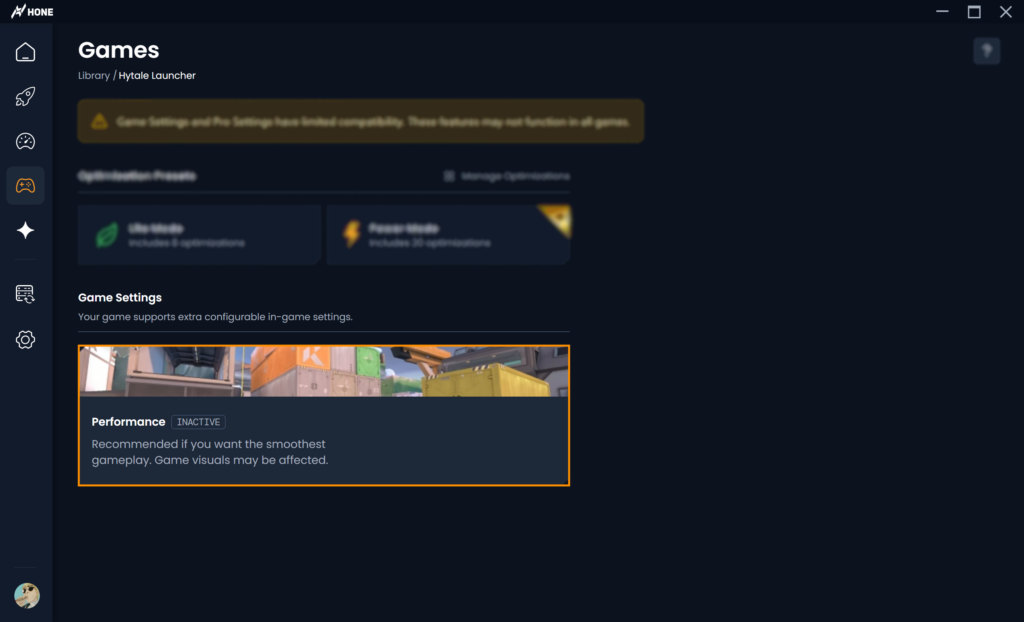
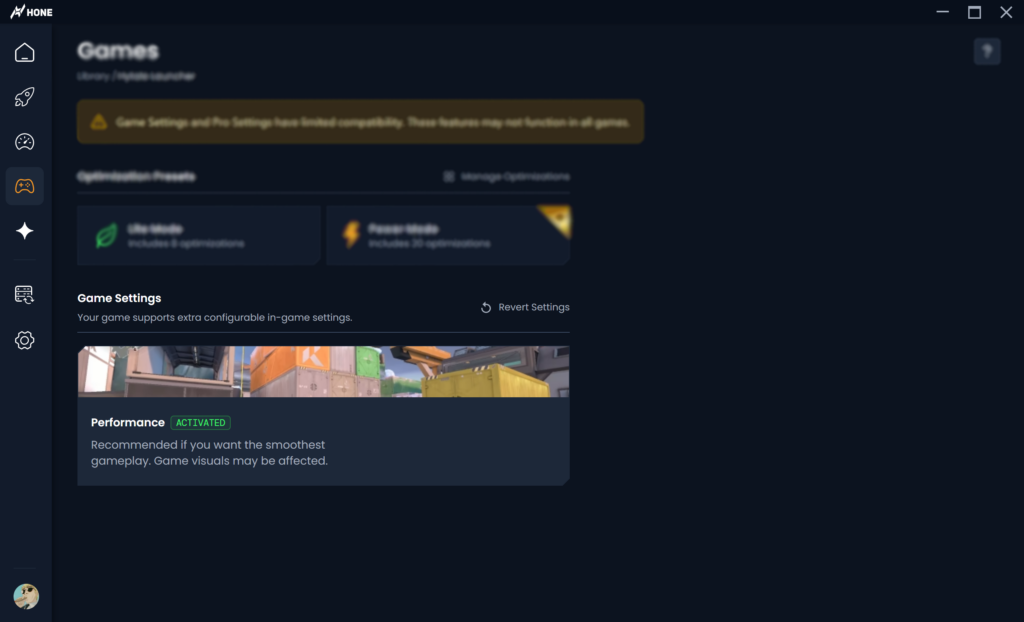
Activate Hone for Hytale in 60 Seconds
Install Hone from hone.gg and launch the app. You will see your Games section.
Find Hytale in the Games list. This is where you manage per game optimization presets.
Click apply so the Hytale preset is set for your system. This is the step that actually turns the optimization on for Hytale.
You can toggle the preset whenever you want. If you are troubleshooting, turn it on, test, then compare with it off so you can feel the difference in stability.


Want the Quickest Hytale Lag Fix?
Apply the Hone Hytale preset, then cap view distance to 192. That combo handles the most common causes of lag spikes on low spec PCs and laptops.
Hytale Lag Spikes When Exploring Storage Streaming and Chunk Loading
If your stutter happens mainly when moving through new terrain, that usually points to streaming. Hytale worlds load data constantly as you explore. Slow storage makes the game wait, and you feel that wait as a hitch or freeze. SSD is the biggest fix here, then view distance, then background cleanup.
Hytale Lag Fix Guide Symptom to Cause to Solution
Hytale Lag Troubleshooting Table
| What You See | Most Likely Cause | What to Do |
|---|---|---|
| Lag spikes when you explore | Storage streaming and view distance load | Set view distance 192, install on SSD, close background tasks, use Hone preset |
| FPS drops in fights | GPU effects, particles, shadows | Bloom off, AA off, shadows low or off, reduce render scale |
| Rubber banding online | Packet loss or unstable Wi Fi | Use Ethernet, switch server region, stop downloads and streams |
| Smooth then stutter after time | Thermal throttling or background apps | Check temps, set Windows performance mode, use Hone, close overlays |
| Only one server feels bad | Server overload or distance | Try another server, lower view distance, avoid peak hours |
Conclusion
Most Hytale lag comes from a few predictable bottlenecks: view distance, storage streaming, CPU spikes, and unstable network. Start by capping view distance to 192, disabling VSync and heavy effects, and making sure the game is installed on an SSD. If you still lag, reduce background load, check RAM headroom, and switch to Ethernet for multiplayer. If you want the fastest Windows side improvement, use Hone and activate the Hytale preset, then test again.
FAQ
Why is Hytale lagging even when my FPS is high
If your FPS is high but you still feel freezes or hitching, you are dealing with lag spikes, not constant low FPS. This is usually caused by view distance being too high, slow storage during chunk streaming, not enough RAM, or background apps interrupting the CPU. Cap view distance to 192, install on SSD, and close background programs or use Hone.
What view distance should I use to stop lag spikes in Hytale
Use 192 blocks as your stability baseline. It reduces CPU load and lowers RAM and GPU pressure. Once your game is stable, raise view distance slowly until you find your limit.
Does Hytale need an SSD to avoid stutter
SSD is strongly recommended. If you install Hytale on an HDD, you can get traversal stutter when loading new areas. Moving the game to an SSD is one of the biggest fixes for lag spikes while exploring.
How do I fix rubber banding and high ping in Hytale multiplayer
Rubber banding is usually packet loss or unstable Wi Fi. Use Ethernet, stop downloads, and pick a server closer to your region. If only one server lags, it may be overloaded and you may need to switch servers.
How do I use Hone to reduce lag in Hytale
Download Hone, open the Games section, select Hytale, and apply the Hytale preset. Keep view distance at 192 for stability. You can toggle the preset on or off anytime while you test performance.






 Youtube