

Your Radeon RX 6700 XT should crush Valorant at 300 FPS. Instead, you get 180 with random drops to 90. The frame time graph looks like a seismograph during an earthquake.
This guide shows the best AMD settings for Valorant on RDNA, RDNA 2, and RDNA 3 architectures. You will learn driver configurations, registry optimizations, in game settings, and frame pacing strategies that maximize FPS and eliminate micro stutters without compromising competitive clarity.
Identify Your Performance Bottleneck First
AMD optimization strategy depends on whether your CPU or GPU limits frame rate.
CPU Bound (Most Common)
Your Radeon GPU sits at 40 to 60 percent usage while FPS stays locked below its potential. The CPU cannot feed frames fast enough.
- GPU usage below 70 percent in game
- Lowering graphics settings barely changes FPS
- High single thread CPU usage in Task Manager
→ Focus on driver latency reduction and Windows optimizations
GPU Bound (Rare in Valorant)
Your Radeon GPU maxes out at 95 to 100 percent usage. The GPU cannot render frames fast enough for the CPU.
- GPU usage constantly above 85 percent
- Lowering resolution gives big FPS gains
- Happens on older cards like RX 580 at 1440p
→ Prioritize in game graphics reductions
Critical AMD Driver Settings for Valorant
Open AMD Software by right clicking your desktop and selecting AMD Software: Adrenalin Edition. Navigate to Gaming > Valorant (or create a new profile). These settings directly control how your Radeon GPU handles the game’s render pipeline.
Essential Driver Configuration
Each setting directly impacts latency, frame pacing, or visual clarity
Advanced Registry Fixes for RDNA Stuttering
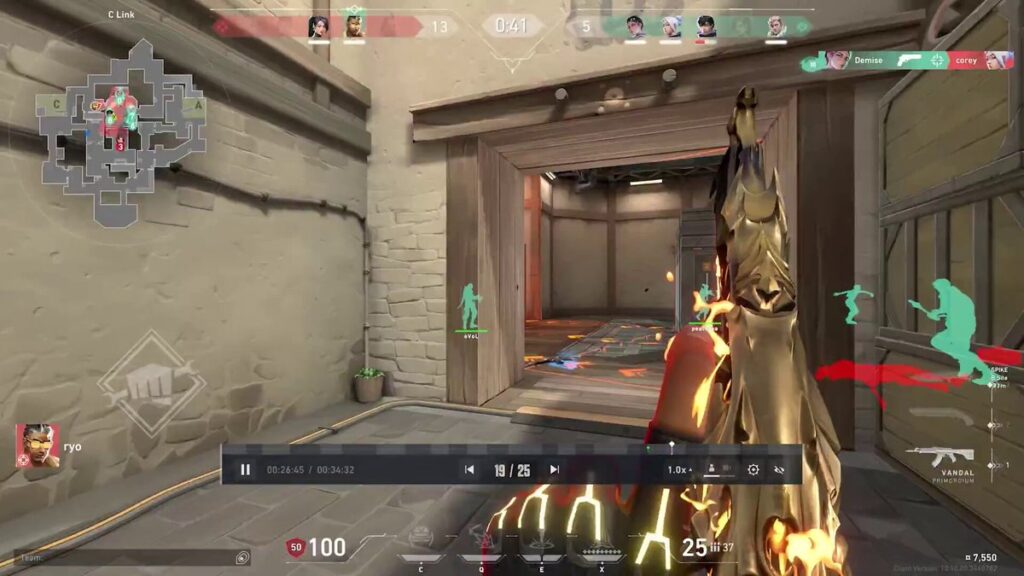
Users on RX 5000 and RX 6000 series cards often experience shader compilation stutters caused by AMD’s DXNavi pipeline. This modern DX11 implementation improves average FPS but creates frame time spikes when new visual effects compile in real time. Forcing the legacy DX11 path through registry edits resolves this instability.
Registry Modification Warning
This procedure modifies Windows Registry. Incorrect changes can cause system instability or boot failures. These edits are advanced troubleshooting for persistent micro stutters on RX 5000 and RX 6000 series GPUs.
Before proceeding: Create a system restore point in Windows. Know how to boot into Safe Mode to reverse changes if needed.
RX 7000/9000 series warning: These architectures rely heavily on DXNavi. Forcing legacy paths may cause worse performance or instability.
Optimal In Game Graphics Settings
Competitive Valorant demands clarity over visual fidelity. These settings remove distracting effects, maintain high frame rates, and ensure enemy outlines remain visible against all backgrounds. Open Settings > Video > Graphics Quality.
| Setting | Recommendation | Why This Matters |
|---|---|---|
| Multithreaded Rendering | On | Critical. Distributes work across CPU cores. Disabling this halves FPS on modern Ryzen processors. |
| Material Quality | Low | Removes complex shaders and specular highlights that obscure enemy silhouettes against surfaces. |
| Texture Quality | Low / Medium | Low maximizes VRAM efficiency. Medium if Low makes ability markers too blurry. Minimal FPS difference on 4GB+ cards. |
| Detail Quality | Low | Reduces foliage and debris that can hide enemies peeking corners. Essential for competitive visibility. |
| UI Quality | Low | Lowers HUD render overhead. Low is sufficient for clear minimap and ability icons. |
| Vignette | Off | Darkens screen edges artificially. Reduces peripheral vision for no competitive benefit. |
| V-Sync | Off | Must be disabled. Adds 16-50 ms input lag. Screen tearing is necessary for lowest latency. |
| Anti-Aliasing | MSAA 2x / None | None gives sharpest image. MSAA 2x smooths jagged edges without TAA blur. Avoid MSAA 4x unless GPU has headroom. |
| Anisotropic Filtering | 2x / 4x | Keeps textures sharp at distance. Important for reading surfaces on long sightlines. Minimal performance cost. |
| Improve Clarity | Off | Post-process contrast enhancement. Crushes shadows and reduces visibility in dark areas. Costs FPS. |
| Bloom | Off | Adds glow to abilities and light sources. Obscures vision during ability spam and utility usage. |
| Distortion | Off | Renders heat haze and warping around explosions. Disabling allows clear vision through ability effects. |
| Cast Shadows | Off | Removes first person weapon and arm shadows only. Enemy ground shadows remain for intel. Saves GPU cycles. |
Turn your matches into real improvement.
Hone helps you understand your performance, track progress over time, and make smarter changes to how you play & practice — not just your settings.
Frame Pacing Strategies: Uncapped vs FreeSync
The choice between uncapped frame rate and FreeSync determines the balance between raw latency and visual consistency. Both approaches work for high level play but require different configurations.
Strategy A: Uncapped Frame Rate
V-Sync OFF, FreeSync OFF, FPS Limit OFF or capped at 500. The GPU pushes frames to display immediately regardless of refresh rate.
- Theoretically lowest possible input latency
- Most recent game state reaches display instantly
- Maximum hardware utilization
- Visible screen tearing can distract during tracking
- Frame rate variance creates inconsistent mouse feel
- Maximum power consumption and heat
Strategy B: FreeSync with Cap
V-Sync OFF in game, FreeSync ON in driver and monitor, FPS capped at Refresh Rate minus 4. Monitor syncs to GPU output.
- Zero screen tearing with perfect motion clarity
- Consistent frame delivery and mouse feel
- Lower latency than V-Sync (only 1-3 ms over uncapped)
- Requires FreeSync compatible monitor
- Must stay within VRR range (typically 48-144/240 Hz)
- Slightly higher latency than fully uncapped
FreeSync Frame Cap Formula
To use FreeSync without triggering V-Sync or Low Framerate Compensation, cap FPS just below max refresh rate.
Cap = Refresh Rate – 4
Examples: 144 Hz monitor = 140 FPS cap | 240 Hz monitor = 236 FPS cap | 165 Hz monitor = 161 FPS cap
Windows Optimizations for Radeon Cards
Windows default behaviors can interfere with exclusive game resources. These system level tweaks ensure Valorant gets priority access to CPU and GPU without compositor overhead or power throttling.
powercfg -duplicatescheme e9a42b02-d5df-448d-aa00-03f14749eb61. Prevents Ryzen cores from downclocking during low load moments. Eliminates frequency ramp delay when enemies appear.
Troubleshooting AMD Specific Issues
Common Problems and Solutions
Recommended Driver Versions by GPU
Conclusion
Optimizing AMD Radeon hardware for Valorant requires systematic removal of latency inducing features in favor of raw throughput and consistency. Start with the driver configuration to disable Chill and Boost while enabling Anti-Lag and Surface Optimization.
Apply registry modifications only if experiencing persistent micro stutters on RX 5000 or RX 6000 series cards. Configure in game settings to remove visual noise and maintain high frame rates. Choose between uncapped frame rate for minimum latency or FreeSync with proper cap for motion clarity.
Finish with Windows optimizations including Ultimate Performance power plan and HAGS. This layered approach eliminates hardware as a variable, allowing your skill to determine outcomes rather than system instability.
FAQ
Should I enable Radeon Anti-Lag for Valorant
Yes, enable Radeon Anti-Lag in AMD Software for Valorant. It shrinks the CPU render queue to reduce input latency. Disable it only if you experience micro stutters on older hardware when GPU usage is below 50 percent consistently.
Do I need registry edits for RX 7000 series cards
No, avoid registry modifications on RX 7000 and RX 9000 series cards. RDNA 3 architecture relies heavily on the DXNavi pipeline. Forcing legacy DX11 paths may cause worse performance or instability. Only RX 5000 and RX 6000 series benefit from these edits.
What is the best AMD driver version for Valorant
For RX 6000 series use driver 24.5.1, for RX 7000 and 9000 series use 25.3.1, and for RX 5000 series use 23.11.1 if newer drivers cause problems. These versions offer the best balance of stability and frame time consistency for Valorant.
Should I use FreeSync or uncapped frame rate
FreeSync with proper cap (Refresh Rate minus 4) is recommended for most players. It eliminates screen tearing with only 1 to 3 ms added latency compared to uncapped. Uncapped offers theoretically lowest latency but heavy tearing can distract during tracking.
Why is my RX 6700 XT getting low FPS in Valorant
Check if Multithreaded Rendering is enabled in game settings, verify XMP or DOCP is enabled for your RAM in BIOS, ensure you are using driver 24.5.1, and confirm Windows power plan is set to Ultimate Performance. Valorant is CPU bound so RAM speed matters significantly on Ryzen systems.
How do I fix micro stutters on AMD cards
For RX 5000 and 6000 series, apply the registry modification to disable DXNavi and set shader cache to Always On. Clear shader cache in AMD Software and rebuild by playing Deathmatch. Use DDU to perform clean driver install of version 24.5.1.
Does RAM speed matter for Valorant on AMD
Yes, RAM speed is critical for Ryzen systems. Running DDR4 at stock 2133 MHz instead of rated 3200 to 3600 MHz can reduce Valorant FPS by 20 to 30 percent because Infinity Fabric clock is tied to memory speed. Always enable XMP or DOCP in BIOS.
What in game settings give the most FPS
Set all quality settings to Low, disable Vignette, Bloom, Distortion, and Cast Shadows, use MSAA 2x or None for anti-aliasing, and ensure V-Sync is Off. Most importantly verify Multithreaded Rendering is enabled as disabling this halves FPS on modern CPUs.
Should I disable fullscreen optimizations for Valorant
Yes, disable fullscreen optimizations on the Valorant executable. Right click VALORANT-Win64-Shipping.exe, go to Properties > Compatibility tab, and check Disable fullscreen optimizations. This reduces input latency by 0.5 to 1 ms by preventing Windows compositor overlay.
Can Radeon Chill help FPS in Valorant
No, disable Radeon Chill for Valorant. It lowers frame rate during idle periods to save power but the ramp up delay creates variable latency. When holding an angle for 30 seconds, Chill puts your GPU in low power mode right before you need to react to an enemy peek.





 Discord
 Instagram
 Youtube
 TikTok