

You launch Hytale. The world looks clean. The frame time looks brutal. A few default settings quietly turn your PC into a chunk generator and your FPS into a stutter loop.
This guide covers the best Hytale settings for FPS and stable frame time. You will get a copy paste settings preset, learn what each key setting actually does, and apply the same performance preset instantly using Hone.
View Distance 192
The fastest way to stop chunk stutter
- Fewer chunks loaded
- Less CPU and RAM pressure
- Smoother exploration
- Best baseline for most PCs
Fullscreen and VSync Off
More FPS and better mouse feel
- Fullscreen: true
- VSync: false
- Unlimited FPS: true
- Optional FPS cap for temps
Apply with Hone
Use the preset instead of editing files
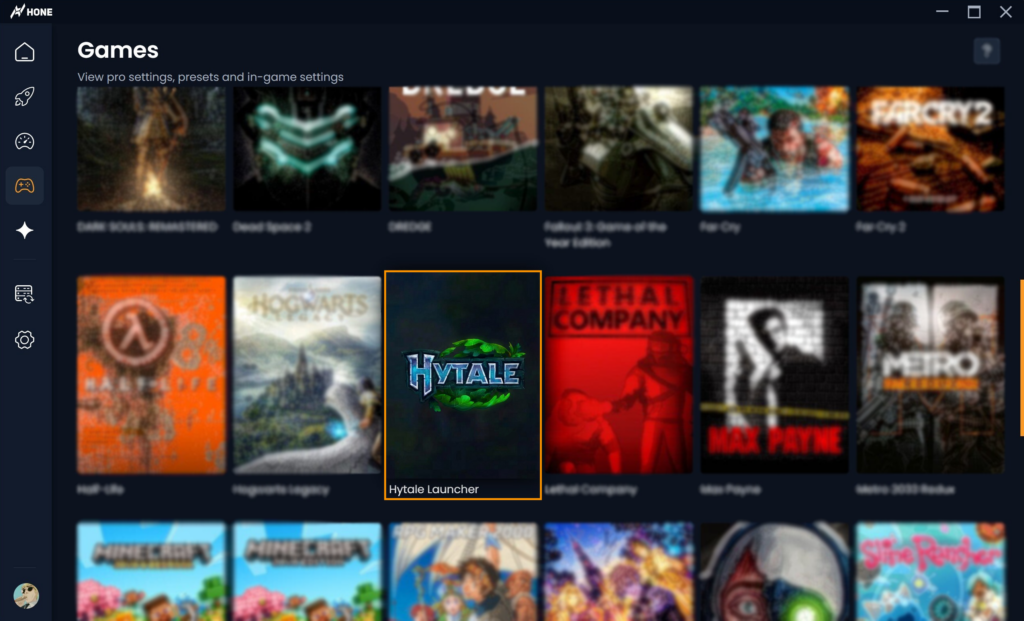
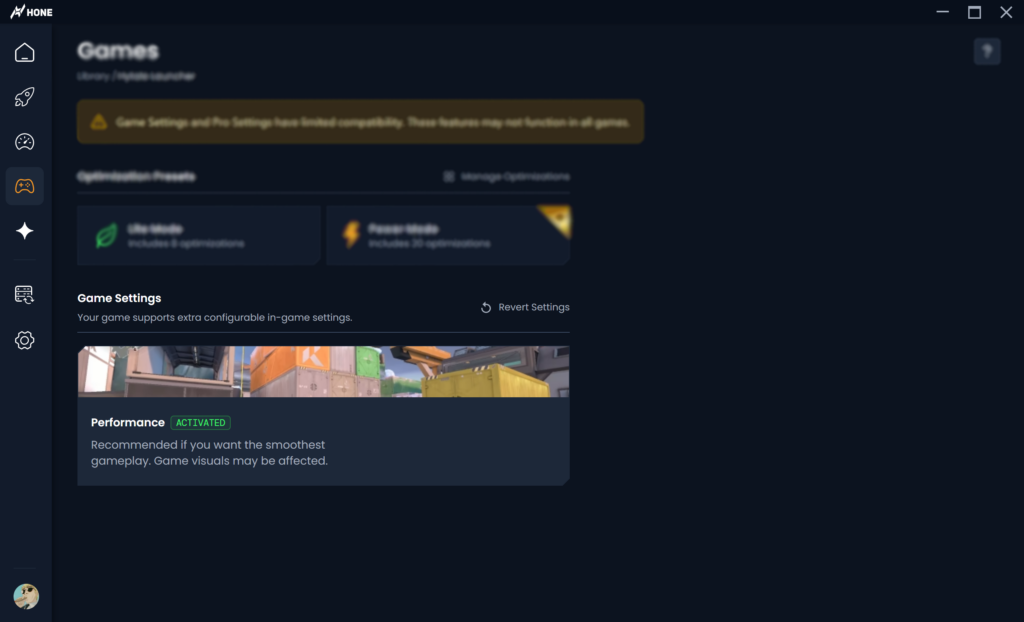
- Find Hytale in Games
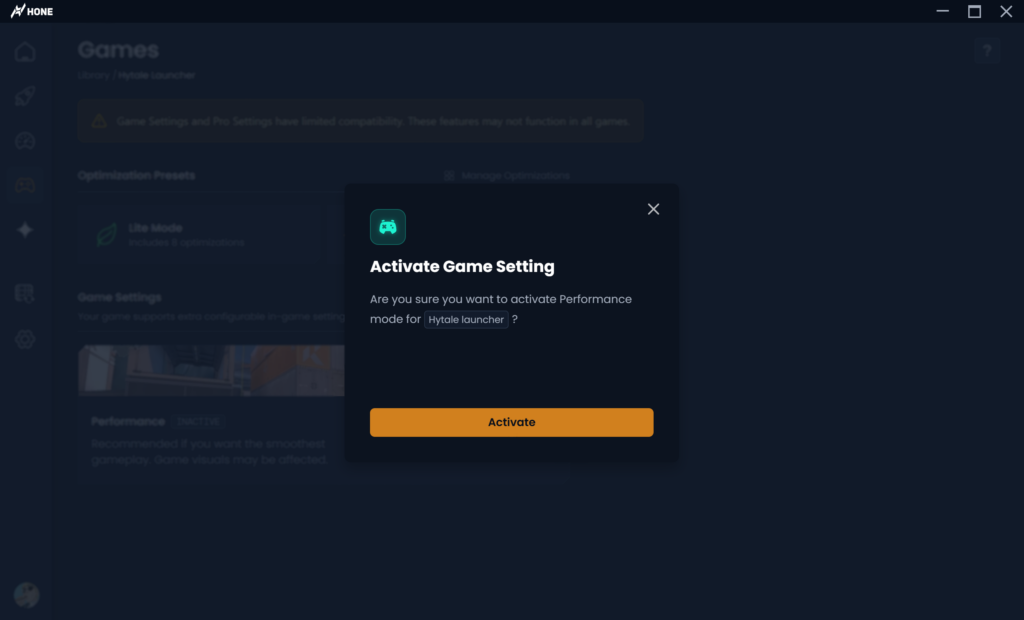
- Apply preset
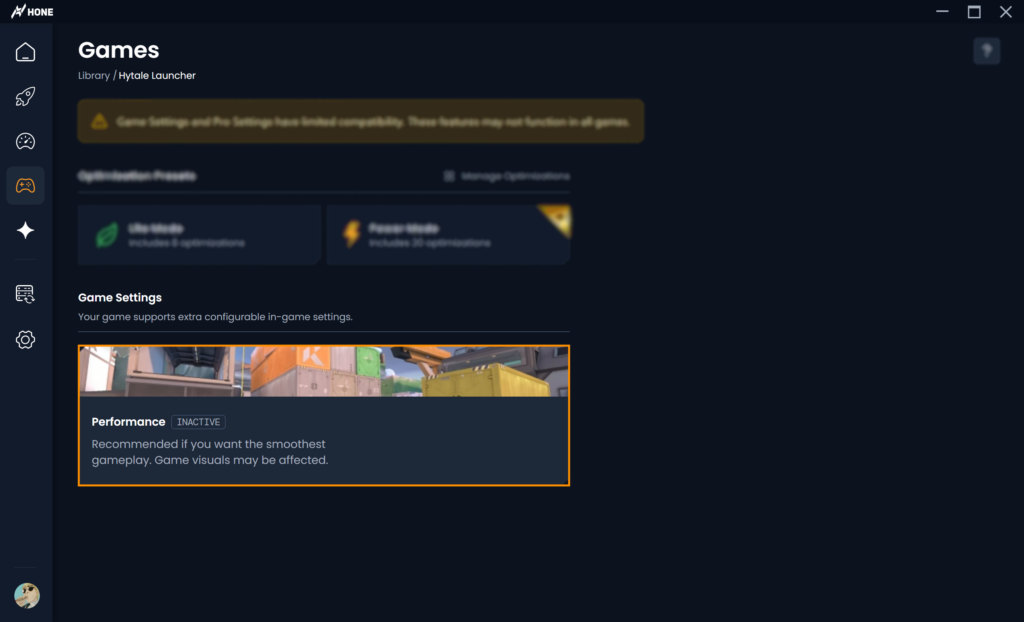
- Toggle ON
- Launch and play
Best Hytale Settings for FPS The Direct Answer
The best Hytale settings for FPS focus on three things: lower the view distance, reduce GPU load with a small render scale drop, and disable expensive effects like shadows and post processing. If you do nothing else, set ViewDistance to 192 and turn VSync off.
Here is the exact Hytale FPS preset to use. This is the minimum recommended baseline and it is safe to start with on almost any system.
{
  "Fullscreen": true,
  "Maximized": false,
  "VSync": false,
  "UnlimitedFps": true,
  "SprintFovEffect": false,
  "ViewBobbingEffect": false,
  "ViewBobbingIntensity": 0,
  "CameraShakeEffect": false,
  "FirstPersonCameraShakeIntensity": 0,
  "ThirdPersonCameraShakeIntensity": 0,

  "RenderingSettings": {
    "GraphicsPreset": "Custom",
    "ViewDistance": 192,
    "RenderScale": 95,

    "WorldDetail": "Lowest",
    "AntiAliasing": 0,
    "ShadowQuality": "Low",
    "ParticleQuality": "Medium",
    "ShadingQuality": "Low",
    "Bloom": 0,

    "Lod": 0,
    "Shadows": 0,
    "Shading": 0,
    "UseSunshaft": false,
    "DepthOfField": 0,
    "Water": 0,
    "UseFoliageFading": false,
    "Particles": 0,
    "DepthBuffer": 0
  }
}
Performance Impact: View Distance and Effects
Hone Hytale Preset Apply the Best Hytale Settings for FPS
If you want the best Hytale settings for FPS without digging through config files, use Hone. It gives you a fast way to apply an FPS focused preset and flip it on or off before you launch.
Boost Hytale FPS with Hone
Stop guessing settings. Use the preset, launch Hytale, and play with smoother frame time and better responsiveness.
- ✓ Apply an FPS preset in the Hone Games page
- ✓ Toggle the Hytale preset ON when you want performance
- ✓ Keep the same settings every time you launch
Tip: Use the screenshots below to match every click.
How to Activate Hone for Hytale Step by Step
Use these steps to activate Hone for Hytale and apply the preset.
Hone Activation Process for Hytale
Best Hytale View Distance for FPS Quick Decision Tree
View distance is the setting that controls chunk load. It is the most important setting for FPS and stuttering while exploring new terrain. Use this decision tree to pick a value that matches your hardware.
Choose the Best Hytale View Distance for FPS
Best Hytale Graphics Settings for FPS What to Disable
Most graphics settings in Hytale are not equal. Shadows and post processing create the biggest FPS hit because they add extra render work on top of chunk rendering. Disable them first. Then adjust render scale if your GPU is still maxed out.
Shadows for FPS
Set Shadows to 0 and keep ShadowQuality on Low. Shadows are one of the most expensive effects in voxel style scenes because there are many surfaces and lots of movement.
Post Processing for FPS
Disable Bloom, Sunshafts, and Depth of Field. These effects cost performance and they can reduce clarity during fast movement.
Render Scale for FPS
RenderScale 95 is a safe start. If your GPU is still pinned at 99 percent and you feel input delay, drop to 90. If you play at 1440p or 4K, render scale is one of the best levers.
Particles for FPS
Particles can spike frame time in combat. Keeping Particles at 0 helps maintain consistency when effects stack on screen.
Best Hytale FPS Cap Settings Optional Stability Upgrade
Unlimited FPS gives you the lowest input latency, but it can also create extra heat and wasted GPU usage in menus and low load scenes. If you want cooler temps and smoother pacing, cap your FPS close to your monitor refresh rate.
{
  "UnlimitedFps": false,
  "MaxFps": 160
}
Use 160 for 144Hz monitors. Use 250 for 240Hz monitors. The goal is consistent frame time, not infinite FPS.
Why Hytale Stutters CPU, Chunk Loading, and Frame Time
Average FPS Lies. Frame Time Tells the Truth.
If Hytale feels rough, it is usually frame time spikes from chunk loading, effects overdraw, or CPU stalls. Your FPS counter might say 120, but one long frame can still feel like a freeze.
That is why view distance is king. A smaller radius means fewer chunks to generate, load, and keep active. Disabling shadows and post processing removes the extra render passes that amplify spikes.
If your stutter only happens when you rotate fast, lower render scale. If your stutter happens when you move into new terrain, lower view distance first.
How to Apply Hytale settings.json Step by Step
If you prefer manual control, you can apply the preset by editing settings.json. This is useful if you want the exact same settings every launch, or if you want to tweak specific values beyond the in game menu.
settings.json Configuration Process
%appdata%, then open the Hytale folder. If you do not see settings.json, search inside that folder for settings.json.settings.json to your desktop before editing. This makes it easy to revert if you make a mistake.Detailed Hytale Settings Table Best Settings for FPS Explained
Best Hytale Settings for FPS Breakdown
| Setting | Best Value | Why It Boosts FPS | When to Change It |
|---|---|---|---|
| ViewDistance | 192 | Reduces chunk load and simulation radius | Drop to 160 or 128 if you stutter while exploring |
| RenderScale | 95 | Reduces pixel cost and GPU pressure | Drop to 90 if GPU is pinned at 99 percent |
| VSync | False | Removes sync cap and reduces input lag | Enable only if tearing is unbearable |
| Shadows | 0 | Removes heavy shadow passes | Enable only for screenshots and slow exploration |
| Bloom, Sunshaft, DOF | Off | Removes post processing overhead | Enable only if you want visuals over FPS |
| Particles | 0 | Reduces combat spikes and overdraw | Enable if you want more effects and accept dips |
| UnlimitedFps | True | Lowest latency and maximum FPS | Use MaxFps cap if you want cooler temps |
Hytale Low FPS Fix Common Problems and Solutions
FPS Drops When Moving Into New Terrain
Lower ViewDistance first. This reduces chunk load spikes. If you still drop, close background apps and run Hytale on an SSD.
GPU Usage at 99 Percent and Input Feels Heavy
Reduce RenderScale to 90 or 85. Keep VSync off. This lowers GPU pressure and improves responsiveness.
Stutter Gets Worse Over Long Sessions
Restart Hytale after long play sessions. Early Access builds can get less stable over time, especially after lots of chunk generation.
Combat Feels Inconsistent
Keep particles low, disable camera shake and view bobbing, and consider an FPS cap slightly above your refresh rate for steadier frame time.
Conclusion
The best Hytale settings for FPS are not complicated. Set ViewDistance to 192, keep VSync off, disable shadows and post processing, and use a small render scale drop for GPU headroom.
If you want the fastest setup, use Hone to apply the Hytale FPS preset and toggle it ON before launching. Then focus on winning, not config files. For more performance work outside the game, start with optimizing your PC for gaming and fixing FPS drops.
FAQ
What are the best Hytale settings for FPS
The best Hytale settings for FPS are ViewDistance 192, RenderScale 95, VSync off, Fullscreen on, and shadows and post processing disabled. These settings reduce chunk load, lower GPU load, and improve frame time stability.
What is the best view distance in Hytale for FPS
192 is the best view distance in Hytale for FPS for most PCs. If you still stutter while exploring, reduce view distance to 160 or 128. If you want visuals, raise it to 256 or 384 and accept the FPS hit.
How do I activate Hone for Hytale
Open Hone, go to the Games page, find Hytale, click Apply Preset, then toggle the preset ON. Launch Hytale and verify FPS and frame time improved.
Should I use unlimited FPS in Hytale
Unlimited FPS gives you the lowest input latency, but it can increase heat and power usage. If you want steadier pacing and cooler temps, turn UnlimitedFps off and set MaxFps close to your monitor refresh rate.
Why does Hytale stutter even when FPS is high
Hytale can stutter from frame time spikes, usually caused by chunk loading, heavy effects like shadows, or GPU overload. Lower view distance first, disable shadows and post processing, and reduce render scale if GPU is maxed out.



 Discord
 Instagram
 Youtube
 TikTok