
Solidworks Running Slow: How to Make Solidworks Run Faster

Muhib Nadeem / December 2, 2025 / 16 min read
Note: This article reflects technical best practices from the writer’s perspective and does not necessarily reflect the views of Hone.

Your rebuild takes 45 seconds. Rotating an assembly stutters at 5 FPS. Opening a drawing locks the software for 10 minutes. The timeline burns while SolidWorks crawls.

This guide shows how to make SolidWorks run faster on Windows 11 and Windows 10. You will learn hardware optimization, critical system settings, assembly strategies, and diagnostic methods that eliminate lag without expensive hardware upgrades or risky workarounds.

Why Is SolidWorks Running Slow?

SolidWorks performance depends on three layers: hardware architecture, software configuration, and modeling methodology. A bottleneck at any layer kills speed. Fix all three to transform sluggish rebuilds into instant responses.

Diagnose Your SolidWorks Performance Bottleneck
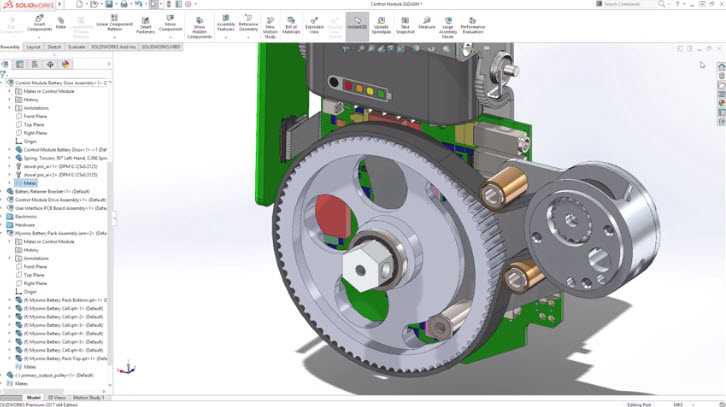
Solidworks
🔄
Slow Rebuild Times
Features take 30 plus seconds to regenerate. Editing a sketch triggers long pauses. Complex parts freeze during modifications.
CPU Single-Core Speed
🎮
Stuttering Viewport Rotation
Rotating assemblies drops to 5 FPS. Shaded with Edges mode lags severely. Faces disappear or flicker during movement.
GPU Driver or Settings
⚠️
Crashes and Not Responding
Windows shows Low Resources warning. Toolbars disappear. SolidWorks freezes completely when switching files or saving.
RAM or Virtual Memory
⏱️
Slow File Open and Save
Assemblies take 10 minutes to open. Saving a file shows progress bar for 5 minutes. Loading references times out.
Network or Storage Drive
📄
Drawing Update Hangs
Opening drawings locks SolidWorks. Updating views takes forever. Adding dimensions causes not responding errors.
Drawing View Settings
📦
Large Assembly Lag
Assemblies over 1000 parts crawl. Inserting components takes minutes. Mate solver runs endlessly without resolving.
Assembly Mode or Method

Quick Fixes to Make SolidWorks Run Faster

Fast Performance Optimization

Start here for immediate speed improvements without hardware changes

1
Turn Off Verification on Rebuild
This single setting checks every face against every other face on every rebuild. It multiplies calculation time by factors of 2x to 10x on complex parts. Turn it off for daily modeling and only enable temporarily when diagnosing geometry errors.
Tools > Options > System Options > Performance
Uncheck: Verification on rebuild
2
Enable Enhanced Graphics Performance
Modern SolidWorks versions use OpenGL 4.5 to offload edge calculations to your GPU. This eliminates CPU bottlenecks during viewport rotation and dramatically improves large assembly frame rates. Requires a restart to take effect.
System Options > Performance
Check: Enhanced graphics performance
Restart SolidWorks
3
Install Certified GPU Drivers
Gaming drivers or Windows Update drivers cause graphical glitches, crashes, and performance loss. Download the exact driver version tested for your SolidWorks year from the official hardware certification page.
Visit solidworks.com/support/hardware-certification
Find your GPU and SW version
Install certified driver only
4
Fix Virtual Memory Page File
Windows default automatic page file sizing causes dynamic resizing during work sessions which triggers temporary freezes. Set a fixed size at 2x your physical RAM to prevent Low Resources crashes and ensure stability.
Control Panel > System > Advanced system settings
Performance Settings > Advanced > Virtual Memory
Set Initial and Maximum to 2x RAM in MB

Understanding SolidWorks CPU Architecture

SolidWorks is built on the Parasolid kernel which uses parametric history-based modeling. Your feature tree is a chronological sequence where Feature B depends on Feature A, Feature C depends on Feature B, and so on. When you edit Feature A, the kernel must recalculate A, then B, then C in strict sequential order to maintain valid topology. This dependency chain makes parallelization mathematically impossible for core rebuild operations.

The primary driver of rebuild performance is single-threaded CPU speed. A processor running at 5.5 GHz with 8 cores will rebuild models far faster than a 64-core server chip running at 2.5 GHz. More cores help with rendering, simulation solvers, and background tasks, but the modeling experience depends entirely on high clock frequency and Instructions Per Clock efficiency.

CPU Performance Impact on Rebuild Times

Real world comparison of different processor architectures

Server CPU
45 seconds
64-core Xeon @ 2.5 GHz
Low single-core speed
VS
Workstation CPU
8 seconds
8-core i9 @ 5.5 GHz
High single-core speed
HDD Storage
12 minutes
1000-part assembly open
5400 RPM mechanical drive
VS
NVMe SSD
25 seconds
Same assembly on NVMe
28x faster load time
💡CPU Sweet Spot for SolidWorks
Optimal SolidWorks workstation: Intel Core i7/i9 13th-14th Gen or AMD Ryzen 7/9 7000-9000 series with 8 to 16 cores sustaining turbo boost above 4.5 GHz. This balances high single-core modeling speed with sufficient parallel capacity for rendering and simulation.

Critical System Options for Performance

Performance Settings CRITICAL
Verification on Rebuild
OFF
Checks every face against every other face for intersections. This O(n²) complexity operation multiplies rebuild times massively. Only enable when diagnosing specific geometry failures.
Tools > Options > Performance > Verification on rebuild
Enhanced Graphics Performance
ON
Enables OpenGL 4.5 pipeline that offloads silhouette edge calculations to GPU. Essential for large assembly rotation performance. Requires SolidWorks restart.
System Options > Performance > Enhanced graphics performance
Hardware Accelerated Silhouette Edges
ON
Allows GPU to calculate edge display in Shaded with Edges mode. Legacy CPU calculation causes frame rate drops. Turn this on immediately.
Performance > Hardware-accelerated silhouette edges
Transparency Quality
OFF
High quality transparency requires multiple rendering passes that burden the GPU heavily. Disable both Normal and Dynamic high quality modes. Use screen door pattern instead.
Performance > High quality for normal/dynamic view mode
Level of Detail
LESS (Faster)
Slider controls how aggressively SolidWorks simplifies models during rotation. Move toward Less to temporarily drop small components and reduce mesh density. Instant full quality when you stop moving.
Performance > Level of detail > Move slider left
Automatically Load Components Lightweight
ON
Loads only header info and graphics data, skipping feature history. Dramatically reduces RAM usage and assembly open times. Components resolve on demand when edited.
System Options > Assemblies > Automatically load lightweight
Display and Graphics Settings HIGH IMPACT
RealView Graphics
OFF
Realistic reflections and textures consume significant GPU resources. Disable from Heads-Up View Toolbar during modeling. Enable only for presentation screenshots.
Heads-Up Toolbar > RealView icon toggle
Shadows and Ambient Occlusion
OFF
Shadow calculation causes perceptible lag every viewport rotation in large assemblies. Turn off Shadows in Shaded Mode and Ambient Occlusion for maximum frame rates.
Heads-Up Toolbar > Display Style > Disable shadows
Anti-Aliasing
NONE or LOW
High anti-aliasing kills frame rates on 4K monitors. Set to None or Low. The slight edge jaggedness is worth the performance gain on complex models.
System Options > Display > Anti-aliasing
Thumbnail Graphics in Explorer
OFF
Generating Windows Explorer thumbnails can lock files in network environments. Causes delays when saving or switching windows. Disable if experiencing file locking issues.
System Options > General > Show thumbnail graphics
Document Properties: Image Quality TEMPLATE FIX

SolidWorks tessellates mathematical surfaces into triangle meshes for display. The Image Quality slider controls mesh density. High settings exponentially increase triangle count. A simple washer at High quality can carry 20,000 triangles versus 40 triangles at Low. If inserted 5,000 times in an assembly, that difference becomes 100 million triangles that crush GPU performance.

Shaded and Draft Quality Resolution
LOW
Keep slider far left, out of the red zone. Low setting is sufficient for engineering work. Circles looking slightly polygonal is acceptable trade for 10x performance gain.
Document Properties > Image Quality > Move slider left
Optimize Edge Length
OFF
Performs extra calculations to refine mesh quality. Rarely necessary for general engineering. Uncheck to skip these calculations entirely.
Image Quality > Uncheck: Optimize edge length
Fix Your Templates
CRITICAL
These settings travel with every file. If your default Part template has High image quality, every part you create starts overweight. Open your .prtdot and .asmdot templates, set Image Quality to Low, and save them.
File > Properties > Document templates folder
⚙️Enable the Freeze Bar
The Freeze Bar appears as a yellow bar in the FeatureManager tree. Drag it down to freeze features above it, excluding them from rebuild cycles. On a 500-feature part, freezing features 1 through 490 drops rebuild time from 60 seconds to 1 second when editing final features. Enable in System Options > General > Enable Freeze bar.

Hardware Requirements and Optimization

SolidWorks Hardware Requirements by Use Case

Component Minimum (Parts Only) Recommended (Assemblies) Optimal (Large Assemblies)
CPU 4-core @ 3.5 GHz 8-core @ 4.5+ GHz 16-core @ 5.0+ GHz (i9/Ryzen 9)
RAM 16 GB 32 GB 64 GB or 128 GB
GPU Entry Quadro/RTX RTX A2000-A4000 RTX A5000/A6000
Storage (OS/SW) NVMe SSD Required 500 GB NVMe Gen 3 1 TB NVMe Gen 4
Page File 32 GB fixed 64 GB fixed (2x RAM) 128 GB fixed (2x RAM)
🚫Never Install SolidWorks on HDD
Mechanical hard drives are obsolete for CAD workstations. The random read/write speeds of NVMe SSDs are essential for loading thousands of small assembly reference files. Installing SolidWorks or Windows on an HDD guarantees poor performance regardless of CPU or GPU power. NVMe SSD for the OS drive is non-negotiable.

GPU Configuration and Driver Settings

SolidWorks only enables advanced shading features like RealView on certified graphics cards. NVIDIA RTX (formerly Quadro) and AMD Radeon Pro series are tested and supported. Consumer gaming cards are technically capable but software-locked. Using gaming drivers or Windows Update drivers causes graphical glitches, disappearing faces, and crashes during rotation.

NVIDIA Control Panel Optimization
Critical for laptops with dual graphics:
Open NVIDIA Control Panel > Manage 3D settings > Program Settings
Select sldworks.exe from the dropdown or browse to add it
Required settings:
OpenGL Rendering GPU: Force to discrete card (RTX A4000, not Intel)
Power Management Mode: Prefer maximum performance
Vertical Sync: Off (prevents frame rate capping)
Install certified drivers only:
Visit solidworks.com/support/hardware-certification
Download the exact driver version tested for your SolidWorks year
Never use: Game Ready drivers or Windows Update generic drivers

Virtual Memory and RAM Configuration

Windows default automatic page file management dynamically resizes the file during sessions which causes temporary I/O freezes. SolidWorks and Windows commit virtual memory addresses regardless of physical RAM usage. If the commit limit is reached, the application crashes with Low Resources warning even if physical RAM shows empty space.

Best practice for CAD stability: Set a custom fixed size page file at 2x your physical RAM. For a 32 GB workstation, set both Initial Size and Maximum Size to 65,536 MB (64 GB). This ensures a massive commit limit and prevents page file fragmentation. Access this in Control Panel > System > Advanced system settings > Performance Settings > Advanced tab > Virtual Memory.

⚠️GDI Object Limit
Windows has a default limit of 10,000 GDI objects per process. SolidWorks creates GDI objects for every window, icon, and toolbar element. In complex sessions with many open documents, you can hit this ceiling before running out of RAM, causing bizarre graphical glitches and crashes. Power users can edit the Windows Registry to increase GDIProcessHandleQuota to 16,384 for extended stability.

Large Assembly Mode Strategies

Default
Resolved Mode
Loads full geometry, feature history, and all model data into RAM. Only necessary when performing deep edits on many components simultaneously. Avoid for assemblies over 10,000 components.
RAM Usage
100%
Open Time
Slow
Recommended
Lightweight Mode
Loads only header information and graphics data, skipping feature history. Components resolve on demand when edited. Dramatically reduces RAM footprint and open time. Enable automatic lightweight in System Options.
RAM Usage
30%
Open Time
Fast
Nuclear Option
Large Design Review (LDR)
Loads only graphics data with zero Parasolid math. Assembly that takes 20 minutes to resolve opens in 15 seconds. Modern versions allow inserting components, deleting, and creating mates in LDR Edit Mode. Best for massive plant layouts.
RAM Usage
5%
Open Time
Instant
Advanced
SpeedPak
Creates derived configuration of sub-assembly that keeps only specified faces (mating interfaces) and converts rest to graphic-only blob. When massive engine assembly is SpeedPak’d and inserted into vehicle assembly, it becomes nearly zero-cost.
Sub-Assy Cost
~0
Top Level
Fast
Large Assembly Settings Auto-Trigger
System Options > Assemblies > Large Assembly Settings automatically disables high quality transparency, enables lightweight mode, and suspends automatic rebuild when component count exceeds a threshold (default 500). Lower this to 100 or 200 on slower hardware to ensure optimization kicks in sooner.

Drawing Performance and Detailing Mode

For many users, 3D models are fast but 2D drawings are excruciatingly slow. Generating drawing views involves projecting complex 3D geometry onto 2D planes, a mathematically intensive process. A drawing of a 5,000-part assembly that normally takes 10 minutes to load and update will open in Detailing Mode in 30 seconds.

Detailing Mode allows opening massive drawings without loading underlying 3D model data. You can add dimensions, annotations, balloons, revision clouds, move views, print to PDF, and save changes. The limitation is you cannot create new drawing views that require projecting 3D geometry because the geometry is not loaded. This is the standard workflow for checking, annotating, and printing large drawing packages.

Drawing Optimization Workflow

Reduce drawing load times from 10 minutes to 30 seconds

1
Open in Detailing Mode
When opening a drawing, select Detailing Mode from the open dialog. The drawing loads without 3D model data. You can dimension, annotate, and print instantly.
File > Open > Select drawing file
Choose: Detailing Mode
2
Use Draft Quality for Layout Work
Set drawing views to Draft Quality for layout and checking work. Displays lightweight tessellated data. Pixelated when zoomed in but instant to load. Switch to High Quality only when finalizing for print.
Right-click view > Properties
Display style: Draft quality
3
Disable Auto-Update on Open
Gives you control over when to pay the rebuild tax. You can open drawing, make quick notes, and save without waiting for full model geometry update.
System Options > Drawings > Performance
Uncheck: Allow auto-update when opening drawings
4
Enable Background Processing
SolidWorks processes High Quality views in background. While you work on Sheet 2, CPU crunches exact geometry for Sheet 1 views. Utilize this rather than waiting for every view to render.
System Options > Drawings
Enable background processing for high quality views

Imported Geometry and Assembly Management

Vendor parts imported as STEP, IGES, or Parasolid files are often dirty, containing sliver faces, gaps, or excessive detail. A single bad face (mathematical error in surface definition) can force SolidWorks to switch entirely to software rendering for that face, bypassing the GPU and causing severe lag.

Always run Import Diagnostics (Tools > Evaluate > Import Diagnostics) after breaking the 3D Interconnect link. Attempt to Heal All errors. If a part cannot be healed and is not critical for design, consider remodeling it as a simple placeholder block. Use the Defeature tool to remove internal details like gears, windings, and screws that are irrelevant to top-level assembly. Use Delete Face with Delete and Patch to remove embossed text, logos, or knurling which add thousands of unnecessary triangles.

🔧Mating Best Practices
Mate to default Top/Front/Right planes whenever possible. Planes are infinite and mathematically simple, making them computationally free. Mating to complex B-spline surfaces requires heavy calculation. Avoid circular references where Part A references Part B and Part B references Part A. Use Component Patterns instead of creating hundreds of mate instances. Patterns solve instantly compared to individual coincident mates.

Network Storage and File Access

SolidWorks assembly files are databases of pointers referencing part files. Opening a single assembly may trigger read requests for thousands of referenced parts. If these files reside on a network server, the latency of SMB protocol means handshake time for thousands of files accumulates into massive delays even if total data transfer is small.

Never work continuously on files directly over network shares. Manual method: copy project folder to local SSD, edit, and copy back. PDM method: use SolidWorks PDM which automatically manages the cache process, copying files to local drive on demand and checking them back when done. This ensures you always work at SSD speeds while maintaining central server backup.

Diagnostics with SolidWorks Rx

When performance degrades, guessing is inefficient. SolidWorks Rx provides data-driven diagnostics. Found in Windows Start Menu under SolidWorks Tools, Rx allows launching in two special modes for testing.

SolidWorks Rx Diagnostic Modes
Software OpenGL Mode:
Bypasses graphics card entirely and forces CPU rendering
Diagnosis: If graphical glitch or crash disappears in this mode, issue is 100% GPU hardware or driver related
Bypass Tools/Options Settings:
Launches SolidWorks with factory default settings
Diagnosis: If performance returns to normal, issue is corrupt setting or bad option (like verification on rebuild)
Benchmark Tab:
Runs standardized test providing scores for Processor, Graphics, and I/O
Compare your score to averages for your CPU model on Share Your Score website
Slow score: May indicate thermal throttling or background processes eating cycles
Routine Maintenance:
Clean FlexNet cache if window switching takes 30+ seconds
Delete temporary files in C:\ProgramData\FLEXnet (SW_D files)
Reboot daily to clear memory leaks and GDI object stack

Conclusion

SolidWorks performance optimization requires alignment across hardware, software configuration, and modeling methodology. Start with hardware foundation: install NVMe SSDs, ensure 32 GB plus RAM, and set page file to 2x RAM fixed size. Install certified GPU drivers specific to your SolidWorks version.

Move to software configuration by turning off Verification on Rebuild, enabling Enhanced Graphics Performance, and fixing template Image Quality settings to Low. Finally, adopt efficient methodology by using Detailing Mode for drawings, Lightweight or LDR for assemblies, and immediately fixing imported geometry with diagnostics.

By systematically executing this three-layer approach, engineering teams eliminate friction from the design process and achieve the speed SolidWorks is capable of delivering.

FAQ

Why is SolidWorks so slow on my computer

Most slowness comes from three bottlenecks: CPU single-core speed too low for rebuild operations, incorrect GPU drivers causing graphics lag, or insufficient RAM forcing Windows to page to disk. Additionally, having Verification on Rebuild enabled and High image quality in templates multiplies calculation times unnecessarily.

What is the best CPU for SolidWorks performance

SolidWorks rebuild operations are single-threaded, so prioritize high clock frequency over core count. Optimal choices are Intel Core i7/i9 13th-14th Gen or AMD Ryzen 7/9 7000-9000 series with 8 to 16 cores sustaining turbo boost above 4.5 GHz. A 5.5 GHz 8-core chip outperforms a 2.5 GHz 64-core server CPU for modeling.

How do I make SolidWorks assemblies load faster

Enable Automatically load components lightweight in System Options > Assemblies. This loads only header info and graphics data, skipping feature history. For massive assemblies, use Large Design Review mode which opens in seconds instead of minutes. Work from local SSD storage, never directly from network drives.

Should I turn off Verification on Rebuild

Yes, turn it off immediately. Verification on Rebuild checks every face against every other face on every rebuild, multiplying calculation time by 2x to 10x on complex parts. Only enable temporarily when diagnosing specific geometry errors. Standard error checking is sufficient for daily modeling work.

What graphics card do I need for SolidWorks

Use certified workstation GPUs: NVIDIA RTX A2000 through A6000 or AMD Radeon Pro series. More important than the card itself is installing the certified driver version tested for your specific SolidWorks year from the hardware certification page. Gaming drivers or Windows Update drivers cause crashes and graphical glitches.

How much RAM does SolidWorks need

16 GB is absolute minimum for simple parts only. 32 GB is industry standard for professional mechanical design handling assemblies of 1,000 to 5,000 parts. 64 GB or more is required for massive assemblies and complex simulations. Also set page file to 2x your physical RAM as fixed size to prevent Low Resources crashes.

What is Enhanced Graphics Performance in SolidWorks

Enhanced Graphics Performance enables the OpenGL 4.5 pipeline that offloads silhouette edge calculations to your GPU instead of CPU. This dramatically improves large assembly rotation frame rates and eliminates CPU bottlenecks during viewport movement. Enable it in System Options > Performance and restart SolidWorks.

How do I fix slow SolidWorks drawings

Use Detailing Mode when opening large drawings. This loads the drawing without underlying 3D model data, reducing 10-minute load times to 30 seconds. You can dimension, annotate, and print in Detailing Mode. For layout work, set views to Draft Quality instead of High Quality to eliminate projection calculation delays.

Should SolidWorks be on SSD or HDD

SolidWorks and Windows must be installed on NVMe SSD. Mechanical hard drives are obsolete for CAD workstations. The random read/write speeds of SSDs are essential for loading thousands of small assembly reference files. Installing on HDD guarantees poor performance regardless of CPU or GPU power.

What are Large Assembly Settings in SolidWorks

Large Assembly Settings automatically trigger when component count exceeds a threshold (default 500). The mode disables high quality transparency, enables lightweight loading, and suspends automatic rebuild. You can customize the threshold in System Options > Assemblies. Lower it to 100 or 200 on slower hardware for earlier optimization.


Full Performance,
No Cost

Kick off an exciting adventure for free! Just download the app, create your account, and enjoy up to 20 optimizations at no cost.

Muhib Nadeem

Muhib Nadeem

I grew up on frame drops, boss fights, and midnight queues. Now I write about games with the same energy I once saved for ranked.

Level Up
Your FPS

Kills background lag

Instant FPS boost

One-click setup

Table of Contents

You may also like