Busy fights push the CPU
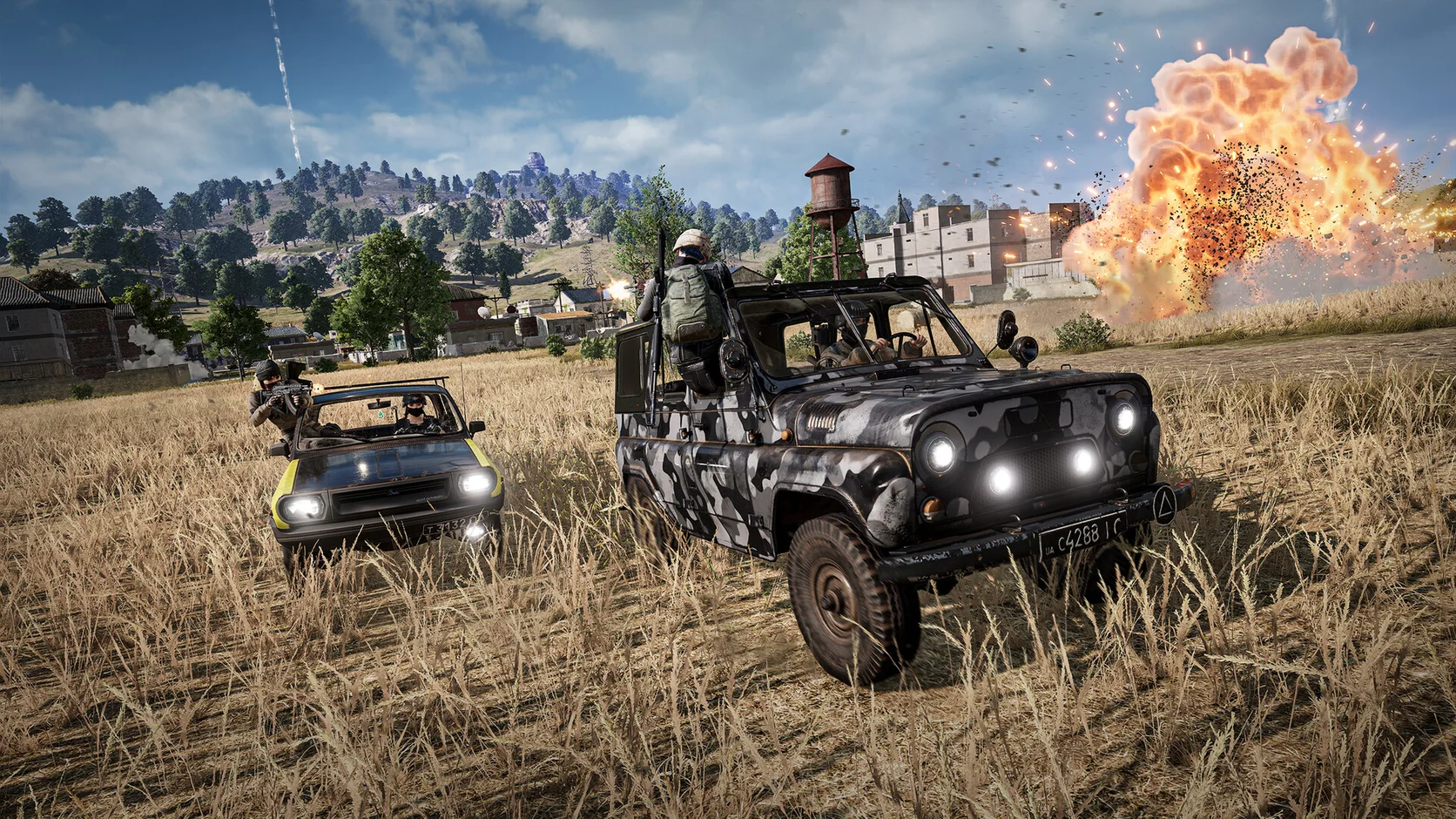
Driving into a busy area adds vehicles, players, sounds, and map data. The CPU has to keep up with them together.
PUBG PC performance
Optimize PUBG and Windows with Hone before the drop. Choose settings your PC can hold through smoke, city fights, and the final circle. Test FPS and input feel on your own system.
You've heard from the pros. Here's what other players think.
01
A quiet landing can turn into a packed city fight in seconds. Players, smoke, long views, and fast turns raise the load while Windows and other apps still use your PC.
Driving into a busy area adds vehicles, players, sounds, and map data. The CPU has to keep up with them together.
Shadows, effects, and distant detail can pull FPS down when you need a clear sight line.
Browsers, launchers, overlays, and updates can use the same CPU, memory, and network as PUBG.
A short frame-time spike can make a fast peek or close fight look and feel late.
02
Open the PUBG preset in Hone and check each suggested change. Apply your choices, then compare a city fight or fast peek with your usual setup.
Apply supported game settings built to favor clear views and steady FPS.
Reduce background work and optimize system settings that can affect FPS and frame time.
Cut unneeded app traffic so downloads and updates do less work while you play.
See every change, choose what to apply, and restore the settings later.
03
PUBG runs anti-cheat systems on PC. Hone changes opt-in game and Windows settings. It does not enter the PUBG process or automate play.
Hone does not add aim tools, automated inputs, recoil control, or an FPS boost mod.
Hone does not inject into PUBG or read and change live game memory.
Match load, game patches, heat, weak hardware, Wi-Fi, and server distance can still limit FPS or ping.
04
On our test PC, Hone raised PUBG from 228 to 320 average FPS. That is 92 more average FPS, or a 40% gain in this test.
Tested using Intel 10900k (5.5 GHz AC), RTX 4090 (stock), 16 GB DDR4 RAM (18-18-18-24-4000 MHz) - Results may vary.
Your result will depend on the map, match, game patch, PC, graphics settings, drivers, heat, and apps open in the background.
Start with full screen mode. Lower shadows, effects, and foliage first. Keep textures at a level your graphics memory can hold. Hone puts supported PUBG and Windows settings in one place.
Close heavy background apps, update your graphics driver, use settings your PC can hold, and check for heat limits. Hone can reduce PC-side load and apply a cleaner performance setup.
Lower the heaviest graphics settings, close apps you do not need, and keep your drivers current. Hone can apply supported PUBG and Windows FPS tweaks in one click.
Hone can reduce some background traffic and optimize network settings on your PC. It cannot shorten the distance to the server or fix a weak Wi-Fi signal.
Hone works at the supported game-settings and Windows level. It does not inject into PUBG, edit game memory, add cheats, use recoil scripts, or automate play.
Yes. The free plan lets you try several performance optimizations before you upgrade.