

Forza Horizon 6 stuttering is not always a “lower every setting” problem. Some players are seeing normal average FPS with ugly frame pacing, short hitches while driving fast through Tokyo, or sudden drops that barely change when they lower the preset.
That usually points to one of five things: shader cache behavior, asset streaming, VRAM pressure, sync or FPS limiter conflicts, or background software fighting the game. Start with the clean baseline below before you touch registry tweaks or random FPS packs.
The 1-Click Forza Horizon 6 Settings Fix
Clean up background drag, tune Windows for gaming, and build a better baseline before your next FH6 benchmark run.
Pick Your FH6 Stutter Symptom
Use the tabs below to choose the fix path that matches what you actually feel in-game.
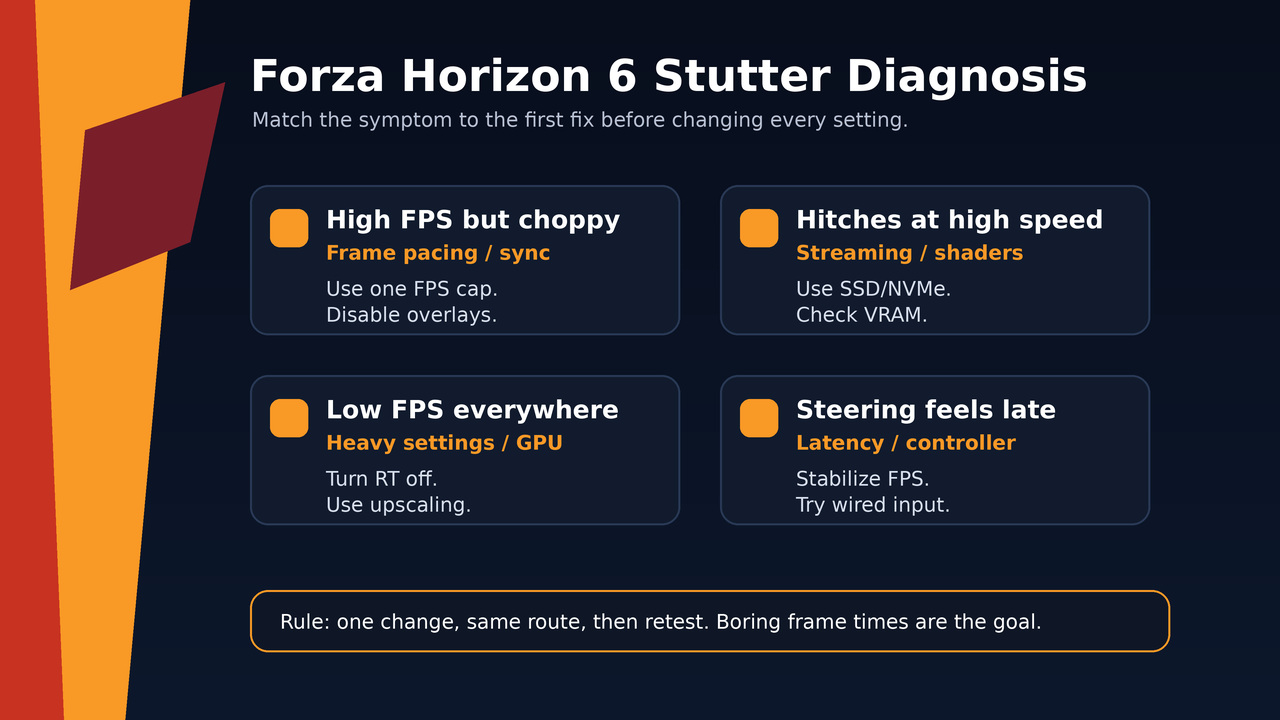
Quick Fix Order for Forza Horizon 6 Stuttering
Use this order first. It is boring, but it isolates the cause instead of turning your PC into a science project.
Start With the Clean Fixes
1. Build a Clean Baseline First
Before changing Windows registry keys or copying random “ultimate optimization” commands, build a clean baseline. Restart the game, close launchers and overlays you do not need, then test the same road, race, or benchmark route each time.
Forza Horizon 6 is an open-world racing game, so a quiet menu or empty road does not prove anything. Test where the issue actually happens: high-speed highway runs, dense Tokyo streets, night/rain scenes, festival hubs, or heavy traffic.
If the game has a built-in benchmark on your version, use it before and after major changes. Average FPS matters, but stutter is about frame delivery. A stable 60 FPS can feel cleaner than an uncapped counter jumping between 110 and 48.
2. Update Drivers, Then Verify the Game Files
Install the latest Game Ready, Adrenalin, or Arc driver for your GPU, then restart the PC. If the problem started right after a driver update, a clean reinstall or rollback can be worth testing, but do not start there unless other games also changed.
Next, verify Forza Horizon 6 files in Steam or the Xbox app. Community reports on the Forza forums and Steam discussions show that players are seeing different symptoms on different hardware, so you want to remove corrupt files and stale driver behavior before deeper tuning.
3. Disable Overlays and Capture Hooks
Overlays can hook into the render path, record video, poll hardware sensors, or inject UI while the game is already trying to stream a large world. Disable the ones you do not need:
- Steam overlay
- Xbox Game Bar recording and background capture
- Discord overlay
- NVIDIA overlay / ShadowPlay
- AMD Radeon overlay
- MSI Afterburner / RTSS overlay while testing
- RGB suites, browser tabs, launchers, cloud sync, and download clients
You can turn useful monitoring tools back on later. The goal is to test FH6 with fewer variables first.
VRAM and Storage Sanity Check
If stutter appears while driving fast into dense areas, use this picker before lowering every visual setting at once.
4. Test Windows Graphics Settings
Several FH6 player reports and videos point at Windows graphics features as worth testing, especially Hardware-Accelerated GPU Scheduling, or HAGS, and Optimizations for windowed games. These are reversible settings, so test them before any registry edit.
- Open Windows Settings → System → Display → Graphics.
- Add Forza Horizon 6 if it is not listed, then set it to High performance so Windows uses the dedicated GPU.
- Test HAGS off, restart the PC, then run the same FH6 route again.
- Test Optimizations for windowed games off if borderless/windowed pacing feels uneven.
Do not change five Windows options at once. Toggle one setting, restart if Windows asks, then compare the same route. If nothing improves, turn the setting back on and move down the list.
5. Use One FPS Cap, Not Five
Multiple simultaneous FPS limiters can create frame pacing problems. Start with the in-game limiter if it behaves well. If the in-game cap feels uneven or lacks the target you want, test a driver cap or RTSS as a fallback, but disable the other caps while testing.
If you use G-Sync, FreeSync, or Adaptive Sync and want a capped tear-free setup, cap slightly below your monitor refresh ceiling so the game stays inside the VRR range. On a 144 Hz display, that usually means a cap below 144, not exactly at the ceiling.
Pick a Stable FPS Cap
Choose the target that matches your monitor and hardware. The goal is not the biggest number; it is the cap your PC can hold through the same route.
- Great for 60 Hz displays and weaker GPUs.
- Lower heat and smoother laptop clocks.
- Raise settings only after the route stays stable.
- Good middle ground for 120/144/165 Hz monitors.
- Often feels better than an uncapped 70-130 FPS swing.
- Use one limiter only.
- Best for higher-end PCs after RT/reflections are tuned.
- Watch 1% lows, not just the average.
- Drop to 90 if Tokyo routes still hitch.
- Cap slightly below max refresh.
- Do not stack in-game, driver, and RTSS caps.
- Test V-Sync behavior one setup at a time.
Avoid: in-game cap + driver cap + RTSS + Radeon Chill + extra sync tweaks all fighting each other. That is not optimization; that is a small committee meeting inside your frametime graph.
6. Test V-Sync and VRR the Right Way
Some players report smoother Forza Horizon 6 pacing with V-Sync on. Others report the opposite. That is why this should be tested, not treated like a universal commandment.
If you do not use VRR and input delay matters, start with V-Sync off and use a stable FPS cap. For G-Sync or FreeSync, test the normal VRR-friendly setup: VRR enabled, one FPS cap below the refresh ceiling, and V-Sync behavior configured consistently in the driver/game instead of mixed randomly.
If steering feels late, do not judge V-Sync only by the FPS counter. Test braking points, corner entry, and quick steering corrections. Racing games expose bad frame pacing quickly.
7. Clear Shader Cache Only When It Makes Sense
Shader-related stutter usually feels like brief hitches when entering new areas, seeing new weather/lighting, or driving through dense scenes. Clearing shader cache can help when the cache is corrupted or stale, but it can also make the next launch stutter temporarily while shaders rebuild.
Use this carefully:
- Close Forza Horizon 6 completely.
- Clear DirectX shader cache from Windows Storage settings or Disk Cleanup.
- Reset shader cache in your GPU control panel if your driver exposes that option.
- Relaunch the game and wait at the menu before driving.
- Retest the same route after the cache has had time to rebuild.
Do not clear caches after every session. If you force the game to rebuild shaders constantly, you can create the stutter you are trying to remove.
8. Install FH6 on an SSD or NVMe Drive
Traversal stutter can come from storage and asset streaming, especially when driving fast into dense areas. If Forza Horizon 6 is installed on a hard drive, move it to an SSD. NVMe is better if you have the space.
Keep free space on the drive and close download clients while testing. A racing game streaming world data at speed does not need Steam, a browser, cloud sync, and Windows Update all competing for disk access in the background.
9. Lower the Settings That Cause Frame-Time Spikes
If FPS is low everywhere, use our best Forza Horizon 6 settings guide for the full settings pass. For a stutter-specific fix, lower the expensive options first:
| Setting area | Try this first | Why it helps |
|---|---|---|
| Ray tracing / RTGI | Off or lower | Big GPU and VRAM spikes in dense scenes. |
| Reflections | Medium or lower | Wet roads, cars, city lights, and night races can hit frame time hard. |
| Environment geometry | High or Medium | Dense city detail can create CPU/GPU pressure. |
| Textures | Match your VRAM | Too-high textures can cause streaming hitches when VRAM fills. |
| Volumetric fog / particles | Medium or Low | Weather, smoke, spray, and night effects can spike frame time. |
| Motion blur | Off | Does not fix FPS, but makes uneven motion easier to see and control. |
DLSS, FSR, or XeSS can help when you are GPU-limited. Use Quality first at 1440p or 4K, then Balanced if needed. Frame Generation can make motion look smoother on supported hardware, but it will not fix shader hitches, storage stalls, VRAM pressure, or bad frame pacing by itself.
10. AMD-Specific Stutter Checks
AMD users have reported FH6 hitching to the GPUOpen Drivers issue tracker, including regular gameplay stutter while driving fast and entering dense city areas. Treat that as a sign to test driver-level basics before blaming your whole PC.
- Update or clean reinstall AMD Adrenalin.
- Disable Radeon Chill, Radeon Boost, and extra driver “helper” features while testing.
- Try Anti-Lag on versus off only after the baseline is stable.
- Test Smart Access Memory / ReBAR on versus off if FH6 is the only game behaving badly.
- Keep one FPS limiter active. Radeon Chill plus an in-game cap is not a clean test.
Some community posts recommend disabling Multiplane Overlay, or MPO, through the Windows registry. MPO can be involved in display-layer stutter on some systems, but registry changes are an advanced step. Create a restore point first, understand the reversal command, and skip it if the earlier fixes already solved the issue.
11. NVIDIA-Specific Stutter Checks
- Update or clean reinstall the NVIDIA driver.
- Disable the NVIDIA overlay while testing.
- Test Shader Cache Size at a larger value if traversal hitches keep returning.
- Use NVIDIA Control Panel Max Frame Rate only if the in-game cap feels bad or lacks the value you need.
- Do not force every low-latency setting at once. Reflex, if supported in-game, is not the same as driver Ultra Low Latency mode.
If GPU usage is pinned near maximum, a sensible FPS cap can reduce render queue pressure and make steering feel more consistent. If the game is CPU or streaming limited, lowering GPU-only settings may improve average FPS without fixing the hitch.
12. Controller, GameInput, and Wheel Troubleshooting
If stutter appears with a wireless controller, Bluetooth device, or racing wheel connected, test input devices separately. Use a wired controller for one run. Unplug the wheel and its software for another. Close wheel tuning software, RGB utilities, and device hubs you do not need.
Some videos recommend disabling GameInput services. That can help certain Windows/controller conflicts, but it may also break input behavior in other games. Treat it as a targeted test, not a default fix for everyone.
13. Steam vs Xbox App: What to Check
Players are reporting stutter on both Steam and Microsoft Store/Xbox App versions, so do not assume the launcher alone is the cause. Still, each launcher has its own cleanup path:
| Version | Check | Why |
|---|---|---|
| Steam | Verify files, disable Steam overlay, clear download activity | Removes file issues and overlay hooks. |
| Xbox App / Microsoft Store | Update Gaming Services, Xbox app, Windows, and verify/repair the app | Xbox services can affect launches, account checks, and background behavior. |
| Both | Retest with the same FPS cap, same route, and same graphics settings | Keeps the comparison honest. |
When to Stop Tweaking and Wait for a Patch
If Forza Horizon 6 still runs badly after a clean driver install, verified files, SSD install, disabled overlays, sensible graphics cuts, and one clean FPS cap, the problem may be game-side or driver-side. Community reports include high-end systems where lowering resolution and settings barely changes performance, which is not normal tuning behavior.
At that point, stop stacking risky tweaks. Keep the game updated, watch patch notes and official/community reports, and use a stable temporary setup instead of chasing every registry fix on the internet.
Use Hone After the Game-Specific Fixes
Hone will not magically patch Forza Horizon 6 shader compilation or fix a broken driver, but it can help clean up the PC-side noise around the game. Use it after the FH6-specific steps above to reduce background bloat, tune Windows for gaming, and keep your system closer to a clean baseline before testing again.
If every open-world game on your PC stutters, start with broader system cleanup using our PC optimization guide. If only FH6 has the issue, keep the focus on Forza settings, drivers, storage, and patches first.
Forza Horizon 6 Stuttering Fix Checklist
FAQ
Why does Forza Horizon 6 stutter even with high FPS?
High average FPS can still feel bad if frames arrive unevenly. FH6 stutter can come from frame pacing, shader compilation, asset streaming, VRAM pressure, overlays, or sync conflicts rather than raw GPU power alone.
Should I turn V-Sync on or off in Forza Horizon 6?
Test it with your display setup. If you do not use VRR, V-Sync off plus a stable FPS cap often feels more responsive. If you use G-Sync or FreeSync, try a VRR-friendly setup with one cap below refresh and consistent sync settings.
Does clearing shader cache fix FH6 stutter?
It can help if the shader cache is stale or corrupted, but it may also cause temporary stutter while shaders rebuild. Clear it only when shader hitches persist, then wait at the menu and retest the same route.
What is the best first setting to lower for FH6 stuttering?
Turn ray tracing off first, then lower reflections, environment geometry, fog, particles, and textures if VRAM is full. Do not lower everything blindly if your real issue is frame pacing or storage streaming.
Should Forza Horizon 6 be installed on an SSD?
Yes, especially if the game hitches while driving fast into new areas. Slow or nearly full storage can make asset-streaming stutter worse, so move FH6 to an SSD or NVMe drive if possible.
Can HAGS cause Forza Horizon 6 stuttering?
Some players report smoother FH6 frame pacing after disabling Hardware-Accelerated GPU Scheduling, but it is not universal. Test HAGS off, restart, retest the same route, and turn it back on if nothing improves.
Can Hone fix Forza Horizon 6 stuttering?
Hone can help reduce PC-side background load and Windows gaming friction, but it cannot patch FH6 shader bugs, driver issues, or game-side optimization problems. Use Hone after the game-specific fixes to keep testing clean.






 Youtube