

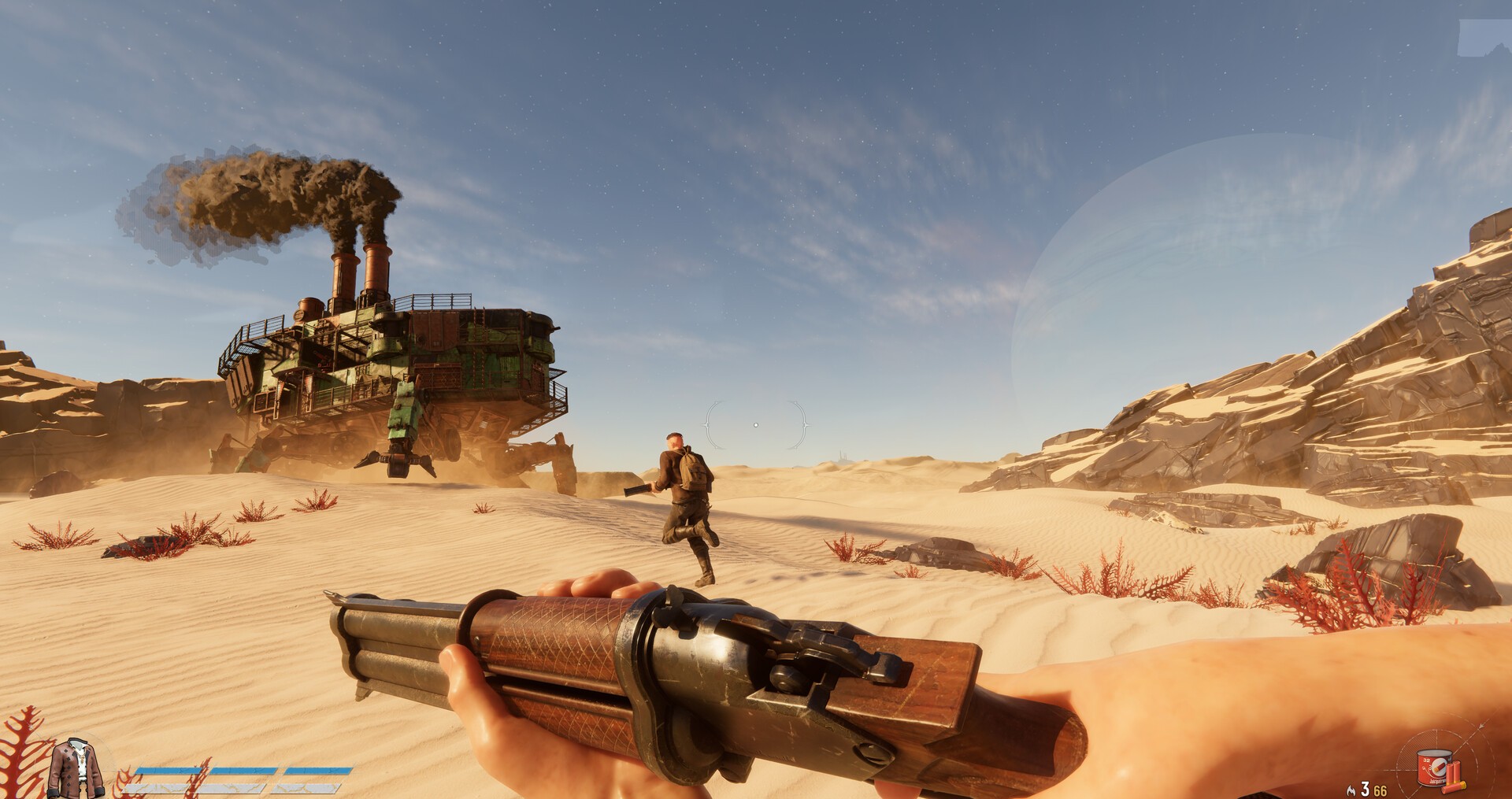
SAND: Raiders of Sophie is an Early Access PvPvE extraction shooter where a bad hitch can cost you a Trampler, a fight, and the loot you were dragging home. The best settings are not just the lowest preset. You want clean visibility, stable frame times, and enough headroom for desert fights, smoke, mounted weapons, and other players.
Start with the baseline below, then tune one or two settings at a time. SAND is still being optimized during Early Access, so treat this as a strong launch-period setup rather than a forever config.
Clean up Windows before your next raid
Use Hone to reduce PC-side clutter, background app pressure, and gaming-setting conflicts before testing SAND frame pacing.
Best SAND settings for most PCs
Use Borderless or Fullscreen, native resolution, V-Sync Off for lowest input delay, one FPS cap your PC can actually hold, DLSS or the in-game upscaler on Quality/Balanced if available, Medium textures, Low-to-Medium geometry and materials, Low shadows, Low sky, Volumetric Fog Off or Low, Ambient Occlusion Medium if you can afford it, Global Illumination Low/Off, Post Processing Low, Render Distance 100, and Motion Blur/Bloom/Film Grain/Chromatic Aberration Off.
Pick your SAND settings target
Choose the machine you are tuning for. The card updates the FPS target, the first settings to cut, and the mistake to avoid.
- Volumetric Fog: Low or Off
- Shadows: Low or Medium
- Motion Blur/Bloom/Film Grain: Off
Do not drop render distance first unless the game is still unstable after heavier effects are lowered.
Best SAND Raiders of Sophie display settings
Display settings decide how the game talks to your monitor. Because SAND is a shooter with PvPvE fights, do not blindly chase the prettiest tear-free setup if it adds delay you can feel while aiming.
| Setting | Recommended value | Why |
|---|---|---|
| Display Mode | Borderless or Fullscreen | Use whichever behaves better on your system. Fullscreen can feel direct; Borderless is usually safer for alt-tabbing and modern Windows. |
| Resolution | Native first | Drop resolution only if upscaling and quality cuts still cannot hold your target FPS. |
| Field of View | 90-105 | Higher FOV improves awareness but can cost FPS and make distant targets smaller. |
| V-Sync | Off in-game | Best starting point for lower input delay. If tearing bothers you, use your VRR setup instead of stacking random sync options. |
| FPS Limit | 60, 90, 120, or below refresh | Pick one cap your PC can hold. For VRR/G-Sync/FreeSync, cap a few FPS below your monitor refresh ceiling. |
| Upscaling / Super Resolution | Quality first, Balanced if needed | Quality keeps the image cleaner. Balanced is the next move when firefights or Tramplers push FPS down. |
| Anti-Aliasing | FXAA or game default with upscaler | Use the option that stays readable. If TAA looks too soft, try FXAA when upscaling is off. |
Best graphics settings for FPS and visibility
SAND’s expensive settings are the usual suspects: shadows, fog, lighting, post-processing, and heavy screen-space effects. Textures are different. If your GPU has enough VRAM, Medium textures are usually worth keeping because blurry surfaces make raids harder to read.
| Setting | Balanced | Low-end / handheld | Notes |
|---|---|---|---|
| Graphics Quality Preset | Custom | Custom | Do not use a preset if one or two heavy effects are the real problem. |
| Texture Resolution | Medium / High | Medium / Low | Lower this if VRAM is full or the game hitches while moving. |
| Geometry Quality | Medium | Low | Medium helps world readability if your CPU/GPU has headroom. |
| Materials Quality | Medium | Low | Lower before dropping resolution. |
| Terrain Tessellation | On if stable | Off if unstable | Cut it on weaker hardware if the desert view feels heavy. |
| Shadow Quality | Low / Medium | Low or Off | One of the first settings to lower. Off can improve visibility in dark ship interiors but looks flatter. |
| Shadow Refresh Frequency | Low | Low | Keep it low for steadier frame pacing. |
| Contact Shadows | Low | Off / Low | Nice detail, poor priority when FPS dips. |
| Sky Quality | Low | Low | Easy cut in a competitive raid. |
| Volumetric Fog | Low | Off / Low | Heavy in dust and smoky scenes. Turn it down early. |
| Ambient Occlusion | Medium | Low / Off | Medium keeps depth. Off can look flat but helps weak GPUs. |
| Global Illumination | Low / Medium | Off / Low | Cut this if the game feels GPU-bound. |
| Post Processing Quality | Low | Low | Good place to save frames without losing core visibility. |
| Post-Processing Injection Point | Before Upscaler | Before Upscaler | Matches the better-performing recommendations seen in current settings tests. |
| Render Distance | 100 | 80-100 | Keep this high if you can. Spotting Tramplers and players matters. |
| Motion Blur | Off | Off | Hurts clarity while turning and aiming. |
| Bloom / Film Grain / Chromatic Aberration | Off | Off | Visual clutter. Easy disable. |
| Vignette / Color Filters | Preference | Off / Preference | Do not keep a filter that makes targets harder to see. |
Which settings should you lower first?
Change these before you gut the whole game
Very high
High
High
Medium
VRAM-based
If the game still feels choppy after those changes, you are probably dealing with VRAM pressure, storage streaming, CPU load, network lag, or an Early Access optimization issue rather than one magic graphics slider. For the broader diagnosis path, use Hone’s guide to fix FPS drops and the explanation of frame rate and frame time.
High-end PC settings
If your PC is near the recommended Steam spec — a modern Core i5/Ryzen 5 class CPU, 32 GB RAM, and an RTX 3080 or RX 6800 XT class GPU — do not force everything to Low. Keep the image readable and cut the waste.
- Use native resolution with DLSS/upscaling on Quality if the option is available.
- Keep textures at High if VRAM usage is safe; drop to Medium if hitches appear.
- Use Medium geometry and materials, Low shadows, Low sky, Low fog, Medium ambient occlusion, and Low or Medium global illumination.
- Set one FPS cap: 120 for high-refresh play if stable, 90 if dips are common, or a below-refresh VRR cap for smoother tear-free play.
- Turn off motion blur, bloom, film grain, and chromatic aberration for clearer target tracking.
Low-end PC settings
Steam lists the minimum GPU around GTX 1650, RX 570, or Intel Arc A380, with 16 GB RAM. That is playable territory, not “max settings” territory. Aim for a stable 60 if possible, or a stable 45/30 if your PC cannot hold 60 during raids.
- Set the graphics preset to Custom, then start with Low across heavy settings.
- Use Medium textures only if VRAM is not filling up. If the game hitches while moving, lower textures.
- Turn Volumetric Fog Off or Low, Shadows Low/Off, Global Illumination Off/Low, and Post Processing Low.
- Use upscaling on Balanced or Performance only when Quality cannot hold the target FPS.
- Cap to 60, 45, or 30 instead of letting the game swing wildly between peaks and drops.
ROG Ally and handheld settings
Handheld PCs need a different target. ROG Ally Life reported SAND playable on an Ally-class device through the DX12 version, with random dips still present and CPU-bound behavior in their testing. Since SAND currently leans hard on PC controls and Early Access optimization, prioritize consistency over headline FPS.
- Use 720p or 900p before forcing 1080p.
- Set a 30, 40, or 45 FPS cap depending on your power mode.
- Use Low shadows, Low/Off fog, Low global illumination, Low post-processing, and Medium/Low textures depending on VRAM allocation.
- Use Steam Input or a community layout if controller support is not working cleanly on your build.
- Keep expectations sane: a stable capped experience is better than an uncapped graph that spikes and collapses.
Best FPS cap and V-Sync setup
Use one limiter. Stacking the in-game cap, driver cap, Radeon Chill, RTSS, and another overlay limiter can create the exact frame pacing mess you were trying to fix.
Pick the setup that matches your goal
Build a clean test run
Tick these before judging whether your settings worked. The goal is one repeatable test route, not five random changes at once.
0 of 5 ready. Finish the list, then test the same Trampler route or raid area again.
How to test your settings
Do not judge settings from the menu or an empty area. Use the same short route every time so you can tell whether a change helped.
- Load into the same mode and area after restarting the game.
- Stand near a Trampler or busy structure, turn the camera slowly, then sprint or drive through the same path.
- Test one firefight or heavy effects scene if possible.
- Watch for frame-time spikes, not just average FPS.
- Change one setting group at a time: fog/shadows first, then lighting, then upscaling, then textures.
What kind of lag are you actually seeing?
Pick the symptom before you keep lowering graphics. Some problems are GPU load; others are pacing, storage, overlays, or network behavior.
Stutter fixes before changing more graphics
If lowering everything barely changes the problem, stop hammering the graphics menu. Use a clean baseline first.
- Install SAND on an SSD.
- Update your GPU driver from NVIDIA, AMD, or Intel directly.
- Close capture tools, unused overlays, browser video, launchers, and background apps before testing.
- Keep Windows Game Mode on, but avoid “ultimate FPS boost” scripts that change dozens of services blindly.
- Do not use Realtime CPU priority. It can make the system less stable.
- If you recently changed driver settings, reset shader cache only as a troubleshooting step, then let the game rebuild.
- If you are tuning Windows broadly, use a safe PC optimization checklist instead of random “FPS pack” downloads. Hone’s optimize PC for gaming guide is the cleaner route.
Want a cleaner baseline before you test SAND again?
Run Hone, trim background load, then retest the same route. That gives you a better read on whether the game, the settings, or your Windows setup is causing the hitching.
System requirements and realistic targets
Steam lists Windows 10 64-bit, an Intel Core i5 8th Gen or Ryzen 5 2000 Series CPU, 16 GB RAM, and GTX 1650/RX 570/Arc A380 class graphics as the minimum. Recommended jumps to Windows 11, a newer Core i5 13th Gen or Ryzen 5 7000 Series CPU, 32 GB RAM, and RTX 3080/RX 6800 XT class graphics.
That gap matters. If your PC is near minimum, build around stable 30-60 FPS. If you are near recommended, aim for 90-120 only after you have enough headroom in heavy scenes. Average FPS is not smoothness; a steadier frame-time line usually feels better than a bigger number that collapses when a raid gets busy.
FAQ
What are the best settings for SAND Raiders of Sophie?
Use Custom settings, native resolution, V-Sync Off, one FPS cap, Quality or Balanced upscaling if available, Medium textures, Low shadows, Low fog, Low post-processing, Render Distance 100, and motion blur, bloom, film grain, and chromatic aberration off.
Should I use V-Sync in SAND Raiders of Sophie?
Start with in-game V-Sync Off for lower input delay. If you use G-Sync or FreeSync and want smoother tear-free play, cap FPS a few frames below your monitor refresh ceiling and avoid stacking multiple limiters.
Why does SAND Raiders of Sophie still stutter after lowering settings?
The cause may be VRAM pressure, storage streaming, shader cache behavior, CPU load, overlays, network latency, or Early Access optimization. Lower fog and shadows first, then test SSD, drivers, background apps, and one FPS cap.
What should I lower first for more FPS?
Lower volumetric fog, shadows, global illumination, and post-processing first. Keep render distance high if possible because spotting players and Tramplers matters in SAND.
Can SAND Raiders of Sophie run on ROG Ally?
It can be playable on Ally-class handhelds, but use handheld expectations: 720p or 900p, Low heavy settings, a 30-45 FPS cap, enough VRAM allocation, and Steam Input if controller support is not clean on your build.
Can SAND Raiders of Sophie run on Steam Deck or Linux?
Steam lists BattlEye anti-cheat for the current build, and tinyBuild support notes that Steam Deck and Linux are not supported at the moment. For now, treat Windows as the safe supported PC path.




 Youtube