

The Palworld 1.0 best FPS settings start from a balanced Custom profile, not everything Low or one magic Epic preset. Version 1.0 revised lighting, water, environmental rendering, shadows, and High-preset draw distance, so old Early Access recipes deserve a fresh test. Start from High, choose a cap your PC can hold in motion, and cut open-world distance and effects before sacrificing texture clarity.
This guide covers graphics, display, NVIDIA Deep Learning Super Sampling (DLSS), Temporal Super Resolution (TSR), Frame Generation, NVIDIA Reflex, variable refresh rate (VRR), and video memory (VRAM). It also checks frame pacing—how evenly frames arrive—and 1% lows, which show the slowest one percent of frames. Every profile is a starting point to test on your hardware, not a promised outcome.
Tune Palworld. Then clean up the PC.
Hone can reduce avoidable background load after you set the game. Results vary; it cannot patch Palworld or guarantee FPS.
Optimize My PC Free to start. Built for Windows gaming PCs.Best Palworld 1.0 settings for FPS
| Setting | Recommended starting point | Why |
|---|---|---|
| Preset | Custom, starting from High | High keeps the game’s look without assuming every Epic setting earns its cost. |
| Screen Mode | Fullscreen baseline | Borderless is also valid on Windows 11 if your frame pacing is the same. |
| Resolution | Native output resolution | Use an upscaler before dropping the monitor output resolution. |
| Max FPS | One cap you can hold | A stable 60, 90, or 120 can feel better than a counter that swings wildly. |
| V-Sync | Match your display strategy | VRR, tearing tolerance, latency preference, and the chosen limiter all matter. |
| Motion Blur | Off | Cleaner motion and easier combat readability. |
| Anti-Aliasing | TSR without DLSS | DLSS handles the reconstruction path when enabled. |
| View Distance | Medium | Good first balance for traversal load and distant detail. |
| Grass Details | Medium | Version 1.0 changed grass and tree draw distance at High and above. |
| Building Drawing Distance | 300 | Raise after testing; going too low creates obvious pop-in. |
| Shadows | Medium | Low is faster but makes scenes look much flatter. |
| Effects Quality | Low or Medium | Test during real combat, not an empty field. |
| Texture Quality | High, then verify VRAM | Drop to Medium if traversal or long sessions expose memory pressure. |
| DLSS | Quality first | Try Balanced at 1440p or 4K when Quality cannot hold the target. |
| Frame Generation | Off during setup | Enable only after the real base frame rate is already playable. |
| NVIDIA Reflex | On | Test Boost only when the game is consistently GPU-bound. |
| Field of View | 75–80, then preference | A wider view can add load; visibility preference still matters. |
| Camera Shake | Off | Improves clarity when fights get busy. |
Choose settings for your PC
Pick the route closest to your resolution and hardware. Each profile is a baseline for testing, not a guarantee that every PC in the category will hit the same frame rate.
Palworld settings profile picker
Choose the route closest to your PC, then verify it on a demanding route.
Minimum-spec starting point
Custom at 1920×1080. Target a stable 60 first; use DLSS Quality or Balanced on supported NVIDIA GPUs and TSR otherwise.
Recommended-spec starting point
High or Custom at 2560×1440. Use DLSS Quality first and select one stable 60, 90, or 120 FPS limit.
Quality-first starting point
High or Custom at 3840×2160. Use DLSS Quality, then Balanced if needed; earn Epic settings one at a time.
Starting point, not an FPS guarantee.
What Palworld 1.0 changed on PC
Pocketpair’s official version 1.0 changelog describes a major graphics pass rather than a cosmetic logo swap. Water and coastlines were revised, lighting and environmental rendering changed, shadow presentation was adjusted, and grass and tree draw distance changed at High settings and above.
The same changelog lists optimization work for grass, trees, gatherable objects, memory handling, equipment, weapons, crowded object scenes, and high-load processes. The changelog says temporary stuttering is less likely, not eliminated. Test the current build on your own save.
Which Palworld graphics settings matter most?
Start with High, not Epic
Epic is a screenshot preset, not a badge of honor. Version 1.0 increases or changes several long-range and environmental details at High and above, so High is the smarter place to establish a smooth baseline. Move individual settings upward after the game behaves well where it is actually difficult to run.
View distance, grass, and building drawing distance
These settings expand what Palworld must draw and stream around you. Medium View Distance and Medium Grass are sensible starting points. Set Building Drawing Distance around 300, then raise it until the added detail is worth the load on your PC. Dropping it extremely low can improve headroom, but the pop-in is not subtle.
If the frame counter looks healthy while standing still but the game hitches during fast movement, cut these settings before you slash texture quality or output resolution. Traversal problems are about when work arrives, not only how much work an average frame contains.
Shadows and effects
Medium Shadows retain depth without paying for the top setting. Low can help a struggling system, but the world looks flatter and brighter. Effects Quality should be tested during attacks, explosions, and several active Pals; an empty hillside tells you almost nothing about the worst combat frame.
Texture quality and VRAM
Texture quality depends heavily on available VRAM, but its cost also varies with resolution, drivers, the current patch, and the rest of the preset. Start High on a 6GB-class minimum GPU, but watch long sessions and movement through new areas. If textures arrive late, the game begins hitching after a while, or VRAM is pinned, test Medium.
Do not copy a universal “X GB means Epic” table. Resolution, background GPU use, drivers, current patch behavior, and the rest of the preset all change the available headroom.
Set resolution, DLSS, and Frame Generation correctly
RTX owners should start with DLSS Quality. At 1440p or 4K, Balanced is the next move when Quality cannot hold the target. At 1080p, Performance mode can become visibly soft, so treat it as an emergency lever rather than a free upgrade.
If DLSS is unavailable, use TSR before disabling anti-aliasing completely. A raw low-AA image may benchmark a little faster, but foliage and fine detail can shimmer badly in motion. The best setting is the one that remains readable while meeting your frame-time target.
Keep NVIDIA Reflex On when the option is available. On + Boost can be tested when the GPU stays near full load, but it is not automatically better on every system. A sensible FPS cap that prevents constant GPU saturation may improve input consistency more than blindly forcing every latency toggle.
Frame Generation creates additional displayed frames between base frames. It can make motion look smoother, but it does not repair a bad base frame rate, traversal hitch, or CPU stall. Set up Palworld with Frame Generation Off, judge the real response and frame time, then enable it only if the base experience is already comfortable.
Pick an FPS cap, V-Sync, and Reflex setup
Palworld exposes a short list of in-game caps, which may not match a 144Hz, 165Hz, or 240Hz display. Use the in-game limiter first if it offers your target and paces well. If it does not, use one driver-level limiter instead. Do not stack the in-game limiter, a driver limiter, and RTSS.
If you use G-Sync, FreeSync, or Adaptive Sync and want a tear-free capped setup, choose a cap below the monitor’s refresh ceiling so normal frame-time variation stays inside the variable refresh range. The exact margin depends on the limiter and display. Plain V-Sync without VRR can add latency, while VRR plus consistent sync behavior is a different setup.
If you do not use VRR, test V-Sync On when tearing is distracting and Off when response matters more. There is no universal switch position that fits every monitor, cap, and player preference.
Test your settings on a repeatable route
Use the same save, route, time of day, and weather where practical. Warm the route once, then capture at least three passes. Change one option at a time, and compare whole profiles separately.
Track average FPS, 1% lows or a frame-time graph, VRAM use, and GPU/CPU frame time. When Frame Generation is enabled, separate base/presented FPS from displayed/generated FPS. A displayed 120 does not mean the game is simulating and responding like native 120.
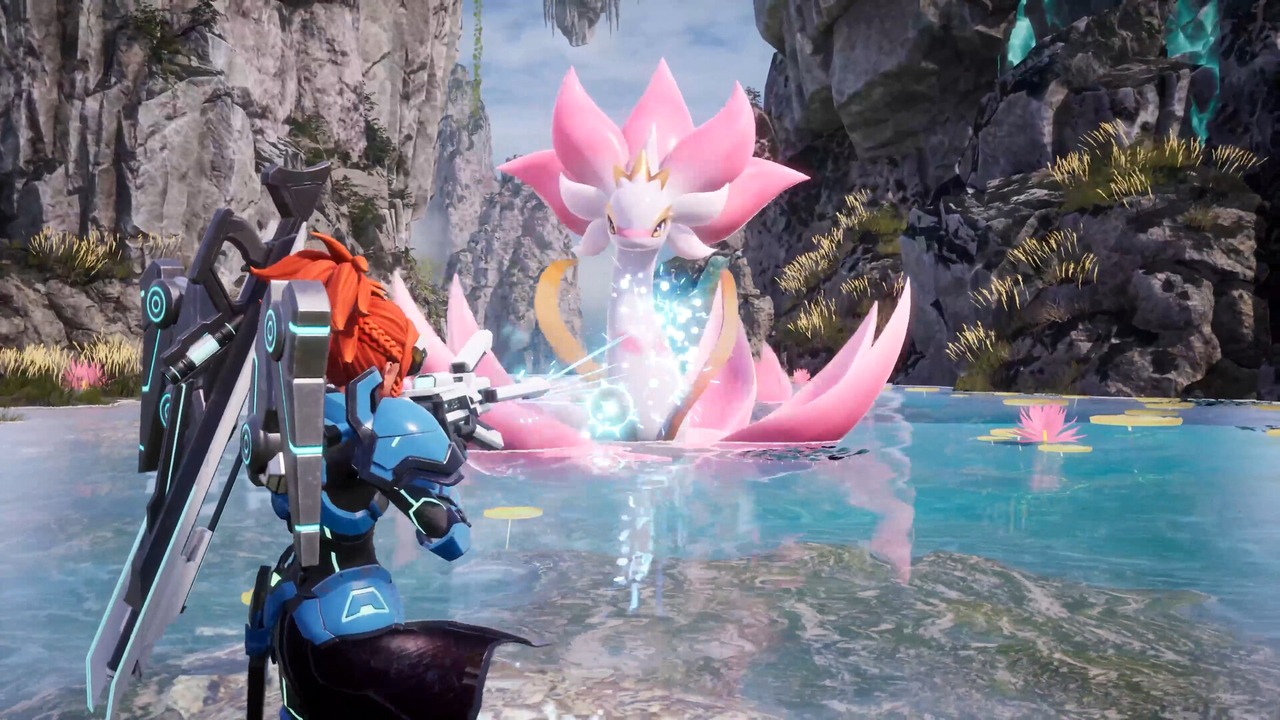
Three-workload test checklist
Run each workload on the same route and keep the result you can reproduce.
Restart after major preset, upscaler, or mod changes. Your result depends on hardware, drivers, patch, scene choice, temperatures, and background load.
Should you use a Palworld performance mod?
Get a stable stock-game baseline before trying any performance config mod. Pocketpair warns that mods can cause crashes, save corruption or loss, and other unexpected issues after updates. Back up important saves and original config files, match the mod version to the current Palworld patch, and install only one Engine.ini change at a time to avoid overlapping commands. Download only from the original Nexus Mods, GitHub, or Steam Workshop page; avoid mirrors, reuploads, shortened links, and random FPS packs. Remove or disable all mods before diagnosing crashes, visual artifacts, corrupted saves, or new-patch stutter. Community claims about better frame times, latency, memory use, or “no visual loss” are not verified Hone results.
Palworld 1.0 PC requirements
| Component | Minimum | Recommended |
|---|---|---|
| OS | Windows 10 64-bit | Windows 11 64-bit |
| CPU | Intel Core i5-9400F | Intel Core i5-12400 or AMD Ryzen 5 5600X |
| Memory | 16GB RAM | 32GB RAM |
| GPU | GeForce GTX 1660 | GeForce RTX 3060 Ti or Radeon RX 6700 XT |
| Storage | 40GB; SSD required | 40GB; SSD required |
| DirectX | Version 11 | Version 11 |
These are the official Steam requirements, not a promised resolution, preset, or frame rate. Performance can vary with the number of active Pals.
If Palworld still feels choppy
- Update Palworld and the GPU driver, then restart the PC.
- Verify game files through Steam or the Xbox app.
- Keep the game on the SSD required by the official specifications.
- Disable capture overlays and monitoring hooks for one clean test, then restore only what you use.
- Close downloads, browser video, and heavy launchers during the benchmark.
- Remove mods before blaming the game, driver, or Windows.
If several games show the same problem, use Hone’s guide to diagnose FPS drops or follow the PC stuttering guide for broader bottleneck and frame-pacing checks. If only Palworld misbehaves after a patch, keep the diagnosis game-specific and watch official updates. For XP, capture rates, egg timers, and server rules, use the Palworld world and dedicated-server settings guide.
Keep the PC side out of Palworld’s way. Tune the game first: Effects, Shadows, View Distance, Grass, then the upscaler mode. After the in-game settings are stable, use this guide to optimize your PC for gaming. Hone can help reduce avoidable background load and simplify Windows-side optimization, but results vary by system; it cannot patch Palworld or guarantee FPS, latency, or stutter improvements.
Palworld 1.0 FPS settings FAQ
What are the best Palworld 1.0 settings for FPS?
Start from High and use Custom settings: native output resolution, DLSS Quality or TSR, Medium View Distance and Grass, Building Drawing Distance around 300, Medium Shadows, Low or Medium Effects, High Textures if VRAM allows, Motion Blur Off, Camera Shake Off, Reflex On, and Frame Generation Off during setup.
Should I use DLSS Quality or Balanced in Palworld?
Use DLSS Quality first on supported NVIDIA GPUs. Try Balanced when a 1440p or 4K setup cannot hold its target. At 1080p, aggressive upscaling has less internal resolution to work with, so treat Performance mode as a last step and compare foliage, faces, and fine geometry in motion.
Should V-Sync be on or off in Palworld?
There is no universal answer. Without variable refresh rate, test V-Sync On if tearing is distracting and Off if response matters more. With G-Sync or FreeSync, use one consistent VRR setup and a cap below the refresh ceiling. Do not stack several FPS limiters.
Should I cap FPS in Palworld 1.0?
Use one cap your PC can sustain on a demanding route. Stable frame pacing can feel better than a higher uncapped average that drops sharply during traversal or combat. Uncapped remains a valid latency-first comparison, but it is not automatically the smoothest setup.
Does Frame Generation fix low FPS or stutter in Palworld?
No. Frame Generation adds displayed frames, but it still needs a playable base frame rate and cannot repair poor frame pacing, traversal hitches, or CPU stalls. Disable it while diagnosing latency, ghosting, interface artifacts, or base stutter, then retest after the native frame path is stable.
Why does Palworld still stutter after lowering graphics settings?
Lower settings cannot fix every cause. Storage streaming, VRAM or memory pressure, overlays, drivers, thermals, mods, and uneven frame pacing can remain. Confirm the game is on an SSD, test a clean stock setup with Frame Generation off, and compare the same route using 1% lows or a frame-time graph.




 Youtube