


GPU fan noise usually becomes a problem at exactly the wrong time. The card stays quiet on the desktop, then the moment a game, render, or shader compile ramps up, the fans jump hard, the temperature keeps climbing, and the whole PC feels less controlled than it should.
The fix is rarely a permanent fixed fan speed. The better answer is GPU fan curve control, which lets you adjust GPU fan speed on PC based on temperature so the card stays calm at light load and ramps with intent when it is actually working.
This guide covers the current Windows tools that genuinely expose GPU fan speed control, how each route differs by GPU brand, and how to build a custom GPU fan curve that reduces noise, controls temperature, and avoids ugly RPM surges.
How To Adjust GPU Fan Speed On PC Without Making The Curve Worse
A better custom GPU fan curve is not about spinning the fans harder everywhere. It is about deciding where the quiet zone ends, how the middle ramps, and how much cooling headroom you want once the GPU is in sustained gaming or creator load.
How GPU Fan Curve Control Works Speed Mapping, Not Just More RPM
A GPU fan curve is a temperature-to-speed map. Instead of telling the card to sit at one fixed percentage all day, you define how fast the fans should spin at different temperatures. That distinction matters because a fixed speed only solves one moment. A curve can be quiet at light load, stable in the midrange, and stronger under sustained heat.
That is why fan curve control feels better than brute force. Lower fan speed means more temperature. Higher fan speed means more noise. The goal is not to win one side of that trade forever. The goal is to choose where the compromise happens, so the GPU stays quiet when it can and cool when it must.
If your system still feels inconsistent after temperatures are under control, that usually points to micro stutters or a broader frametime problem, not a fan-curve problem. Cooling fixes a thermal and acoustic issue. It does not automatically fix every performance issue around it.
Fixed Fan Speed
Testing OnlyFan Curve
Daily UseBefore You Adjust GPU Fan Speed On PC What Changes The Right Method
The first thing to understand is that not every GPU exposes the same controls. Radeon cards have first-party Fan Tuning in AMD Software. Intel Arc cards now use Intel Graphics Software.
Desktop GeForce cards are still easiest to manage with MSI Afterburner or ASUS GPU Tweak III when you want a real point-by-point curve.
Fan Control is the flexible route if you want one app handling the GPU and the rest of your cooling strategy together.
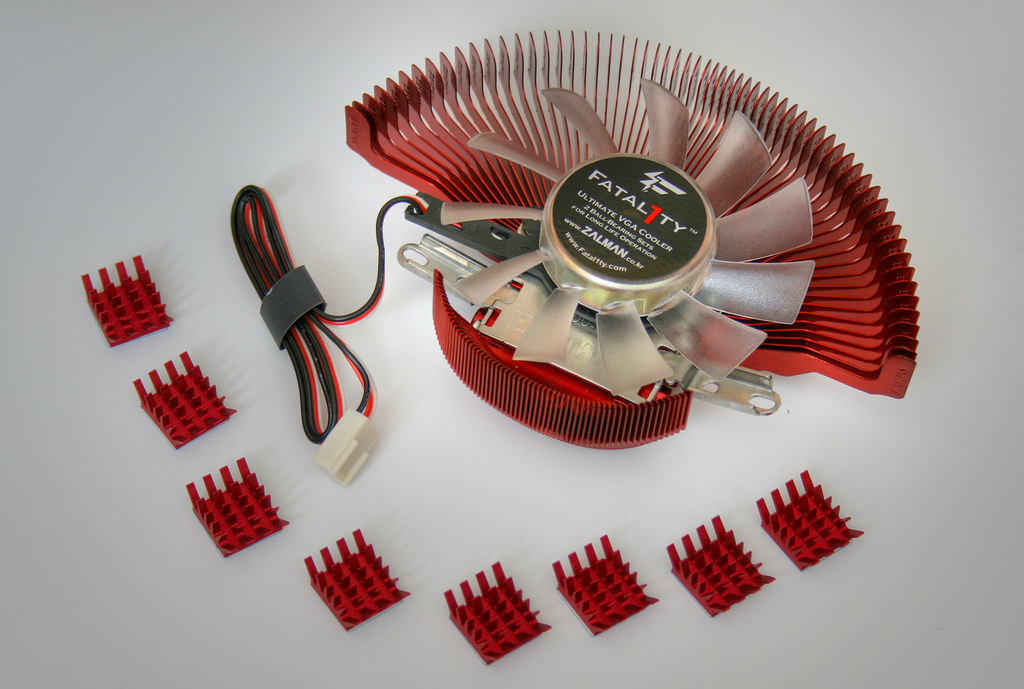
The second thing is that stopped fans do not always mean something is broken. Many graphics cards deliberately keep the fans off at light load. Different apps label that behavior differently, including Zero RPM and 0dB FAN. So before you treat an idle GPU as a cooling problem, check whether the card is simply following its normal low-temperature behavior.
Desktop Cards Give You The Cleanest Control
Most of the best GPU fan curve tools are aimed at desktop graphics cards, where the card vendor exposes direct fan controls and startup profiles more predictably.
Laptop GPUs Often Follow OEM Rules
Do not assume a laptop GPU behaves like a desktop board. Many laptop curves are locked down by the manufacturer, which is why desktop tools feel inconsistent there.
0 RPM Can Be Normal
A silent card at the desktop is often the intended behavior, not a fault. The real test is how the fans respond after several minutes of real GPU load.
One App Should Own The Curve
The cleanest setup is one fan-control app at a time. The more utilities you stack, the easier it is to end up with overwritten profiles or confusing startup behavior.
What Changes Your Best Route
| Situation | Best Starting Point | Why |
|---|---|---|
| Radeon Desktop GPU | AMD Software Fan Tuning | It is the clean first-party route and already exposes both simple fan behavior and a real temperature-to-PWM curve. |
| GeForce Desktop GPU | MSI Afterburner GPU Tweak III | These are the clearest verified desktop curve editors when you want point-by-point fan control instead of a broad target. |
| Intel Arc GPU | Intel Graphics Software Tuning | Intel now uses Intel Graphics Software for feature updates, and fan controls live in the tuning side on supported Arc products. |
| One App For GPU And Case Fans | Fan Control | Best when you want the GPU, case fans, and response behavior tied together instead of split across multiple utilities. |
Best Software To Adjust GPU Fan Speed On PC Use The Right Tool For Your Card
This is where most fan-curve advice falls apart. People mix vendor tools together, copy screenshots from the wrong utility, or talk about settings that do not exist on the card they are actually using. The better way is to start with the route that makes sense for your GPU family, then move to a third-party app only when you actually need more control or a whole-system setup.
GPU Fan Control Route Picker
Pick the card family or control style you care about. This keeps the tool advice clean, and it keeps you out of the wrong app.
Exact Labels You Will Actually Use
Performance Tuning Custom Fan Tuning Zero RPM Advanced Control Fan Speed (PWM (%)) / Temperature (Celsius) Apply Changes
When This Is Best
Use the first-party Radeon route when you want the cleanest fan curve workflow on an AMD card, or when you only need to tame idle behavior and cap top-end fan speed without leaving the vendor software.
MSI Afterburner Labels
Settings Fan Enable user-defined software automatic fan control Apply Start with Windows
GPU Tweak III Labels
Fan Speed Apply Auto Fan Settings Fan speed update period Temperature Hysteresis
Important Context
NVIDIA’s current app officially documents fan-speed targets inside performance tuning. For a true multi-point desktop curve editor, MSI Afterburner and ASUS GPU Tweak III are still the clearer verified routes.
What To Open
Tuning Fan Controls Customized Fan Curve
What Matters Most
Intel Arc Control is the old reference point. Intel Graphics Software is the current path for feature and stability updates, and the tuning side is where supported Arc fan controls live.
If The Tuning Tab Is Missing
Update the graphics driver, then restart Intel Graphics Software Service from Services. That is the first fix to try before you assume fan control has disappeared entirely.
Exact Labels You Will Use
curve Manual control Graph Edit Hysteresis Response time Calibration
When This Is Best
Use Fan Control when you want the GPU and the rest of the system to react like one cooling setup, or when you want more nuanced ramp behavior than a basic vendor utility exposes.
What To Remember
Third-party control still obeys vendor limits. That means minimum duty cycles, 0 RPM conditions, and on some AMD setups, a reset of existing Adrenalin tuning values when GPU fan settings are applied from Fan Control.
How To Set A GPU Fan Curve In MSI Afterburner The Desktop Default
MSI Afterburner is still the default answer for a lot of desktop users because it works with nearly all GPUs, including non-MSI cards. That matters when you just want a reliable fan curve tool and do not want your options tied to one board brand.
MSI Afterburner Fan Curve Setup
Open Settings
Launch MSI Afterburner and open Settings. If you plan to keep the profile after reboot, it is also worth enabling Start with Windows once the curve is finished.
Go To The Fan Tab
Inside Settings, open the Fan tab. This is where MSI hides the real curve editor instead of keeping it on the main slider panel.
Enable Software-Controlled Automatic Behavior
Turn on Enable user-defined software automatic fan control. That unlocks the editable curve instead of the card’s stock automatic behavior.
Drag The Curve Points
Move the nodes to shape the curve. Keep the lower end quiet if your desktop noise is the problem. Raise the upper end sooner if sustained gaming temperatures are the real issue.
Click Apply
Once the curve looks right, click Apply and test it under real load. Do not save it as your forever profile until you have seen how it behaves after the case warms up.
This is the clean route for desktop boards. It is not the clean route for laptops. MSI explicitly documents that custom GPU fan curves are not available on laptop GPUs because those are preset by the manufacturer in BIOS. So if you are on a gaming laptop and Afterburner feels half-functional, that is usually the platform limitation talking, not you missing a hidden switch.
Why Afterburner Still Holds Up
It is broadly compatible, the curve path is short, and the fan editor is straightforward. For many desktop GeForce users, that is exactly what a fan utility should be.
How To Adjust GPU Fan Speed In AMD Software: Adrenalin Edition Fan Tuning And Advanced Control
If you have a Radeon card, start with AMD’s own software before you reach for anything else. AMD’s current tuning workflow is strong because it gives you both a simple fan behavior layer and a real fan-speed-versus-temperature curve inside the same tuning area.
AMD Fan Tuning Quick Reference
| Path | Use It When | Main Controls |
|---|---|---|
| Basic Fan Control | You want quick relief from a loud default profile without plotting every point yourself. | Fan Tuning Zero RPM Max Fan Speed (%) |
| Full Curve Control | You want a real custom GPU fan curve and more exact control over how the card ramps through temperature. | Advanced Control Fan Speed (PWM (%)) / Temperature (Celsius) Fine Tuning Controls |
AMD Adrenalin Fan Curve Setup
Open Performance Tuning
In AMD Software, search for Tuning and open Performance Tuning. That is the actual tuning entry point in the current workflow.
Choose Manual Tuning And Custom
Under the GPU tuning controls, move to the manual path and choose Custom. That unlocks the more granular controls instead of the presets.
Enable Fan Tuning
Turn on Fan Tuning. If your goal is simply less idle activity or a saner upper ceiling, you may only need Zero RPM and Max Fan Speed (%).
Enable Advanced Control For A Real Curve
Turn on Advanced Control to expose the Fan Speed (PWM (%)) / Temperature (Celsius) chart. This is the actual fan curve editor, not just a top-speed limiter.
Use Fine Tuning Controls If You Want Exact Points
Expand Fine Tuning Controls when you want exact numeric entries instead of only dragging points visually.
Apply Changes, Then Test
Click Apply Changes once the curve looks right. If the result is worse than stock, use the Reset arrow and rebuild from a calmer baseline.
AMD’s first-party route is especially useful because it lets you solve two different problems without changing software. If you just want better acoustic behavior, simple Fan Tuning may be enough. If you want the GPU to stop slamming from one RPM range into another, Advanced Control is the right layer to use.
Feature availability does vary by Radeon generation. That is normal. AMD explicitly warns that some options and screenshots may not appear exactly the same on every system. So if your card exposes fewer controls than a screenshot online, that is usually a product-specific difference, not a mystery bug.
How To Adjust GPU Fan Speed In ASUS GPU Tweak III Static Speed, Curves, And Smoother Ramping
ASUS GPU Tweak III is one of the most useful tools in this category because it covers the basics well and then goes further. It can set a quick fixed speed for testing, return you to automatic behavior instantly, and expose extra controls that calm down a curve that keeps changing too often.
Use Fan Speed And Apply
Good for finding the noise level you can tolerate before you commit that idea to an actual curve.
Use Auto To Go Back
You can test an aggressive or quiet fixed speed, then return to automatic behavior instantly without rebuilding anything.
Use Fan Settings For Real Control
The pencil icon under the slider opens the fan curve workflow, which is where the long-term profile should be built.
Tune Ramp Timing
Fan speed update period and Temperature Hysteresis are excellent when the real problem is RPM jitter, not raw heat.
GPU Tweak III Fan Curve Setup
Open The Home Screen And Find Fan Speed
Launch GPU Tweak III and look to the right side for the Fan Speed slider area. Some ASUS cards show separate fan controls, while many other cards expose a single slider.
Use A Fixed Speed To Learn Your Noise Ceiling
Move the slider and click Apply to test a constant speed. This is a good way to learn whether 55%, 60%, or 70% is where your card stops sounding acceptable.
Use Auto To Restore Default Behavior
If you are only testing, click Auto to return to the card’s default fan behavior before you open the actual curve editor.
Open Fan Settings With The Pencil Icon
Click the pencil icon under the fan slider to open Fan Settings. That is where you edit the curve itself.
Shape The Curve And Smooth The Ramp
Adjust the custom fan speed and temperature curve, then use Fan speed update period and Temperature Hysteresis if the fans keep ramping too often around the same temperature band.
This is where GPU Tweak III separates itself. A lot of users do not actually hate their top-end cooling. They hate the constant up-down-up-down fan behavior on the way there. The smoothing controls in GPU Tweak III exist specifically to calm that kind of curve.
GPU Tweak III is designed around desktop graphics cards, not ASUS laptops, and ASUS explicitly says it is not officially supported on its laptops. On the desktop side, though, ASUS also documents that many non-ASUS cards still expose fan control here, which makes the software more flexible than people assume.
How To Use Intel Graphics Software For Arc Fan Curves The Current Intel Route
If you are on an Intel Arc card, the current reference point is Intel Graphics Software, not older Arc Control wording. Intel now treats Arc Control as the legacy app while ongoing feature and stability updates go through Intel Graphics Software.
On supported Arc products, Intel Graphics Software includes a Tuning area with fan controls, power and thermal tuning. Intel’s support material also confirms customized fan curve support for Arc fan control functionality. So the correct modern workflow is simple: use Intel Graphics Software, open the tuning side, and work there instead of chasing outdated Arc Control screenshots.
Arc Tuning Tab Missing
If the Tuning tab is missing, do not assume your card lost support. Update the Intel graphics driver, then restart Intel Graphics Software Service from Services. Intel documents the Tuning tab as service-dependent on supported Arc tuning products.
Intel’s feature availability also depends on hardware and configuration, so treat Arc fan control as a supported feature set that can vary by product rather than a one-size-fits-all UI clone. The big thing is using the right current app, not the old name.
How To Use Fan Control For GPU Fan Curve Control One App For GPU And Case Fans
Fan Control is the power-user choice when you want the GPU and the rest of the system cooling to behave like one setup instead of several disconnected utilities. It is especially useful if case airflow is part of the problem, because the best GPU fan curve in the world cannot fully compensate for weak case response around the card.
Fan Control GPU Curve Setup
Give The Control Context
Pair the speed sensor to the control. Fan Control uses sensor pairing and calibration to understand how a fan behaves instead of only guessing from percentages.
Assign A Curve From The Curve Dropdown
On the control card, use the curve dropdown and choose the curve type you want. For a fixed test speed instead, use Manual control.
Use Graph For A Real Custom Curve
Select a Graph fan curve, then press Edit. That opens the point editor where you can add, remove, and refine the actual ramp shape.
Tune Hysteresis And Response Time
These two settings matter a lot. Hysteresis controls how much temperature difference is needed before the fan changes, and Response time controls how quickly the change is allowed to happen.
Calibrate If You Want RPM Mode
Calibration is what lets Fan Control understand start, stop, minimum, and maximum behavior. That is also what enables fan curves in RPM mode when the fan and control support it.
NVIDIA Caveat
Modern RTX cards often enforce a minimum manual duty cycle in third-party control, and manual 0 RPM is not the same thing as automatic 0 RPM. In practical terms, that means a clean third-party GPU curve often needs to jump from 0% to the vendor minimum instead of pretending 10% or 20% will really stick.
AMD Caveat
On modern AMD cards, Fan Control uses the same interface layer as Adrenalin for GPU fan control. Applying fan settings there can reset existing Adrenalin tuning values to default, so mixed control is not as clean as people expect.
That does not make Fan Control a bad choice. It makes it a precise choice. If you want unified system behavior, it is excellent. If you only want to tweak the GPU on a Radeon card and keep everything else stock, AMD Software is usually the cleaner starting point.
How To Build A Better GPU Fan Curve Quiet At Idle, Faster Under Sustained Load
A better curve almost never comes from copying one magic template. It comes from understanding where your own case, card cooler, and noise tolerance stop agreeing with the stock behavior. That usually means preserving a quiet low end, flattening the annoying middle, and only getting aggressive once the GPU is clearly in sustained work.
In practice, the middle is where most curves fail. If your fan speed jumps too hard around a temperature band the GPU visits all the time, the card sounds busy even when temperatures are technically fine. That is why smoother midrange steps, plus a little hysteresis or response delay when available, often matter more than throwing more RPM at the top end.
GPU Fan Curve Sandbox
Use this to think through curve shape before you start dragging points in your actual software. The graph is illustrative, but the logic is real: keep the low end calm, smooth the middle, then climb harder near sustained load.
This sandbox shows curve logic, not a universal template. Real cards still follow vendor limits. If a third-party app refuses very low duty cycles, use 0% where supported, then step cleanly to the card’s minimum instead of forcing tiny percentages that never really apply.
The point is not to copy a universal 40/60/80 profile. The point is to match the ramp to your hardware. A tighter case usually needs earlier ramping. Better airflow can afford a calmer middle. And if your GPU is only getting loud because you are pushing frame rates you do not actually need, it is worth revisiting what counts as good FPS for gaming before you solve the problem with brute-force RPM.
How To Test A GPU Fan Curve Safely Noise, Temperature, And Stability
Do not judge a new curve in the first 20 seconds of a benchmark. GPU cooling changes become obvious after the card, hotspot, memory, and case air have had time to settle. That is when you hear whether the ramp is smooth, see whether the temperature stabilizes, and notice whether boost behavior stays consistent.
Clean Validation Process
Watch Temperature, Fan Speed, And Noise Together
One number never tells the whole story. A cooler GPU with a miserable acoustic profile is not a clean win, and a quiet card that is constantly nudging into thermal limits is not a good curve either.
Use A Repeatable Load
Pick the same game scene, benchmark, or creator workload each time. On Radeon, the built-in Stress Test is a quick way to verify that the current tuning setup behaves properly.
Let The Load Run Long Enough
Ten minutes tells you more than one minute. You want to know what happens after the cooler is heat-soaked, not just what the curve looks like during the first temperature climb.
Listen For Fan Hunting
If the RPM keeps pulsing around the same temperature zone, the middle of the curve is usually too steep or too reactive. That is where hysteresis, response time, or a flatter midrange helps.
Only Save Startup Behavior After The Curve Is Proven
Once you are happy, save the profile and let the chosen app load it on startup. Do not lock a curve into daily use before it has earned that privilege under real load.
If the whole system still feels rough after temperatures are fine, the bigger win is often outside the cooler itself. Basic PC optimization and background cleanup reduce the heat your GPU has to deal with in the first place, which makes a sane fan curve easier to maintain.
Common GPU Fan Curve Mistakes What Makes A Good Curve Feel Bad
What Usually Goes Wrong
Using A Fixed Fan Speed As A Permanent Solution
Making The Midrange Too Aggressive
Running Two Fan-Control Apps At Once
Treating 0 RPM Idle Behavior Like A Fault
Expecting Laptop GPU Control To Mirror Desktop Control
Ignoring Vendor Minimums
GPU Fan Curve Troubleshooting Quick Fixes When The Curve Will Not Behave
Most fan-curve issues are not dramatic hardware failures. They are usually startup behavior, vendor idle logic, or one utility stepping on another. Start with the symptom, not with random slider changes.
Fan Curve Symptom Switcher
Choose the thing that is actually happening. That is faster than blindly rebuilding the whole curve from scratch.
Check For Another Fan Utility
If more than one app is trying to control the GPU, the winning profile can change at boot or after software launch.
Enable Startup Loading
Afterburner and similar tools need to load with Windows if you expect the curve to persist after reboot.
Use The Vendor Route First
On Radeon and Arc, the first-party utility is the cleanest first test before you assume the card itself is rejecting control.
Reset And Rebuild Once
A bad imported profile can be harder to diagnose than a fresh curve with only three deliberate points.
Check For Zero RPM Or 0dB Behavior
Stopped fans at low temperature can be completely normal, especially on modern Radeon and ASUS cards with quiet idle modes.
Look At Temperature, Not RPM Alone
If the card is cool and stable, the right conclusion may be that the fan logic is doing exactly what it should.
Flatten The Midrange
If the card sounds busy during ordinary gaming, your middle points are often too steep relative to the temperatures the GPU visits most.
Add Smoothing
GPU Tweak III offers Fan speed update period and Temperature Hysteresis. Fan Control offers Hysteresis and Response time. Use them when RPM changes are simply too twitchy.
Revisit FPS Targets
If the GPU is pushing harder than your monitor or use case really needs, the curve may be compensating for unnecessary heat.
Check Case Airflow
The best GPU fan curve still struggles when hot case air keeps circling back into the cooler.
Use Intel Graphics Software, Not Old Arc Control Guidance
Intel now ships current feature and stability updates through Intel Graphics Software, so start there instead of following outdated Arc Control videos.
Restart Intel Graphics Software Service
Intel documents that the Tuning tab depends on the service. If the service is not started, the tab can disappear on supported Arc tuning products.
When in doubt, return to stock, then reintroduce one change at a time. Most ugly GPU fan curves fail because several ideas were stacked together too fast, not because the card was incapable of behaving properly.
Conclusion
The best way to adjust GPU fan speed on PC is to use the app that matches your card and then build a curve around actual behavior, not around panic. Radeon users should start in AMD Software. Arc users should use Intel Graphics Software. Desktop GeForce users usually get the cleanest curve editing from MSI Afterburner or ASUS GPU Tweak III. Fan Control is the strongest one-app route when you want GPU and case cooling working together.
A good custom GPU fan curve should stay quiet at light load, avoid silly midrange surges, and still ramp decisively when the GPU is under sustained pressure. Once the curve does that, the whole PC feels calmer because the cooling finally matches the workload instead of fighting it.
FAQ
What is the best way to adjust GPU fan speed on PC
Start with the utility that matches your GPU. Radeon cards are best adjusted through AMD Software: Adrenalin Edition. Intel Arc cards should use Intel Graphics Software. Desktop GeForce cards are usually easiest to manage with MSI Afterburner or ASUS GPU Tweak III when you want a real custom GPU fan curve.
Is a fan curve better than a fixed fan speed
Yes, for daily use. A fixed fan speed is useful for testing noise tolerance, but a proper fan curve is better because it stays quiet when the GPU is cool and ramps harder only when the card is actually under load.
Can MSI Afterburner control fan curves on non-MSI graphics cards
Yes. MSI documents that Afterburner is compatible with nearly all GPUs, including non-MSI graphics cards, which is a big reason it remains a default desktop fan curve tool.
Why do my GPU fans stop spinning at idle
That can be normal. Many graphics cards intentionally stop the fans at low temperature. Depending on the software and card, this may be described as Zero RPM or 0dB fan behavior.
Can I adjust GPU fan speed on a laptop
Sometimes, but not with the same freedom as a desktop card. Many laptop GPU fan curves are controlled by the manufacturer. MSI specifically notes that custom fan curves are not available for laptop GPUs in Afterburner because the curve is preset in BIOS.
What is the best Radeon fan curve tool
AMD Software: Adrenalin Edition is the best place to start because it already includes Fan Tuning, Zero RPM, Max Fan Speed (%), and Advanced Control for a real temperature-to-PWM fan curve on supported cards.
Can Fan Control manage GPU and case fans together
Yes. Fan Control is designed to work across CPU, GPU, and case fans, which makes it a strong choice when you want your whole cooling setup reacting as one system instead of splitting control across multiple utilities.
Why is Intel Graphics Software the right Intel app now
Because Intel now provides current feature and stability updates through Intel Graphics Software, while Arc Control is treated as end-of-life for ongoing changes. For Arc fan tuning, Intel Graphics Software is the current reference point.






 Discord
 Instagram
 Youtube
 TikTok