

The best Beast of Reincarnation PC settings start with Ray Tracing Off, Shadow Resolution and Lighting at Medium, Post-Processing at Low, Mesh Quality at High, and Anisotropic Filtering at ANISOx16. Start with a 60 FPS limit. On an RTX card, use NVIDIA Deep Learning Super Sampling (DLSS) at Quality. On other GPUs, compare Unreal Engine’s Temporal Super Resolution (TSR) with AMD FidelityFX Super Resolution 3 (FSR 3). If performance still slips, compare the same effects-heavy fight before lowering image quality at random.
Best Beast of Reincarnation PC Settings
This baseline cuts the expensive options first. Because slider rows do not print reliable numbers, the table describes their positions without inventing values.
This guide reflects version 1.0.6. Its launch note has no itemized technical changelog, so it proves no named stutter, crash, or FPS fix. Recheck options after patches.
Swipe sideways to see every column.
| Setting | Recommended start | Change when… |
|---|---|---|
| Screen Mode | Borderless | Keep it unless you are isolating a display, capture, or multi-monitor problem. |
| Screen Resolution | Native display resolution | Reduce internal render quality before dropping the desktop output. |
| VSync | Off for raw testing | Configure it later for your fixed-refresh or variable refresh rate setup. |
| Ray Tracing | Off | Test On only with measured GPU headroom and a scene where you can see the difference. |
| Graphical Fidelity | Custom | Use a preset only when you need a quick reset point. |
| Frame Rate | 60 | Raise the cap only when the heaviest route can hold it; lower it for steadier pacing. |
| Frame Rate (Cutscenes) | Performance | Use Cinematic only when you prefer its 24 FPS presentation. |
| VRAM Limit | 1/2 on an 8 GB card | Test higher only when repeat traversal shows memory headroom without new hitches. |
| Upscaling | NVIDIA DLSS on RTX; compare TSR and AMD FSR 3 elsewhere | Swap methods when motion looks noisy, soft, or unstable. |
| Upscaling Quality | Quality | Use Balanced or Performance only when the heavy route needs more GPU relief. |
| Upscaling Sharpness | Default or midpoint | Move gently when the image is too soft; avoid brittle halos. |
| Resolution Scaling | 100% when upscaling is Off | It can be disabled while an upscaler is active; restore 100% before comparing native rendering. |
| Mesh Quality | High | Lower after shadows and lighting, especially if distant detail is expendable. |
| Anisotropic Filtering | ANISOx16 | Keep it; lower only on genuinely constrained hardware. |
| Texture Quality | Upper range with VRAM headroom | Lower one position when repeatable traversal hitches track memory pressure. |
| Shadow Resolution | Medium | Raise for cleaner shadows only after the busiest fight holds your target. |
| Lighting | Medium | Raise for visual quality when the GPU has headroom. |
| Shadow Quality | High | Lower after Shadow Resolution if the GPU remains the limit. |
| Contact Shadows | On | Turn Off only after testing the larger levers. |
| Post-Processing | Low | Raise only if you prefer the heavier film-grain and chromatic-aberration treatment. |
| Motion Blur | Lowest / preference | Raise only if you like the effect; do not expect a major FPS fix. |
| Depth of Field | Off / preference | Enable for a more cinematic look, not for performance. |
Lower the settings that actually move the needle
BenchmarKing tested an early launch/review build on a Ryzen 7 5700X3D with an RTX 3060 Ti 8 GB; an RTX 4070 Super 12 GB was available for comparison. These are scene-specific results, not guaranteed gains on every PC.
DLSS vs FSR 3 vs TSR
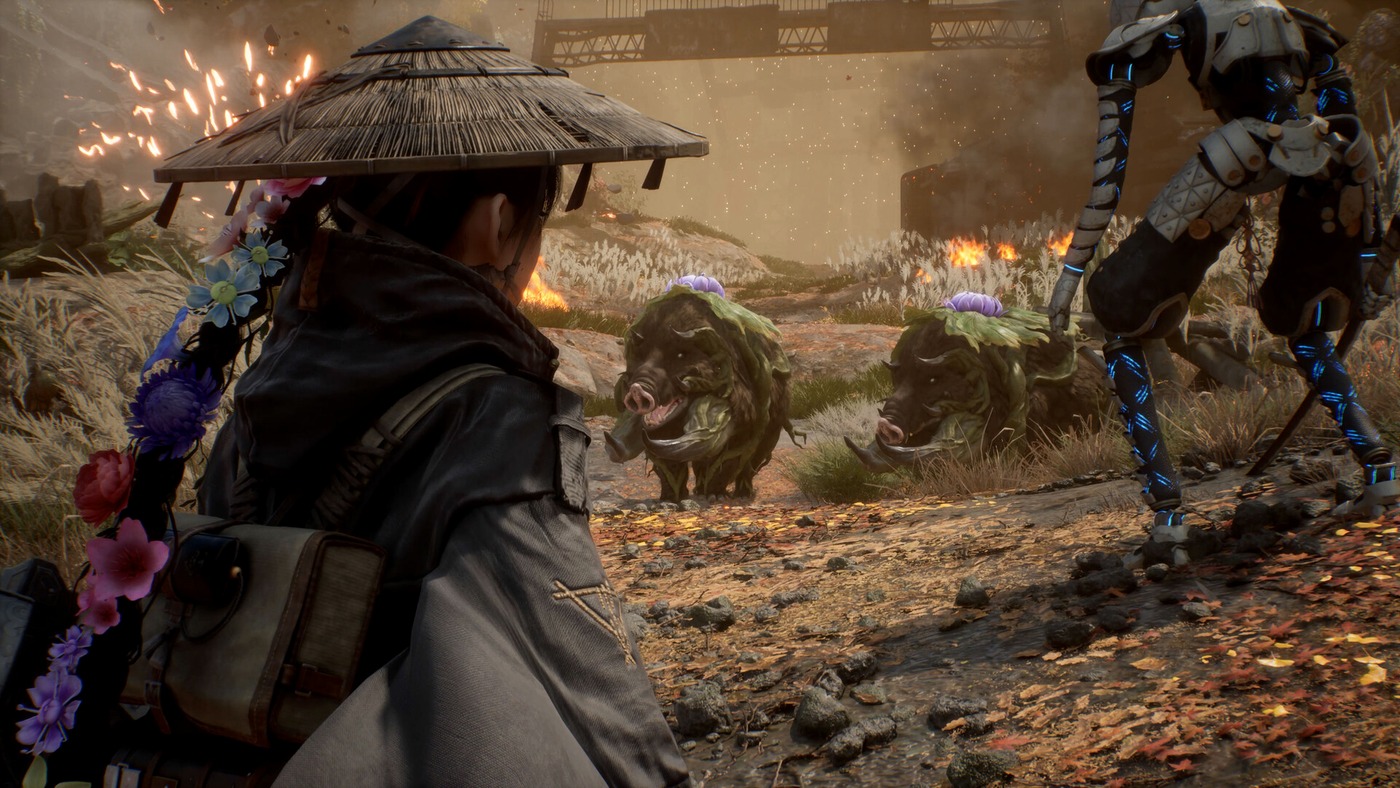
NVIDIA Deep Learning Super Sampling (DLSS), AMD FidelityFX Super Resolution (FSR), and Unreal Engine’s Temporal Super Resolution (TSR) rebuild a lower internal resolution into the output image. They are upscalers here, not frame generation. The launch menu includes no built-in Frame Generation or Intel XeSS toggle.
Use DLSS Quality on an RTX card first. On other GPUs, compare TSR with FSR 3 in the same moving scene. In BenchmarKing’s launch-build comparison, TSR looked sharper and more stable than FSR 3 but ran slower in that scene. At 1080p, Performance mode can become visibly soft, even though both official hardware tiers depend on Performance upscaling to reach their stated targets.
VRAM Limit Is Not Texture Quality
Video memory (VRAM) pressure often appears as brief FPS drops or hitches during traversal rather than a dramatic average-FPS loss. On the tested 8 GB RTX 3060 Ti, the middle VRAM Limit slider position—called 1/2 here—worked better than pushing allocation to 2/2, which frequently approached the card’s capacity. That is useful evidence for 8 GB cards, not a universal formula for every GPU.
Keep Texture Quality toward the upper end while repeat runs stay clean. If the same camera turn or area transition starts hitching near the memory limit, lower Texture Quality one position, restart, and repeat the route. Do not max the allocation slider merely because a quiet scene has spare average FPS.
FPS Cap, V-Sync, and Frame Pacing
Start with 60 FPS because it is easy to verify. Frame time is how long each frame takes to arrive; steady frame times feel cleaner than an average built from fast frames and ugly spikes. Use only one limiter. Stacking the game cap, a driver cap, and RivaTuner Statistics Server makes the result harder to diagnose.
For raw performance testing, turn VSync off and use an uncapped or safely high cap. Then configure the experience you actually want. With variable refresh rate (VRR)—G-Sync, FreeSync, or similar—choose a cap below the display ceiling and test the VSync combination for your setup. On fixed refresh, VSync trades lower tearing for more queueing and possible latency.
Pick the symptom, not a random preset
The same “lag” word can hide three different problems. Start with the branch that matches what you can reproduce.
Showing: Low FPS everywhere
Low FPS everywhere
Keep RT Off, set Shadow Resolution and Lighting to Medium, use Post-Processing Low, then compare Quality with Balanced upscaling in the same fight. If lower render resolution barely helps, restore clarity—the GPU may not be the main limit.
Hitches entering a new area
Let the first launch and level load finish, confirm the game is on the required SSD, then repeat the route. If the second pass improves, cache warming is a candidate. If hitches track full VRAM, lower Texture Quality or VRAM Limit one position and retest.
Soft image or texture pop-in
Use the least aggressive upscaler that holds your target, keep Post-Processing Low for a cleaner image, and avoid excessive sharpening. Treat Texture Quality and VRAM Limit as memory controls before sacrificing the output resolution.
What the Official PC Requirements Mean
The current Steam requirements list a GTX 1070 8 GB or RX 580 8 GB for Low at a 1080p output target and 40 FPS. That minimum target assumes FSR 1 Performance on the listed cards; Steam mentions DLSS only for RTX 20–50 Series GPUs. The recommended RTX 3060 12 GB or RX 6700 XT 12 GB tier targets Medium at a 1080p output and 60 FPS using DLSS or FSR 3 Performance. Both tiers list 16 GB RAM and require a 45 GB SSD install.
Read the target line, not only the GPU name. These are publisher tiers, not native-resolution promises for every fight. The recommended CPU also jumps to an i7-12700K or Ryzen 7 5800X, so lowering resolution may not solve every crowded or streaming-heavy slowdown.
Run a Repeatable Performance Check
No built-in benchmark is verified. Pick one early traversal path and one effects-heavy fight. Keep the same save, enemies, camera movement, and actions. Record the game version, driver, output resolution, upscaler, cap, and every changed setting.
- Run one cold pass and keep it unscored; first-load shader and asset work can distort it.
- Complete one warm-up pass through the full route.
- Run three measured passes while changing only one option.
- Compare average FPS, visible hitches, and frame-time spikes. A stable average alone does not prove smooth delivery.
If you need a broader diagnosis, Hone’s guides can help you diagnose FPS drops, separate engine hitches from PC stuttering, and optimize your PC for gaming without unsafe registry packs or Realtime priority.
Steam Deck is currently Unsupported
Valve currently marks Beast of Reincarnation Unsupported on Steam Deck for graphics performance. Early third-party launch reports conflict on 16:10 output and whether very-low settings stay near 30 FPS; traversal drops are reported. Treat 30 FPS as an unstable, patch-sensitive possibility, not a locked target, and recheck Valve’s status after game and SteamOS updates.
Once the in-game profile is stable, use Hone to reduce avoidable Windows background load. It cannot patch engine behavior, but it can clean up the PC side of the test.
Beast of Reincarnation Settings FAQ
What are the best Beast of Reincarnation PC settings?
Start with RT Off, Shadow Resolution and Lighting at Medium, Post-Processing Low, Mesh Quality High, ANISOx16, DLSS Quality or a tested TSR/FSR 3 alternative, and a 60 FPS cap. Keep textures high only while repeat traversal stays inside the available VRAM.
Should I turn ray tracing off in Beast of Reincarnation?
Yes, use Off as the baseline. Controlled launch testing found roughly a 2–7% cost in tested scenes with limited or inconsistent visual changes. That result is patch-sensitive, so high-end systems can compare On and Off in a reflection-heavy scene after the baseline is stable.
Should I use DLSS, FSR 3, or TSR in Beast of Reincarnation?
Use DLSS Quality first on an RTX card. On other GPUs, compare TSR and FSR 3 in the same moving scene. In BenchmarKing’s launch-build comparison, TSR looked sharper and more stable but ran slower in that scene. Use Balanced or Performance only when Quality cannot hold the target.
Why does Beast of Reincarnation stutter even with good FPS?
Average FPS can hide first-run shader work, asset-streaming hitches, or VRAM pressure. Let the first launch finish, keep the game on the required SSD, repeat the same route, and watch whether the second pass improves. Lower texture or VRAM allocation only when the hitch tracks memory pressure.
What VRAM Limit should I use in Beast of Reincarnation?
On the controlled 8 GB test card, 1/2 was safer than 2/2, which frequently approached capacity. Use that as an 8 GB starting point, not a universal rule. Raise the slider only when repeat traversal shows headroom without new hitches or texture-streaming problems.
Can Beast of Reincarnation run on Steam Deck?
It can launch, but Valve currently marks it Unsupported for graphics performance. Early third-party launch reports conflict on 16:10 output and whether very-low settings stay near 30 FPS; traversal drops are reported. Treat 30 FPS as unstable and patch-sensitive, then recheck after game and SteamOS updates.




 Youtube