

Every frame matters in Warzone. The difference between spotting an enemy first or getting caught off guard often comes down to your settings. After testing countless configurations and analyzing what actually works, I’ve built this guide to help you dial in the perfect setup for your rig.
- Fullscreen Exclusive is mandatory for lowest input lag
- NVIDIA Reflex/AMD Anti-Lag cuts system latency dramatically
- Texture Resolution directly impacts VRAM usage – going too high causes stuttering
- FidelityFX CAS beats DLSS/FSR for competitive clarity at 1080p/1440p
- Shader Quality Low can give you 20%+ FPS boost alone
- Center Dot crosshair stays visible even when stunned
- Controller players: Tactical layout + Automatic Tactical Sprint changes everything
- Effects Volume at 100% while music at 0% for pure audio intel
Display & Graphics Settings
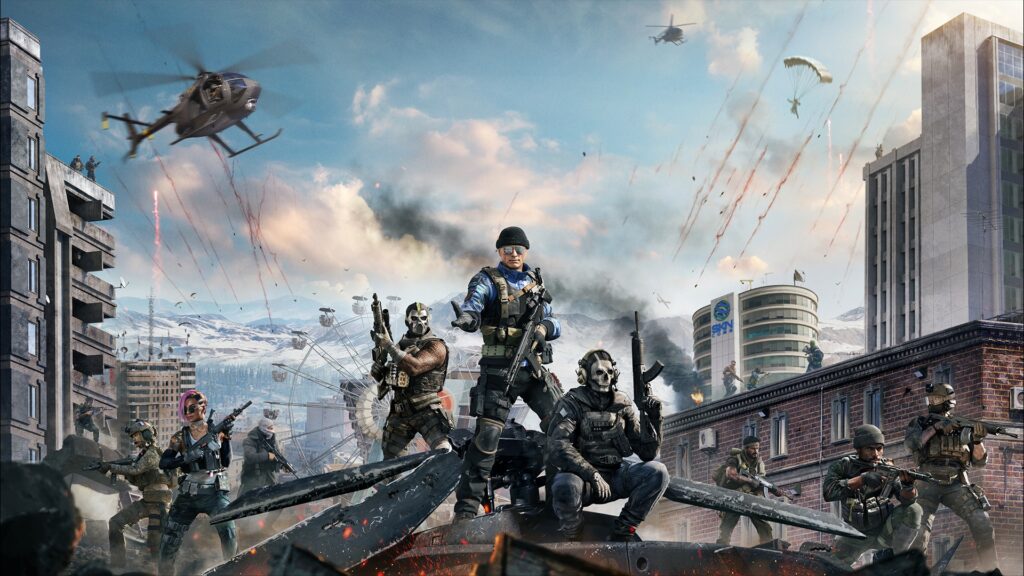
Warzone’s graphics settings can make or break your experience. The right configuration gives you fluid gameplay, crystal-clear enemy visibility, and zero stuttering. Get it wrong, and you’re fighting the game instead of your opponents.
| Setting | Competitive Value | Why It Matters |
|---|---|---|
| Display Mode | Fullscreen Exclusive | Direct GPU control = lowest input lag possible |
| Display Resolution | Native (1920×1080 or 2560×1440) | Drop only if desperate for frames |
| Render Resolution | 100% | Keep at 100% unless using DLSS/FSR |
| V-Sync | Off | Adds massive input delay, unless paired with G-Sync and Reflex |
| NVIDIA Reflex Low Latency | On + Boost | Can reduce system latency tremendously |
| Custom Frame Limit | 3-5 below refresh rate or Unlimited | Keeps G-Sync/FreeSync active without hitting V-Sync |
| Setting | Competitive Value | FPS Impact |
|---|---|---|
| Texture Resolution | Low/Very Low | Huge VRAM impact – High uses 15GB+ at 4K |
| Shader Quality | Low | Massive – 20%+ FPS gain |
| Shadow Quality | Very Low | 7% FPS boost + better visibility |
| Screen Space Reflections | Off | 10% FPS gain for minimal visual loss |
| Particle Quality | Low | Minor impact but cleaner visuals |
| Detail Level of Detail | Low | Reduces visual clutter |
| On-Demand Texture Streaming | Off | Prevents mid-game stutters |
| Volumetric Quality | Low | 10% faster than High |
Your upscaling choice fundamentally changes how the game looks and feels:
| Technology | Best For | Trade-offs |
|---|---|---|
| FidelityFX CAS | 1080p/1440p competitive play | Sharpest image, minimal FPS gain |
| NVIDIA DLSS | 1440p/4K when you need frames | Can look blurry at 1080p |
| AMD FSR | Similar to DLSS for AMD cards | Quality varies by implementation |
| Frame Generation | Avoid for competitive | Adds input latency |
Advanced Visual Settings in Call of Duty Warzone
| Setting | Recommended | Notes |
|---|---|---|
| Field of View | 100-115 | Higher = more awareness but smaller targets |
| ADS Field of View | Affected | Keeps consistent zoom feeling |
| Weapon Field of View | Wide | Smaller gun model = better visibility |
| World Motion Blur | Off | Essential for tracking targets |
| Weapon Motion Blur | Off | Keeps weapon sharp during movement |
| Film Grain | 0.00 | Removes visual noise |
| 1st Person Camera Movement | Least (50%) | Less screen shake |
| Setting | Recommended | Benefit |
|---|---|---|
| Minimap Shape | Square | Shows more area in corners |
| Center Dot | On (Larger) | Stays visible when stunned |
| Hit Marker Visuals | Damage Based | Shows armor vs health hits |
| Telemetry | FPS, Ping, Packet Loss On | Monitor performance issues |
| GPU/CPU Time | On | Identify bottlenecks |
Colorblind filters aren’t just for accessibility – they’re a competitive tool:
| Filter | Type | Effect |
|---|---|---|
| Filter 2 | Deuteranopia | Makes enemies pop with vibrant colors |
| Filter 2 | Tritanopia | Alternative for different map lighting |
| Target | Both | Apply to world AND interface |
| World Intensity | 80-100% | Stronger = more contrast |
Controller & Mouse Settings
Your input settings determine how connected you feel to the game. Whether you're on controller or mouse and keyboard, these configurations separate smooth, responsive gameplay from clunky, frustrating fights.
| Setting | Recommended | Why |
|---|---|---|
| Stick Layout | Tactical | Slide/crouch on R3 for movement while aiming |
| Sensitivity | 6-8 (start at 7) | Personal preference, but this range works for most |
| ADS Sensitivity Multiplier | 0.85-1.00 | Lower = more precise when aiming |
| Response Curve | Dynamic | Best balance of speed and precision |
| Automatic Tactical Sprint | On | Instant movement, saves controller wear |
| Slide/Dive Behavior | Slide Only | Most consistent for aggressive movement |
| Controller Vibration | Off | No competitive benefit, just distraction |
Deadzones are crucial for eliminating drift while maintaining responsiveness:
| Deadzone | Setting | Adjustment Tips |
|---|---|---|
| Left Stick Min | 0-5 | Start at 0, increase if stick drift |
| Left Stick Max | 60 or 85-99 | 60 for instant sprint, 99 for full range |
| Right Stick Min | 3-5 | Higher = no drift, lower = quicker response |
| Right Stick Max | 99 | Full stick range for aiming |
| L2/R2 Triggers | 0 | Instant response for shooting/aiming |
| Setting | Range/Value | Finding Your Sweet Spot |
|---|---|---|
| Mouse DPI | 400-1600 | Lower for arm aim, higher for wrist |
| In-Game Sensitivity | Varies | Target 25-40cm/360° turn |
| Polling Rate | 1000Hz | Most responsive updates, any higher may cause stutters |
| ADS Sensitivity | Relative | Consistent feel across zoom levels |
| Monitor Distance Coefficient | 1.78 | For 16:9 monitors with Relative ADS |
Pro Tip: The 60 vs 99 Left Stick Max Debate
Setting Left Stick Max to 60 removes the "dead zone" before sprint kicks in, making movement feel instant. But some pros prefer 99 for the full analog range. Test both: if you want snappy movement, go 60. If you want precise walking control, stick with 99.
Warzone Audio Settings for Maximum Intel
Sound wins fights in Warzone. Every footstep, reload, and plate crack tells a story. Configure your audio right, and you'll hear enemies before they hear you.
| Setting | Value | Why This Matters |
|---|---|---|
| Audio Mix | Treyarch Mix or Headphones Bass Boost | Emphasizes footsteps and tactical sounds |
| Master Volume | 80 | Comfortable overall level |
| Effects Volume | 100 | Footsteps, gunfire, reloads at max |
| Dialogue Volume | 50 | Callouts without drowning game sounds |
| Music Volume | 0 | Zero distractions |
| Reduce Tinnitus Sound | On | Less ringing after explosions |
| Mono Audio | Off | Keep stereo for directional audio |
| Voice Chat | Push to Talk | No accidental broadcasts |
Pro Tip: PlayStation Audio Focus
If you're on PS5, the "Audio Focus" feature specifically enhances footsteps and critical game sounds when using headphones. PC players can achieve similar results by carefully balancing the audio mix and volume settings above.
GPU Control Panel Optimization
Your GPU drivers offer another layer of performance optimization beyond in-game settings. These tweaks can reduce latency and squeeze out extra frames.
| Setting | Value | Impact |
|---|---|---|
| Power Management Mode | Prefer Maximum Performance | GPU stays at high clocks, but uses more power |
| Texture Filtering - Quality | High Performance | Speed over minimal quality loss |
| Low Latency Mode | On, if not using Reflex In-Game | Reduces frame queue |
| Shader Cache Size | 10GB or Unlimited | Prevents shader compilation stutters |
| Vertical Sync | Off | Match in-game setting |
| Setting | Value | Impact |
|---|---|---|
| Radeon Anti-Lag | On (test for stability) | Reduces input lag |
| Radeon Image Sharpening | On (70-80%) | Improves clarity |
| Enhanced Sync | Off | Can cause instability |
| Tessellation Mode | Override -> Off | Small performance gain |
| Surface Format Optimization | Enabled | Better texture efficiency |
Troubleshooting Common Call of Duty: Warzone Issues
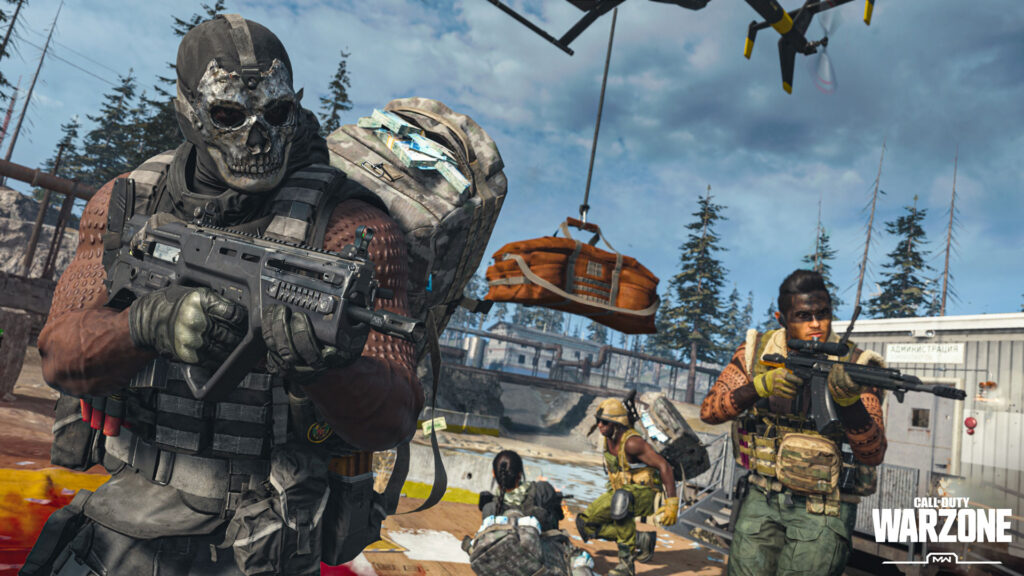
Warzone's performance can be unpredictable, especially after updates. Here's how to fix the most common problems:
- Reset shaders in-game (Graphics settings menu)
- Delete config files: Documents > Call of Duty > players > options.*.cst
- Update GPU drivers or roll back if issues started after driver update
- Verify game files through Battle.net/Steam
- Check if Ray Tracing accidentally got enabled
- AMD Users: Try disabling Radeon Anti-Lag if experiencing stutters
- VRAM Issues: Lower Texture Resolution if exceeding GPU memory
- RAM: Enable XMP/EXPO/DOCP in BIOS, 32GB recommended
- CPU Bottleneck: Check CPU Time in telemetry, lower Shadow/Particle Quality
- Shader Cache: Set to at least 10GB in GPU control panel
- Always use wired Ethernet over WiFi
- Monitor Packet Loss indicator in-game
- Close bandwidth-heavy applications
- Check server latency (ping) in telemetry
Quick Reference: Copy These Settings
Want to skip the explanations and just get optimized? Here's the complete competitive config:
Closing Thoughts
Perfect settings won't make you a better player overnight, but they remove the technical barriers between you and your potential. Start with our recommendations, then tweak based on your hardware and preferences. Remember: Warzone's performance changes with updates, so bookmark this guide and revisit after major patches.
The key is finding what works for YOUR setup. Test changes in Plunder or the firing range before jumping into ranked. Once you find your sweet spot, stick with it and let muscle memory take over.
Frequently Asked Questions
Why does my game stutter after updates?
Updates often corrupt shader caches and config files. Reset shaders in-game and delete your config files (backup first) to force the game to rebuild them fresh.
Should I use DLSS or FidelityFX CAS?
For 1080p/1440p competitive play, FidelityFX CAS provides the sharpest image. DLSS Quality mode is best if you need the FPS boost at 1440p or 4K.
What's the best controller sensitivity?
Start at 7-7 with Dynamic response curve. Most pros use 6-8. Lower is more precise; higher is faster. Find what lets you track smoothly without overshooting.
Is 32GB RAM necessary?
While 16GB is minimum, Warzone can use more. 32GB provides headroom for background apps and prevents stuttering in long sessions.
Why do pros use colorblind filters?
Filter 2 with Deuteranopia/Tritanopia makes enemies stand out dramatically against backgrounds. It's not about colorblindness; it's about competitive advantage.
Should I cap my FPS?
Either go unlimited or cap 3-5 FPS below your monitor's refresh rate. You can also try G-Sync/FreeSync + V-Sync + Reflex/Anti-Lag for a smooth experience and no screen tearing.






 Youtube