

BODYCAM v0.8: Locked & Loaded launched September 2, 2026, at 17:00 UTC. SteamDB charts recorded a 32,855 concurrent-player peak that day, while Valve’s live API showed 11,639 players at September 3, 2026, 10:05:51 UTC. The surge closely coincided with the update, although available data cannot quantify what any individual promotion or launch factor contributed. BODYCAM remains paid Early Access; see BODYCAM on Steam. Locked & Loaded is free for existing owners, but the game is not free-to-play. For smoother play, stabilize base rendering and frametimes before enabling frame generation, use one frame limiter, and test visibility-sensitive options individually.
- v0.8 launch
- SteamDB peak32,855 on Sep 2
- Valve API snapshot11,639
BODYCAM v0.8 performance: what to fix first
The best BODYCAM settings are not a universal Low, Medium, or High preset. Start by finding a level of directly rendered performance your PC can sustain in a repeatable situation. A stable lower figure can feel better than a higher average that repeatedly jumps and drops. Our guide to increasing FPS on PC explains the broader system-side checks.
Turn frame generation off for this first pass. Pick the graphics preset that gives you useful headroom, then check movement, aiming, explosions, dark interiors, and busy fights rather than judging the result from a quiet spawn point. Watch for uneven motion as well as the FPS counter: a strong average can hide disruptive frametime spikes.
Use only one frame limiter during testing. That can be the in-game, driver, or external limiter, but stacking several makes the result harder to interpret. If performance reaches high peaks but cannot hold them, a sustainable cap below those peaks may improve consistency. It is a testable option, not a guaranteed stutter fix.
Change one control at a time and repeat the same route. v0.8 includes reworked graphics presets and resolution-scale handling, plus verified controls for motion blur and gamma calibration. Those are useful levers, but none has a universal best value. Preserve a setting when it helps target readability and does not create a measurable problem on your system.
Why BODYCAM is surging after Locked & Loaded
The September peak is a sharp change from the preceding months. Monthly chart data showed peaks of 771 in July and 6,598 in August, followed by 32,855 on September 2. That last figure is concurrent players, not total players or sales.
The timing closely coincided with the v0.8 rollout. Even so, timing alone cannot divide the increase among the update, trailers, wishlists, creator activity, or other promotion. The reliable conclusion is narrower: many more players arrived around launch, giving returning and new players a practical reason to revisit performance tuning.
Locked & Loaded is a free update for people who already own BODYCAM. It does not change the game into a free-to-play release.
Start with base FPS, not generated FPS
BODYCAM v0.8 officially supports DLSS 4.5, FSR 4, XeSS 3, and DLSS or FSR frame generation. The distinction below matters before you compare their displayed numbers.
Base FPS versus generated FPS
- Base FPS
- Frames rendered directly by the game. Use this signal first to judge the underlying rendering rate, responsiveness, and frametime stability.
- Generated FPS
- Interpolated output inserted between rendered frames. It can improve perceived fluidity, but it does not repair unstable base frametimes or guarantee lower input latency.
Test order: turn frame generation off, establish a stable base-FPS baseline in a repeatable scene, then re-enable it and evaluate visual fluidity and input response separately.
Tune for consistent frametimes and lower input lag
Choose a route you can reproduce. The explorable Shooting Range hub added in v0.8 can provide a convenient controlled starting point, but a real match should remain part of the final check because combat and multiplayer conditions differ. Use similar movement, camera turns, and weapon actions on each pass.
First, observe base FPS and frametime behavior. Frametime is the time required to deliver each frame; irregular delivery appears as spikes or uneven motion even when the average FPS seems healthy. If the base rate fluctuates heavily, try a sustainable cap with your chosen single limiter, then compare the same route again.
Next, adjust one verified graphics control. The preset is the broadest way to change GPU load. Resolution scaling trades rendering workload against image clarity, while motion blur changes motion presentation and can affect how clearly targets read during fast camera movement. Gamma calibration can help make dark detail readable, but it is not a performance boost.
Retest after every change instead of moving several controls together. When base delivery is consistent, compare frame generation separately, followed by your synchronization choice. This order makes it easier to identify whether a change affected raw rendering, pacing, visible smoothness, or input response.
Remember that input latency and network lag are different problems. Buffering, synchronization, frame generation, the peripheral path, and low base FPS can shape control response. Network delay can make other players behave unpredictably without changing local rendering speed.
Visibility versus frame time: what should you lower?
BODYCAM’s camera treatment, dark spaces, effects, and rapid movement are part of its visual identity. Judge a change during motion and aiming rather than flattening every option from the outset.
Visibility and frame-time decision aid
| Observed result | Decision | Reason |
|---|---|---|
| Stable frametimes and clear targets | Keep the preferred visual option | There is no demonstrated need to trade image quality away. |
| Clear targets but repeatable frametime spikes | Test one expensive option at a time | Isolate the cost without unnecessarily reducing visibility. |
| Higher FPS but blurrier or less stable targets | Restore the clearer option and test another setting | The apparent performance gain may not improve practical readability. |
| No measurable or visible difference | Keep the option that looks better or simplifies the setup | Avoid optimization changes without a demonstrated benefit. |
Low FPS, stutter, input delay, or network lag?
These symptoms can overlap, but they require different first checks. Use the matrix before changing more graphics settings.
Match the symptom to the first useful check
| Symptom | Likely domain | First check |
|---|---|---|
| Consistently low FPS | Sustained CPU or GPU rendering limit | Base FPS and utilization behavior in a repeatable scene |
| Brief hitches or uneven motion | Frametime spikes, loading, compilation, memory pressure, or background contention | Frametime pattern and whether the hitch repeats |
| Smooth-looking output but delayed controls | Low base FPS, frame generation, buffering, synchronization, or peripheral/input path | Disable frame generation and compare input response |
| Players teleport, shots register late, or movement rubber-bands | Network or server conditions | Connection or server symptoms rather than graphics settings |
Confirm any diagnosis with a repeatable test. Our PC stuttering guide covers wider frametime checks. For rubber-banding or late hit registration, inspect the connection and peer host: BODYCAM multiplayer is peer-to-peer, so match quality can depend on connections between players.
What Locked & Loaded adds in v0.8
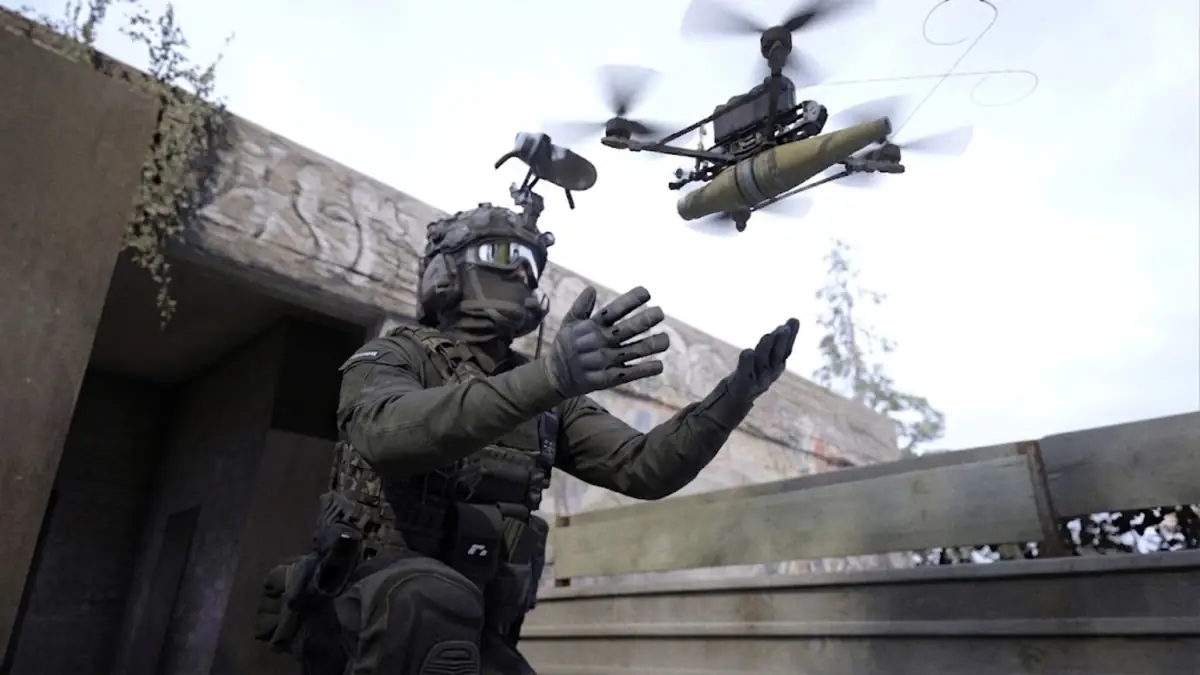
The official Locked & Loaded update is larger than a settings refresh. It adds approximately 400 attachments, a loadout system, and six added or reintroduced weapons. Trenches expands the map lineup, while drones and RC cars create new ways to scout or interact with a match.
Players also get an explorable hub, Wingman 2v2, an audio overhaul, UI and tablet work, and host migration. The developers describe performance, stability, and networking work as part of v0.8 as well. These are meaningful areas of development, but their inclusion does not prove that every hitch, host problem, or network issue has been fixed.
The reworked video and graphics behavior matters directly to this guide. Presets, resolution-scale handling, motion blur, gamma calibration, current upscalers, and frame-generation support give players several ways to balance clarity and load. Use them as measured tuning tools, not as a copied recipe detached from your hardware and test scene.
A repeatable BODYCAM settings checklist
Run this workflow after a large update, GPU-driver change, or unexplained performance shift. It keeps comparisons controlled and helps prevent generated frames, network symptoms, or stacked limiters from obscuring the real result.
Repeatable BODYCAM settings checklist
- Update the game and GPU driver where appropriate.
- Restart after major software or driver changes.
- Close avoidable background workloads.
- Test base rendering before frame generation.
- Use one active frame limiter.
- Change one setting at a time.
- Compare the same scene, mode, and conditions.
- Track frametime consistency as well as FPS.
- Check network symptoms separately.
- Keep the visually preferable option when measured performance is already stable.
Save the combination that works, but treat it as a baseline rather than a permanent answer. Patches, drivers, maps, match conditions, and background software can change what your PC can sustain. Record whether frame generation was enabled, which limiter was active, and where you tested; those details make a later comparison useful. When performance is already stable, keeping the visually preferable option is often better than reducing quality for a gain you cannot measure or see.
BODYCAM settings FAQ
These answers cover the most common v0.8 tuning questions while keeping rendered performance, displayed smoothness, control response, and online behavior separate.
What are the best settings for BODYCAM v0.8?
There is no universal preset. Establish stable base FPS, use one active limiter, test one setting at a time in the same scene, and retain visibility where possible.
Should I use frame generation in BODYCAM?
Test without frame generation first. Consider enabling it only after base FPS and frametimes are stable, then evaluate input response separately.
How can I reduce stuttering in BODYCAM?
Use a repeatable scene, inspect frametime behavior, close avoidable background workloads, use one limiter, and change one verified setting at a time.
Why does BODYCAM feel laggy even when FPS is high?
Displayed or generated FPS can look high while base FPS, frametimes, buffering, input latency, or network conditions remain poor. Check each signal separately.
Is BODYCAM free-to-play after the Locked & Loaded update?
No. BODYCAM remains a paid Early Access game. The v0.8 Locked & Loaded update is free to existing owners; the game itself is not free-to-play.




 Youtube