

The best Disgaea Mayhem PC settings start at native resolution with Supersampling one notch below 2×2, Quality graphics priority, and a 60 FPS cap. If the busiest fights still miss your target, switch to Performance before cutting every visual option.
Best Disgaea Mayhem Settings at a Glance
These are starting points, not claimed benchmark winners. The launch menu offers a few broad controls with much more impact than tiny background tweaks, so change one option and repeat the same fight before moving again.
Swipe sideways to see every column.
| Setting | Recommended start | When to change it |
|---|---|---|
| Window Format | Borderless | Try an exclusive-fullscreen display mode only when troubleshooting display, capture, or multi-monitor behavior; verify the exact value offered by your build. |
| Windowed Resolution / Fullscreen Resolution | Match native resolution | Lower resolution after Supersampling and Graphics Priority if the GPU still misses your target. |
| Graphics Priority Setting | Quality | Switch to Performance when effects-heavy fights cannot hold your cap. |
| Texture Quality | Standard | Lower it only if your build offers another value and longer play shows repeatable memory or streaming pressure. |
| Supersampling | One notch below 2×2 | Use the exact label shown by your build; raise it only with measured headroom in the worst combat route. |
| Dynamic Resolution | Off initially | Test On when GPU-bound dips matter more than perfectly fixed image sharpness. |
| Shadow Quality | Leave unchanged initially | If combat remains GPU-bound, reduce it in controlled increments and compare the same fight; its scale and performance curve are undocumented. |
| Model Animation Quality | Highest | Lower one step only when crowded fights dip and reducing resolution barely helps. |
| Water Reflection | On initially | Test a lower or disabled value only if your installed build exposes one, using its exact label. |
| SSAO | On | Turn it Off after reflections and shadows if GPU frame time is still high. |
| Anti-Aliasing | On | Disable it last; the sharper edges are usually a larger visual loss than the earlier cuts. |
| Motion Blur | Off | Use Slight or On only if you prefer the look. Treat this as clarity and comfort, not a guaranteed FPS fix. |
| Frame Rate Cap | 60 first | If 60 is unstable, use 30 if your menu offers it. Verify Monitor or Off before higher-refresh testing. |
| V-Sync | Match your display | Use it for tearing control, then judge latency and pacing with your normal variable refresh rate setup. |
Lower settings in this order
Protect clarity by testing the broad levers before dismantling the whole image.
What the Official PC Requirements Mean
The official Steam requirements list an Intel Core i5-8600, 16 GB of RAM, a GTX 1050 Ti, DirectX 12, and 4 GB of storage as the minimum. The recommended tier keeps the same CPU and memory but moves to an RTX 3050 on Windows 11.
Steam does not attach a resolution, preset, or frame-rate target to either tier. Do not read “recommended” as a locked 60 FPS promise. A GTX 1050 Ti-class PC should lower Supersampling one notch from 2×2 and use Performance priority. An RTX 3050-class system can start at Quality, then test one setting at a time in the same effects-heavy fight; Steam defines no FPS, resolution, or preset target for that GPU.
Windows Performance Is Not Steam Deck Performance
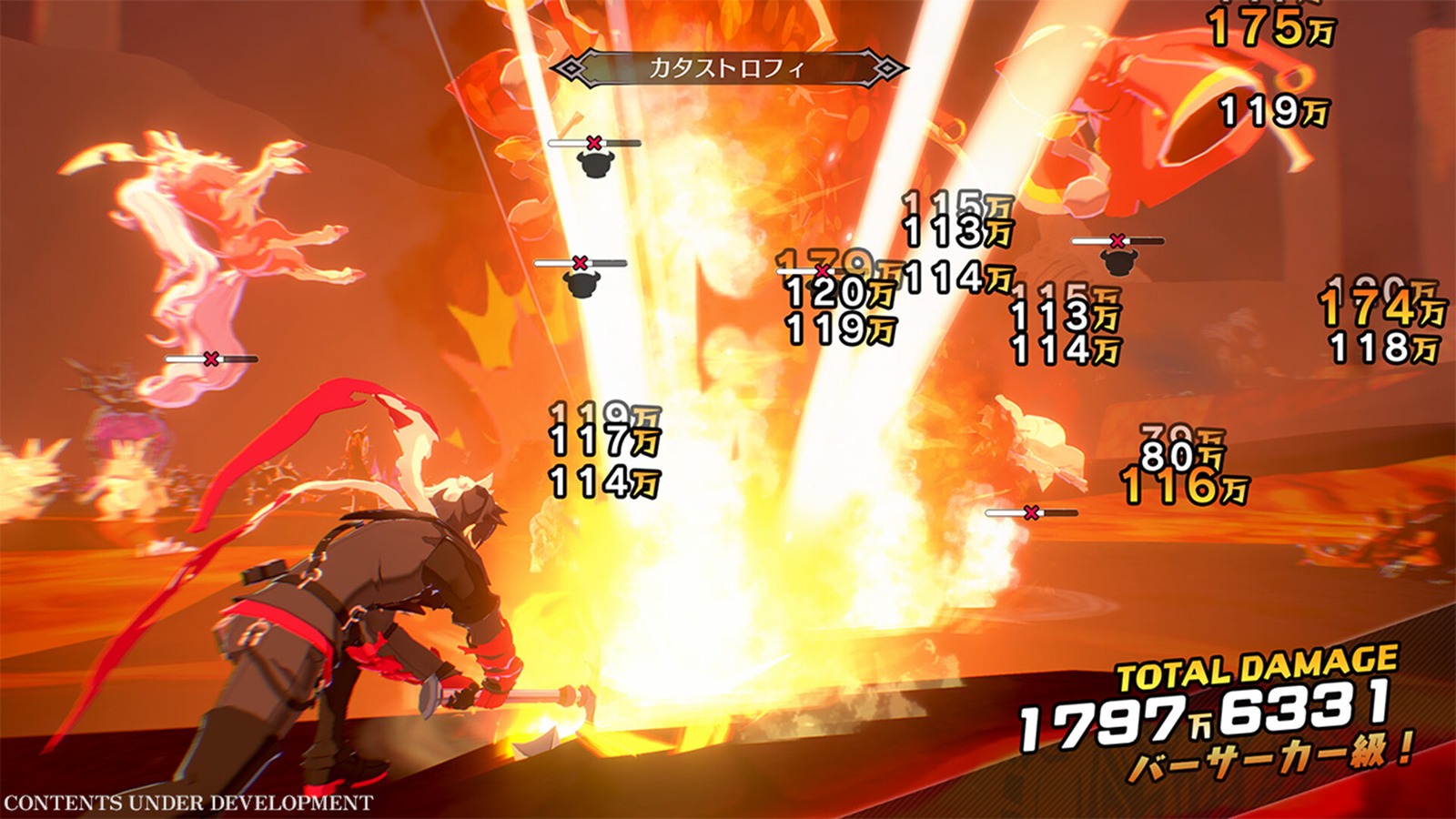
Current handheld coverage needs a clean split. RPG Site’s launch comparison found that a Windows-based ROG Ally could reach a broad 60–100 FPS range at 1080p on absolute-low settings in its 30 W mode, with dips; 720p or 900p made a 60 FPS target easier. That is one handheld test, not a desktop benchmark.
Steam Deck and Proton were a different story. RPG Site reported poor frame times and hitching across settings. SteamDeckHQ found severe ghosting or visual artifacts and performance below its 45 FPS test ceiling even at low settings. Do not chase those symptoms with lower shadows forever: they may be platform or compatibility problems. For now, a Windows PC is the safer route, and Deck owners should retest after game and Proton updates.
Frame Cap, V-Sync, and VRR
Start with the 60 FPS cap because it is easy to repeat. If the hardest fight cannot hold 60 and your menu includes 30, use it while you diagnose or lower settings. Verify any monitor-matched or uncapped choice before testing higher-refresh PCs, and judge the full route—not the menu.
Run one limiter at a time. Stacking the game cap, a driver cap, and RivaTuner Statistics Server (RTSS) makes frame pacing harder to diagnose. If you use G-Sync, FreeSync, or another variable refresh rate (VRR) display for tear-free play, cap below the monitor’s refresh ceiling and test V-Sync as part of that setup. A fixed-refresh player may prefer V-Sync for clean presentation or Disable for lower latency with possible tearing.
Run a Five-Scene Performance Check
No built-in benchmark was verified. Choose one replayable crowd-and-effects route, record the build, driver, resolution, priority mode, cap, and every changed option, then keep the same save, enemies, camera path, and actions. Log the first cold run separately, warm the route once, and run three timed warm passes while changing only one setting at a time. Compare frame-time consistency—the time each frame takes—not only average FPS.
Verify the whole profile
Native checkboxes remain usable without JavaScript. Complete all five scenes before calling the setup stable.
Low-End PC and Laptop Route
- Use the laptop’s intended gaming power mode and confirm the game is on the dedicated GPU.
- Lower Supersampling one notch from 2×2 using the exact label shown by your build, set Graphics Priority Setting to Performance, and use Frame Rate Cap 60.
- Move Shadow Quality down gradually, test a lower or disabled Water Reflection value only if your build exposes one, set SSAO Off, and keep Anti-Aliasing On for the first comparison.
- If fights still miss 60, try Dynamic Resolution On. Lower Minimum Resolution Limit gradually while watching the character outline, foliage, and damage numbers in motion.
- If 60 remains unstable and your menu exposes the reported 30 cap, test it before forcing every option to its minimum.
Close recording overlays, launchers, or browser tabs only when monitoring shows they are consuming meaningful resources. Update the GPU driver, verify Steam files, and watch sustained temperatures and clocks. Hone’s guide to increasing FPS on PC covers safe Windows-side cleanup without resorting to Realtime process priority, forced CPU-core settings, or random “FPS packs.”
What About DLSS, FSR, and Frame Generation?
The launch PC menu captured by PCGamingWiki does not show native DLSS, FSR, XeSS, or Frame Generation. It exposes Supersampling and Dynamic Resolution instead. That is a current-menu observation, not a permanent feature guarantee; check the installed build after patches. Do not add driver-generated frames while diagnosing base frame pacing, hitches, or input response.
The Short Version
Start at native resolution with Borderless, Quality priority, Standard textures, Supersampling one notch below 2×2 using the exact label shown by your build, Dynamic Resolution Off, Anti-Aliasing On, Motion Blur Off, and a 60 FPS cap. Switch to Performance, then test Dynamic Resolution or a lower output resolution before secondary effects. Re-check the menu after loading a save.
Once the game profile is stable, use Hone to reduce avoidable Windows background load. It cannot repair Proton artifacts or engine-level frame pacing, but it can clean up the PC side of the equation.
Disgaea Mayhem Settings FAQ
What are the best Disgaea Mayhem PC settings?
Start with native resolution, Borderless, Quality priority, Standard textures, Supersampling one notch below 2×2 using the exact label shown by your build, Dynamic Resolution Off, Anti-Aliasing On, Motion Blur Off, and a 60 FPS cap. Switch to Performance, then test Dynamic Resolution or lower output resolution if the busiest fight cannot hold your target.
Should I use Quality or Performance mode?
Use Quality when the worst effects-heavy fight holds your chosen cap. Switch to Performance on minimum-spec hardware or when combat drops remain after lowering Supersampling one notch from 2×2. Compare both in the same route instead of judging the hub.
What frame rate cap should I use?
Start with the 60 FPS cap and verify it in the busiest repeatable fight. If 60 is not sustainable, use 30 only if it appears in your installed menu. Higher-refresh systems should verify any monitor-matched or uncapped option, use only one limiter, and keep a tear-free VRR cap below the display ceiling.
Does Disgaea Mayhem run well on Steam Deck?
Not reliably in current launch testing. Independent Steam Deck and Proton reports found unstable frame times, hitches, and severe ghosting or artifacting even at low settings. Windows handheld results were better, so treat this as a Proton/Deck warning and retest after updates.




 Youtube