

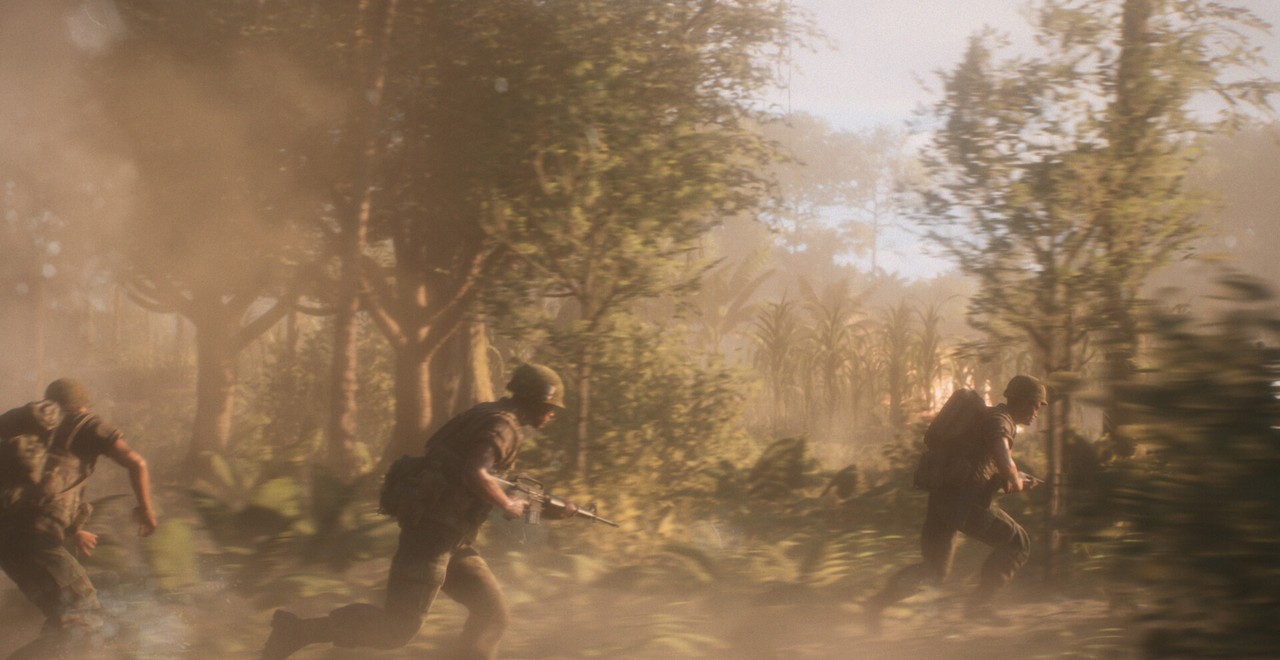
Hell Let Loose: Vietnam best settings are simple on PC: use your monitor’s native resolution, start Render Scale at 100%, set Quality to Medium for troubleshooting, and test with Fullscreen On. Keep VSync off while diagnosing low FPS, then enable it if screen tearing bothers you. If your current build shows a Frame Rate Limit, choose one cap your PC can hold consistently.
Hell Let Loose: Vietnam has only a few graphics controls, so tuning it is more about changing them in the right order. No controlled current-build Windows desktop benchmark was available, so treat this as a safe starting point—not an FPS guarantee. Results vary by PC, scene, group size, host, and patch.
Best Hell Let Loose: Vietnam settings at a glance
Use this baseline to find the cause of low frames per second (FPS) or stutter. Change one setting at a time, then replay the same demanding route before making another change.
Swipe sideways to see every column.
| Setting | Recommended start | What to do next |
|---|---|---|
| Screen Resolution | Native resolution | Keep the output sharp. Reduce Render Scale before lowering this. |
| Render Scale | Start at 100% | Lower gradually if FPS is poor, then raise it later to recover clarity. |
| Quality | Medium for troubleshooting | Move upward only after the same route stays smooth. |
| Fullscreen | On for the first test | Use one consistent baseline; this is not a guaranteed FPS boost. |
| VSync | Off while diagnosing | Turn it on if tearing is the bigger problem. |
| Frame Rate Limit | One sustainable cap, if present | Use only the values in your current menu and do not stack limiters. |
| Field of View | Set for comfort | Do not treat FOV as the main FPS lever. |
Hell Let Loose: Vietnam does not expose separate shadow, texture, ray-tracing, upscaling, frame-generation, or graphics-API controls. Avoid guides that invent them. If poor performance follows you into other games, use our FPS drop troubleshooting guide before blaming this menu alone.
Use the symptom router first
Choose what looks wrong. Lowering graphics will not fix every kind of lag.
Why Render Scale comes before Quality
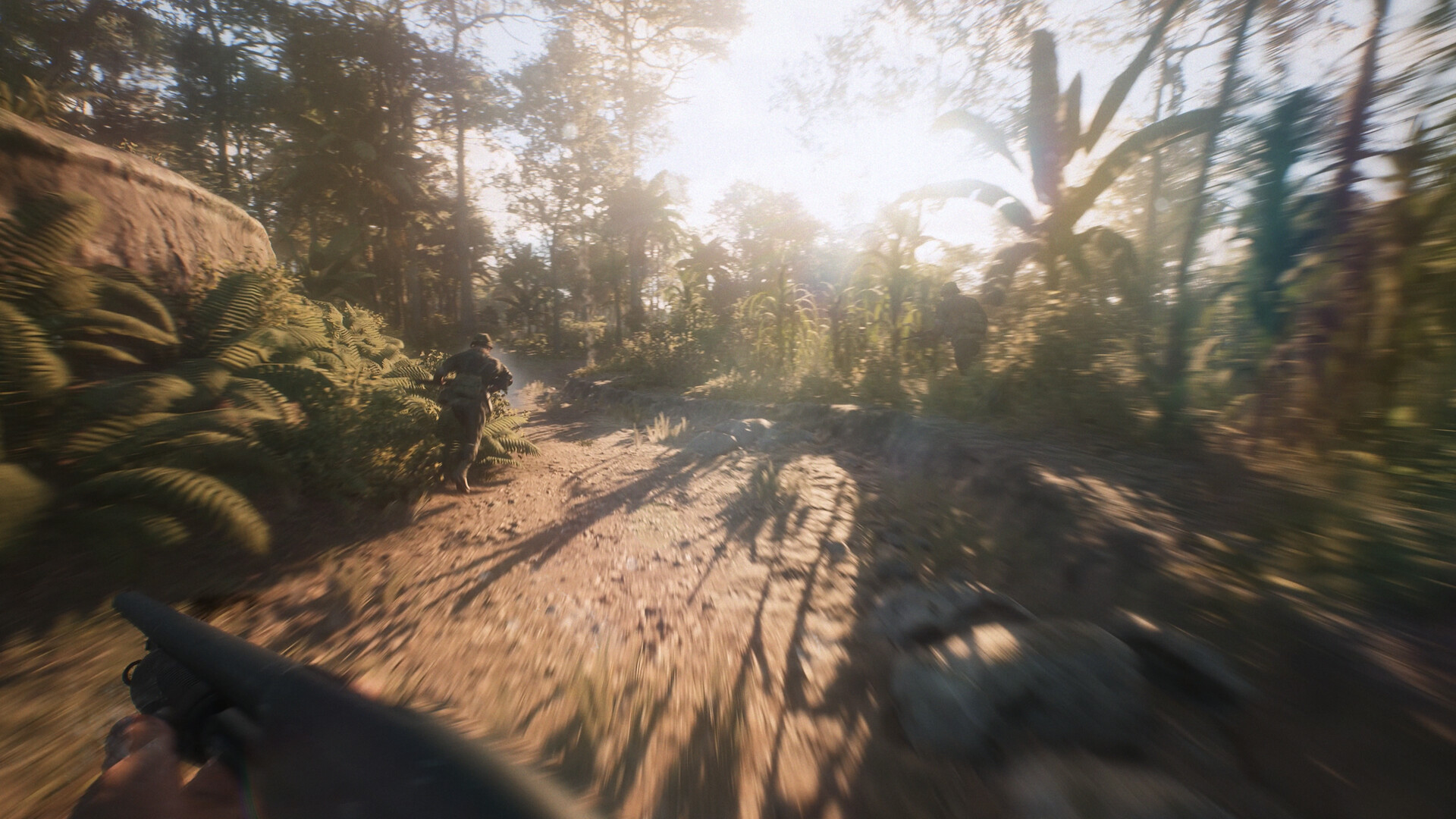
Render Scale changes the internal image resolution—the number of pixels Hell Let Loose: Vietnam draws before fitting the image to your screen. At 100%, it renders at the full target. Lowering it means fewer pixels for the GPU to draw, but the image becomes softer.
A practical recommended order is simple: lower Render Scale first, lower Quality if needed, then raise Render Scale once the game runs acceptably. Keep Screen Resolution native, adjust in small steps, and replay the same route each time.
A sensible three-step loop is:
Find stability, then recover clarity
Lower Render Scale
Reduce it gradually until the demanding route feels more consistent.
Lower Quality once
Use the next lower preset only if the same route still struggles.
Raise clarity again
Restore Render Scale gradually until softness or instability returns.
How to tune Quality without guessing
Medium is a troubleshooting baseline, not a universal best preset. If it runs smoothly on the demanding route, try the next higher level and repeat the same path. Keep it only if movement stays consistent and the visual upgrade matters.
If performance remains poor after lowering Render Scale, move Quality down one step. Do not change presets, locations, and hosts together. Broad views, busy forest sections, and route travel are better tests than an empty area or menu.
Reports of slowdowns above Low or Medium do not prove a universal preset bug. Trust your repeatable route; current desktop evidence does not support a specific FPS gain per Quality step.
Use one frame limit, if your build has it
If Frame Rate Limit appears on your current build, choose one cap your PC can sustain on the demanding route. A steady cap can feel smoother than repeatedly missing an ambitious target and may reduce unnecessary GPU load or fan noise.
Do not copy a cap from an older screenshot. The control is patch-sensitive, so use only the choices shown in your menu.
Avoid stacking the in-game cap with a driver limiter, platform limiter, or another third-party cap. Multiple limiters complicate diagnosis and can produce less predictable pacing. Pick one, test it, and disable the extras.
VSync, Fullscreen, and FOV
VSync: Keep it off for the first comparison. If you see horizontal tearing, turn it on and decide whether the cleaner image is worth any responsiveness tradeoff. “Always off” is not a universal rule.
Fullscreen: Use Fullscreen On as a consistent baseline. There is no controlled Hell Let Loose: Vietnam result proving it always increases FPS; hold it steady while testing other controls.
Field of View: Choose what feels comfortable. A practical setup suggests a higher FOV on PC or Mac for motion discomfort, but Render Scale and Quality remain the main performance controls.
Hell Let Loose: Vietnam Steam Deck starting points
Use these only if the controls are present in your current build. They are device-specific starting points, not guarantees.
Medium · 80% scale
Prioritize consistency in demanding scenes before raising visual quality.
Lower quality · 100% scale
Favor responsiveness first and accept temporary artifact risk from harsher presets.
Higher quality · 70% scale
Use only for low-congestion play sessions; expect more dips in dense routes.
Is it FPS lag or network lag?
Hell Let Loose: Vietnam is co-op, so your screen can look rough even when your own renderer is not the main problem. Use what moves badly—and who sees it—to choose the next test.
Swipe sideways to see every column.
| What you see | Likely lane | What to test |
|---|---|---|
| Your camera and world feel slow | Local rendering | Lower Render Scale, then Quality, and replay the same route. |
| Your camera is smooth but players skip | Network or bandwidth | Stop heavy network activity, improve Wi-Fi or use Ethernet, then compare another host. |
| Everyone has trouble | Host PC or connection | Move hosting to the most stable PC and connection. |
| Solo is smooth, hosted play is not | Host, network, or session load | Repeat with the same group and a different host. |
| Scene geometry is missing or broken | Rendering, driver, or file issue | Update the GPU driver; verify files when corruption is plausible. |
When remote characters jitter but your camera stays fluid, check the network and host first. Low host FPS can contribute to network trouble, so the host needs a stable connection and stable local performance.
Test the same heavy route
A useful settings test must be repeatable. Do not compare one preset in a quiet menu and another during active co-op.
Repeat this performance check
- Follow the same route from the same start point.
- Turn toward a broad view with the same camera movement.
- Include a traversal-heavy section where stutter usually appears.
- Repeat in an active host session with the same group size.
- Run each setup more than once.
- Change only one setting before the next run.
This is not a laboratory benchmark, but it beats guessing from average FPS and helps isolate trouble tied to a scene, host, or connection.
Hell Let Loose: Vietnam system requirements
These are compatibility tiers, not promises for a fixed FPS, preset, route, or group size.
Windows 10 tier
- Intel Core i5-10600K / AMD Ryzen 5 3600X
- 16 GB RAM
- NVIDIA RTX 2060 Super / AMD RX 6600 XT
- DirectX 12
- 30 GB SSD storage
Windows 11 tier
- Intel Core i5-12600K / AMD Ryzen 5 7600X
- 16 GB RAM
- NVIDIA RTX 3060 Ti / AMD RX 6900 XT
- DirectX 12
- 30 GB SSD storage
Target guidance
Steam only confirms compatibility and input to 1080p/60 class hardware targets; route, route type, and session load determine real results.
Safe fixes if settings are not enough
Work through these in order and retest after each meaningful change. For a broader safe baseline, follow our PC gaming optimization guide instead of copying risky one-off tweaks:
- Update Hell Let Loose: Vietnam. Install the current public build before following menu advice from older patches.
- Update the GPU driver. This matters most when the ocean or other rendering is missing or broken; drivers are not the cause of every FPS problem.
- Use the correct GPU. On hybrid-graphics PCs, confirm Hell Let Loose: Vietnam uses the dedicated GPU.
- Close heavy background workloads. Pause downloads, recording, browser video, and other demanding tasks.
- Verify game files only when it fits. Use Steam verification for crashes, missing assets, or plausible corruption—not as a routine FPS booster.
- Change the host. If everyone has co-op trouble, use the most stable PC and connection, preferably over Ethernet.
Tune the game. Clean up the PC.
Start with Hell Let Loose: Vietnam’s real controls, then let Hone reduce avoidable Windows background load. Hone is free to start on Windows; it cannot patch game or network problems.
Try Hone FreeFrequently asked questions
What are the best Hell Let Loose: Vietnam settings for PC?
Use native Screen Resolution, start Render Scale at 100%, set Quality to Medium for troubleshooting, and test with Fullscreen On. Keep VSync off while diagnosing, then enable it if tearing is the bigger issue. Set FOV for comfort. If the control appears on your current build, use one sustainable in-game Frame Rate Limit and do not stack other caps.
Should I lower Render Scale or Quality first?
Lower Render Scale gradually first. If the same demanding route still struggles, lower Quality by one step. Once performance is acceptable, raise Render Scale gradually to recover as much clarity as your PC can sustain.
Why do other players look jittery in Hell Let Loose: Vietnam?
If your own camera is smooth but other players skip or move erratically, inspect the network or host before lowering graphics. Pause downloads, improve Wi-Fi or use Ethernet, and test a different host.
What Hell Let Loose: Vietnam settings should I use on Steam Deck?
Results vary by patch, firmware, route, and session profile. Start with Medium quality and lower Render Scale first, then test higher presets only if a fixed route stays smooth.
Does Hell Let Loose: Vietnam have a frame-rate limit?
If the Frame Rate Limit control appears on your current build, choose one cap your system can sustain in demanding scenes. Use only the values shown in your menu and do not stack in-game, driver, SteamOS, or third-party caps while diagnosing.




 Youtube