

Start with stable city traversal, then tune the neon back in.
NTE is an Unreal Engine 5 open-world RPG, so the hard moments are not menu screenshots. They are driving through Hethereau, dense traffic, combat effects, streaming, and heavy lighting in the city. Use this guide to get smooth frame pacing first, then raise the settings that make the game worth looking at.
A locked 60 with clean frame pacing beats a wobbly 90 that hitches every time the city loads.
DLSS or FSR Quality usually gives cleaner gains than randomly gutting every visual setting.
Traffic density can hit CPU and streaming behavior harder than players expect.
Use one clean baseline before layering Engine.ini tweaks or NVIDIA profile changes.
Give NTE more clean PC headroom.
If Neverness to Everness still stutters after sensible settings, background apps, overlays, startup bloat, and messy Windows tuning can steal the smoothness you are trying to buy back. Hone helps clean up the PC side so the game has more room to breathe.
The best NTE settings are not the same for every PC. A low-end laptop needs a playable baseline, a mid-range desktop needs better image quality without city hitches, and a high-end system should protect frame pacing before turning on every expensive visual option.
This guide covers the best Neverness to Everness settings for FPS, stutter, low-end PCs, 1440p systems, DLSS, FSR, traffic density, frame caps, and optional Nexus Mods tweaks. It uses the official Steam requirements, community reports, settings videos, and benchmark-style testing as research, but it avoids fake universal FPS promises. Hardware, drivers, and patch versions still matter.
NTE Best Settings Quick Baseline
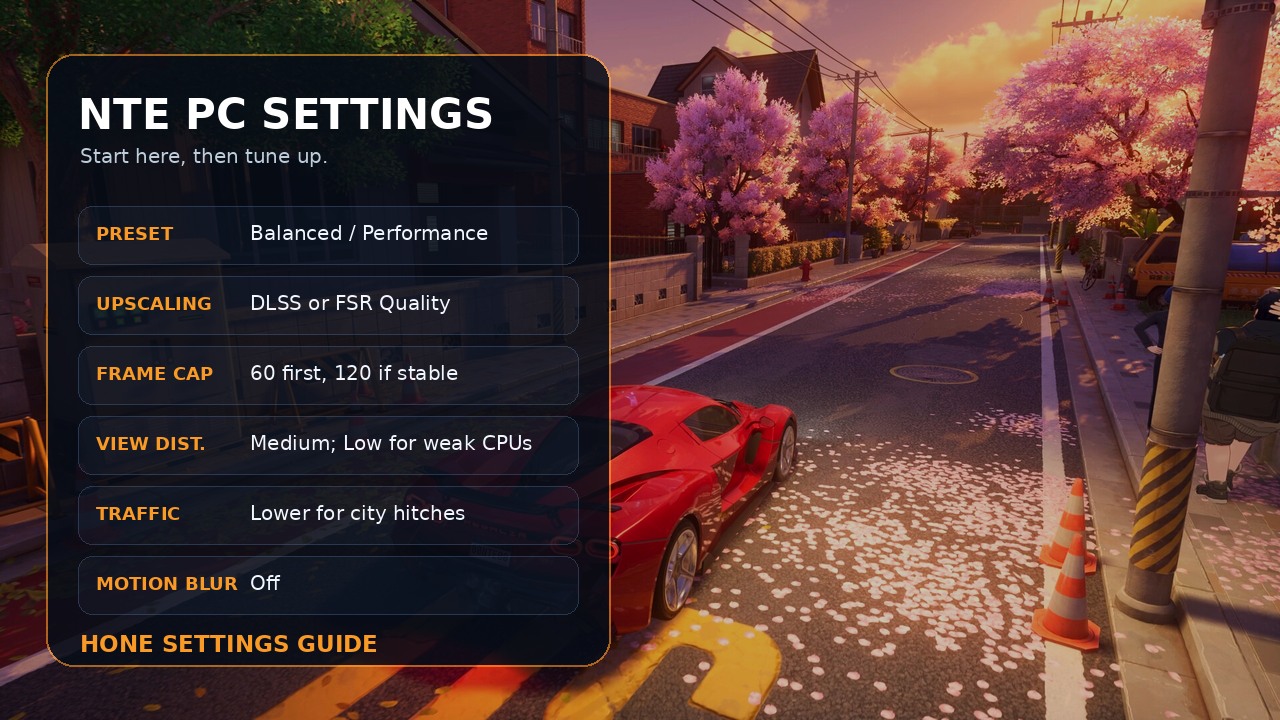
Start with this baseline if you want the short version. It is built for most players trying to keep the game smooth without making Hethereau look like a cardboard prototype.
Recommended NTE settings for most PCs
| Setting | Recommended baseline | Why it matters |
|---|---|---|
| Graphics Quality | Balanced for mid-range, Performance for low-end, High/Extreme only after testing | The preset is the fastest way to control the total UE5 load. |
| Resolution | Native monitor resolution if possible; 1080p for weak GPUs | Lower resolution helps, but a good upscaler often looks better than raw resolution cuts. |
| DLSS / FSR | On if available | NTE benefits heavily from upscaling because city scenes, lighting, and traversal can push the GPU hard. |
| DLSS / FSR mode | Quality for balanced play, Performance only for low-end or high resolution | Quality preserves image stability; Performance can introduce blur or ghosting depending on hardware and patch. |
| Frame Generation | Optional; use only if base FPS already feels stable | Frame Generation can improve perceived smoothness, but it does not repair hitching or input delay. |
| Frame Rate Cap | 60 first; 120 only when frame time is stable | A stable cap is better than a high number that swings during driving or combat. |
| Texture Mapping / Texture | Medium for most, Low for 4GB-6GB GPUs, High only with VRAM headroom | Textures are worth keeping decent, but not if they create VRAM pressure. |
| Foliage | Low or Medium | Cut this before lowering every readability setting. |
| View Distance | Medium for balanced, Very Low/Low for weak CPUs or laptops | Open-world streaming and object density can punish weaker systems. |
| Post-Processing | Low or Medium | A good early cut when you need FPS without wrecking the whole image. |
| Global Illumination / Lumen | Off/Close for FPS-first, higher only on strong GPUs | Lighting can be one of the heaviest UE5-style visual costs in dense neon city scenes. |
| Reflections / Ray Tracing | SSR or reduced for performance; Lumen/RT only for high-end visuals | Wet streets and neon reflections look great, but they are not free. |
| V-Sync | Off if using a clean FPS cap/VRR setup; On only if tearing bothers you | Do not stack several limiters at once. Pick one clean sync strategy. |
| Motion Blur | Off | It does not fix performance and makes fast movement less readable. |
| Traffic Density | Lower if city driving hitches | Traffic can add simulation and streaming load even when your graphics preset looks reasonable. |
Official PC Requirements and Launch Notes
On Steam, NTE: Neverness to Everness lists an Intel Core i7-10700 or Ryzen 7 3700X-class CPU, 16GB RAM, GTX 1660 or RX 5600-class GPU, DirectX 11, broadband internet, and 70GB storage as the minimum PC target. The recommended spec moves to an i7-12700 or Ryzen 7 5800X-class CPU, 32GB RAM, RTX 3060 or RX 6700-class GPU, DirectX 12, and the same 70GB storage requirement. Perfect World’s launch FAQ also points players toward SSD storage, current GPU drivers, and enough free disk space for installation/extraction, so leave more room than the final install size suggests.
That spec list explains why weak systems can struggle even when NTE looks “anime” rather than photorealistic. The game still has UE5 city streaming, dense urban scenes, traffic, characters, lighting, and effects. If your PC is below the minimum, settings can help, but they cannot turn a below-spec machine into a recommended-spec one. Cruel, but at least the menu is honest about it.
What your PC tier should aim for
| PC tier | Starting target | Use this profile |
|---|---|---|
| Below minimum / older laptop | 720p-900p or 1080p with aggressive upscaling, 30-45 FPS cap | Performance preset, low textures, very low view distance, traffic down, motion blur off. |
| Minimum spec class | 1080p, stable 60 if possible | Performance or Balanced, DLSS/FSR Quality or Performance, frame cap at 60. |
| Recommended spec class | 1080p/1440p, 60-120 depending on GPU | Balanced, medium textures, medium view distance, Quality upscaling. |
| High-end desktop | 1440p or 4K with visual settings raised gradually | High/Extreme after testing; avoid uncapped chaos if frame pacing gets messy. |
| Gaming laptop | Stable frame time under thermal limits | Cap FPS, keep fans/power mode sane, lower traffic/view distance before cooking the chassis. |
Choose Your NTE Settings Profile
Use this picker as a practical starting point. It keeps the long settings table from becoming spreadsheet confetti.
NTE Settings Profile Picker
Pick the problem you are solving first: low FPS, city hitching, balanced quality, or high-end visuals.
Balanced 60 FPS
Use Balanced graphics, DLSS/FSR Quality, 60 FPS cap, Medium texture settings, Low or Medium foliage, Medium view distance, Low/Medium post-processing, V-Sync off unless tearing bothers you, and motion blur off.
- Best first setup for recommended-spec desktops.
- Raise visuals only after city traversal feels smooth.
- Use one FPS limiter instead of stacking caps.
Best NTE Settings for Low-End PCs
For low-end PCs, the goal is not “maximum FPS at any cost.” The goal is a playable frame time that does not fall apart during driving, combat, or camera turns. Start with the Performance preset, then use the table below.
Low-end NTE settings
| Setting | Low-end recommendation | Notes |
|---|---|---|
| Graphics Quality | Performance | Use Custom only if you need to preserve one or two visual settings. |
| Resolution | 1920×1080 if possible; 1600×900/1280×720 if not | If lowering in-game resolution causes windowed behavior, set the Windows/game display path carefully and retest fullscreen. |
| DLSS / FSR | On | Use Quality first; drop to Performance if FPS is still too low. |
| Frame Rate | 60, or 30/45 if frame time is unstable | A stable lower cap can feel better than unstable “almost 60.” |
| Texture Mapping / Texture | Low | Use Medium only if VRAM usage behaves. |
| Foliage | Low | Good visual-cost tradeoff for weaker GPUs. |
| View Distance | Very Low or Low | One of the first cuts for weak CPUs and open-world hitching. |
| Post-Processing | Low | Easy cut with limited gameplay downside. |
| Traffic Density | Low | Use this if the city stutters while driving. |
| V-Sync / Motion Blur | Off | Keep the image responsive and readable. |
Best NTE Settings for 1440p Mid-Range PCs
At 1440p, do not brute-force native rendering unless your GPU has comfortable headroom. DLSS or FSR Quality is the sensible middle path: better image quality than heavy manual resolution cuts, with enough performance relief for busy areas.
1440p balanced settings
| Setting | 1440p recommendation | Notes |
|---|---|---|
| Graphics Quality | Balanced or Custom | Move to High only after your city test route is stable. |
| Resolution | 2560×1440 fullscreen | Keep native output and let DLSS/FSR handle render resolution. |
| DLSS / FSR | On | Use DLSS Quality on RTX; FSR Quality on AMD or unsupported GPUs. |
| DLAA / Native AA | Use only with enough GPU headroom | Cleaner image, but less helpful when FPS is the problem. |
| Frame Rate | 60 or 120 depending on stability | Cap lower if frame time spikes during traffic and combat. |
| Textures | Medium or High | Use High only if VRAM pressure is not causing hitches. |
| Foliage / View Distance | Medium | Lower these before cutting resolution again. |
| Post-Processing | Medium | Drop to Low if you are still GPU-bound. |
| Motion Blur | Off | Clearer driving and combat. |
Ray Tracing, Lumen, and Reflections in NTE
NTE’s high-end visual modes are most noticeable in neon streets, wet pavement, night lighting, and city interiors. That is also where they can become expensive. If your build exposes ray tracing, Lumen global illumination, or Lumen-style reflections, treat those as visual-first settings rather than default FPS settings.
For balanced play, keep reflections on a lighter mode such as SSR or a medium setting if available, and raise Lumen or ray tracing only after your driving route and combat test stay smooth. On low-end and mid-range PCs, you will usually get a better experience from DLSS/FSR Quality plus reduced lighting/reflections than from forcing ray tracing and then fighting stutter everywhere else.
DLSS, FSR, Anti-Aliasing, and Frame Generation
DLSS and FSR are the main performance levers in NTE. If you have an RTX GPU, start with DLSS Quality. If you are on AMD or another GPU path, use FSR Quality first. Only move to Performance mode when the game still cannot hold your target FPS.
Several settings videos point out the same practical issue: image stability matters. Some anti-aliasing paths can look shimmery, while DLAA or DLSS Quality can look cleaner when the GPU has enough room. The tradeoff is simple: DLAA is for image quality, DLSS/FSR Quality is for balanced play, and Performance modes are for weaker hardware or higher resolutions.
Frame Generation deserves a caveat. It can make motion look smoother, but it works best when the real base frame rate is already playable. If NTE feels delayed, floaty, or inconsistent, disable Frame Generation while troubleshooting. Fix the base frame time first, then decide whether generated frames are worth it.
The Traffic Density Fix for NTE Stutter
If your FPS looks fine indoors but drops or hitches while driving through the city, traffic density should be one of your first checks. NTE’s city is part of the appeal, but vehicles, simulation, AI, and streaming can punish CPUs and laptops that are already near the edge.
Frame Caps, V-Sync, and VRR
Do not stack three limiters and then wonder why the game feels cursed. Use one main FPS cap: the in-game limiter first if it behaves well, then your driver or RTSS only if the in-game cap gives poor pacing. If you use a G-Sync or FreeSync display and want tear-free capped play, cap slightly below the monitor’s refresh ceiling so the game stays inside the variable refresh range.
For most players, 60 FPS is the first stability target. Move to 90, 100, or 120 only when frame time stays clean in your worst city route. Average FPS can lie; a stable 60 can feel better than an unstable 100 that drops hard in traffic.
What to Lower First If NTE Still Lags
NTE troubleshooting order
| Symptom | Change first | Why |
|---|---|---|
| Low FPS everywhere | Enable DLSS/FSR, lower preset, lower resolution path | This is usually a broad GPU load problem. |
| City driving hitches | Lower traffic density, view distance, foliage | Dense traversal can stress streaming, CPU, and object density. |
| Combat feels blurry | Turn off motion blur, avoid too-low upscaling, test DLSS/FSR Quality | Blur hides information in fast fights. |
| Input feels heavy | Disable Frame Generation, lower GPU saturation, use one cap | Generated frames and maxed GPU load can hurt responsiveness. |
| Random crashes after tweaks | Remove mods/config edits, verify files, test default settings | Never debug crashes with a pile of config changes active. |
| Stutter after long sessions | Lower textures, close background apps, check VRAM/RAM usage | Memory pressure can look like “bad optimization.” |
Clean Troubleshooting Before Mods
Before installing a config mod, get one clean baseline. Update your GPU driver, install the game on an SSD if possible, leave extra storage space, repair game files from the launcher if downloads or updates behave badly, close unused overlays, and test without VPN/proxy tools if login or network errors appear.
If you use MSI Afterburner, RTSS, capture overlays, or driver-level limiters, disable them for one test run. You can bring tools back one at a time later. The point is not to ban useful utilities; the point is to stop guessing while five different tools are touching the render path.
Should You Use Nexus Mods or Engine.ini Tweaks?
Nexus Mods already has several NTE performance and config pages. Treat them as advanced options, not the first step. Engine.ini tweaks can help some systems, but they can also hide the real problem, conflict with later patches, or make troubleshooting harder.
Safe mod/config rules for NTE
Back up files first. If a mod replaces Engine.ini or GameUserSettings.ini, save your original file somewhere obvious.
Use one tweak at a time. Do not stack multiple config packs that touch the same Unreal Engine variables.
Match your goal. A high-visual-quality config is not a low-end FPS fix. A stutter-focused config is not automatically better image quality.
Disable mods while troubleshooting crashes. Return to the clean in-game baseline before blaming the launcher, GPU driver, or Windows.
If you want to research them, start with the original Nexus pages rather than random reuploads: Ultimate Engine Tweaks, NTE Configs, Fix Quality Performance NTE, and Fix Performance and Detail in NTE. Read the description, posts, file date, and comments before installing anything.
Best NTE Settings: Final Recommendation
For most players, the best NTE settings are Balanced graphics, DLSS or FSR Quality, 60 FPS cap until your frame time is stable, Medium textures, Low or Medium foliage, Medium view distance, Low or Medium post-processing, reduced traffic if the city hitches, V-Sync handled by your display strategy, and motion blur off.
Low-end PCs should use Performance graphics, lower view distance, lower traffic, a realistic 30/45/60 FPS cap, and no shame. High-end PCs should raise visuals slowly and still test the same city route, because the prettiest settings are pointless if the game stutters every time you turn a corner.
Make your NTE settings work harder.
Once your in-game baseline is set, Hone can help reduce background drag from startup apps, unnecessary services, and Windows-side clutter that can hurt frame pacing during long sessions.
NTE Settings FAQ
What are the best settings for NTE?
Use Balanced graphics for most PCs, DLSS or FSR Quality, a 60 FPS cap first, Medium textures, Low or Medium foliage, Medium view distance, Low or Medium post-processing, lower traffic density if the city stutters, and motion blur off.
How do I fix stutter in Neverness to Everness?
Lower traffic density, view distance, foliage, and post-processing first. Then check your FPS cap, overlays, background apps, storage, VRAM pressure, and any Engine.ini or Nexus Mods tweaks that may be conflicting with the current patch.
Should I use DLSS or FSR in NTE?
Yes, if your GPU supports it. Start with DLSS Quality on RTX GPUs or FSR Quality on AMD/unsupported GPUs. Use Performance modes only when the game still cannot hold your target FPS.
Is Frame Generation good in NTE?
Frame Generation can make NTE look smoother when your base FPS is already stable, but it does not fix real stutter or poor input feel. Disable it while troubleshooting and turn it back on only after the game feels consistent.
What should low-end PCs use for NTE?
Use the Performance preset, 1080p or lower, DLSS/FSR enabled if available, a realistic 30 or 60 FPS cap, Low textures, Low foliage, Very Low or Low view distance, Low post-processing, reduced traffic density, V-Sync off, and motion blur off.
Should I use ray tracing or Lumen in NTE?
Use ray tracing or higher Lumen settings only if your PC can keep stable frametimes in dense city scenes. For most mid-range or low-end PCs, DLSS/FSR Quality with reduced reflections or GI will feel smoother than forcing the most expensive lighting mode.
Are NTE Engine.ini mods safe?
They can be useful, but they are advanced tweaks. Back up your original files, install one config at a time, check the mod date and comments, and remove mods while troubleshooting crashes or patch-related issues.




 Youtube