


You rotate the view and wait. The viewport stutters. Your high-end GPU sits idle while a simple model crawls across the screen. The project deadline approaches while SketchUp freezes during every autosave.
This guide explains why SketchUp runs slow and how to make it faster. You will learn the real hardware bottlenecks, optimize your model geometry, configure the 2025 graphics engine, and apply workflow fixes that eliminate lag without buying new components.
The Real Reason SketchUp Runs Slow
SketchUp is not GPU-limited like games or renderers. It is CPU-bound by a single-threaded geometry kernel that cannot leverage multiple cores. Your expensive graphics card sits mostly idle while one CPU core processes every modeling operation. Understanding this fundamental architecture explains why traditional “gaming PC” advice often fails.
The Four Main Performance Bottlenecks in SketchUp
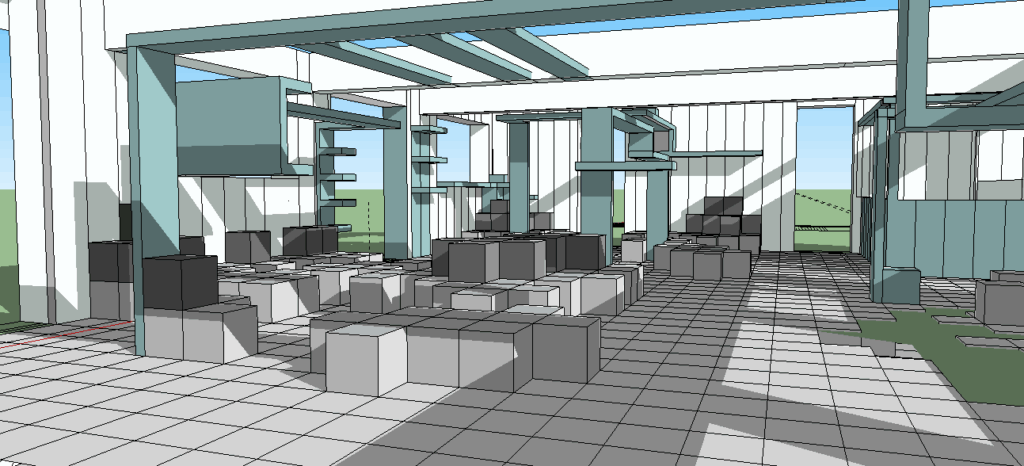
Every modeling operation runs on one CPU core. Push/Pull, Move, Rotate, and inferencing cannot split across multiple threads. High clock speed matters more than core count. A 5.0 GHz quad-core beats a 3.0 GHz sixteen-core for modeling speed.
Millions of edges and faces from 3D Warehouse imports, high-segment curves, and unpurged components bloat the file. A single detailed tree model can contain 200,000 polygons. The CPU must track every edge coordinate during navigation and editing.
High resolution textures consume VRAM rapidly. A 4096×4096 texture uses 16 times more memory than 1024×1024. When VRAM fills, the system swaps to slower system RAM, causing viewport stuttering during navigation. 8GB VRAM is the new minimum for professional work.
SketchUp 2024 switched from OpenGL to DirectX 12 on Windows and Metal on Mac. Old hardware and outdated drivers cause selection lag, black screens, and viewport glitches. The Classic Graphics Engine remains available for legacy system compatibility.
Common Mistakes That Make SketchUp Slower
Buying More GPU Power
Users assume lag means weak graphics card and upgrade to RTX 4090 or professional Quadro cards. The GPU processes viewport rendering, but modeling operations happen on the CPU. An idle RTX 4090 cannot help when the CPU is saturated calculating geometry intersections.
High-end GPUs help with real-time rendering engines like Enscape or V-Ray GPU, but the SketchUp viewport itself rarely pushes beyond mid-range card capability once textures are optimized.
Optimize CPU Clock Speed
Focus on single-core frequency when selecting processors. Intel Core i7-13700K at 5.4 GHz or AMD Ryzen 9 7950X3D at 5.7 GHz provide the fastest modeling response. The geometric kernel uses one thread, so sixteen cores at 3.5 GHz each will feel slower than eight cores at 5.0 GHz.
Pair a high-frequency CPU with a mid-range GPU like RTX 4060 or AMD RX 6700 XT. This balanced approach costs less and performs better than the inverse configuration.
Downloading Detailed 3D Warehouse Assets
Importing photo-realistic furniture, plants, and vehicles from 3D Warehouse without checking polygon counts. A high-detail couch can contain 300,000 faces. Ten pieces of furniture add three million polygons to the model, overwhelming the CPU during every rotation or edit.
These assets often contain hidden geometry inside walls and duplicate materials that bloat file size and VRAM usage without improving visual quality.
Use Components and Reduce Poly Count
Check Entity Info before importing. Look for models under 50,000 edges for background objects. Use extensions like Skimp or Transmutr to decimate high-poly imports down to 10 to 20 percent of original geometry while preserving appearance.
Make repeated objects into Components instead of Groups. SketchUp stores one component definition in memory and references it for all instances, dramatically reducing RAM usage for forests, seating rows, or repeated fixtures.
Hardware Requirements for Fast SketchUp Performance
CPU Selection by Performance Tier
Single-core frequency is the primary metric. Newer architectures provide better IPC efficiency.
Optimal Performance
Excellent for Professional Work
Minimum Professional Standard
Avoid for Professional Use
GPU Requirements for SketchUp 2024
DirectX 12 and Metal support required. VRAM capacity matters for texture-heavy models.
High-End Workstation
Recommended for Professionals
Entry Level Viable
Unsupported / High Risk
Graphics Engine Settings for SketchUp 2024
SketchUp 2024 replaced the legacy OpenGL pipeline with DirectX 12 on Windows and Metal on macOS. This change delivers 2x to 8x faster viewport navigation on compatible hardware but requires updated drivers and can cause instability on older systems. Understanding when to use the new engine versus the Classic fallback is critical for stability.
Graphics Engine Selection
Anti-Aliasing (MSAA)
Use Maximum Texture Size
Fix Black Screen or Selection Glitches in SketchUp 2024
Update Graphics Drivers
Download latest drivers from Nvidia or AMD website, never Windows Update. For Nvidia, choose Studio Drivers for stability. Perform a Clean Install option to remove corrupted registry entries from old drivers.
Switch to Classic Graphics Engine
Window > Preferences > Graphics > Use Classic Graphics Engine. Check the box and restart SketchUp. This reverts to OpenGL and bypasses DirectX 12 or Metal compatibility issues with older hardware.
Force Windows to Use Discrete GPU
Windows Settings > System > Display > Graphics. Browse for SketchUp.exe, click Options, select High Performance (your Nvidia or AMD card). Prevents Windows from routing SketchUp to weak integrated graphics.
Reduce Anti-Aliasing to 0x
In SketchUp Preferences > Graphics, set Anti-aliasing to 0x. Mac M3 Max users report this fixes viewport freezing. All users see improved frame rates with lower AA values, especially on high-DPI screens.
Model Optimization Techniques That Actually Work
Hardware upgrades hit a performance ceiling when model geometry is bloated. A million-polygon model will lag on any system because the CPU cannot process that many coordinates fast enough. Model hygiene is the highest-impact optimization available to users.
- Window > Model Info > Statistics
- Click Purge Unused button
- Removes deleted component definitions, unused materials, and orphaned styles
- Repeat multiple times until no further reduction
- Select repeated object and right-click > Make Component
- Every copy becomes a lightweight instance pointing to one definition
- 1,000 component instances use far less RAM than 1,000 unique groups
- Edit one instance and all copies update automatically
- Default circles use 24 segments. Type a lower number (12s or 16s) before clicking
- Small or distant curved objects do not need high segment counts
- A 100-segment circle extruded into a cylinder creates 10,000+ faces
- Reserve high segments only for large hero elements viewed close up
- Use Material Resizer extension to scan and batch-resize textures
- Standard materials (wood, concrete, fabric) work fine at 512px to 1024px
- A 4096×4096 texture uses 16x more VRAM than 1024×1024
- Reserve 2048px only for large feature walls or close-up hero surfaces
- Check Entity Info before importing. Look for edge/face counts
- A detailed furniture piece should be under 50,000 edges maximum
- Use Skimp or Transmutr extensions to decimate high-poly models
- Reduce imported models to 10 to 20 percent of original polygons
- Create granular tags: Structure, Furniture, Vegetation, Site Context
- Toggle OFF tags you are not actively working on
- GPU does not render hidden geometry, freeing resources
- Working on roof? Hide Furniture and Vegetation tags completely
Style and Viewport Settings for Maximum Speed
Visual effects in SketchUp are computed in real time on every frame. Shadows, profiles, and transparency require heavy calculations. Professional users maintain separate work styles and presentation styles, toggling between them based on the task.
Shadows
Profiles
Transparency Quality
Depth Cue, Extensions, Endpoints, Jitter
Extension and Plugin Performance Issues
Extensions run Ruby code that interfaces with the model. Poorly optimized plugins can degrade performance even when not actively in use. Understanding Observer behavior and resource overhead helps identify problematic extensions.
- Many plugins use Observers that monitor every model change
- BIM plugins watch for geometry edits to auto-update dimensions or metadata
- Multiple Observers flood CPU with trigger events during modeling
- If lag occurs specifically when drawing or moving objects, suspect Observers
- Window > Ruby Console opens debugging interface for developers
- If left open during modeling, it logs data from plugins in background
- Synchronous UI updates and text logging degrade performance
- Close Ruby Console immediately if you are not actively developing plugins
- Outliner displays hierarchical tree of all groups and components
- In complex models with thousands of nested groups, Outliner must refresh on every geometry change
- Keep Outliner closed or collapsed when not actively organizing structure
- Use Tags for visibility control instead of hiding individual items in Outliner
Troubleshooting Specific Performance Problems
Performance Problem Diagnostic Matrix
| Symptom | Likely Cause | Solution |
|---|---|---|
| Viewport Lag during Orbit, Pan, Zoom | GPU bottleneck, heavy geometry visible, or expensive style effects active | Turn OFF Shadows and Profiles. Hide high-poly Tags (vegetation, furniture). Reduce anti-aliasing to 2x or 0x. Check VRAM usage and resize textures if full. |
| Modeling Lag during Push/Pull, Move, Rotate | CPU single-thread bottleneck from excessive geometry or plugin Observers | Purge Unused repeatedly. Use Skimp or CleanUp3 to reduce polygon count. Close Outliner and Ruby Console. Disable heavy extensions one by one to test. |
| Freezing Periodic freezes every few minutes | Autosave writing large file to slow storage drive | Ensure SketchUp is installed on NVMe SSD with 3,000+ MB/s write speed. Purge Unused to reduce file size. Increase autosave interval in Preferences if freezes are disruptive. |
| 2024 Black screen, selection glitches, viewport artifacts | New graphics engine incompatibility with hardware or outdated drivers | Update GPU drivers from manufacturer website (Clean Install). Switch to Classic Graphics Engine in Preferences > Graphics. Force Windows to use discrete GPU in Display Settings. |
| Mac M3 Viewport freezing, stuck tools | Anti-aliasing conflict with M3 Max chip architecture | Set Anti-aliasing to 0x in Preferences > Graphics. Ensure macOS is updated to latest version. This is a known issue with temporary workaround. |
| Rendering Slow when switching to rendered view | Textures exceeding VRAM capacity causing swap to system RAM | Use Material Resizer to batch-downsize textures to 1024px. Ensure Use Maximum Texture Size is UNCHECKED in Graphics preferences. Upgrade to GPU with 12GB+ VRAM if doing professional rendering. |
System Configuration and Driver Updates
Operating system power management and graphics drivers directly impact performance. Windows defaults to balanced power plans that throttle CPU during pauses. Generic drivers from Windows Update lack full DirectX feature sets optimized for creative applications.
Complete System Optimization Checklist
Set Windows Power Plan to High Performance
Control Panel > Power Options > High Performance. This prevents CPU from downclocking during modeling pauses. Essential on laptops where default Balanced plan aggressively throttles to save battery.
Force Discrete GPU for SketchUp
Windows Settings > System > Display > Graphics. Click Browse and locate SketchUp.exe. Select Options and choose High Performance (your dedicated Nvidia or AMD card). Prevents automatic switching to weak integrated graphics.
Update Graphics Drivers from Manufacturer
Visit Nvidia.com or AMD.com. Download latest drivers for your exact GPU model. For Nvidia, choose Studio Drivers over Game Ready for stability in creative apps. Use Clean Install option to remove old driver remnants.
Disable Unnecessary Startup Programs
Task Manager > Startup tab. Disable programs you do not need immediately at boot. Cloud sync services (OneDrive, Dropbox), communication apps (Discord, Slack), and game launchers consume RAM and CPU cycles in background.
Install SketchUp and Files on NVMe SSD
Never use mechanical HDD for SketchUp installation or working files. Autosave freezes that last 30 seconds on HDD shrink to 2 to 3 seconds on NVMe SSD with 5,000+ MB/s write speeds. This is single most impactful storage upgrade.
Conclusion
SketchUp performance is determined by three factors in order of impact: model geometry optimization, CPU single-core frequency, and graphics driver stability. Hardware upgrades provide diminishing returns when models contain millions of unpurged edges and oversized textures from 3D Warehouse imports. The fastest workstation cannot compensate for poor model hygiene.
Start with Purge Unused, resize textures to 1024px, convert Groups to Components for repeated objects, and hide Tags you are not actively editing. Turn OFF Shadows and Profiles during modeling work. These free optimizations often provide larger performance gains than expensive GPU upgrades. For hardware, prioritize high-frequency CPUs (5.0+ GHz) over high core counts, pair with mid-range GPUs that have 8 to 12GB VRAM, and install on NVMe SSDs to eliminate autosave freezing. Update graphics drivers from manufacturer sites and switch to Classic Graphics Engine if SketchUp 2024 shows visual glitches. This systematic approach transforms SketchUp from a sluggish obstacle into a fluid design instrument.
FAQ
Why is SketchUp so slow on my high-end PC
SketchUp is CPU-bound by a single-threaded geometry kernel. Your expensive GPU sits mostly idle during modeling because geometric calculations cannot leverage multiple cores or GPU parallel processing. A processor with fewer cores but higher clock speed (5.0+ GHz) outperforms workstation CPUs with many slower cores. Model polygon count and unpurged geometry also cause lag regardless of hardware power.
How do I make SketchUp run faster
Purge Unused data from Window > Model Info > Statistics. Turn OFF Shadows and Profiles in the Styles panel. Hide Tags for geometry you are not editing. Resize textures to 1024px using Material Resizer extension. Convert repeated Groups to Components. These model optimizations provide immediate performance gains without hardware changes.
Does SketchUp use GPU or CPU
SketchUp uses both but is primarily CPU-limited. All modeling operations (Push/Pull, Move, inferencing, geometry calculation) run on a single CPU thread. The GPU handles viewport rendering and displaying the model on screen. A fast CPU is more important than a powerful GPU for modeling speed. GPU matters for rendering engines like V-Ray or Enscape.
Why does SketchUp 2024 have black screen or glitches
SketchUp 2024 switched from OpenGL to DirectX 12 on Windows and Metal on Mac. Old hardware like Intel HD 4000/5000/6000 integrated graphics is unsupported and causes visual failures. Update graphics drivers from manufacturer websites (not Windows Update) and switch to Classic Graphics Engine in Preferences > Graphics to revert to OpenGL if problems persist.
How much RAM does SketchUp need
32GB is the professional standard for architectural work with SketchUp, Layout, browsers, and Photoshop running simultaneously. 16GB is the absolute minimum for simple models but leaves no headroom for multitasking. Large urban planning or BIM projects with real-time rendering engines (Enscape, Twinmotion) require 64GB to avoid paging to disk.
What is the best CPU for SketchUp
Processors with the highest single-core clock speeds perform best. Intel Core i9-14900K (5.8 GHz boost), i7-13700K (5.4 GHz), AMD Ryzen 9 7950X3D (5.7 GHz), or Apple M3/M4 chips provide the fastest modeling response. Avoid dual Xeon workstations or older processors with low clock speeds despite having many cores.
What GPU do I need for SketchUp 2024
Nvidia RTX 4060 or AMD RX 6700 XT with 8 to 12GB VRAM is the sweet spot for professional work. These handle SketchUp viewport smoothly and support moderate GPU rendering. Integrated graphics like Intel UHD are unsupported in the new engine and cause black screens. High-end RTX 4080/4090 cards are overkill unless you use GPU renderers heavily.
How do I fix Mac M3 viewport freezing in SketchUp
Set Anti-aliasing to 0x in SketchUp > Settings > Graphics. This is a known compatibility issue with M3 Max chips and MSAA rendering. Also ensure macOS is updated to the latest version. Disabling anti-aliasing resolves the viewport freeze and stuck tool problems on M3 hardware.
Why does SketchUp freeze during autosave
SketchUp serializes the entire model to disk during autosave in a single-threaded process that pauses the interface. Mechanical HDDs cause 30+ second freezes. NVMe SSDs with 3,000 to 7,000 MB/s write speeds reduce this to 2 to 3 seconds. Purge Unused to reduce file size and install SketchUp on SSD storage.
Should I turn off shadows in SketchUp
Yes, always turn OFF shadows during modeling work. Shadow calculation is the most computationally expensive viewport effect, often consuming 40 to 60 percent of frame rate. The engine must calculate sun vectors and project geometry onto surfaces dynamically on every frame. Enable shadows only for final screenshots or presentations.






 Youtube