


Start with Starsand Island’s game-selected or Recommended configuration, keep your display’s native output resolution for the first comparison, choose one FPS cap the busiest repeatable island route can hold, and change only one verified control at a time. These Starsand Island best PC settings are a method for handling low FPS, farm growth, traversal hitches, tearing, and low-power hardware—not a universal profile. This guide does not claim exact slider values or fake FPS gains because no reproducible current-build desktop benchmark was available for Version 1.0.
Build context: Version 1.0, update 1.08.3916 at the August 20, 2026 research cutoff. Recheck the current patch before publication.
AFTER THE IN-GAME PASS
Give Starsand more PC headroom
Hone can reduce avoidable Windows background load after you tune the game. It cannot patch game-side stutter.
Best Starsand Island settings to start with
COMFORT-FIRST BASELINE
- Target: Begin with the game-selected or Recommended configuration, then choose a frame-rate target that survives your busiest repeatable route.
- Quality: Keep native output resolution for the first comparison. Protect image quality until a repeated test shows that reducing it helps.
- Clarity: Treat Motion Blur as a preference. Turn it off if you prefer a clearer moving image, not because it is a proven major performance lever.
- Method: Use one limiter and change one control at a time. Keep the save, route, resolution, weather, and synchronization state fixed.
The available graphics controls include Display Mode, Resolution, FPS Limit, Vertical Sync, Motion Blur, Quick Settings, Super Resolution, Upsampling Model, Resolution Modifier, Graphics Quality, Environment Details, Shadow Quality, Crowd Density, Global Illumination, and Enable Fog Effect. Their exact values and relative costs have not been isolated on the current build, so do not assume a familiar value is best.
Vertical Sync, or V-Sync, is a tearing choice rather than an FPS boost. Start with it according to your display setup and tolerance for tearing, then keep its state unchanged while comparing graphics options.
Choose smoothness before maximum FPS
SPEND HEADROOM ONCE
- Choose the goalFavor comfort and scenery, faster response, quieter and cooler play, or recording performance.
- Choose one capPick a target from observed play and apply it through one limiter.
- Test one routeRepeat the same save, path, movement, weather, and time where possible.
- Spend the resultRaise visual quality or pursue a higher target; do not increase both blindly.
For a relaxed farm session, consistent frame delivery matters more than chasing the largest counter. A steadier lower target can feel better than a higher average interrupted by uneven frames. If combat or fast travel matters most, leave more rendering headroom and test the visual tradeoff.
For quieter play, stop at a target the PC holds without constantly running flat out. If you record, include that workload in every pass. The goal is to choose a realistic FPS target for the scenes you use.
Use one FPS limiter
Start with the in-game FPS Limit if it is present and delivers even pacing. Otherwise, compare one driver limiter or RivaTuner Statistics Server (RTSS), an external limiting and monitoring tool. Disable the other cap paths. Stacked caps create confusing interactions and make results harder to diagnose.
For a variable refresh rate (VRR) display, leave tested headroom below the monitor’s maximum refresh ceiling so brief overshoot is less likely to exit the VRR range. The needed margin depends on the limiter and display, so there is no single number for every setup.
V-Sync can reduce tearing, but its latency and pacing tradeoff depends on display mode, limiter, and VRR. It does not add FPS. Do not enable Reflex, Anti-Lag, driver Low Latency Mode, or a special RTSS mode because a generic guide calls it faster; none is established here as game-proven.
Lower the setting tied to the problem
Low FPS everywhere: Repeat one route and watch whether a lower Graphics Quality preset step or another verified GPU-complexity control improves performance. If it does, restore the baseline and test scaling separately. Change only one variable per comparison; that is more useful than flattening several settings at once when you want to fix FPS drops.
Farm or long-save slowdown: Restart, return to the same camera position, and repeat the movement. Compare a fresh save with a mature or object-dense save if available. A difference shows that save state matters, but it does not identify the cause. Update 1.08.3916 fixed a stuck-save-load case; its notes do not claim a broad performance fix.
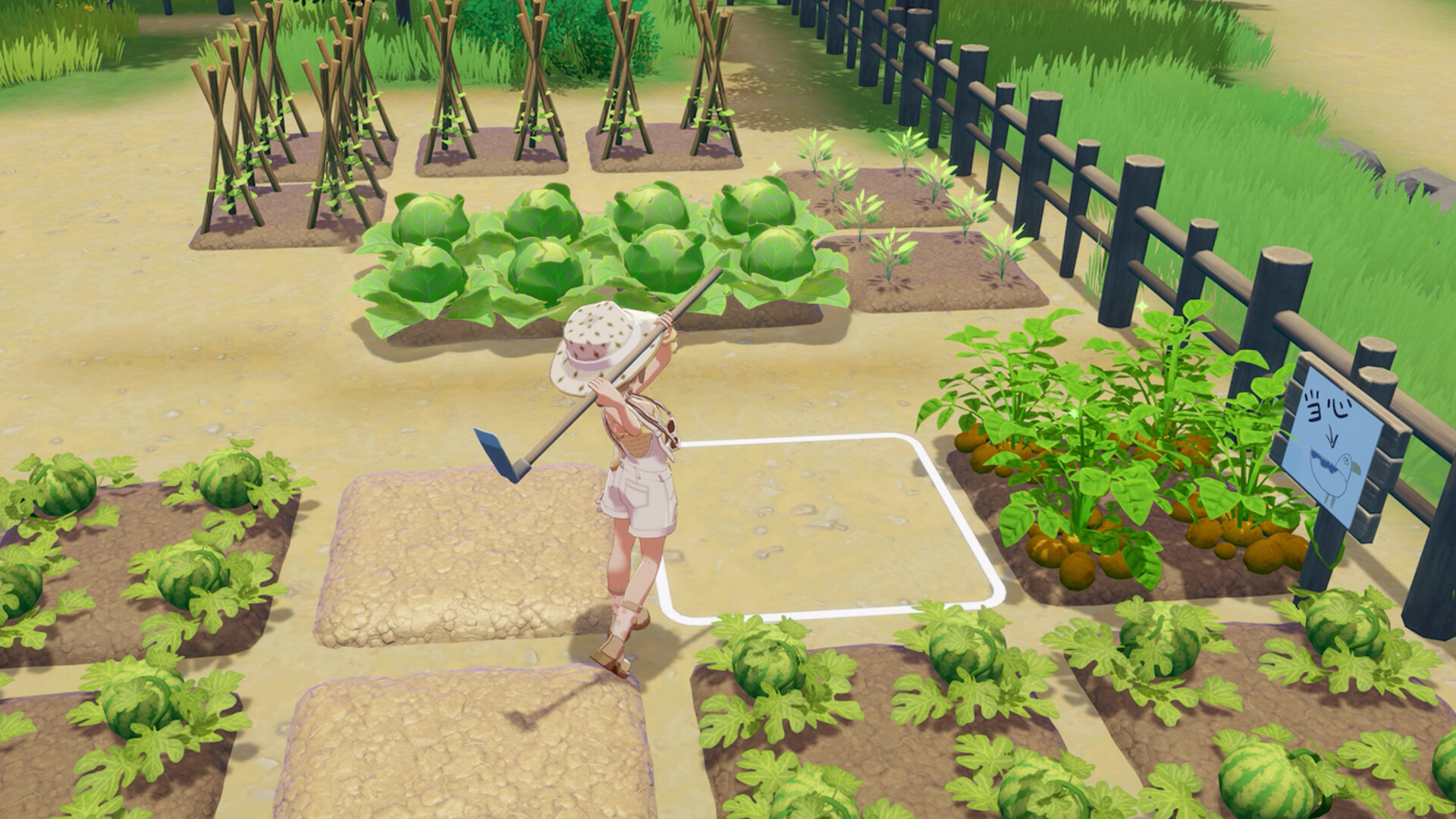
Town or co-op drops: Log solo, client, and host results separately with player count. Keep the route and settings matched. A co-op-only dip does not prove the game is CPU-bound or implicate Crowd Density.
Traversal or scene-transition hitches: Record a cold first pass and a warm repeat, then inspect frametimes—the time each frame takes to appear. A frametime plot can reveal spikes hidden by a respectable average FPS. Use the same route before treating the problem as PC stuttering in games, and do not name shader compilation as the cause without direct evidence.
Soft image or tearing: Return to native output resolution and restore the internal scale for diagnosis. If clarity returns, retest scaling options one at a time. For tearing, compare your V-Sync, VRR, and single-cap choices rather than lowering scenery controls that are unrelated to synchronization.
Run the same island lap every time
SIX-MINUTE COMPARISON LAP
Starsand Island six-minute test route: Farm/build → coast/vehicle → water view → forest → fog/ruins/combat → return.
- Farm/build
- Coast/vehicle
- Water view
- Forest
- Fog/ruins/combat
- Return
This proposed route is based on advertised activities. It is not a built-in benchmark or proof that any scene is the most demanding. If an area is unavailable, choose a comparable fixed scene and document it.
Warm up once, then capture at least three valid passes. Keep the build, driver, save, route, movement, resolution, cap and V-Sync state, and solo or co-op state identical. Match weather and time where possible.
Record average FPS, a defined 1% low, and a frametime plot when your tool supports them. A 1% low summarizes the slowest portion of frame delivery under a declared calculation method; it helps expose dips that the average can hide. Average FPS alone does not prove smooth play, so inspect the plot and compare repeatability across all passes.
What the official PC requirements mean
Swipe horizontally to view all requirements.
| Official tier | Operating system | Processor | Memory | Graphics | API | Storage |
|---|---|---|---|---|---|---|
| Minimum | Windows 10 or newer | Intel i3-2120 / AMD A10-8750 or similar | 8 GB RAM | GTX 650 / Radeon R9 M375X or similar | DirectX 11 | 20 GB |
| Recommended | Windows 10 or newer | Intel i7-8700K / AMD Ryzen 7 4700G or similar | 16 GB RAM | RTX 2060 / Radeon RX 5700 or similar | DirectX 11 | 20 GB |
These are the current official Steam requirements, not performance promises. Steam supplies no resolution, preset, FPS target, frametime target, or upscaling condition for either tier. “Recommended” therefore does not guarantee a particular output resolution, quality level, or frame rate.
Use the tiers as hardware references. Systems near minimum should establish consistency first; PCs around recommended can start with the game-selected configuration. Faster hardware can still encounter save-specific, multiplayer, or patch-related hitches.
Low-power PCs and Steam Deck
On a low-power PC, begin with a conservative verified preset and resolution, then select one cap the route can maintain. Test plugged-in and battery operation separately. Control background workloads, but do not assume closing an app or lowering resolution will remove stutter.
Current Version 1.0 Steam Deck performance was not independently verified for this article. Do not reuse Early Access handheld numbers or results involving third-party frame generation. If the game runs on your device, apply the same method: one conservative baseline, one limiter, one repeatable route, and several comparable passes before raising quality.
Once the game-side pass is stable, you can optimize your PC for gaming and repeat the route under the same conditions. That comparison is the only fair way to judge whether a Windows-side change helps your system.
Finished the island test? Use Hone to reduce avoidable Windows background load, then repeat the same route. Results vary. Download Hone Free
Starsand Island settings FAQ
What are the best Starsand Island PC settings for FPS?
Start with the game-selected or Recommended configuration at native output resolution. Choose one sustainable FPS cap from a repeatable route, then test one verified graphics control at a time. Current evidence does not support universal slider values or per-setting gains, so keep the visual quality your PC can hold consistently rather than copying an unmeasured profile.
What FPS cap should I use in Starsand Island?
Use a cap your busiest repeatable island route can maintain, not a number chosen only from monitor refresh. Try the in-game limiter first if it is available and well paced; otherwise test one driver limiter or RTSS. Never stack caps. With VRR, leave tested headroom below the display ceiling without assuming one margin fits every setup.
Why does Starsand Island FPS drop as my farm gets bigger?
A developed or long-running save may behave differently from a fresh save, but that comparison does not identify the cause. Restart, return to the same farm camera position, and compare matched passes in fresh and mature saves. Record the build and frametimes, then treat a repeatable save-specific regression as a patch or support question rather than blaming one setting.
How do I fix stuttering in Starsand Island?
First separate persistent low FPS from isolated hitches. Repeat the same route once cold and several times warm, then inspect frametimes instead of relying on average FPS alone. If graphics reductions improve every pass, tune one verified control at a time. If one transition or save keeps hitching despite headroom, recheck patches and treat it as a possible game-side issue.
Can Starsand Island run on Steam Deck or a low-power PC?
The official minimum PC tier is a hardware reference, not a handheld performance target. Current Version 1.0 Steam Deck performance was not independently verified here. Start conservatively, use one maintainable cap, and repeat the same route while plugged in and on battery. Avoid importing Early Access Deck numbers or third-party scaling results into the current build.




 Youtube