


The reason most best ARK settings guides feel wrong is simple. They mix ARK: Survival Ascended with ARK: Survival Evolved, treat monitor resolution and render scale like the same thing, and recycle old launch strings as if they still apply to both games.
This guide separates ASA and ASE on purpose. If you play ARK: Survival Ascended, you need one set of graphics decisions. If you play ARK: Survival Evolved, you need another. The menus are different, the performance bottlenecks are different, and the launch options story is different too.
Below, you will get a full PC explainer built around real in game settings, what they actually do, and how to tune them for FPS, image clarity, and stability without making ARK look broken.
Change The Right Settings In The Right Order
The clean ARK optimization path is not complicated once you stop mixing games and stop treating every slider like it matters equally. Start with the correct ARK, keep your display resolution honest, lower the genuinely heavy settings first, and use launch options only where they still make sense.
Best ARK Tuning Order
Why ARK Settings Advice Gets So Messy On PC
When players search for the best ARK settings for PC, they are often looking for one clean answer. The problem is that ARK on PC is really two separate optimization problems. ARK: Survival Ascended leans on modern upscaling, frame generation, and heavier lighting features. ARK: Survival Evolved leans on older slider logic, older post-processing costs, and a set of legacy launch options that still float around years later.
That is why the wrong advice spreads so easily. One article says to use ancient low end launch strings, another says to turn on frame generation, and a third tells you to set “native 1080p” as if native were a universal number. None of that helps if it ignores which ARK you are actually playing.
ASA
Use this section if you are playing the Unreal Engine 5 version. This is where settings like Reflections, Cinematic Lighting Mode, frame generation, and the modern upscaler controls matter.
ASE
Use this section if you are playing the original ARK. This is where Resolution Scale, World Tile Buffers, Low Quality VFX, Mesh Level of Detail, and old low memory launch options still belong.
Best ARK Settings For PC Start By Separating ASA And ASE
If you take only one thing from this guide, let it be this: ASA and ASE should not share one settings table. The words may look familiar, but the menu logic is not the same, the heavy settings are not the same, and the best launch option advice is not the same either.
That also means your output resolution and your render scale must stay in separate mental boxes. Your display resolution is what your monitor actually shows. Your internal scale or resolution scale decides how hard the game renders before any reconstruction or upscaling. Mixing those up is how people end up writing nonsense that sounds technical but does not help anyone.
The Native Resolution Rule
Say monitor native resolution when you mean the panel’s actual output resolution. Say resolution scale or render scale when you mean the internal render percentage. Those are two different settings, and ARK players feel the difference immediately.
Best ARK Survival Ascended Settings For PC
For most people, the best ARK: Survival Ascended settings come from one simple idea: keep the display resolution honest, lower the real GPU killers first, and let the upscaler recover clarity instead of trying to brute force every feature at once.
ARK Survival Ascended Quick Profiles
Pick the profile that matches what you actually want. The panel below updates when you switch tabs.
Resolution
Monitor Native
Keep the output clean. Lower resolution scale before you start butchering the display resolution.
Window Mode
Fullscreen
A cleaner baseline when you are actively tuning performance and testing lower-than-native behavior.
Graphics Preset
Lowest, Then Custom
Use the current lowest preset as a starting point, then raise only the settings that earn their keep.
Resolution Scale
70 To 80%
This is the fastest big FPS lever in ASA. Adjust it before chasing every cosmetic toggle.
Upscaler
Quality Or Balanced
Use Quality first. Move to Balanced only if your target is still unstable.
Frame Generation
Off By Default
Turn it on only when your base frame rate is already decent and input feel still works for you.
Heavy Settings
Low
Start with low Shadows, Global Illumination, Effects, Foliage, and Reflections.
Clean Image Toggles
Blur Off
Turn Motion Blur, Bloom, and Light Shafts off for a cleaner performance-first picture.
Resolution
Monitor Native
Leave the output at the display’s native resolution and trim internal scale instead.
Window Mode
Fullscreen Or Windowed Fullscreen
Choose Fullscreen if you are tuning image behavior closely. Choose Windowed Fullscreen if convenience matters more.
Resolution Scale
85 To 90%
This keeps a much cleaner image than a hard low preset while still relieving the GPU.
Upscaler
Quality
Quality is the safer balanced choice before you start accepting softer reconstruction.
Textures
Medium Or High
Textures are mostly a VRAM decision. Cut them only when your card is actually choking on memory.
View Distance
Medium
A good middle ground that keeps the world readable without overspending.
Shadows And GI
Low To Medium
These still do the most damage in base areas, forests, and weather-heavy scenes.
Frame Cap
Stable Target
Cap where your system stays smooth in the worst base and biome, not just in the menu.
Resolution
Monitor Native
Do not compromise the display resolution first if image quality is your goal.
Resolution Scale
100%
This is the clean reference point. Move down only if performance collapses in heavy scenes.
Upscaler
Off Or Quality
If the system holds 100% comfortably, leave it off. If not, Quality is the least destructive step down.
Textures
High
On a card with enough VRAM, texture quality is worth protecting because it preserves surface clarity.
Reflections
Medium
Raise this only after you have already proven the frame time is stable everywhere you care about.
Shadows And GI
Medium
Medium looks materially better than low, but you still avoid the worst top-end cost spikes.
Foliage And Effects
Medium
Enough for atmosphere without blindly marching into the heaviest performance tier.
Cinematic Lighting Mode
Off
Beautiful for screenshots, but still a bad default if you actually care about playability.
Best ARK Survival Ascended Display Settings
The display side of ARK: Survival Ascended settings is where a lot of bad advice starts. Set the Resolution to your monitor’s native resolution. Keep Window Mode on Fullscreen while tuning if you want the cleanest baseline. If you prefer faster alt-tab behavior later, you can move to Windowed Fullscreen after you know the game is behaving properly.
Turn VSync off unless tearing bothers you more than extra latency. Then set a frame cap you can actually hold in dense forests, weather, and base-heavy areas. The best ARK settings are not the ones that look good in a quiet beach spawn. They are the ones that still feel stable when the game gets ugly.
Resolution Vs Resolution Scale In ARK Survival Ascended
Resolution decides the output your monitor receives. Resolution Scale decides how hard the game renders internally before reconstruction. That means a sharp 2560×1440 monitor can still look soft if the game is rendering internally well below that and leaning on upscaling to fill the gap.
If your goal is the best image, keep Resolution Scale close to 100%. If your goal is the best FPS, lower Resolution Scale first before you slash every other quality setting. That one choice usually gives you a cleaner trade than wrecking textures or piling on the lowest preset and hoping for the best.
Best ARK Survival Ascended Upscaler And Frame Generation Settings
ASA finally gives you more modern performance tools, but they still need restraint. Start with the game’s upscaler or super resolution option in Quality mode if you need more FPS. Drop to Balanced only after you have proved Quality is not enough. If you are not trying to upscale at all, stay on the game’s native anti-aliasing path instead of stacking reconstruction on top of a low internal render.
Frame Generation is not a magic fix for a weak base frame rate. It is a smoother-on-top technology, not a substitute for real render performance. If your base FPS is already shaky, frame generation can make ARK feel visually smoother while still feeling wrong in motion or input response. That is why it belongs after the core settings pass, not before it.
Best ARK Survival Ascended Graphics Settings
These are the settings that deserve attention first on PC.
| Setting | Best Starting Point | Why It Matters |
|---|---|---|
| Resolution | Monitor Native | Keep the output resolution tied to your actual display. Do not fake “native” by lowering render quality. |
| Window Mode | Fullscreen | The cleaner baseline when you are testing lower-than-native behavior and trying to eliminate weird display handling. |
| Graphics Preset | Lowest Or Custom | Use the lowest preset to establish a floor, then rebuild quality one real setting at a time. |
| Resolution Scale | 70 To 85% For FPS, 100% For Clarity | This is still the biggest single lever for raw FPS without immediately destroying every other quality decision. |
| Super Resolution / Upscaler | Quality First | Quality is the safest reconstruction tier. Balanced is the next fallback if your target is still unstable. |
| Frame Generation | Off By Default | Use only after the base frame rate is already healthy. It is not a substitute for fixing the real bottleneck. |
| View Distance | Medium | A strong compromise that helps hold performance without making the world feel artificially clipped. |
| Textures | Medium Or High | Texture quality is mainly a VRAM decision. Cut it only when your card is actually memory limited. |
| Post Processing | Low | Easy savings for a setting bucket that can muddy the image and destabilize heavy scenes. |
| General Shadows | Low | One of the first genuine heavy hitters in ARK: Survival Ascended. |
| Global Illumination Quality | Low | Looks expensive because it is expensive. Raise only if you have real headroom. |
| Effects Quality | Low | Storms, weather, and combat scenes punish this setting harder than many people expect. |
| Foliage Quality | Low | Another high-cost area that pays back quickly when trimmed. |
| Reflections | Low | Useful for presentation. Expensive enough that it belongs near the front of the cut list. |
| Motion Blur | Off | Cleaner image, less smear, no real reason to leave it on for a performance-first build. |
| Light Bloom | Off | Keeps highlights from blowing out the scene and frees a little visual noise budget. |
| Light Shafts | Off | Atmospheric, but rarely worth the distraction if you care about visual clarity. |
| Low Light Enhancement | Off | Best left off as a baseline, then changed only if you specifically prefer the look. |
| Foliage & Fluid Interaction | Off | Great for flavor, not for a lean performance profile. |
| Disable HLOD | Off | Leave this off first. It is more of a troubleshooting toggle than a default recommendation. |
| Cinematic Lighting Mode | Off | Screenshot territory. Not the right default if you want playable, repeatable performance. |
Best ARK Survival Ascended Settings That Hurt FPS The Most
If ASA is underperforming, do not make the common mistake of dropping everything evenly. That just makes the game look worse without attacking the real problem. The correct cut order for most PCs is simple: start with Resolution Scale, then lower Shadows, Global Illumination, Reflections, Effects, and Foliage. After that, revisit the upscaler and frame cap.
Textures belong later in the process because they often hit VRAM more than pure frame time. If your card has enough memory, keeping texture detail alive while cutting lighting and effects usually gives you a far better result than gutting texture quality first.
Do Not Leave Cinematic Lighting Mode On By Accident
If ARK: Survival Ascended looks gorgeous in a still shot but suddenly feels heavy everywhere, check Cinematic Lighting Mode. It is exactly the kind of setting that makes screenshots happy and frame time miserable.
Best ARK Survival Ascended Launch Options
Here is the honest answer. For most players, the best ARK: Survival Ascended launch option is no performance launch option at all. ASA now exposes the real graphics work inside the menu. If a guide tells you to paste old ASE low end strings into ASA and calls it optimization, that guide is already on the wrong path.
That does not mean the Launch Options field is useless. It means it is no longer the main performance story for ASA. Your real wins are in the graphics menu, your display mode, and whether you are using scale, upscaling, or frame generation intelligently.
ARK Survival Ascended Launch Options, Keep It Simple
This is where most bad ARK advice gets exposed.
| Option | Recommendation | What To Know |
|---|---|---|
| Leave Launch Options Blank | Best Default | For ASA, this is the correct baseline. Tune the real settings inside the game first. |
| No BattlEye | Use Only If Needed | This is a launcher choice, not a graphics optimization strategy. |
| -sm4 / -d3d10 / -nomansky / -lowmemory | Do Not Use In ASA | Those are legacy ASE era ideas. They are not the modern ASA performance playbook. |
| Random Priority Strings | Skip | If a string is not solving a known edge case for your exact setup, it usually adds more placebo than value. |
Best ARK Survival Evolved Settings For PC
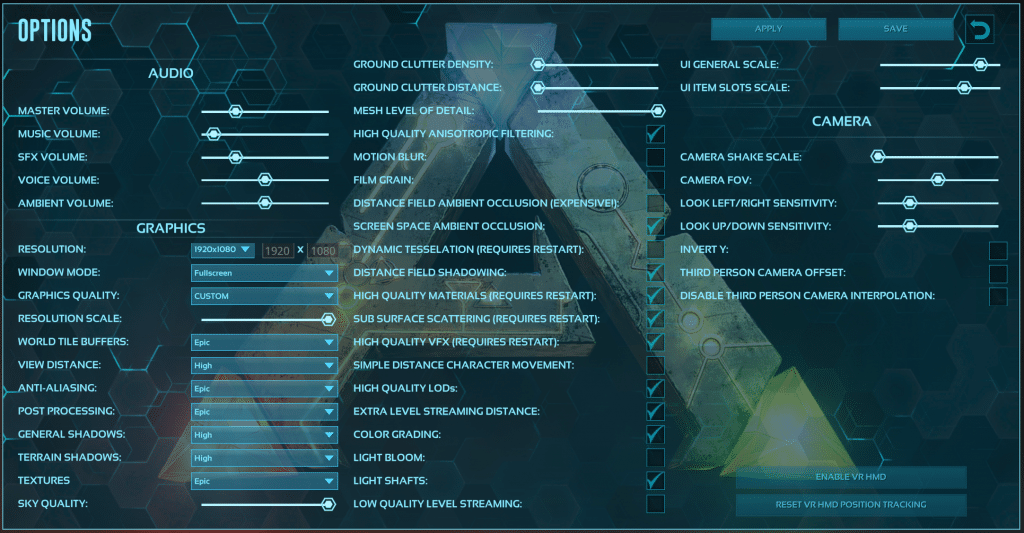
The best ARK: Survival Evolved settings are less about modern reconstruction tricks and more about understanding which of the old graphics sliders actually buy you performance. ASE has enough options to waste hours if you treat them all equally, so the goal is to start with the heavy hitters, keep the image readable, and use legacy launch options only when your hardware genuinely needs rescue mode.
What To Protect In ASE
Protect Resolution Scale, texture clarity, and the settings that keep the world readable. If you have to cut, cut shadows, post processing, clutter, and the restart-required luxuries before you murder the whole image.
What To Treat As Legacy
Treat the old launch options like emergency tools, not universal wisdom. They exist, they can still help weak systems, but they are not what a normal modern PC should reach for first.
Best ARK Survival Evolved Display Settings
Start with Resolution set to your monitor’s native output, Window Mode on Fullscreen, and Graphics Quality on Custom. That last part matters. The preset labels in ASE are useful for a quick first boot, but the best ARK Survival Evolved settings almost always end up as a custom mix.
Then move directly to Resolution Scale. In ASE, this slider is brutally important because it is the cleanest expression of internal render quality. If you want a true native image, keep it at 100%. If you need more FPS, lower it in controlled steps and check the trade with your own eyes instead of trusting a number on a chart.
Why Resolution Scale At 100% Is Native In ARK Survival Evolved
This is one of the few ARK settings rules that should be stated as cleanly as possible. In ARK: Survival Evolved, Resolution Scale at 100% means the game is rendering at the same resolution as your output display. If your monitor is 1920×1080, 100% is native 1080p. If your monitor is 2560×1440, 100% is native 1440p.
That is why phrases like “native 1080p” only make sense when the monitor is actually 1080p. The word native belongs to the display, not to whatever number someone happens to like in a guide.
Best ARK Survival Evolved Graphics Settings
A clean, performance-first starting point for PC players.
| Setting | Best Starting Point | Why It Matters |
|---|---|---|
| Resolution | Monitor Native | Keep the output honest, then adjust internal quality with Resolution Scale if you need to. |
| Window Mode | Fullscreen | A clean baseline for input feel and consistent testing. |
| Graphics Quality | Custom | ASE rewards a mixed profile more than a blind preset choice. |
| Resolution Scale | 100% For Native, 80 To 90% If Needed | The most direct clarity-to-performance slider in the original game. |
| World Tile Buffers | Low Or Medium | Keeps memory use under control while still helping map transitions feel reasonable. |
| View Distance | Medium | A balanced choice that avoids overspending on world loading distance. |
| Anti-Aliasing | Low Or Medium | Enough smoothing without paying top-end cost for a game that already asks a lot. |
| Post Processing | Low | Easy clarity and FPS gains. One of the first settings worth trimming. |
| General Shadows | Low | Still one of the strongest FPS wins in ASE. |
| Terrain Shadows | Low | Lower this early with General Shadows if the game feels heavy outdoors. |
| Texture | Medium Or High | Pick according to VRAM. Do not assume low textures are the smartest first cut. |
| Sky Quality | Low | A sensible trim point with limited downside for everyday play. |
| Ground Clutter Density | Low | Helps FPS and can make resource spots easier to read. |
| Ground Clutter Distance | Low | Keeps the world lighter without wrecking core gameplay readability. |
| Motion Blur | Off | Cleaner motion and a less muddy picture. |
| Film Grain | Off | Easy visual cleanup with no upside for a performance guide. |
| Distance Field Ambient Occlusion | Off | Expensive enough that ASE later defaulted it off even for top presets. |
| Screen Space Ambient Occlusion | Off | Another shading luxury that is rarely worth it for smoothness-first players. |
| Dynamic Tessellation | Off | Restart-required eye candy. Not where you should spend performance budget first. |
| Distance Field Shadowing | Off | Nice when you are benchmarking beauty, not when you are trying to stabilize gameplay. |
| High Quality Materials | Off | One of the older restart-required options that can save meaningful performance when disabled. |
| Sub Surface Scattering | Off | Looks nicer on skin and foliage, but it is still a luxury in an FPS-first setup. |
| High Quality VFX | Off | ASE is already busy enough visually. This is not where smoothness comes from. |
| Low Quality VFX | On | Use it if you are trimming the game hard. It exists specifically to make certain effects cheaper. |
| Simple Distance Character Movement | On | Reduces distant movement animation quality and can lower CPU usage in creature-heavy scenes. |
| Mesh Level Of Detail | Low Or Medium | A reliable distance detail lever that can help without completely gutting close-up visuals. |
| Allow Enhanced Max View Distance Mode | Off | Leave it off unless your system clearly has the headroom to spend on extra distance. |
Best ARK Survival Evolved Advanced Graphics Settings
ASE still hides some of its most important cuts inside the checkbox section. The expensive set is the same one people keep overrating years later: Distance Field Ambient Occlusion, Screen Space Ambient Occlusion, Dynamic Tessellation, Distance Field Shadowing, High Quality Materials, Sub Surface Scattering, and High Quality VFX. If you want stable performance, leave those off first and prove your system can afford more before turning any of them back on.
On the flip side, Low Quality VFX and Simple Distance Character Movement are the kind of options that actually belong in a practical ARK performance guide. They may not sound glamorous, but they are closer to the spirit of what a real optimization pass should look like on the original game.
Best ARK Survival Evolved Launch Options
This is the only place in the guide where old ARK launch options still belong. Even here, they are not modern best practice. They are legacy rescue tools for weak hardware, tight memory, or edge-case troubleshooting. If your PC is reasonably modern, start with the in game settings first.
The right way to think about them is simple. They trade image quality, rendering features, or both in exchange for a chance at smoother performance. That makes them situational, not mandatory.
-lowmemory
Use this only if RAM is the real problem. It is a fallback for constrained systems, not something every player should paste by default.
Good fit: weak or memory-starved setups. Bad fit: normal PCs that only need sensible graphics tuning.
-sm4
A serious image-quality cut tied to older low end rendering paths. Use only if you are trying to keep a very weak machine alive.
Do not confuse “runs” with “looks acceptable.” This is a blunt instrument.
-d3d10 Or -dx10
Treat this as old compatibility or emergency-performance territory. It belongs to the older ASE low end discussion, not to ASA.
If the game looks broken after using it, remove it first before changing anything else.
-nomansky
Another classic cut that strips visual overhead. Useful only when you are consciously choosing function over presentation.
Do not pair it with every random launch string you find online and assume the pile is smarter than one targeted change.
Do Not Blindly Paste -USEALLAVAILABLECORES, -high, And Similar Strings
Those strings show up in copy-paste ARK advice constantly, but they are not the clean foundation of a modern guide. If you are not solving a specific, verified issue, keep your launch options focused and minimal.
How To Change ARK Launch Options In Steam
Steam Launch Options Setup
Open Your Steam Library
Go to the Library tab and find the ARK title you want to change. Make sure you pick the right game, ASA or ASE.
Right Click The Game
Open the context menu for the ARK entry you want to edit.
Open Properties
Steam keeps Launch Options inside the game’s Properties window.
Go To General
The Launch Options field lives on the General tab in the current Steam layout.
Enter Only The Specific Option You Mean To Test
Do not dump a giant copied string in there unless you know what every part is supposed to do. In ARK, that is how people lose track of what actually helped.
How To Optimize ARK Settings Step By Step
A Clean ARK Optimization Process
Confirm Whether You Are Playing ASA Or ASE
Do not optimize the wrong game. ASA and ASE look similar in search results but not in their best settings logic.
Set The Display Resolution To Your Monitor’s Native Resolution
Get the output right first. This keeps your baseline honest before you start trading internal render quality for FPS.
Use Fullscreen While You Tune
Especially in ASA, Fullscreen is the best starting point if you are checking how the game behaves at different internal scales and resolutions.
Lower Resolution Scale Before You Nuke Everything Else
This usually gives the cleanest FPS improvement in both games. In ASA, pair it with a sensible upscaler choice. In ASE, remember that 100% is the true native render point.
Cut The Real Heavy Settings Next
In ASA, lower Shadows, Global Illumination, Reflections, Effects, and Foliage. In ASE, lower Shadows, Post Processing, Ground Clutter, AO, and restart-required luxuries.
Protect Textures Until VRAM Forces Your Hand
Texture quality is often a smarter hold than people think. Many ARK players make the image ugly before they have even touched the real offenders.
Set A Stable Frame Cap And Re-Test In Heavy Areas
The job is not done until you test forests, weather, base sprawl, and creature-heavy scenes. A cap you can hold feels better than an uncapped number that falls apart mid-session.
Common ARK Settings Mistakes On PC
Mixing ARK: Survival Ascended And ARK: Survival Evolved In The Same Guide
Calling Reduced Render Scale “Native”
Dropping Textures Before Lowering Shadows, GI, Effects, And Foliage
Using Old ASE Launch Strings In ASA
Chasing Average FPS Instead Of Frame Time Stability
Windows Tweaks That Help ARK Feel More Consistent
Even perfect in game settings cannot save an ARK session if your PC is choking on background work. Browser tabs, overlays, update clients, capture tools, and cloud sync can all trigger the kind of micro stutter that makes camera movement feel dirty even when the frame counter looks fine.
That is also why a realistic target matters. If you are building your whole setup around somebody else’s benchmark clip, you can end up ruining the image for a frame rate you were never going to hold anyway. It is smarter to anchor your goal to a practical idea of good FPS for gaming and then tune toward the frame rate your own hardware can actually sustain.
Memory pressure still matters as well, especially in ASE, modded stacks, and big maps. If ARK is already close to the edge of what your system can hold, checking your RAM setup for gaming is often a smarter move than throwing every single graphics slider on low and hoping the hitching disappears.
Troubleshooting ARK Settings On PC
ARK Looks Blurry
FPS Collapses In Bases Or Dense Forest Areas
You Get Screen Tearing
ASA Ignores Lower Than Native Resolution Changes Or Behaves Oddly
Old Launch Options Made ASE Look Weird Or Foggy
Conclusion
The best ARK settings for PC are not one universal list. They start with knowing whether you are playing ARK: Survival Ascended or ARK: Survival Evolved, then tuning the real high-impact settings in the right order. In ASA, that means scale, upscaling, and the expensive lighting and world-detail buckets. In ASE, that means Resolution Scale, shadows, post processing, clutter, and only then the older checkbox jungle and legacy launch options.
Do that cleanly, and ARK stops feeling random. Your image gets sharper, your frame time gets steadier, and every other tweak starts making more sense because you are finally optimizing the right game in the right way.
Optimize Your Whole PC With Hone
If you want a cleaner, more consistent gaming experience without constant manual tweaking, Hone can help optimize performance across your system.
Try Hone FreeFAQ
What are the best ARK settings for PC
The best ARK settings depend on which game you are playing. For ASA, start with monitor-native resolution, Fullscreen, VSync off, a stable frame cap, Resolution Scale lowered only as needed, and low Shadows, Global Illumination, Reflections, Effects, and Foliage. For ASE, start with monitor-native resolution, Fullscreen, Resolution Scale at 100% for true native, low Shadows and Post Processing, low Ground Clutter, and a Custom profile instead of a blind preset.
Are ARK: Survival Ascended and ARK: Survival Evolved settings the same
No. ASA and ASE need separate settings advice. ASA uses newer graphics options such as Reflections, frame generation, and newer upscaler controls, while ASE relies more on older Resolution Scale logic, restart-required graphics checkboxes, and legacy launch options.
Should I lower Resolution Scale in ARK
Yes, if you need more FPS. In both ARK games, Resolution Scale is one of the cleanest ways to gain performance. In ASA, pair a lower scale with a sensible upscaler choice. In ASE, remember that 100% Resolution Scale is the true native render point.
Is Fullscreen or Windowed Fullscreen better in ARK
Fullscreen is the better starting point when you are tuning ARK closely, especially in ASA. Windowed Fullscreen is fine for convenience later, but Fullscreen is the cleaner baseline when you are testing lower-than-native behavior and display clarity.
Should I use Frame Generation in ARK: Survival Ascended
Use Frame Generation only after your base frame rate is already reasonably stable. It can improve motion smoothness, but it is not the right first fix for a weak base FPS or bad frame time spikes.
What are the best ARK launch options
For ASA, the best default is usually no performance launch option at all. For ASE, old legacy options like -lowmemory, -sm4, -d3d10, and -nomansky still exist as rescue tools for weak hardware, but they are not universal recommendations for every PC.
Is 100% Resolution Scale native in ARK: Survival Evolved
Yes. In ASE, 100% Resolution Scale matches your output display resolution. That means 100% is true native rendering for whatever monitor resolution you are actually using.
Why does ARK still stutter when my FPS looks high
Because average FPS is only part of the story. ARK feels bad when frame time is unstable, which can happen from heavy graphics settings, dense bases, VRAM pressure, overlays, background apps, or memory saturation even when the top-line FPS number looks decent.
Should I use old -sm4 and -d3d10 launch options in ASA
No. Those are legacy ASE era ideas and do not belong in a current ARK: Survival Ascended settings guide. ASA should be tuned through its real graphics menu first.





 Discord
 Instagram
 Youtube
 TikTok