


The Echoes of Aincrad best PC settings are built around a short menu with a few meaningful switches. Start with the right Game Performance mode, protect image clarity with Temporal Super Resolution (TSR), and use a frame cap that your PC can actually hold through towns, traversal, and combat.
Tune Aincrad. Clear the background.
Hone can reduce avoidable Windows background load after you set the game. Results vary; it cannot patch stutter.
Download Hone FreeFree to start. Built for Windows gaming PCs.The table below is a starting point, not a promise of a locked frame rate. Echoes of Aincrad uses Unreal Engine 5, and a smooth menu scene does not prove that the same profile will hold while entering the Town of Beginnings or loading a new battle arena. Change one option at a time and repeat the same route.
Best Echoes of Aincrad PC settings
Swipe sideways to see every column.
| Setting | Recommended start | When to change it |
|---|---|---|
| Resolution | Native monitor resolution | Lower it only after the preset, model detail, and anti-aliasing checks fail to reach your target. |
| Window Mode | Full Screen | If your installed build offers another mode, compare it when Full Screen causes capture, alt-tab, or multi-monitor trouble. |
| V-Sync | Match your display setup | Test the available toggle with your variable refresh rate (VRR), tearing tolerance, and chosen limiter instead of treating one state as universal. |
| Game Performance | Balanced / Equilibrium | Use Prioritize Performance on minimum-spec or unstable PCs. Try Prioritize Quality only after the worst test route has headroom. |
| Texture Quality | High | Lower it one step only when video-memory pressure or repeatable streaming hitches point to textures. |
| Texture Filtering | 16x | Keep it high unless a controlled A/B test on your PC shows a meaningful cost. |
| Model Detail | High | Lower it first when populated areas dip more than open fields or resolution changes barely affect FPS. |
| Anti-Aliasing | TSR | Compare FXAA if TSR looks too soft or costly; judge both in the same moving scene. |
| Anti-Aliasing Level | Default | Its exact scaling is undocumented, so move one step at a time and compare image quality plus GPU frame time. |
| FPS Limit | 60 FPS target | Use the in-game 60 option when present and well paced; otherwise compare Unlimited plus one external limiter. Do not stack caps. |
The demo and release-era documentation show an unusually compact menu. They do not document separate sliders for shadows, foliage, effects, post-processing, or view distance. Version 1.0.3 or a later patch may change the available controls, so use only the options visible in your installed build instead of copying generic Unreal Engine settings.
Choose the right settings route
Pick the symptom you can reproduce. Each route changes the order of your tests; none guarantees a specific result on every CPU, GPU, driver, or patch.
Build your first Aincrad test
Choose the bottleneck, then validate the result in a town and a fight.
Stable 60 FPS
Protect consistency before spending headroom on detail.
- Set Game Performance to Balanced/Equilibrium.
- Use TSR at the default Anti-Aliasing Level.
- Start with High textures, 16x filtering, and High model detail.
- Set one limiter to a 60 FPS target and test a town-to-combat route.
What the official PC requirements mean
The official Steam requirements are more useful than a simple minimum/recommended split because they attach hardware to display targets. Every listed tier requires Windows 11, DirectX 12, 8 GB RAM, 30 GB of storage, and an SSD.
Swipe sideways to see every column.
| Official target | CPU | GPU |
|---|---|---|
| 1080p / 30 FPS / Performance | Core i5-8400 or Ryzen 3 3300X | GTX 1060 6 GB, RX Vega 56 8 GB, or Arc A750 8 GB |
| 1080p / 60 FPS / Performance | Core i7-9700K or Ryzen 3 3300X | RTX 2060 6 GB, RX 5700 8 GB, or Arc B580 12 GB |
| 1080p / 60 FPS / Balanced | Core i7-10700K or Ryzen 5 5600G | RTX 2070 8 GB or RX 6700 XT 12 GB |
| 1080p / 60 FPS / Quality | Core i7-10700K or Ryzen 5 5600G | RTX 3060 Ti 8 GB or RX 6800 16 GB |
Those targets explain why the broad Game Performance mode matters more than chasing a dozen imaginary sliders. A PC near the first tier should begin with Prioritize Performance and a realistic 30 or 60 FPS target. Recommended-class hardware can start at Equilibrium, while Prioritize Quality is a separate step that Steam pairs with a noticeably stronger GPU.
TSR vs FXAA in Echoes of Aincrad
TSR is Unreal Engine’s temporal upscaling and anti-aliasing method. It uses information from multiple frames to smooth edges and reconstruct detail, which usually makes it the better first choice at 1080p or 1440p. Leave Anti-Aliasing Level at its default first, then move one step at a time while comparing motion clarity and GPU frame time; the exact scaling behind that control is not documented.
FXAA is a lighter post-process option. It can look sharper in motion but may leave more crawling edges and fine-detail shimmer. Use it as a comparison when TSR looks too soft or the GPU is already at its limit, not because one method is universally faster on every scene.
Bandai Namco’s current Steam feature listing and version 1.0.3 notes do not document native DLSS, FSR, XeSS, or in-game Frame Generation; the pre-release menu footage shows TSR and FXAA instead. A later patch could add options, so check your installed menu before treating that list as permanent. Driver-level features such as NVIDIA Smooth Motion are separate from native game support and create displayed frames rather than raising the game’s base simulation rate.
Use one FPS limiter and test V-Sync
A sustainable 60 FPS target is a sensible starting point because the official hardware tiers are built around 30 and 60 FPS. Release-era reports describe 60 and Unlimited limiter choices, but patches can change menus. Stable frame time—the amount of time each frame takes to render—usually feels better than an average that swings above and below your target.
If your build includes a 60 FPS option and it feels uneven, compare Unlimited with one external limiter such as RivaTuner Statistics Server (RTSS) or a driver cap. Do not run the game cap, driver cap, and RTSS together. Stacked limiters can fight over pacing and make the diagnosis harder.
Test the available V-Sync state with your monitor’s variable refresh rate setup and one limiter. A VRR display can match its refresh cycle to a changing frame rate inside its supported range; V-Sync is still a display choice, not a cure for shader or asset-loading hitches. For a broader target guide, see what counts as good FPS for gaming.
Fix town stutter in the right order
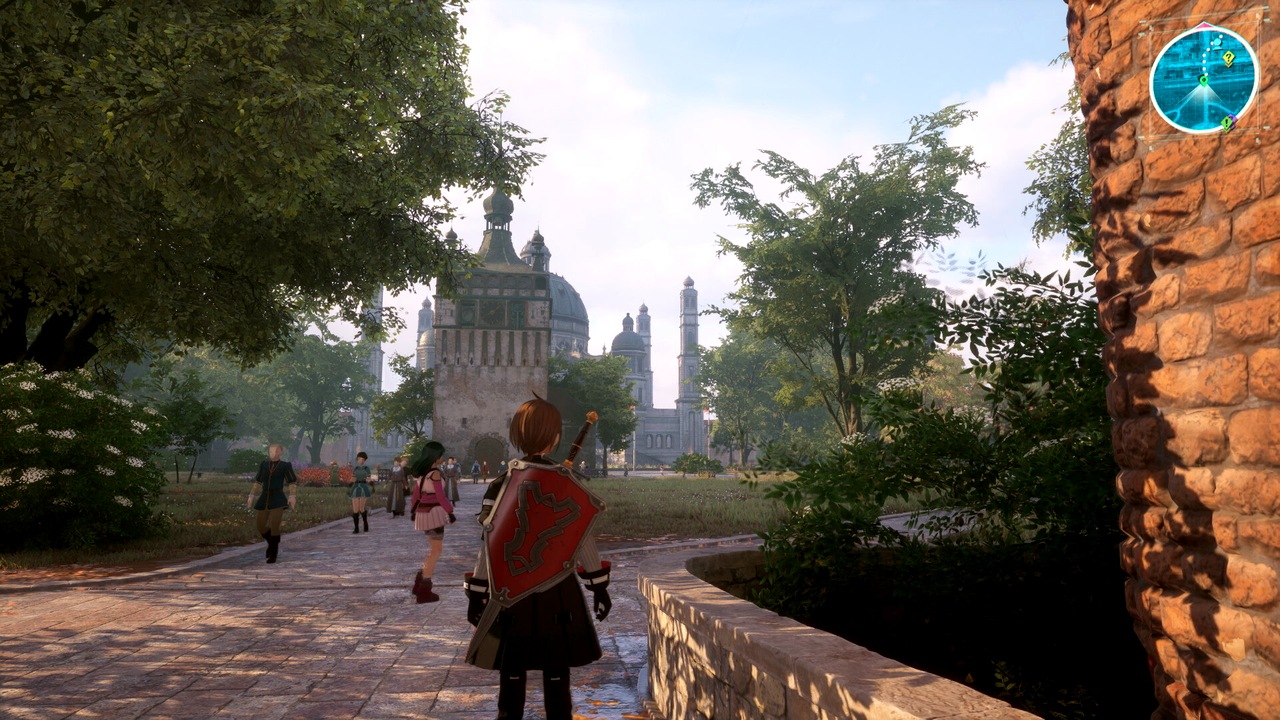
The Town of Beginnings is a useful stress test because it is visibly busier than a quiet field. If the town dips while simpler routes stay smooth, compare Prioritize Performance and Low Model Detail before dropping output resolution. A repeatable improvement would point toward scene or object load; no improvement suggests investigating shader, storage, CPU, or frame-pacing behavior instead.
Install the game on the SSD required by the official specification. Let the initial shader compilation or later shader verification finish before judging performance, then compare one cold pass with repeated warm passes. Close heavy browser tabs, recording tools, and overlays one at a time. Update the GPU driver, verify the game files through Steam, and confirm that a gaming laptop is using its dedicated GPU. These steps address avoidable PC-side load without pretending that a Windows tweak can repair an engine bug.
Apply the current game update before using launch-week advice. Bandai Namco’s official version 1.0.3 notes say the update implemented optimizations and fixed a mouse-operation dead zone. That makes old demo camera and mouse workarounds patch-sensitive. Avoid random Engine.ini packs, forced CPU-core settings, Realtime process priority, and copied shader-cache files.
Run a repeatable performance test
Steam and the official version 1.0.3 notes do not document a built-in benchmark, so use a manual route unless your installed build exposes one. Run it three times after a major change. Treat one-time shader or loading hitches separately, then compare visible stutters, average FPS, and frame-time consistency across repeated passes.
Verify the whole session
Check every scene before calling the profile stable.
Change one major category at a time. If you lower the preset, textures, model detail, anti-aliasing level, and resolution together, the game may improve but you will not know which change mattered. For safer Windows-side cleanup after the game pass, use Hone’s guide to increasing FPS on PC instead of registry packs or one-click “magic” fixes.
Finished tuning Aincrad?
Use Hone to reduce avoidable Windows background load. It cannot patch the game or guarantee a fixed FPS result.
Download Hone FreeFree to start. Built for Windows gaming PCs.Echoes of Aincrad settings FAQ
What are the best Echoes of Aincrad PC settings?
Start with native resolution, Full Screen, Balanced or Equilibrium, High textures, 16x filtering, High model detail, TSR at the default Anti-Aliasing Level, and a sustainable 60 FPS target. Test V-Sync with your display setup. Use Prioritize Performance and lower Model Detail if minimum-spec hardware or busy routes remain unstable.
Should I use TSR or FXAA in Echoes of Aincrad?
Use TSR first because it usually gives the cleanest anti-aliased image at 1080p and 1440p. Try FXAA if TSR looks too soft or you need a lighter fallback. Compare both in the same moving scene rather than judging a paused screenshot.
Should Echoes of Aincrad be capped at 60 FPS?
Use 60 FPS as a consistency-first target when your PC can hold it through the busiest repeatable route. If your build includes a 60 FPS option and it feels uneven, compare Unlimited with one external limiter and your normal VRR setup. Do not stack the game, driver, and RTSS caps.
Why does Echoes of Aincrad stutter in towns?
A busy town route can expose a limit that a quiet field does not. Compare Prioritize Performance and Low Model Detail, keep the game on the required SSD, and repeat the same route. If those changes do not help, investigate shader work, storage activity, CPU load, and frame pacing instead of assuming the GPU is too slow.
Does Echoes of Aincrad support DLSS or Frame Generation?
Bandai Namco’s Steam feature listing and version 1.0.3 notes do not document native DLSS, FSR, XeSS, or Frame Generation; pre-release menu footage shows TSR and FXAA. A later patch could add options, so check the installed menu. Driver-level generated frames remain separate from native game support and should be disabled while diagnosing base frame pacing or input delay.
Should Texture Quality be High or Low in Echoes of Aincrad?
Start with High. Lower it one step only when video-memory monitoring or repeatable camera-turn and traversal hitches point to texture streaming pressure. Texture Quality may affect memory use more than average FPS, so do not reduce it automatically.




 Youtube