

Start at your display’s native output resolution, set Vertical Sync to Off for the first latency-and-tearing comparison, turn Motion Blur Off for clarity, and leave the native 60 FPS battle lock untouched. Run Auto Graphics Quality Settings, enable Launch Shader Warmup, then use Execute Shader Warmup after the August 10 patch. Stress-test the same assist, super, and stage-transition route. If sustained GPU load misses 16.67 ms, lower verified quality rows one step at a time or test an available scaling option. When misses remain at lower render load, investigate CPU/system load, first-use shaders, transitions, bugs, or rollback separately. Your library may show Marvel Tokon without the accent; these MARVEL Tōkon best settings use the same method, not a guarantee.
Build status at the August 20 cutoff: the August 10 PC patch is deployed; the follow-up announced August 19 is pending and must not be described as live.
AFTER THE IN-GAME PASS
Give every fight more PC headroom
Hone can reduce avoidable Windows background load after you tune the game. It cannot patch shaders, rollback, or the 60 FPS lock.
Try Hone FreeBest MARVEL Tōkon PC Settings for Stable 60 FPS
60 FPS fight baseline
Lock first
- Native 60 FPS battle cap
- Native output resolution for diagnosis
Motion BlurOff for clarity- Complete shader warmup
Lower only if GPU-bound
- One verified custom quality row at a time
- Then compare verified scaling or upscaling
Keep separate
- CPU/audio/system load
- First-use shader hitches
- Lock/presentation misses, rollback, transitions, and bugs
Starting method, not benchmark result. Observed labels/values are B-grade; recommendations are C-grade without A/B tests.
On Graphics Settings, select the intended Output Display and set Display Mode to a working option; observed Borderless Window is not proven fastest. Set Brightness Settings for visibility, keep Resolution native initially, and compare Vertical Sync Off with the intended display path.
For Anti-aliasing Type, begin with a native-quality option shown on your GPU. DLAA, DLSS Balanced, TSR, and Off were retained; FXAA and FSR have weaker corroboration, and availability varies. No in-game Frame Generation toggle was observed. Choose the AA/upscaling path before judging Sharpness Quality or Scaling Resolution; captured values of 0 and 100 are not universal recommendations.
Run Auto Graphics Quality Settings once and inspect its result. Near minimum spec, start at 1080p/native and lower one verified tier only if GPU-bound. A balanced system should retain native output and the auto profile. Keep a higher profile only when five warm stress repeats hold near-even 16.67 ms pacing. Use Custom Graphics Quality Settings for controlled A/B tests; Revert to Defaults restores the baseline.
Why the 60 FPS Battle Lock Changes the Goal
The official Steam page says “60fps (locked in battle).” Your target is stable pacing at 60 FPS—16.6667 ms per unique battle frame—not an uncapped counter. Preserve the native lock and do not stack it with a driver cap and RTSS. A 57 FPS or generic 95%-of-refresh cap deliberately undershoots this fighter’s target.
At 120 or 240 Hz, each 60 FPS game frame divides evenly across refreshes. At 144 or 165 Hz, it does not. Variable refresh rate (VRR) may improve cadence when its range includes 60, but compare tearing and latency with Vertical Sync intentionally. Higher panel refresh does not raise the 60 FPS battle simulation ceiling.
A 60 average can hide repeated 33.33 ms intervals. When you choose a realistic FPS target, judge displayed cadence, a defined 1% low, and the frametime distribution—not average alone. Measure menus, lobbies, cinematics, Episode Mode, and transitions separately if their behavior differs.
Run Shader Warmup After the August 10 Patch
The deployed August 10 update reduced named startup CPU and audio overhead, stopped repeated audio-input checks linked to sudden drops, addressed certain-resolution frame-rate trouble, improved automatic profile detection, and added official warmup guidance.
- Open Options → Graphics Settings.
- Set
Launch Shader WarmuptoOn. - Select
Execute Shader Warmupand let it finish. - Run one unscored exposure pass through the exact characters, effects, super, and transition in your test.
- Keep that pass separate, then collect warm repeats from the same state.
Idling in Training does not prove every relevant effect or transition asset is warm. Warmup can reduce first-exposure compilation hitches; it cannot fix sustained GPU/CPU pressure, VRAM streaming, rollback, transitions, or unrelated bugs. Re-running it after a driver or major graphics change is a cautious test, not a guarantee. The August 19 follow-up remained announced but not deployed at the cutoff.
What to Lower First When the GPU Is the Limit
Prove sustained GPU pressure in the same offline effects route before cutting quality. First compare one step lower on Post-processing Quality, Global Illumination Quality, Reflection Quality, or Shadow Quality. Test Effect Quality cautiously in the same assist-and-super sequence so hit sparks, projectiles, silhouettes, and competitive telegraphs stay readable. Keep Anti-aliasing Quality at the auto/default tier until the AA method and scale are fixed, then A/B one step.
Leave Texture Quality at the auto-selected tier while repeat tests show memory headroom. Lower it one step only for reproducible VRAM or streaming pressure; no universal 6, 8, or 16 GB cutoff is supported. None of these rows has a retained isolated FPS saving or proven cost ranking.
If the GPU still misses 16.67 ms, compare an available Anti-aliasing Type upscaling mode or reduce Scaling Resolution where exposed. Hold output resolution, route, and other settings constant. If lower render load does not change the same spike, stop lowering graphics. That order is safer when you need to fix FPS drops.
GPU Load, CPU Spikes, Rollback, or a Game Bug?
Match Stress Selector
- Training neutral: Establish the local 16.67 ms baseline. If it already fails consistently, investigate sustained GPU or CPU/system load.
- Four-character assist overlap: Compare GPU busy and one-step quality A/B results while preserving effect readability.
- Super/camera-cut sequence: Record first-use, warm-repeat, cinematic, and transition phases separately.
- Online rematch: Pass offline first, then record rollback and connection indicators apart from local frametimes.
Do not call every symptom “lag.” Use seven lanes:
- Sustained GPU/render load: the same effect-heavy phase misses repeatedly, GPU work stays high, and reducing resolution, scaling, or one verified quality row helps.
- Sustained CPU/system/game-thread load: misses persist after render-load reductions while CPU, game-thread, audio, or device activity rises. The August 10 fixes did not prove every system issue solved.
- Shader/first-exposure hitches: a character, effect, super, stage, or pipeline spikes once and improves on a warm repeat. Keep this separate when diagnosing PC stuttering in games.
- Game-lock/simulation/presentation misses: the PC misses 16.67 ms, causing judder or stalled/duplicated presentation. Do not invent an exact slowdown formula or raise battle simulation to 120/144 FPS.
- Rollback/network corrections: online-only teleports, snaps, rollback-counter spikes, or connection-dependent degradation. Compare offline first; record region, ping, loss, jitter, and cross-play where exposed. Work to reduce input delay only after separating local response from network correction.
- Transitions/intros/camera cuts: isolate intros, supers, stage changes, KO/round transitions, and loading boundaries. A transition spike does not prove the whole fight is unstable.
- Game/data/stability bugs: settings, saves, replays, ranks, achievements, UI, and crashes are not graphics optimizations. The August 19 announcement named future fixes, but they were pending at cutoff.
The selector guides evidence. Local misses affect online play; frametimes and ping are separate.
Official PC Requirements and Low-End Limits
Swipe horizontally to view all requirements.
| Tier | OS | CPU | RAM | GPU | Storage | Interpretation |
|---|---|---|---|---|---|---|
| Minimum | Windows 11, 64-bit | Intel Core i5-8400 / AMD Ryzen 5 1600X | 16 GB | GeForce RTX 2060 6 GB / Radeon RX 6600 XT 8 GB | 27 GB | Start at 1080p/native, auto profile, and warm shaders; 60 FPS is not guaranteed. |
| Recommended | Windows 11, 64-bit | Intel Core i7-8700 / AMD Ryzen 5 3600X | 16 GB | GeForce RTX 3070 8 GB / Radeon RX 7600 XT 16 GB | 27 GB | Test the auto-selected or higher profile; Best Quality, native 4K, and locked 60 are not guaranteed. |
Official tiers omit targets. “Low-end” means near minimum; lower settings only after repeatable GPU or memory evidence.
Run a Repeatable 60 FPS Match Test
No built-in benchmark was documented in the retained current sources, so use a controlled manual route.
Repeatable 60 FPS test route
Warm and separate
Complete shader warmup and save the first-exposure pass separately.
Set Training neutral
Fix build, stage, teams, side, controls, and the same three-minute action script.
Stress effects
Repeat the same assist, super, camera-cut, and stage-transition route at least five warm times.
Validate online last
After offline cadence passes, use a controlled Room Match and separate Ranked/Casual notes.
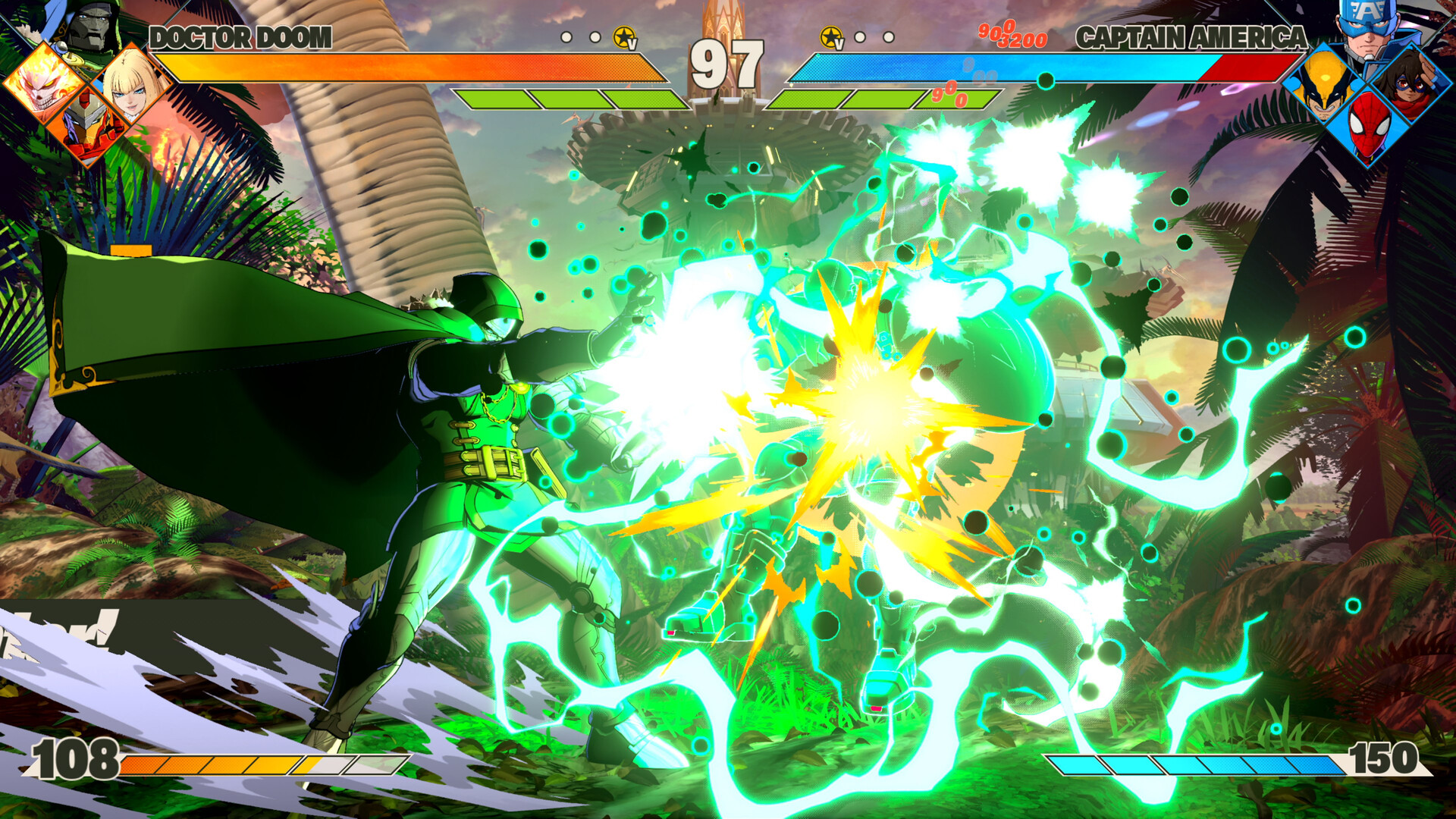
Use a fixed Training script: movement → chain → assist → tag → special → super → reset. Repeat overlapping assists/projectiles → rapid tag → super/camera cut → stage transition → post-transition assist/super. Alternate A/B order, change one item, and collect five warm repetitions. Run a matched local round through start, exchanges, super, KO, and post-KO.
Log build/date, hardware, driver, OS, resolution, settings, AA/upscaler/scale, refresh/VRR/V-Sync, route, capture tool/version, exclusions, GPU/CPU/VRAM/RAM context, and online ping/loss separately. Capture displayed/presented FPS, one defined 1% low, median/P95/P99/P99.9 frametime, and counts above 20, 25, 33.33, and 50 ms. Never pool first-exposure and warm runs.
Finished the match test? Use Hone to reduce avoidable Windows background load, then repeat the same route. Results vary.
MARVEL Tōkon PC Settings FAQ
What are the best MARVEL Tōkon: Fighting Souls PC settings?
Start at native output, run the auto graphics profile, turn Motion Blur Off for clarity, compare Vertical Sync Off first, preserve the 60 FPS battle lock, and complete shader warmup. Lower one verified custom-quality row only when repeated testing proves GPU pressure. These are evidence-qualified starting steps, not guaranteed values.
Is MARVEL Tōkon: Fighting Souls capped at 60 FPS on PC?
Yes. Official Steam wording says “60fps (locked in battle).” Aim for even 16.67 ms pacing rather than trying to run battle simulation at 120, 144, or 240 FPS. Keep one native limiter, measure non-battle scenes separately, and inspect displayed cadence, 1% lows, and frametime spikes instead of relying on average FPS.
Should I enable shader warmup in MARVEL Tōkon?
Yes. After the August 10 update, set Launch Shader Warmup to On, run Execute Shader Warmup, and let it finish. Then complete one unscored exposure pass before collecting warm repetitions. Warmup targets first-use compilation hitches; it does not repair sustained render load, CPU problems, streaming, transitions, rollback, or game bugs.
Why does MARVEL Tōkon still stutter after lowering graphics settings?
The cause may not be sustained GPU load. If identical misses survive lower resolution and quality, compare CPU/game-thread or audio/device activity, first-exposure versus warm runs, supers and transitions, and known game bugs. Online-only snaps may be rollback or connection corrections. Keep each lane separate instead of continuing to reduce image quality.
How do I tell rollback from PC stutter in MARVEL Tōkon?
Test the same route offline first. Repeatable local frametime spikes point toward rendering, CPU/system, shaders, transitions, or a game fault. Online-only teleports, position snaps, rollback-counter changes, or connection-dependent degradation point toward rollback/network conditions. Record local frametimes and GPU/CPU context separately from region, ping, loss, jitter, and cross-play.




 Youtube