


Start with the High preset, native output resolution, V-Sync Off for the first diagnostic pass, Frame Generation Off, and your verified vendor upscaler at Quality when native rendering cannot hold the target. Keep textures and view clarity high while VRAM and traversal stay stable; reduce shadows, volumetrics, effects/gore, global illumination, and vegetation first when the GPU is saturated. Turn Motion Blur and Depth of Field Off for clarity. Test the same late objective or Survival wave twice. These No More Room in Hell 2 best settings are a starting profile, not a guarantee.
Build context: Armageddon 1.0 with Hotfix 1.0.3.1 at the August 20, 2026 cutoff. Graphics changes can reduce GPU work, but they cannot repair CPU/horde simulation limits, shader or asset hitches, server delay, or crashes.
AFTER THE IN-GAME PASS
Give every horde more PC headroom
Hone can reduce avoidable Windows background load after you tune the game. It cannot patch game-side stutter or servers.
Try Hone FreeBest No More Room in Hell 2 Settings for FPS
HORDE-READY BASELINE
Keep readable
- Native output and High preset first
- View Distance: High
- Texture Quality: High while VRAM remains stable
- Model Quality, if present in the current menu
Reduce first
- Shadow Quality and Volumetric Quality, if present
- Effects Quality and Gore Quality, if present
- Global Illumination Quality
- Foliage Density and Vegetation Quality
- Post Processing; disable blur and depth of field for clarity
Test separately
- Upscaling mode
- Frame or Multi Frame Generation
- Cap, V-Sync, and VRR
- First-run hitches and horde CPU pressure
Start High and make matched changes. Keep Texture Quality High while VRAM and traversal stay stable; lower it for repeatable memory pressure. Use Medium as a diagnostic start for Global Illumination Quality, Effects Quality, Foliage Density, Vegetation Quality, and Ambient Occlusion, with Post Processing Low. Keep Shader Quality High or default; it is not a proven hitch repair.
These labels come from a postlaunch 1.0 capture, not Hotfix 1.0.3.1. Verify patch-sensitive names in the current menu. Keep Sharpening and Frame Pacing at default initially, and use NVIDIA Reflex only when it appears on compatible hardware.
What Changed in Armageddon 1.0 and Hotfix 1.0.3.1
The Armageddon 1.0 update added DLSS 4.5 support on compatible RTX cards and more efficient impact and gore rendering. Torn Banner’s wider optimization overview also describes work across effects, shadows, lighting, models, distance rendering, and lower-end hardware.
Launch-week guidance says updating NVIDIA drivers appears to resolve one specific hitch for some users. That is a targeted branch, not a cure for every spike. Hotfix 1.0.3.1 fixed two customization-related crash cases and improved server stability. It did not claim that crashes, hitches, memory pressure, or server problems were eliminated. Treat later planned fixes as pending until their own notes are published.
What to Lower First Without Losing Horde Visibility
When GPU pressure stays high, lower one verified control at a time. Start with Shadows and Volumetrics if the current menu exposes those labels, then Effects/Gore, Global Illumination, Foliage/Vegetation, and post effects. Compare stronger upscaling or lower resolution last. Replay the same busy scene after every change.
Texture Quality mainly controls memory pressure, so keep it High while VRAM use and repeated traversal remain stable. Lower it one step for repeatable swapping or traversal trouble—not for a promised average-FPS gain.
Preserve View Distance, model clarity, silhouettes, teammates, muzzle flashes, attack telegraphs, and enough Ambient Occlusion to read dark geometry. Turning Bloom, Lens Flares, Depth of Field, Motion Blur, and Chromatic Aberration Off is primarily a clarity choice. This tuning order is safer than setting everything Low when you want to fix FPS drops. No current 1.0.3.1 per-slider percentages support a guaranteed uplift.
DLSS 4.5, Upscaling, and Frame Generation
Begin at native output resolution with Frame Generation Off so you can see what the game actually presents. If a repeatable route remains GPU-limited and misses your target, select the upscaler verified for your GPU and try Quality first. On compatible RTX hardware, official material confirms DLSS 4.5; availability and menu values still depend on the card, driver, resolution, and current build. Do not assume every GPU exposes DLSS, every technique, or identical mode lists.
Quality is not a universal winner. One postlaunch 1.0 capture used an RTX 4070 and different live Power Plant segments. Without repeated routes, averages, 1% lows, or a Frame Generation comparison, it cannot prove an upscaler or slider uplift.
After base performance is stable, test Frame Generation or Multi Frame Generation separately on supported hardware. Base FPS is the app-presented cadence with FG Off; displayed/generated FPS includes synthesized frames. FG may smooth presentation, but it cannot raise simulation or input updates, remove CPU stalls, compile shaders, repair asset hitches, reduce packet delay, or stabilize a server. Never judge it from the generated counter alone.
Why FPS Drops During Dense Hordes
A dense late objective can shift the limiting work away from the GPU. If FPS falls while GPU utilization also falls, and changing resolution or upscaling has little effect, investigate CPU game-thread work, zombie simulation, player replication, and encounter state. Record the map, route, player count, entity pressure, CPU indicators, GPU load, and ping before drawing a conclusion.
This does not prove the game is universally CPU-bound; another route or PC may remain GPU-limited. It means one horde segment did not respond like a normal rendering bottleneck. Keep comparisons matched and choose a sustainable cap from the busy scene. Frame Generation does not increase the underlying horde simulation rate.
Stutter, Server Lag, or a Crash?
Treat isolated hitches separately from low steady FPS. A first-traversal, first-effect, or newly loaded-area spike may involve shader or asset work. Record a cold pass and warm repeats. Do not call every spike shader compilation or treat lower Shader Quality as a repair. For the NVIDIA launch-hitch branch, install a current suitable driver and retest; Torn Banner says that appears to help some users.
Network trouble has different clues: delayed inventory actions, rubber-banding, remote zombies or teammates snapping, desync, high ping, or cross-region matchmaking while local camera motion and FPS remain stable. Log region, ping, packet loss, lobby and crossplay state, and time. Stop lowering graphics for that branch because upscaling cannot repair server delay.
A fatal exit, freeze, memory symptom, or customization crash belongs to stability and support. Hotfix 1.0.3.1 fixed named customization crashes, not all crashes. Preserve logs, follow current official guidance, and avoid random cache deletion, unsafe launch options, forced DX11, registry edits, anti-cheat changes, or “FPS packs.” This split also helps diagnose PC stuttering in games without forcing every problem into one graphics fix.
Choose a Frame-Time Target
Frame-time budget
Compare frame-time budgets.
- 30 FPS = 33.33 ms
- 45 FPS = 22.22 ms
- 60 FPS = 16.67 ms
- 90 FPS = 11.11 ms
- 120 FPS = 8.33 ms
60 FPS = 16.67 ms
The selector uses 1000 / FPS. That result is a timing budget, not a promise that your PC will hold the target. Use the warm horde route to choose a realistic FPS target, then apply one limiter and verify pacing.
For variable refresh rate (VRR), choose cap and V-Sync behavior intentionally within the display’s working range. On fixed refresh, compare tearing and latency. V-Sync Off helps the first diagnostic pass but is not universally best. Avoid fixed “three frames below” or 95% rules; margins depend on the monitor and limiter.
Official PC Requirements
Swipe horizontally to view all requirements.
| Tier | CPU | RAM | GPU | OS/API | Storage | Official experience target |
|---|---|---|---|---|---|---|
| Minimum | Intel Core i5-6600 or AMD Ryzen 3 1200 | 12 GB | GeForce GTX 1650 4 GB, Radeon RX 570 4 GB, or Intel Arc 580 | Windows 10 64-bit; DirectX 12 | 35 GB | 1080p/30, Low, Performance Super Sampling |
| Recommended | Intel Core i7-10700K or AMD Ryzen 5 5500GT | 16 GB | GeForce RTX 2070 8 GB or Radeon RX 5700 XT 8 GB | Windows 10 64-bit; DirectX 12 | 35 GB | 1080p/60, High, Quality Super Sampling |
The official Steam requirements are publisher targets, not guarantees. Both rely on super sampling, so neither is a native-rendering claim. Minimum does not guarantee 30 FPS in every horde, and Recommended does not guarantee 60 FPS. Audit the stated resolution, preset, and super-sampling condition, then test a busy repeatable route.
Run an Eight-Player Horde Test
Eight-player horde stress route
- Quiet spawn baselineRecord cadence.
- Traversal and convergenceRepeat as teammates regroup.
- Dense indoor hordeRepeat weapons, gore, volumetrics, and effects.
- Final objective or extractionCapture peak player and zombie pressure.
Keep the build, map, mode, difficulty, route, player count, relevant time or weather, resolution, preset, upscaler, FG, cap, V-Sync/VRR, and server region fixed. Record a cold pass, one warm-up if needed, then at least three valid warm passes. Label a smaller player count and keep those runs out of the eight-player set.
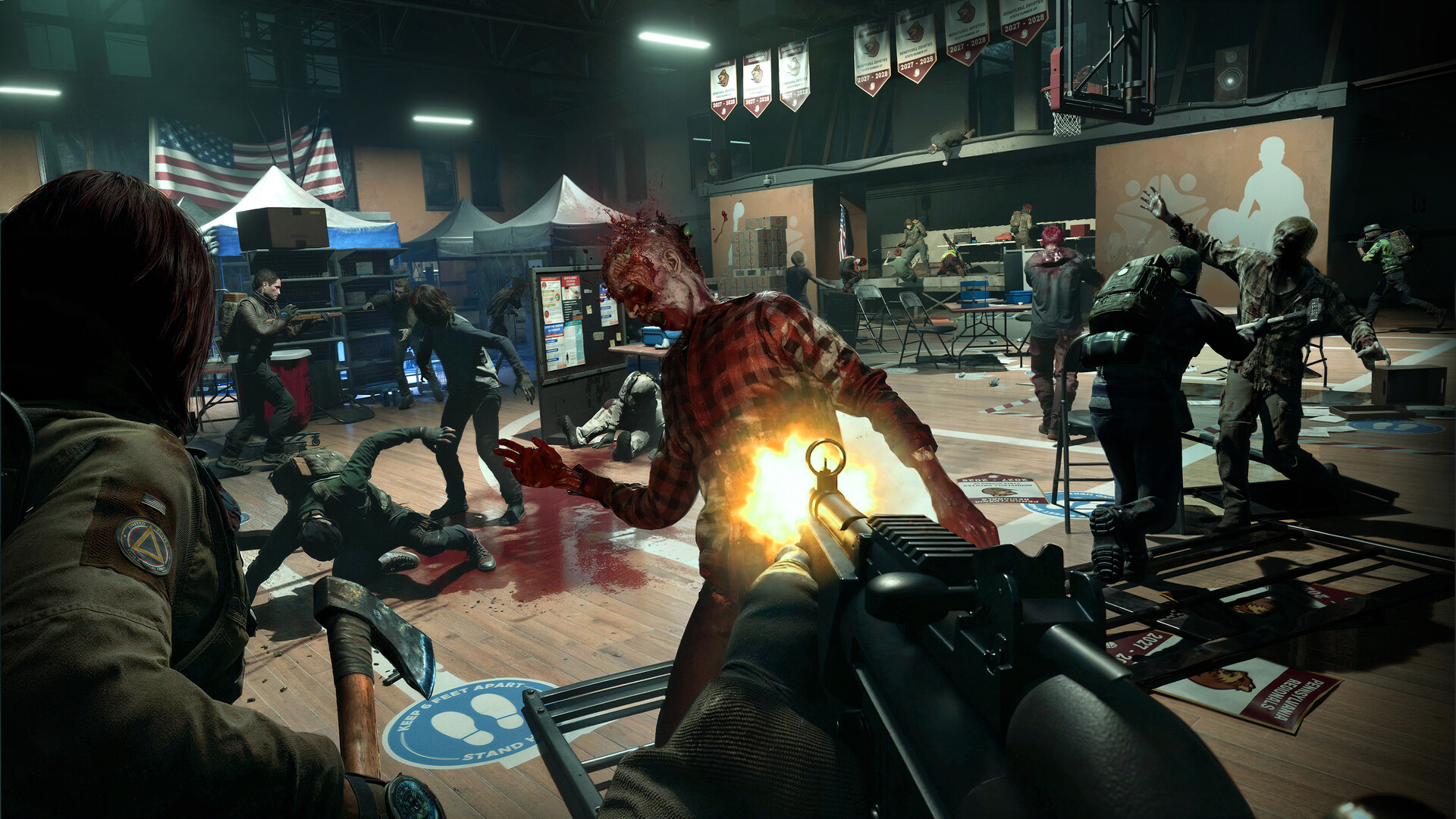
Log average base/app-presented FPS and separately labeled displayed/generated FPS. Keep a defined 1% low, frametime plot, VRAM/RAM, GPU load, CPU/game-thread indicators, ping, packet loss, duration, and deviations. Averages can hide spikes, and tools define lows differently. Before capture, optimize your PC for gaming to standardize background workloads, then hold that state constant.
Finished the horde test? Use Hone to reduce avoidable Windows background load, then repeat the same route. Results vary.
No More Room in Hell 2 Settings FAQ
What are the best settings for No More Room in Hell 2?
Start High at native output, with V-Sync and Frame Generation Off for diagnosis. Use your verified vendor upscaler at Quality if a GPU-limited route misses target. Keep View Distance and textures high while VRAM allows. Lower verified Shadows, Volumetrics, Effects/Gore, Global Illumination, and Vegetation one at a time on the same horde.
Should I use DLSS 4.5 or Frame Generation in No More Room in Hell 2?
On compatible RTX hardware, try DLSS 4.5 Quality when native rendering is GPU-limited. Keep Frame Generation Off until base FPS and frametimes are acceptable, then compare it separately. Label generated FPS apart from base FPS. FG can smooth presentation but cannot repair horde simulation, hitches, network delay, or low input cadence.
Why does No More Room in Hell 2 FPS drop during large hordes?
Dense hordes increase simulation, replication, effects, and gore work together. If GPU load falls and lower resolution changes little, investigate CPU and encounter pressure for that route. If GPU pressure stays high and reductions help, continue the graphics lane. One scene cannot prove the whole game is universally CPU- or GPU-bound.
How do I fix stuttering in No More Room in Hell 2?
Separate low steady FPS, cold-pass hitches, server symptoms, and crashes. Update an appropriate NVIDIA driver for the specific launch-hitch branch, then compare cold and warm passes. If local FPS stays stable while actors snap or actions delay, log ping and region instead of lowering graphics. Preserve crash logs and follow official guidance.
Can the minimum or recommended PC specs hold 30 or 60 FPS?
The official tiers target 1080p/30 Low with Performance Super Sampling and 1080p/60 High with Quality Super Sampling. These are publisher targets, not guarantees, native-rendering claims, or minimum-FPS promises. Test the stated condition on your hardware in a repeatable eight-player horde, judging frametimes and run-to-run stability with the average.





 Youtube