

Fortnite controller settings are not about copying one pro and hoping your aim turns into a laser. They are about making the right stick predictable, keeping ADS calm, letting build and edit inputs happen without thumb gymnastics, and removing anything that makes the controller feel heavier than it should.
This updated Fortnite controller settings guide is built around a simple idea: start with a clean baseline, understand what every important setting does, then tune around your controller, your platform, and whether you mostly play Battle Royale builds or Zero Build.
The biggest correction from older Fortnite controller guides is wording. Builder Pro is the controller preset. Build Immediately (Builder Pro) is the toggle you turn on. Treating those as the same setting creates confusion before you even touch sensitivity.
Best Fortnite Controller Settings For 2025
Use this as your starting point for PS5, PS4, Xbox, and PC controller. The values below keep aim controlled, builds fast, edits responsive, and deadzones low without making stick drift worse.
Fortnite Controller Sensitivity Tuner
Use this to generate a starting range. Test the result in Creative, then move one setting at a time.
Best Fortnite Controller Settings For 2025 Quick Setup
Here is the full baseline first. Use these Fortnite controller settings as your starting point before you begin personal tuning. The recommended values are intentionally conservative because a good guide should help you win more fights, not force you into someone else’s muscle memory.
Fortnite Controller Settings Quick Reference
Start here for Battle Royale builds, Ranked, Creative practice, and general controller play.
| Section | Setting | Recommended Value | Why It Works |
|---|---|---|---|
| Layout | Controller Binding Preset | Builder Pro | Best default template for building because each build piece has its own shoulder or trigger input. |
| Input | Controller Auto-Run | On | Saves left stick wear and keeps movement easier during rotates. |
| Input | Build Immediately (Builder Pro) | On | Places the selected build piece faster after switching into build mode. |
| Input | Edit Hold Time | 0.100 Seconds | Keeps hold-to-edit usable, though a dedicated edit bind is faster. |
| Input | Slide Hold Time | 0.100 Seconds | Makes sliding responsive without constantly triggering it by accident. |
| Input | Reset Camera Axes | Pitch Or Both | Only important if you actually bind Reset Camera. Most players can leave it as Pitch. |
| Input | Reset Camera Time | 0.100 Seconds | A safe default for camera reset behavior. |
| Input | Vibration | Off | Removes unnecessary controller movement during aim, tracking, and recoil control. |
| Sensitivity | Build Mode Sensitivity Multiplier | 2.0x | Fast enough for piece control without making builds feel slippery. |
| Sensitivity | Edit Mode Sensitivity Multiplier | 2.0x To 2.1x | Gives edits extra speed while keeping crosshair placement readable. |
| Advanced | Use Advanced Options | On | Unlocks the important look, ADS, curve, and aim assist controls. |
| Look | Look Horizontal / Vertical Speed | 40% To 43% | Balanced camera speed for fighting, editing, and turning. |
| ADS | ADS Look Horizontal / Vertical Speed | 8% To 10% | Stable rifle tracking and less over-aim while aiming down sights. |
| Advanced | Look Input Curve | Linear Start | Most direct starting point for builds and close-range fights. Test Exponential if long-range aim feels too twitchy. |
| Advanced | Aim Assist Strength | 100% | Use 100% for controller unless you are intentionally practicing without assistance. |
| Deadzone | Left / Right Stick Deadzone | 5% To 8% | Lowest value that stops stick drift is the correct value. |
If you only want one clean Fortnite controller settings profile, use Builder Pro, Controller Auto-Run on, Build Immediately on, Vibration off, Build and Edit multipliers around 2.0x, Advanced Options on, 40% look speed, 8% ADS speed, Linear, 100% aim assist, and 5% to 8% deadzones.
Why Fortnite Controller Settings Matter Aim, Builds, And Input Feel
A controller has two big limits compared to a mouse: stick travel distance and button access. Your right stick can only move inside a small circle, and your thumbs often have to choose between aiming, jumping, editing, switching mode, and sliding. Good Fortnite controller settings reduce those limits.
The best Fortnite controller settings do four things. They keep your camera fast enough to react, keep ADS slow enough to track, keep deadzones low enough for small corrections, and keep important actions on buttons you can hit without losing control of your aim.
Aim Consistency
ADS speed, look curve, dampening, aim assist, and right stick deadzone decide whether your aim feels calm or floaty.
Build Speed
Builder Pro, Build Immediately, Turbo Building, and build sensitivity decide how quickly you can place pieces under pressure.
Edit Flow
Edit binds, Edit Hold Time, Edit Mode Sensitivity, Confirm Edit On Release, and Simple Edit change how many inputs each edit takes.
A settings guide should not make Fortnite feel harder. If you apply a setting and your aim gets worse for three full sessions, tune it back. Mechanical improvement takes time, but a bad setting usually feels wrong immediately.
Best Fortnite Controller Layout Builder Pro First, Custom Later
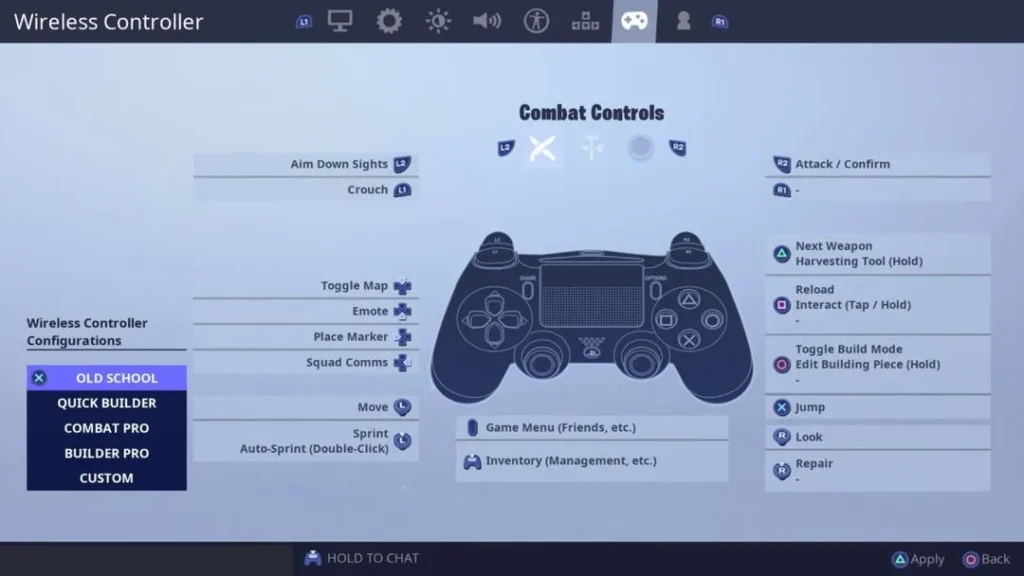
For most players, the best controller layout in Fortnite is Builder Pro or a custom layout built from Builder Pro. The reason is simple: in build mode, walls, floors, ramps, and roofs are separated across the shoulder and trigger buttons, so you do not have to cycle build pieces like older presets.
Do not write this as “Builder Pro: On.” Builder Pro is the binding preset. The related toggle is Build Immediately (Builder Pro), which belongs in the Controller Options input section.
Should You Use Custom Controller Binds In Fortnite?
Custom binds are worth it when they solve a real problem. If you lose fights because you take your thumb off the right stick to edit, move Edit somewhere easier to reach. If you miss jumps during shotgun fights, place Jump on a paddle. If you constantly fumble weapon cycling, test Quick Weapon instead of forcing yourself to cycle perfectly every time.
The best Fortnite controller binds are not always the most exotic. A stable Builder Pro layout with one or two smart changes beats a complicated custom layout you cannot execute under pressure.
Best Fortnite Controller Input Settings Movement And Feel
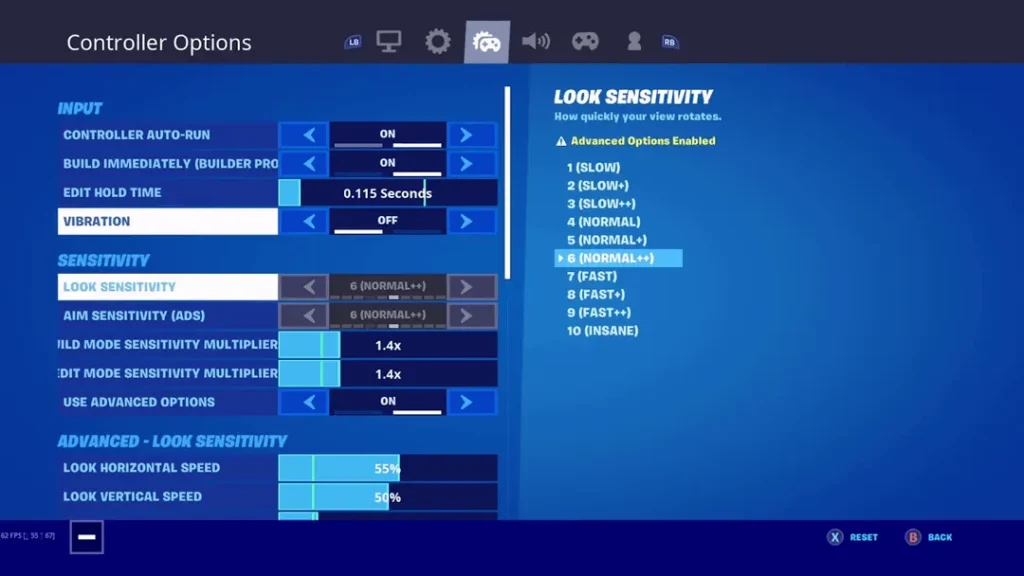
The Controller Options input section is where you clean up the basic controller feel. These settings do not decide your aim curve, but they decide how much effort it takes to move, build, edit, slide, and stay comfortable during long sessions.
Controller Input Settings
Use these before you start sensitivity tuning.
| Setting | Value | Explainer |
|---|---|---|
| Controller Auto-Run | On | Double-tap movement to auto-run. This is especially useful for rotating, looting, and reducing left stick strain. |
| Build Immediately (Builder Pro) | On | Essential if you use Builder Pro. It helps the selected piece place immediately when entering build mode. |
| Edit Hold Time | 0.100 Seconds | Use the lowest comfortable value if you rely on hold-to-edit. Dedicated edit binds are still faster. |
| Slide Hold Time | 0.100 Seconds | Fast enough for movement without turning every crouch into a slide. |
| Reset Camera Axes | Pitch Baseline | Pitch is safe for most players. Both can be tested if you actively use a Reset Camera bind. |
| Reset Camera Time | 0.100 Seconds | Keep this low if you use Reset Camera. Ignore it if you do not bind the action. |
| Vibration | Off | Vibration can make aim less consistent and drains battery on wireless controllers. |
Controller Auto-Run should be on for most players. It makes rotations less tiring and reduces constant left stick pressure. If you accidentally trigger it during fights, turn it off and keep the rest of the input settings the same.
Vibration should be off in Fortnite. Feedback rumble can feel nice casually, but it adds physical noise to a device you are using for precise tracking, shotgun flicks, and recoil control.
Best Fortnite Controller Sensitivity Settings Build Speed Without Losing Aim
Fortnite controller sensitivity has two layers. The basic Look Sensitivity and Aim Sensitivity sliders are useful if Advanced Options are off. Once Advanced Options are on, the detailed horizontal and vertical speed settings become the values that matter most.
For most competitive controller players, Advanced Options should be on. Epic’s own advanced controller sensitivity controls define separate look speed, ADS speed, boost, dampening, curve, and aim assist behavior, which gives you far more control than the simple sliders.
Basic Sensitivity Settings
These still matter for menu readability and players not using Advanced Options.
| Setting | Recommended Value | Use Case |
|---|---|---|
| Look Sensitivity | 4 (Normal) | Good simple baseline if Advanced Options are off. |
| Aim Sensitivity (ADS) | 4 (Normal) | Safe simple ADS baseline if Advanced Options are off. |
| Build Mode Sensitivity Multiplier | 2.0x | Faster building while preserving normal camera control. |
| Edit Mode Sensitivity Multiplier | 2.0x To 2.1x | Faster edit selection and resets without making edits too shaky. |
| Use Advanced Options | On | Recommended for serious Fortnite controller players. |
Advanced Look Sensitivity
Advanced Look Settings
This is your main camera behavior when you are not aiming down sights.
| Setting | Best Starting Value | When To Change It |
|---|---|---|
| Look Horizontal Speed | 40% To 43% | Raise if you turn too slowly. Lower if you over-flick in shotgun fights. |
| Look Vertical Speed | 40% To 43% | Keep close to horizontal speed so diagonal aim does not feel strange. |
| Turning Horizontal Boost | 0% | Use 0% for consistency. Boost can make full-stick turns less predictable. |
| Turning Vertical Boost | 0% | Use 0% unless you specifically want extra full-stick vertical turn speed. |
| Turning Boost Ramp Time | 0.00 Seconds | With boosts at 0%, this does not meaningfully affect the feel. |
| Instant Boost When Building | Optional | Only matters if you use turning boost. With boosts at 0%, it is not a key setting. |
For a build-mode Fortnite controller player, 40% to 43% is the best starting range. It is fast enough for close fights and piece control, but not so fast that your shotgun crosshair keeps flying past the target.
If you play mostly Zero Build, you can push look speed slightly higher because you are not trying to place and edit pieces in the same rhythm. If you play mostly box fights, keep the camera speed controlled and let Build Mode Sensitivity carry the mechanical speed.
Advanced ADS Sensitivity
Advanced ADS Settings
ADS should be calmer than your normal look speed.
| Setting | Best Starting Value | When To Change It |
|---|---|---|
| ADS Look Horizontal Speed | 8% To 10% | Raise toward 12% to 16% only if tracking feels too slow, especially on Exponential. |
| ADS Look Vertical Speed | 8% To 10% | Keep close to horizontal ADS speed for consistent recoil and tracking. |
| ADS Turning Horizontal Boost | 0% | Keeps ADS tracking predictable. |
| ADS Turning Vertical Boost | 0% | Keeps vertical tracking and recoil corrections controlled. |
| ADS Turning Boost Ramp Time | 0.00 Seconds | Simple and consistent when ADS boosts are 0%. |
| Scoped Speed Multiplier | 0.85x To 0.95x | Lower if scoped aim feels twitchy. Keep near 0.95x if scoped aim feels too slow. |
The scoped multiplier is worth adding to an updated Fortnite controller settings guide because it gives controller players separate control while aiming down sights with scoped weapons. Keep it slightly below 1.00x if scoped tracking feels too jumpy, especially on long-range rifles.
Linear Vs Exponential In Fortnite
Linear and Exponential are both valid. The mistake is treating one as universally correct. Linear usually feels more direct for building, editing, and close-range shotgun aim. Exponential usually feels softer around the center of the stick, which can help long-range tracking and smaller aim corrections.
Use Linear if you want the most direct Fortnite controller sensitivity for building and editing. Use Exponential if your aim feels too loose at mid or long range, or if you play mostly Zero Build and care more about tracking than edit speed.
Look Dampening Time
Look Dampening Time controls how long it takes to reach the expected look speed after initial stick input. A value of 0.00 seconds gives the snappiest response and is the best starting point for Linear. If you use Exponential and feel your aim is too sudden, test a small value like 0.05 to 0.20 seconds.
The Cleanest Sensitivity Rule
Change one sensitivity setting at a time. If you raise look speed, do not also change deadzone, ADS speed, curve, and dampening in the same session. You will not know what fixed or broke your aim.
Best Fortnite Aim Assist Settings Controller Accuracy
For normal stick aiming, keep aim assist at 100%. If your Fortnite menu shows separate options for Precision Aim Assist Strength and Tracking Aim Assist Strength, keep both at 100%. If your platform or menu groups the option into one Aim Assist Strength value, keep that at 100%.
Lowering aim assist is not a serious competitive recommendation unless you are deliberately training without it. The better way to fix over-aiming is to tune ADS speed, right stick deadzone, look curve, and dampening.
Aim Assist Settings
Use the labels your current Fortnite menu shows.
| Menu Label | Recommended Value | Note |
|---|---|---|
| Precision Aim Assist Strength | 100% | Use this where the menu separates aim assist into precision and tracking values. |
| Tracking Aim Assist Strength | 100% | Keep this at full strength for normal controller play. |
| Aim Assist Strength | 100% | Use this value if your menu displays a single aim assist setting. |
If aim assist feels inconsistent, do not immediately blame the setting. Check whether you are using Gyro Aiming, whether your right stick deadzone is too high, whether ADS speed is too fast, or whether your game is stuttering. A controller cannot feel consistent when frame time is unstable, so it is worth fixing PC stuttering in games before you judge your aim settings.
Best Fortnite Controller Deadzone Settings Stop Drift Without Adding Delay
Deadzone is the amount of stick movement Fortnite ignores before it starts reading input. Lower deadzones feel more responsive because tiny stick movements register sooner. Higher deadzones hide stick drift, but they also make small corrections feel delayed.
The best Fortnite controller deadzone setting is the lowest value that does not drift. For most healthy controllers, that lands between 5% and 8%. If your controller needs 10% or more, the controller may be worn, dirty, or developing stick drift.
Controller Deadzone Settings
Use this for left stick, right stick, and trigger release tuning.
| Setting | Recommended Value | How To Tune |
|---|---|---|
| Left Stick Deadzone | 5% To 8% | Lower improves movement response. Raise if your character moves without input. |
| Right Stick Deadzone | 5% To 8% | Lower improves aim response. Raise if your camera moves by itself. |
| Left / Right Trigger Release | Controller Dependent | Lower can make trigger actions feel faster, but test carefully so you do not fire or ADS accidentally. |
How To Test Deadzone In Fortnite
Load into Creative or an empty island. Stand still and take your thumbs off the sticks. If your character moves, raise the left stick deadzone by 1%. If your camera drifts, raise the right stick deadzone by 1%. Repeat until the drift stops, then stop increasing it.
Do not copy a 5% deadzone if your controller cannot handle it. Low deadzone is only good when the stick is stable.
Best Fortnite Settings For Building And Editing Controller Mechanics
Building and editing on controller is about reducing the number of awkward inputs. You want to place pieces quickly, edit without losing camera control, and reset without fumbling. Sensitivity helps, but binds and game settings matter just as much.
Build And Edit Settings
These settings matter most in Battle Royale builds and Creative fights.
| Setting | Recommended Value | Reason |
|---|---|---|
| Controller Binding Preset | Builder Pro | The best starting layout for controller building. |
| Build Immediately (Builder Pro) | On | Reduces delay between selecting a piece and placing it. |
| Turbo Building | On | Allows continuous piece placement while holding the build input. |
| Confirm Edit On Release | On For Most | Reduces one input from normal edits. Turn off only if you prefer manual confirm timing. |
| Edit Mode Sensitivity Multiplier | 2.0x To 2.1x | Enough speed for quick tiles without making edits feel slippery. |
| Simple Edit | Optional | Helpful for new builders and some controller players, but manual editing keeps more flexibility. |
| Tap To Simple Edit | On If Using Simple Edit | Makes Simple Edit work with a single press rather than a hold-and-drag behavior. |
Should Controller Players Use Simple Edit?
Simple Edit can be useful if manual tile selection is stopping you from learning build fights. It edits the build you are looking at with a single press, which lowers the execution barrier. Epic describes it as a simplified input scheme with less flexibility than standard editing, and that tradeoff is the important part.
Use Simple Edit if you are new to building, returning to Fortnite, playing on a standard controller, or struggling to get edits out cleanly. Keep manual editing if you already perform consistent edits and want maximum control over every shape.
Simple Edit also has a competitive history worth knowing. It launched as a new build setting in Chapter 6 Season 1, and Epic later enabled it in tournaments during the May 2025 Galactic Battle competitive update. That makes it more than a casual-only training crutch, but it still does not replace the flexibility of full manual edits.
Best Build Mode Starting Profile
Builder Pro, Build Immediately on, Turbo Building on, Confirm Edit On Release on, Edit Hold Time 0.100 seconds, Build Multiplier 2.0x, Edit Multiplier 2.0x to 2.1x. Then decide whether Simple Edit helps or limits you.
Best Fortnite Controller Settings For Zero Build Aim And Weapon Swaps
Zero Build controller settings do not need to prioritize edit speed. You still want smooth aim, low deadzones, and fast camera movement, but your biggest problems are usually tracking, weapon swaps, sprinting, sliding, and close-range shotgun control.
Zero Build Controller Profile
Use this if you mostly play Zero Build, Reload Zero Build, or casual no-build modes.
| Setting | Recommended Value | Zero Build Reason |
|---|---|---|
| Look Horizontal / Vertical Speed | 42% To 48% | You can run slightly faster look speed because you are not editing pieces mid-fight. |
| ADS Look Horizontal / Vertical Speed | 9% To 12% | Keep ADS controlled, but not so slow that tracking sprinting enemies feels impossible. |
| Look Input Curve | Linear Or Exponential | Linear for close fights. Exponential if long-range tracking feels better. |
| Build / Edit Multiplier | Not Critical | Leave around 2.0x if you switch between modes. |
| Quick Weapon | Optional | Worth testing if weapon cycling is your main controller weakness. |
| Vibration | Off | Still better off for aim consistency. |
In Zero Build, do not chase ultra-fast ADS. Most missed shots come from over-correcting. Raise normal look speed if turning feels slow, but keep ADS speed controlled so rifles, scoped weapons, and tracking weapons stay stable.
Quick Weapon Settings In Fortnite When Controller Cycling Feels Slow
Quick Weapon is worth testing if you lose fights because you cycle past your shotgun or pull the wrong item under pressure. It changes weapon access so controller players can hold the Quick Weapon input and select items more directly instead of relying only on repeated next-weapon presses.
The safest recommendation is to treat Quick Weapon as optional. Some players love it because it reduces cycling mistakes. Others prefer traditional weapon cycling because they already have years of muscle memory. Try it in Creative first, not in your first Ranked match of the day.
Quick Weapon Setup
Use this only if it improves your weapon access.
| Setting Or Action | Recommendation | Best For |
|---|---|---|
| Quick Weapon | Enabled Or Custom | Players who struggle with weapon cycling on controller. |
| PlayStation / Switch Input | Hold R1 | Default Quick Weapon behavior. |
| Xbox Input | Hold RB | Default Quick Weapon behavior. |
| Custom Mapping | Use If Needed | Paddle players and custom bind users. |
Gyro Aiming And Flick Stick Should You Use Them?
For a standard Fortnite controller settings guide, keep Gyro Aiming off. That keeps the article focused on normal stick aiming and aim assist. Gyro can be powerful, but it is a different input style with its own learning curve.
Use Gyro Aiming only if you are on a gyro-supported platform and you actually want motion aim. Epic’s gyro aiming overview explains that gyro is available on supported platforms like Nintendo Switch, PlayStation 4 and 5, PC, and Android, and that aim assist is disabled whenever gyro is active.
Gyro And Flick Stick Settings
Standard controller profile first. Gyro profile only if you intentionally play motion aim.
| Setting | Standard Recommendation | When To Change It |
|---|---|---|
| Gyro Aiming | Off | Turn on only if you are learning motion aim on a supported platform. |
| Flick Stick | Off | Use only with Gyro Aiming and only if you understand the tradeoff. |
| Active Mode | Gyro Only | Set based on when you want motion aim active. |
| Look Stick Effect | Gyro Only | Useful for serious gyro players who need stick and motion control to interact cleanly. |
The important caveat is aim assist. If you want Fortnite controller aim assist, keep Gyro Aiming off. If you want gyro precision, accept that it becomes a different setup.
Preferred Item Slots For Controller Faster Weapon Flow
Preferred Item Slots are not a controller-only setting, but they matter more on controller because weapon cycling is slower than pressing direct number keys on keyboard. The goal is to make your inventory rebuild itself into a predictable order as you loot.
Recommended Preferred Item Slots
Adjust based on your loadout, but keep the logic consistent.
| Slot | Recommended Item | Why |
|---|---|---|
| Slot 1 | Shotgun | Your most important close-range swap should always be predictable. |
| Slot 2 | SMG Or Follow-Up Weapon | Pairs naturally after a shotgun shot. |
| Slot 3 | AR Or Utility | Use this for your main mid-range weapon or flexible item. |
| Slot 4 | Mobility Or Heals | Keep survival items away from your main fight cycle. |
| Slot 5 | Heals Or Utility | Good for medkits, shields, bunkers, movement, or mode-specific utility. |
The exact slot order is personal, but the rule is not: shotgun placement must be automatic. If you have to look at your inventory during a box fight, your slots are not doing their job.
Pro Controller Settings In Fortnite What To Copy And What To Ignore
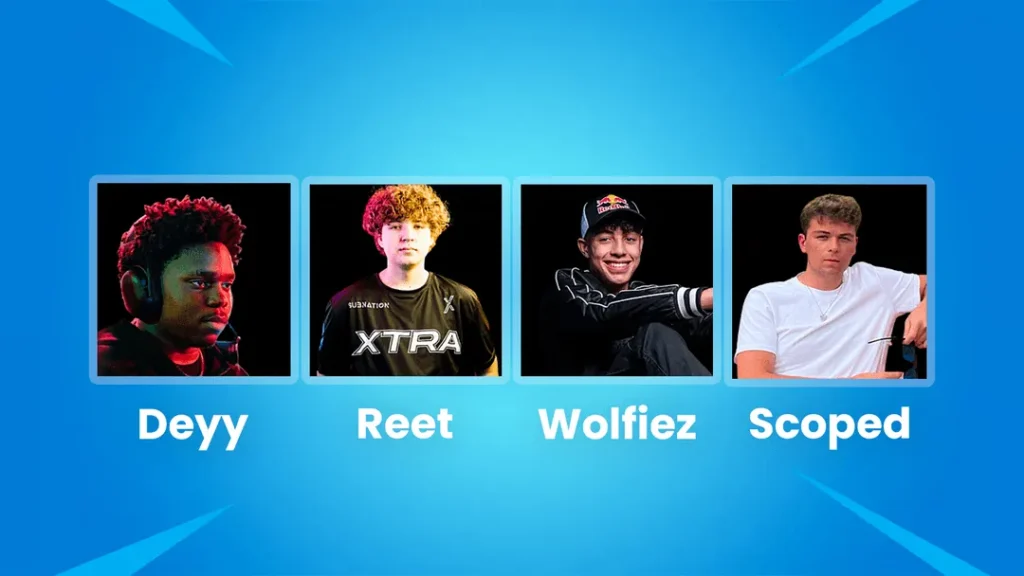
Pro Fortnite controller settings are useful for pattern spotting, not blind copying. A pro setting is shaped by their controller, grip, paddles, practice hours, monitor refresh rate, platform, and the season’s weapon pool. Your job is to copy the logic, not the whole profile.
What Pro Settings Usually Teach You
Use this instead of blindly copying one player’s full profile.
| Pattern | Common Setting Choice | What It Means For You |
|---|---|---|
| Low Or No Turning Boost | 0% Boosts | Consistency beats sudden full-stick acceleration for most players. |
| Higher Build And Edit Multipliers | Around 1.8x To 2.3x | Builds and edits can be faster than normal look speed. |
| Low Deadzones | Usually Under 10% | Small stick corrections matter, but only if your controller does not drift. |
| Vibration Off | Off | Cleaner aim and less physical noise during tracking. |
| Curve Preference Varies | Linear Or Exponential | Both can work. Choose based on whether you value direct mechanics or softer aim. |
If a pro setting feels terrible, do not force it for weeks. Use pro profiles to find a range, then tune around your own hands. Fortnite is too mechanical for one universal controller sensitivity to fit everyone.
Step By Step Fortnite Controller Setup A Clean Tuning Process
The fastest way to ruin your Fortnite controller settings is changing everything at once. Use this process instead.
Set The Layout First
Start with Builder Pro or Custom based on Builder Pro. Do not tune sensitivity before your edit, jump, crouch, and switch mode inputs feel reachable.
Fix Input Settings
Turn on Controller Auto-Run, turn on Build Immediately, lower Edit Hold Time and Slide Hold Time to 0.100 seconds, and turn Vibration off.
Set Deadzone Before Sensitivity
Deadzone changes how soon your stick responds. Tune it before judging whether your sensitivity is too fast or too slow.
Enable Advanced Options
Use 40% to 43% look speed, 8% to 10% ADS speed, 0% boosts, and 0.00 seconds boost ramp time as the first test.
Pick Linear Or Exponential
Start Linear for builds. Test Exponential if long-range aim feels too sensitive around the center of the stick.
Test In Creative
Do 10 minutes of freebuilding, edits, shotgun flicks, AR tracking, and box fights. Change only one setting after each test.
Save Your Final Profile
Once your aim and mechanics feel stable, stop tweaking daily. Consistency builds muscle memory faster than endless micro-adjustments.
Fortnite Controller Troubleshooting Fix Common Problems
Controller Settings Fixes
Use this when your settings feel wrong but you are not sure why.
| Problem | Likely Cause | Fix |
|---|---|---|
| Aim Feels Floaty | Deadzone too high, dampening too high, or ADS too fast | Lower deadzone if there is no drift. Set Look Dampening Time to 0.00 on Linear. Lower ADS by 1%. |
| Over-Flicking Shotguns | Look speed too high or Linear too sharp | Lower look speed by 2%. If still too sharp, test Exponential or slight dampening. |
| AR Tracking Too Slow | ADS speed too low | Raise ADS horizontal and vertical speed by 1% at a time. |
| Builds Feel Slow | Build multiplier too low or Build Immediately off | Turn on Build Immediately and raise Build Mode Sensitivity toward 2.0x. |
| Edits Feel Awkward | Edit bind is hard to reach or edit sensitivity is low | Try a dedicated edit bind and raise Edit Mode Sensitivity toward 2.0x. |
| Camera Moves By Itself | Right stick drift | Raise Right Stick Deadzone by 1% until it stops. |
| Character Moves By Itself | Left stick drift | Raise Left Stick Deadzone by 1% until movement stops. |
| Aim Assist Feels Gone | Gyro active, wrong input state, or platform/menu limitation | Check Gyro Aiming first. Aim assist is disabled whenever gyro is active. |
PC Performance Still Matters Controller Settings Cannot Fix Stutters
Controller settings change input feel, but they do not fix a PC that stutters during fights. If Fortnite drops frames during box fights, your aim can feel inconsistent even when your sensitivity is perfect. That is not always a controller problem.
If your settings feel good in Creative but terrible in real matches, check performance. A practical guide to fixing FPS drops can help you separate input problems from frame-time problems. If your whole system feels delayed, you may also need to optimize your PC for gaming before judging your Fortnite controller sensitivity.
The same applies to FPS targets. A stable frame rate feels better than a higher number that collapses mid-fight. If you are not sure what target makes sense for your hardware, sanity check it against a practical definition of good FPS for gaming before chasing a number your setup cannot hold.
Best Fortnite Controller Settings Final Recommended Profile
For most players, the best Fortnite controller settings in 2025 are Builder Pro or Custom based on Builder Pro, Controller Auto-Run on, Build Immediately on, Edit Hold Time 0.100 seconds, Slide Hold Time 0.100 seconds, Vibration off, Build and Edit multipliers around 2.0x, Advanced Options on, 40% to 43% look speed, 8% to 10% ADS speed, 0% boosts, Linear as the first curve to test, aim assist at 100%, and 5% to 8% deadzones.
That profile gives you the best blend of aim control, build speed, edit consistency, and low input friction. From there, tune around your hands. Raise look speed if you turn too slowly. Lower ADS if you over-track. Raise deadzone only if the controller drifts. Test Exponential only if Linear feels too sharp around the center.
Good settings will not make decisions for you, but they will stop your controller from fighting you while you make them.
FAQ
What are the best controller settings for Fortnite in 2025?
The best Fortnite controller settings for most players are Builder Pro or Custom based on Builder Pro, Controller Auto-Run on, Build Immediately on, Vibration off, Build and Edit multipliers around 2.0x, Advanced Options on, 40% to 43% look speed, 8% to 10% ADS speed, 0% boosts, Linear as a starting curve, aim assist at 100%, and 5% to 8% deadzones.
Is Builder Pro the best Fortnite controller layout?
Yes, Builder Pro is the best starting layout for most Fortnite controller players because it maps build pieces to separate shoulder and trigger inputs. Many players eventually use a Custom layout based on Builder Pro so they can move Edit, Jump, or Switch Mode to more comfortable buttons or paddles.
What is the best Fortnite controller sensitivity?
A good starting point is 40% to 43% Look Horizontal and Vertical Speed, 8% to 10% ADS Look Horizontal and Vertical Speed, 2.0x Build Mode Sensitivity, and 2.0x to 2.1x Edit Mode Sensitivity. Raise or lower these values slowly based on whether you over-flick, turn too slowly, or struggle to track while aiming down sights.
Should I use Linear or Exponential in Fortnite?
Use Linear if you want direct stick response for close-range fights, building, and editing. Use Exponential if you want softer small-stick movement for long-range tracking. Both can work, so the best choice depends on whether you value fast mechanics or cushioned aim more.
What deadzone should I use for Fortnite controller?
Use the lowest deadzone that stops stick drift. For most healthy controllers, that is around 5% to 8% on both sticks. If your character or camera moves by itself, raise the relevant stick deadzone by 1% until the drift stops.
Should Fortnite aim assist be set to 100%?
Yes, Fortnite aim assist should be set to 100% for normal controller play. If your menu shows separate Precision Aim Assist Strength and Tracking Aim Assist Strength values, keep both at 100%. Lowering aim assist is not recommended unless you are intentionally practicing without it.
What are the best Fortnite controller settings for Zero Build?
For Zero Build, use slightly faster look speed around 42% to 48%, ADS speed around 9% to 12%, aim assist at 100%, Vibration off, and deadzones around 5% to 8%. Build and Edit multipliers matter less in Zero Build, but keeping them around 2.0x is useful if you switch between modes.
Should I use Simple Edit on controller in Fortnite?
Use Simple Edit if manual tile editing feels too difficult or if you are new to building. It can make edits easier with fewer inputs, especially on a standard controller. Keep manual editing if you already edit consistently and want more flexibility over every build shape.
Should I use Gyro Aiming in Fortnite?
Keep Gyro Aiming off for a standard Fortnite controller setup. Turn it on only if you want to learn motion aim on a supported platform. Remember that aim assist is disabled whenever gyro is active, so gyro settings belong to a separate motion-aim profile.
Why does my Fortnite controller aim feel delayed?
Your aim may feel delayed because right stick deadzone is too high, Look Dampening Time is too high, ADS speed is too low, Vibration is on, or your game is stuttering. Start by lowering deadzone until drift appears, then raise it slightly. Set Look Dampening Time to 0.00 seconds on Linear and make sure your FPS is stable.






 Youtube