

Start with High, then test in Havana.
Black Flag Resynced can scale from handheld presets to a demanding Ultra High setup, but the smartest route is not “turn everything Low.” Start with a stable High baseline, protect the water and world detail that sell the pirate fantasy, then spend your GPU budget on ray tracing only if it still fits.
It keeps the remake looking modern without paying the full Ultra High tax.
Keep the high-value water reflections, or disable RT for a larger performance gain.
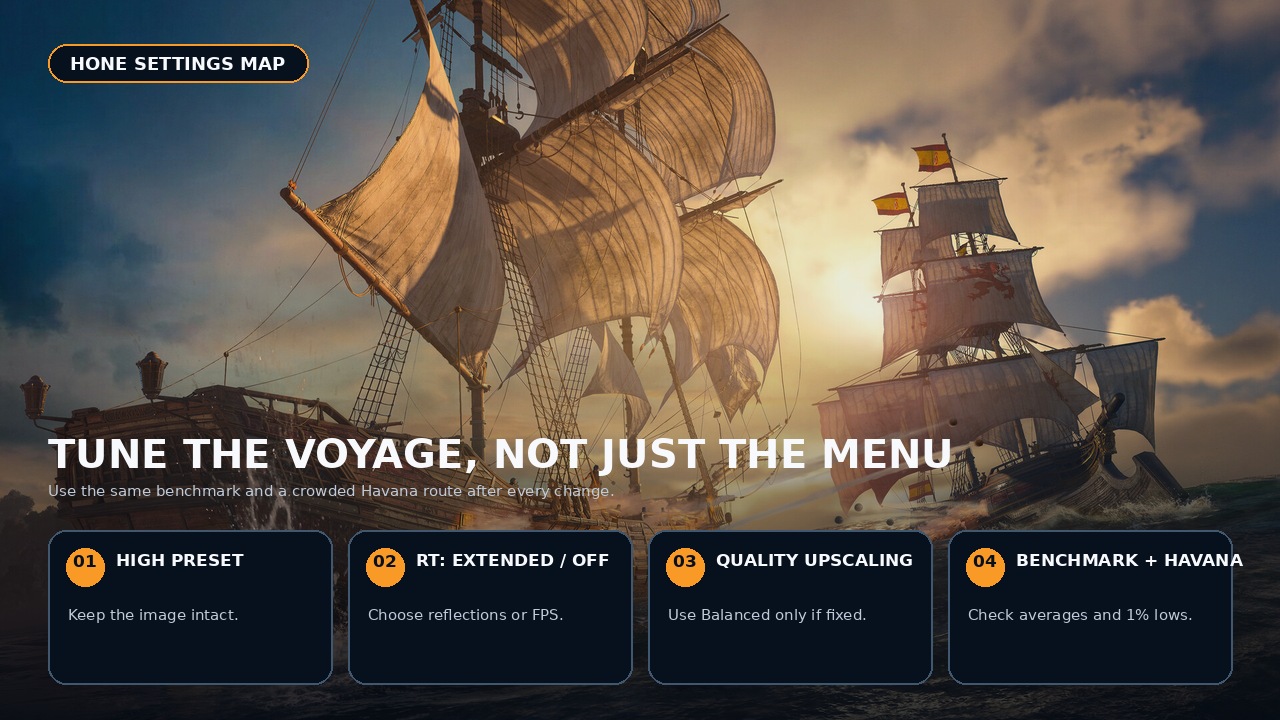
Move to Balanced only after testing a busy city route.
Crowds and dense streets can run worse than open-water sailing.
Reduce avoidable Windows-side load.
After your in-game settings are stable, Hone can help reduce background load and startup clutter. It will not rewrite the game engine or guarantee a frame-rate increase.
Assassin’s Creed Black Flag Resynced is a full modern remake, not a light remaster. The new Anvil Engine version adds denser geometry, modern water rendering, ray-traced global illumination, optional ray-traced reflections, dynamic weather, and current upscalers. That is why a thirteen-year-old adventure can still push a modern graphics card.
The PC version offers a wide preset range and granular graphics controls, so there is room to tune before touching Windows or BIOS options. Some players have also reported severe drops that do not scale normally when presets or ray tracing are lowered.
The baseline below starts from Ubisoft’s official hardware targets; it is not a set of Hone-run benchmarks. Verify it on your own PC with the built-in benchmark and the same crowded Havana route.
Best Black Flag Resynced settings
Balanced PC starting point — verify your own FPS target
| Setting | Recommended | Why |
|---|---|---|
| Overall Preset | High | Strong image quality without the weakest-value Ultra High costs. |
| Ray Tracing Mode | Extended / Off | Extended keeps the high-value water reflections. Off is the cleanest route to extra GPU headroom. |
| Ray Tracing Quality | Medium | Higher levels cost more than they usually return during normal play. |
| BVH Quality | High | Avoid Ultra High during the launch-period cutscene bug; lowering it is not a proven major FPS lever. |
| Character Quality | High | A conservative city baseline that keeps crowds looking consistent. |
| Hair Strands | All Characters Medium | A balanced visual baseline; switch it Off only as a lower-priority fallback. |
| Post Effects | Medium | Retains the overall presentation; disable blur and lens effects separately if preferred. |
| Particles | High | Naval smoke, weather, and combat still look full without maxing the option. |
| Water Quality | High | The ocean is central to the game. Raise it to Very High only with spare headroom. |
| Texture Resolution | Start High; raise with VRAM headroom | Watch the VRAM meter and city traversal. Lower textures if memory pressure causes hitching. |
| Loading Distance | High | Lower it only for specific streaming or memory-pressure problems. |
| Geometry / Micropolygon | High | Preserves dense world detail and limits obvious pop-in. |
| Screen Space Effects | Medium | A sensible compromise, especially with ray tracing disabled. |
| Light Source Quality | Medium | One of the safer places to save GPU time in busy night scenes. |
| Shadow Quality | High | Dense streets and jungles look flat if shadows are cut too far. |
| Cloud / Fog | Medium / High | Keep weather atmosphere while trimming less-visible overhead. |
| Terrain / Scatter | High / High | Maintains island density without paying for every small object. |
| Deformation | Medium | A lower-priority detail that is easy to trim. |
| Upscaling | DLSS/FSR/XeSS Quality | Quality mode is the first performance lever; Balanced is the fallback. |
| Frame Generation | Optional after stable 50–60 base FPS | Generated frames improve displayed smoothness but do not repair weak base performance. |
What to change first
| Impact tier | Settings | Use |
|---|---|---|
| High leverage | RT mode, upscaling/internal resolution, overall preset | Change these first when the GPU is the limit. |
| Conditional | Texture resolution, loading distance, dynamic resolution | Adjust for VRAM pressure, city streaming, or a fixed target. |
| Lower priority | Hair, post effects, particles, deformation, scatter | Treat these as finishing cuts or visual preferences; most do not transform performance alone. |
Pick a settings profile
Your best profile depends on the bottleneck and the experience you want. Use the selector below as a starting point, then test the same route instead of trusting the menu estimate alone.
Choose a performance profile
Each profile protects a different part of the game.
Balanced Start
Keep the Caribbean rich while building toward a frame-rate target your hardware can sustain.
- High preset
- Ray Tracing Off
- Quality upscaling
- High water and shadows
- Frame Generation only after stable base FPS
Why Havana runs worse than the open sea
Do not tune only while standing on the Jackdaw. Open water can run much faster because the engine is drawing fewer nearby characters, buildings, local lights, shadows, and small objects. A crowded Havana street is a better stress test for the settings you will actually notice when performance turns rough.
Start with RT mode, then upscaling or internal resolution, followed by the Overall Preset. Loading Distance and secondary settings come after those larger levers. If GPU use stays near full and FPS rises, you found a normal graphics limit. If performance collapses while GPU use or power drops strangely on a powerful PC, skip to the abnormal-drop section below.
Ray tracing: Standard, Extended, or Off?
Extended is the quality-first profile because it combines ray-traced global illumination with the reflections that matter around water and ships. Standard keeps RT global illumination but drops RT reflections. Off falls back to precomputed lighting and screen-space reflections.
Turning ray tracing Off is the first setting to test when GPU use stays high because it removes the ray-traced lighting path. The gain varies by GPU and scene. Use Extended when your system can hold the target because its reflections have the clearest visual payoff. Choose Off on older cards, memory-constrained setups, handhelds, or high-refresh builds. Standard remains a middle step when you value RT lighting more than reflections.
Extended is for systems that already hold their target comfortably. Reflections can look noisy with aggressive upscaling, so more RT is not automatically a cleaner image. Medium RT Quality is a safer balance than paying for the highest ray count.
DLSS, FSR, XeSS, and dynamic resolution
Use the upscaler built for your GPU where possible: DLSS Super Resolution on GeForce RTX, FSR on current Radeon cards, and XeSS on Intel Arc. Older or unsupported GPUs should compare FSR, XeSS, and the game’s TAA because image quality varies by card. Begin with Quality. If the Havana test still misses your target, try corrected Balanced. Reserve Performance mode for cases where the extra image softness is worth the remaining GPU headroom.
Dynamic Resolution can help chase a fixed target by moving internal resolution as the scene changes. Use it deliberately: set the frame-rate target, run the built-in benchmark, and watch the crowded-city result. Stacking aggressive upscaling, dynamic resolution, and Frame Generation can produce a high counter while the base image and input feel worsen.
Launch-build warning: Balanced and Performance upscaling can use a lower-than-expected output scale, making the final image much softer than the mode name suggests. If Balanced looks unusually blurry, return to Quality rather than assuming that softness is normal. Recheck this behavior after game updates because an upscaler fix may change the best choice.
When to use Frame Generation
Frame Generation is a presentation tool, not a repair kit. It can make motion look smoother on a high-refresh display, but generated frames do not raise the game simulation rate and can add latency. Get the base game to a consistent 50–60 FPS first, then enable DLSS, FSR, or XeSS Frame Generation and judge the result with the controller in your hands.
Turn Frame Generation off while diagnosing hitches, low GPU use, or inconsistent input. Compare base FPS separately from displayed FPS; otherwise, a larger number can hide weak native pacing.
1080p, 1440p, 4K, and handheld starting points
Official hardware targets — use them as anchors, not guarantees
| Ubisoft target | Listed GPU class | Official settings anchor |
|---|---|---|
| 1080p / 30 FPS | GTX 1660, RX 5500 XT, Arc A580 | Low, Standard RT, Balanced upscaling |
| 1080p / 60 FPS | RTX 3060, RX 6600 XT, Arc B580 | Medium, Standard RT, Balanced upscaling |
| 1440p / 60 FPS | RTX 3080 or RX 6800 XT | High, Standard RT, Balanced upscaling |
| 4K / 60 FPS | RTX 4090 or RX 7900 XTX | Ultra High, Extended RT, Quality upscaling |
| Handheld PC | Use the device-specific preset | Start with RT Off and test a stable 30 or 40 FPS target. |
Build your starting profile
Pick a resolution, target, and priority. The builder gives you a first test—not a promised frame rate—then Havana decides whether the profile survives.
Balanced starting point
Start with High, RT Off, and Quality upscaling, then verify the target in Havana.
- High preset
- RT Off
- Quality upscaling
- Watch the VRAM meter
Hardware, patches, drivers, and the test scene determine the result.
Test settings without guessing
A four-part benchmark route
Change one group of settings at a time and keep the route, weather, and cap consistent.
- Built-in benchmark: record average FPS, 1% lows, GPU use, and VRAM use.
- Crowded Havana route: run through the same market or street for two minutes. Use this as your repeatable city stress test.
- Naval combat: test water, particles, smoke, and weather while turning the camera.
- Compare frame time: a stable cap is often better than a higher average with visible spikes.
If you use a variable refresh rate (VRR) display and want a capped, tear-free setup, choose a cap below the monitor’s refresh ceiling so the game stays inside the VRR range. Use one limiter at a time. An in-game cap, driver cap, and RTSS cap stacked together create more variables than answers.
Fix severe FPS drops on high-end PCs
Some players have reported low frame rates that barely change when presets or ray tracing are lowered. If GPU use or power also drops unexpectedly, treat that as an abnormal case—not proof of a specific CPU or scheduling fault.
Normal bottleneck or abnormal collapse?
Use behavior, not the price of your GPU, to separate the two.
Use the safe order first: restart after graphics changes that require it, verify game files, install the current game-ready driver, let the first boot finish its cache work, disable unused overlays and recording, remove third-party injectors, test keyboard and controller separately, and compare the built-in benchmark with actual Havana play. Keep the game on the required SSD with free space available.
Do not make disabling Hyper-Threading, P-cores, E-cores, or half your CPU the first fix. A temporary affinity test can help identify a scheduling problem, but it can also hurt other games and applications. If the safe baseline still shows a severe collapse, preserve your test notes and wait for a game or driver update rather than turning a community workaround into permanent BIOS policy.
Fix the 30 FPS cutscene bug
If gameplay is smooth but a cutscene suddenly locks to 30 FPS, do not assume your PC has become the bottleneck. Ubisoft’s launch known-issues notice identifies a PC bug that can appear when Ray Tracing Quality, BVH Quality, or Terrain Quality is manually set to Ultra High.
The official temporary workaround is to reset Overall Preset to a preconfigured profile and avoid manually setting those three options to Ultra High. Ubisoft lists a fix as incoming. Avoid third-party cutscene mods while diagnosing crashes or visual bugs; remove any such mod before troubleshooting.
PC requirements reality check
The official Steam page lists Windows 10 or 11 64-bit, DirectX 12, 16 GB RAM, and 65 GB of SSD storage for every tier shown there. Minimum GPUs begin at the GTX 1660 6 GB, RX 5500 XT 8 GB, or Arc A580 8 GB. Recommended GPUs include the RTX 3060 12 GB, RX 6600 XT 8 GB, and Arc B580 12 GB.
That does not mean every minimum-spec PC should chase Ultra High or 60 FPS. It means Ubisoft built real scalability into the game. Medium settings with ray tracing Off and Quality upscaling are a sensible older-GPU baseline, while stronger cards can spend their headroom on water, textures, and lighting.
Recommended baseline
For most PCs, use the High preset, RT Off, High character and shadow quality, High water, textures matched to your VRAM, High loading distance and geometry, High micropolygon, Medium screen-space effects, Quality upscaling, and no Frame Generation until base performance is stable. Capable GPUs can switch to Extended RT at Medium quality for the better water reflections.
Test the built-in benchmark, a crowded Havana route, and naval combat before raising anything. If your high-end PC behaves nothing like a normal GPU bottleneck, keep the baseline clean and use CPU-affinity changes only as temporary diagnostic tests. For more game-side tuning, compare Hone’s Assassin’s Creed Shadows settings guide. The broader PC gaming optimization guide covers Windows-side cleanup.
Keep more of your system focused on the game.
Once Black Flag Resynced is tuned, Hone can help cut avoidable background load and tidy Windows-side gaming settings. The goal is cleaner headroom, not a promise of instant frames.
Black Flag Resynced settings FAQ
What are the best Black Flag Resynced PC settings?
Start with the High preset, RT Off, High water, shadows, loading distance, geometry, and micropolygon, textures matched to VRAM, Medium screen-space effects, and DLSS, FSR, or XeSS Quality. Capable GPUs can add Extended RT at Medium quality after the Havana test is stable.
Should I disable ray tracing in Black Flag Resynced?
Disable ray tracing on weaker GPUs, 8 GB cards under memory pressure, handhelds, or high-refresh setups. Use Extended RT on systems already holding their target because its water reflections deliver the clearest visual gain. Standard keeps RT lighting but drops those reflections.
How do I fix Black Flag Resynced stuttering and FPS drops?
Restart after required graphics changes, verify files, update the GPU driver, disable unused overlays and injectors, test without Frame Generation, and compare the built-in benchmark with Havana. Avoid permanent BIOS or CPU-affinity changes unless a controlled test proves a scheduling issue.
Which upscaler should I use in Black Flag Resynced?
Use DLSS on GeForce RTX, FSR on current Radeon cards, and XeSS on Intel Arc. Older or unsupported GPUs should compare FSR, XeSS, and TAA. Start with Quality, then try corrected Balanced if the crowded-city test still misses your target.
Does Black Flag Resynced need an SSD and 16 GB RAM?
Yes. Steam’s listed PC requirements specify 16 GB RAM, 65 GB of available space, and installation on an SSD.
How do I fix 30 FPS cutscenes in Black Flag Resynced?
Reset Overall Preset to a preconfigured profile and avoid manually setting Ray Tracing Quality, BVH Quality, or Terrain Quality to Ultra High. Ubisoft identifies this as a known PC bug and lists a fix as incoming.




 Youtube